CYCLONE-User-Manual.pdf - 第42页
User Manual For Cyclone LC Programmers 42 5.2.1 Select Programming Image Displays a list of the available programming images so that the user may select one for programming. Images in the Cyclone’s internal memory are pr…
User Manual For Cyclone LC Programmers 41
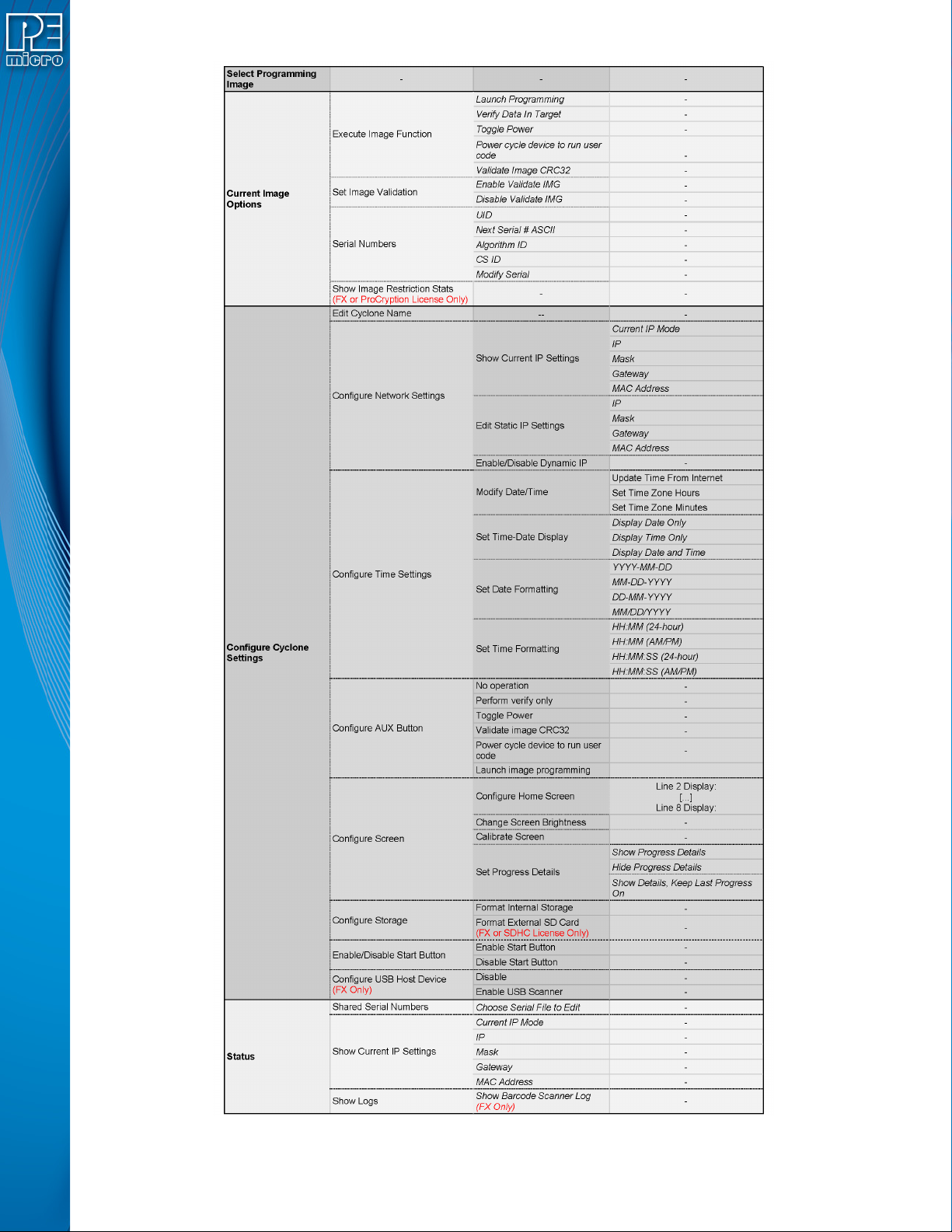
Figure 5-2: Main Menu Structure
User Manual For Cyclone LC Programmers 42
5.2.1 Select Programming Image
Displays a list of the available programming images so that the user may select one for
programming. Images in the Cyclone’s internal memory are preceded by the designation “IN” and
numbered sequentially, i.e., IN1: first image name, IN2: second image name. If the SDHC port of
the Cyclone is activated and contains a memory card (and the SDHC License Activation is
installed), any programming images that reside on the SD card will be preceded by the designation
“EX” in similar fashion.
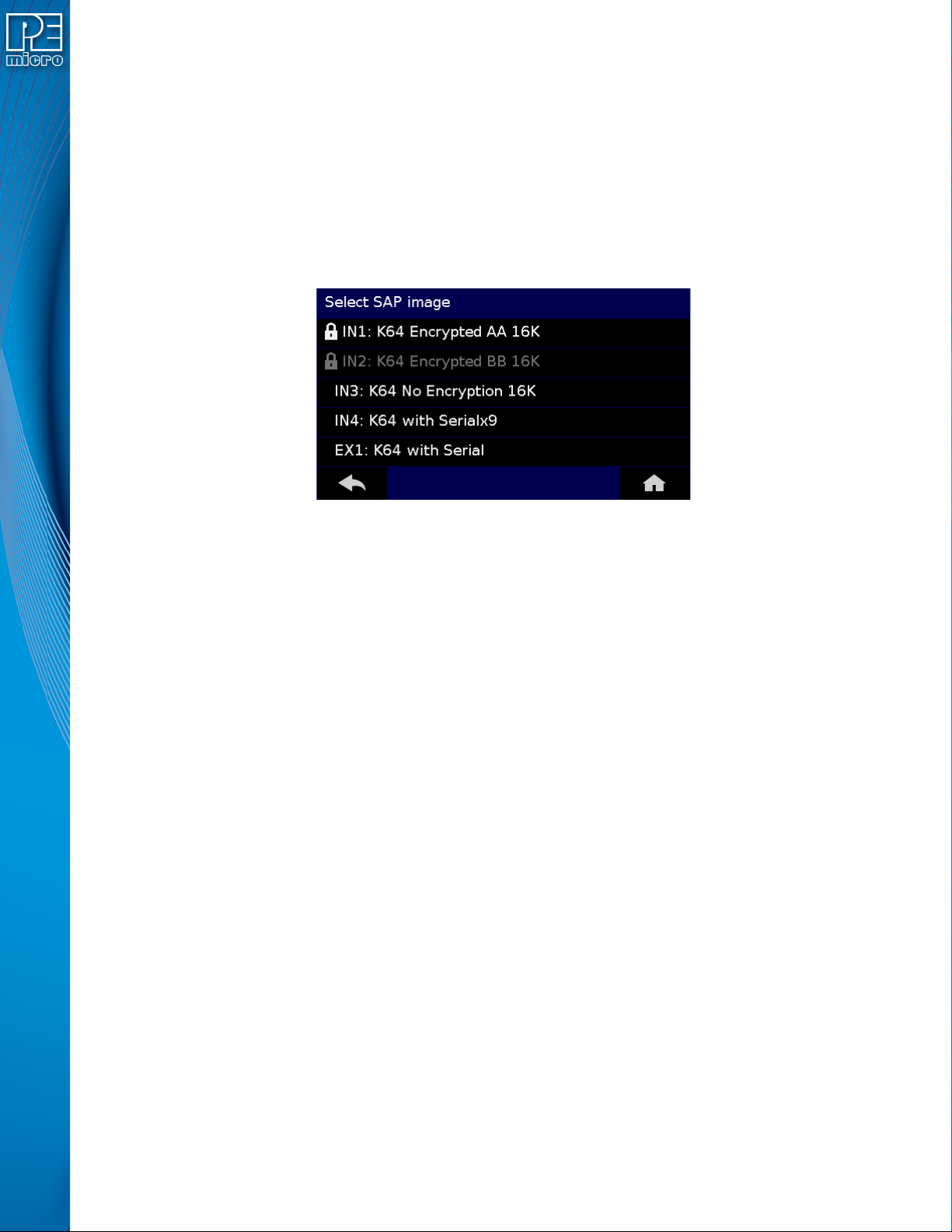
Encrypted (eSAP) images will display a lock icon to the left of the image description. If the
ImageKey needed to decrypt an eSAP image is missing from the Cyclone, the image will appear
grayed out. and cannot be selected for programming until the appropriate ImageKey is loaded onto
the Cyclone (see image #2 in Figure 5-3).
Figure 5-3: Lock Icon Denotes Encrypted Images
You may tap the appropriate image to select it. The image name shown is the one specified in the
Cyclone Configuration Utility when saving the image to the Cyclone/SD card.
5.2.2 Current Image Options
This menu presents options that allow the user to select or configure programming images on the
Cyclone LC.
5.2.2.1 Execute Image Function
Execute Specific SAP Function presents four Stand-Alone Programming functions that you may
execute by tapping the function that you wish to execute:
5.2.2.1.1 Launch Programming
This allows the user to execute the programming function. The Cyclone LC will program the target
device, if able, using the currently selected programming image. This is functionally equivalent to
pressing the Start button.
5.2.2.1.2 Verify Data In Target
Performs a verify function on the data that has been programmed into the target device.
5.2.2.1.3 Toggle Power
Toggles the target power and makes sure all ports are driven to debug mode level.
5.2.2.1.4 Power Cycle Device To Run User Code
Toggles the target power and maintains tri-state mode for all signals.
5.2.2.1.5 Validate Image CRC32
Allows the user to perform a CRC32 validation on the currently selected programming image.
User Manual For Cyclone LC Programmers 43
5.2.2.1.6 Launch Image Programming
Launches the selected programming image. Replaces the hardware Start Button.
5.2.2.2 Set Image Validation
Allows the user to choose between two validation settings: 1) validate the image each time the
Start button is pressed, or 2) do not validate the image.
5.2.2.3 Serial Numbers
Displays the serial number information associated with the currently selected programming image.
If there is none, it will display, “This Image Contains No Serial Numbers.” There may be one or
more Serial Files associated with the image. The user can click on a specific Serial File name to
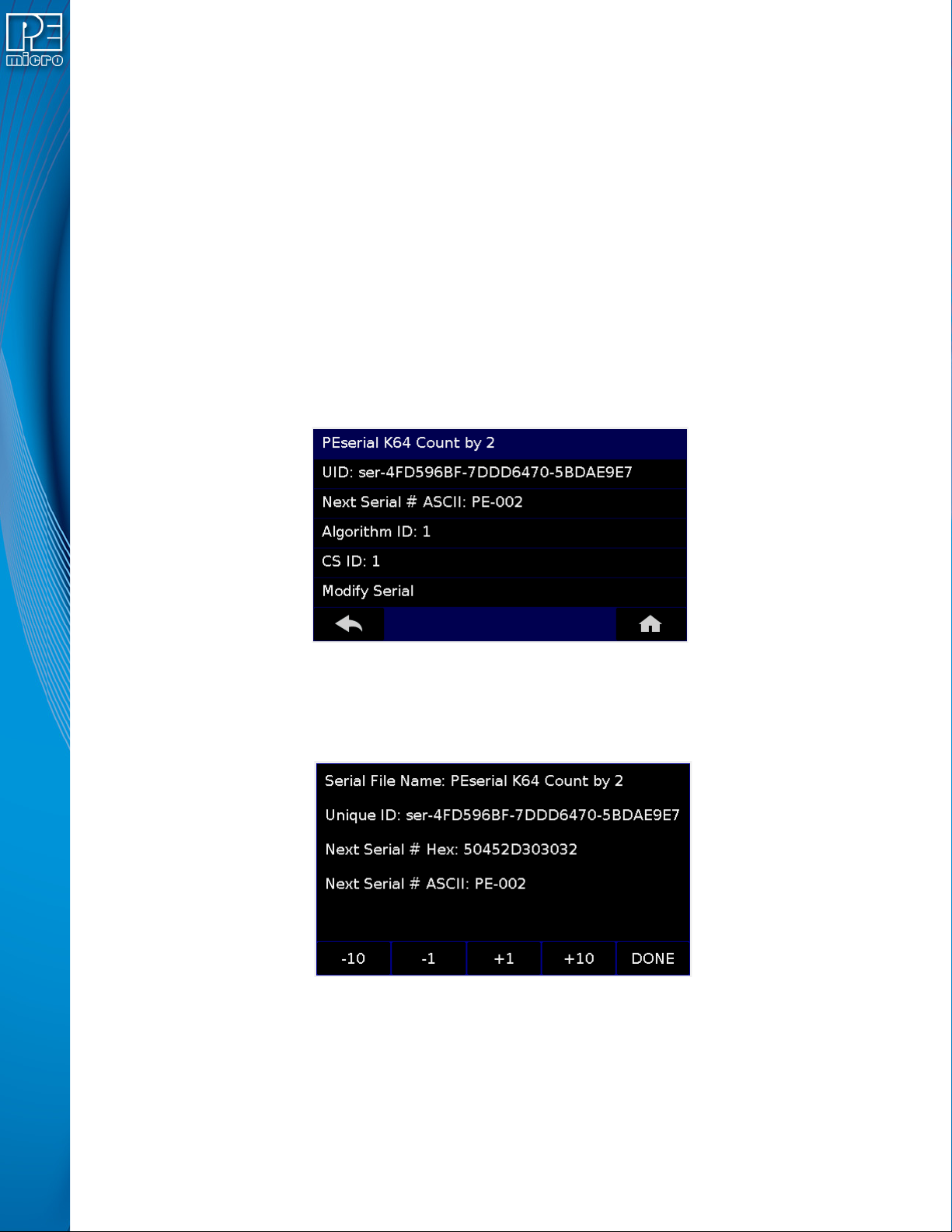
see the following information about that Serial File:
• UID - Unique identifier of the serial number
• Next Serial # ASCII - Next serial number to be programmed (shown in ASCII format)
• Algorithm ID - Displays the algorithm ID of the serial file
• CS ID - Displays the ID of the CS (Choose Serial) command in the SAP file.
Figure 5-4: Serial File Selection
The user can also click on “Modify Serial Number” to edit that serial number. It is possible to
Decrease or Increase the Next Serial by -10, -1, +1, +10. This is often done to address issues in
the production process, such as during initial setup.
Figure 5-5: Increase or Decrease Serial Number
The adjustment buttons will display “Increase Not Allowed” and “Decrease Not Allowed” if the
image/algorithm/CS file that the user has selected does not allow for this operation.
Note: Older serial files are specific to one programming image, unlike PEmicro’s current serial files. If
viewing Serial Number info for an image that references one or more older serial files, the Cyclone
will not show links to the serial files but will instead display serial number info for the first serial file.
The user can then Modify Next Serial to change the next serial number, or click MORE at the