CYCLONE-User-Manual.pdf - 第95页
User Manual For Cyclone LC Programmers 95 showed will be the updated value of the property . 8.4.2.3 The Remote Display T ab This tab will show the current display of the Cyclone. The utility checks every second for chan…
User Manual For Cyclone LC Programmers 94
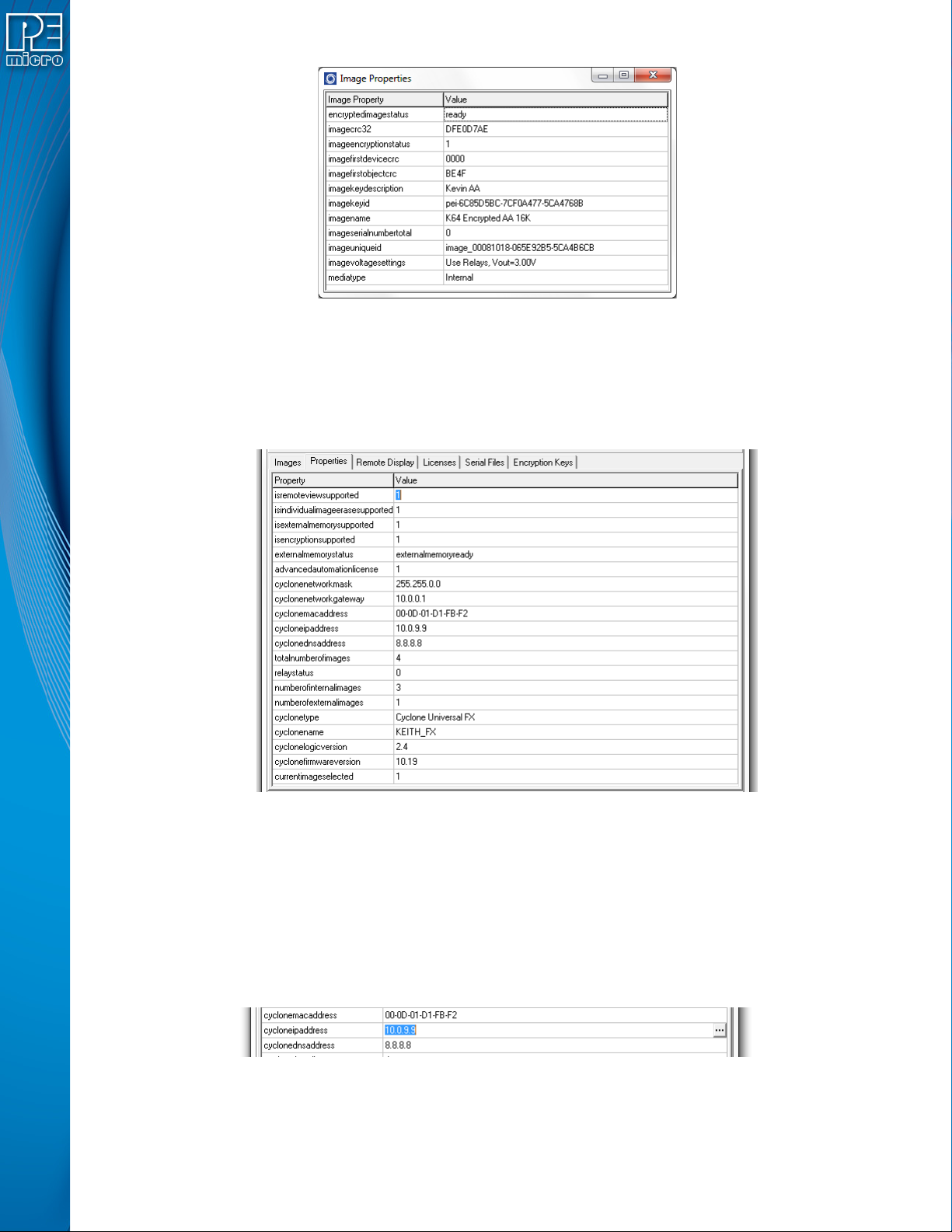
Figure 8-6: Image Properties Window
Properties like the image name, the voltage settings, image CRC, encryption info, and all current
serial numbers can be viewed from this window. Use this feature to make sure your image settings
are correct or check that the serial numbers change accordingly.
8.4.2.2 Properties Tab
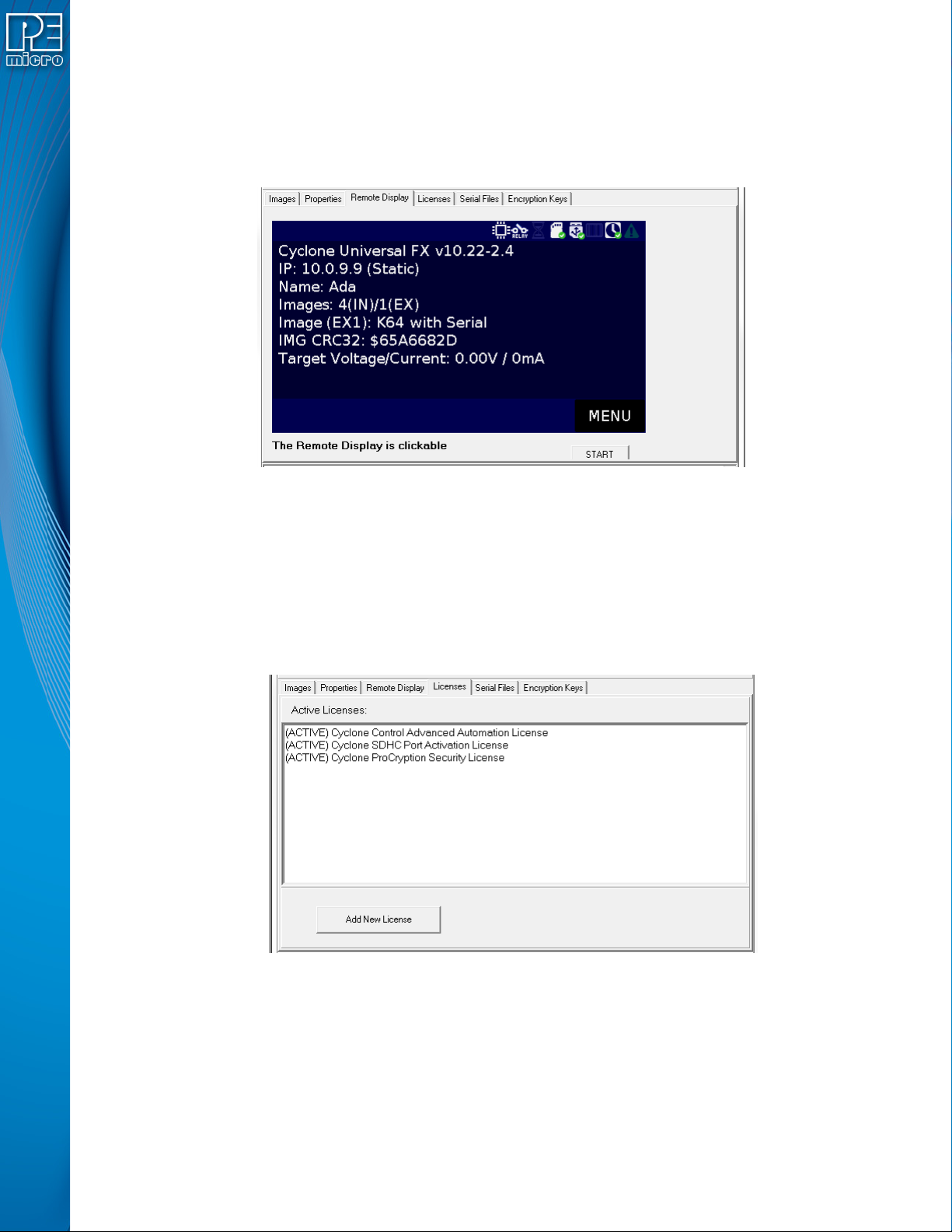
Figure 8-7: Properties Tab
The properties tab shows all the network, Cyclone and image properties. It also shows properties
for the supported features of the Cyclone. From this tab the Cyclone firmware and logic versions,
the cyclone type, and the number of images are available. Also from this tab some of the
properties can be modified.
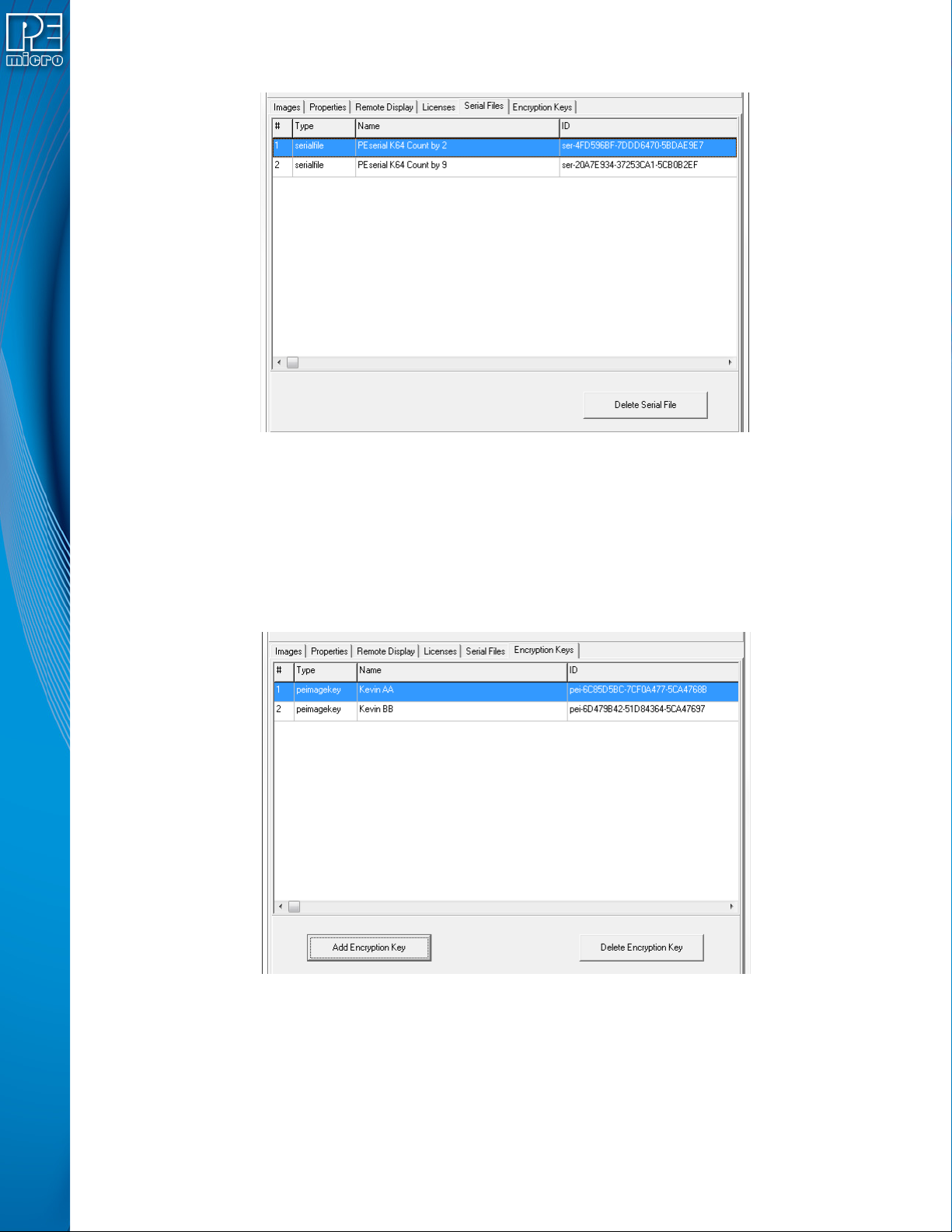
8.4.2.2.1 Modifying A Cyclone Property
Some properties in the Cyclone are modifiable. Only the properties that can be modified will show
three dots to the right of the property when the property is selected.
Figure 8-8: Modifying Cyclone Properties
Clicking on the three dots or double clicking on the property value will bring up an edit window.
Write the new property value and click “OK”, the property window will refresh and the value
User Manual For Cyclone LC Programmers 95
showed will be the updated value of the property.
8.4.2.3 The Remote Display Tab
This tab will show the current display of the Cyclone. The utility checks every second for changes
in the display and updates the image to the current display. This image is also clickable so clicks
on the virtual screen are also registered by the Cyclone.
Figure 8-9: Remote Display & Control of Cyclone Screen
8.4.2.4 Licenses Tab
New licenses can be added to the Cyclone using the Licenses tab. Clicking on “Add New License”
will prompt the PEmicro License Activation Form. This form takes in the Installation Code for a
product and can automatically validate and register the installation.
This tab also shows the current licenses active in the Cyclone, including the Cyclone Control
Advanced Automation License, SDHC Port Activation License, and ProCryption Security
Activation License.
Figure 8-10: Licenses Tab
8.4.2.5 Serial Files Tab
The Serial Files Tab displays any Serial Files that are on the Cyclone. Serial Files can be “deleted”
with the “Delete Serial File” button, but in this case it simply means that they will not be displayed.
An image file that uses a “deleted” Serial File will simply cause the file to re-appear and resume
with its next serial number.
Note: Older images may reference Serial Files that are image-specific and cannot be shared among
images (like current Serial Files). These will not appear in the Serial Files tab. The Cyclone menu
User Manual For Cyclone LC Programmers 96
can be used to make changes to the serialization of these images.
Figure 8-11: Serial Files Tab
8.4.2.6 Encryption Keys Tab
CYCLONE FX programmers and CYCLONE programmers with the ProCryption Security
Activation License are able to encrypt programming images with a user-generated ImageKey. In
order to load an encrypted image onto a Cyclone, or to program with an encrypted image once it is
on the Cyclone, the ImageKey used to encrypt that image must be present on the Cyclone.
The Encryption Keys tab displays any ImageKeys that reside on the Cyclone. The Name and
unique ID number for each ImageKey is shown.
Figure 8-12: Encryption Keys Tab
The Add Encryption Key button allows the user to browse to an ImageKey that they wish to add to
the Cyclone. Encrypted (eSAP) programming images cannot be loaded onto the Cyclone unless
the ImageKey that was used to encrypt them is present on the Cyclone.
The Delete Encryption Key button will delete the selected ImageKey from the Cyclone. The user
should bear in mind that if the ImageKey is missing for an eSAP image, that image will be locked
and cannot be programmed.