CYCLONE-User-Manual.pdf - 第16页
User Manual For Cyclone LC Programmers 16 These settings can be made using the corresponding areas of the Cyclone Image Creation Utility . Step 6. Save SAP image to Cyclone The user should then save the SAP image onto th…
User Manual For Cyclone LC Programmers 15
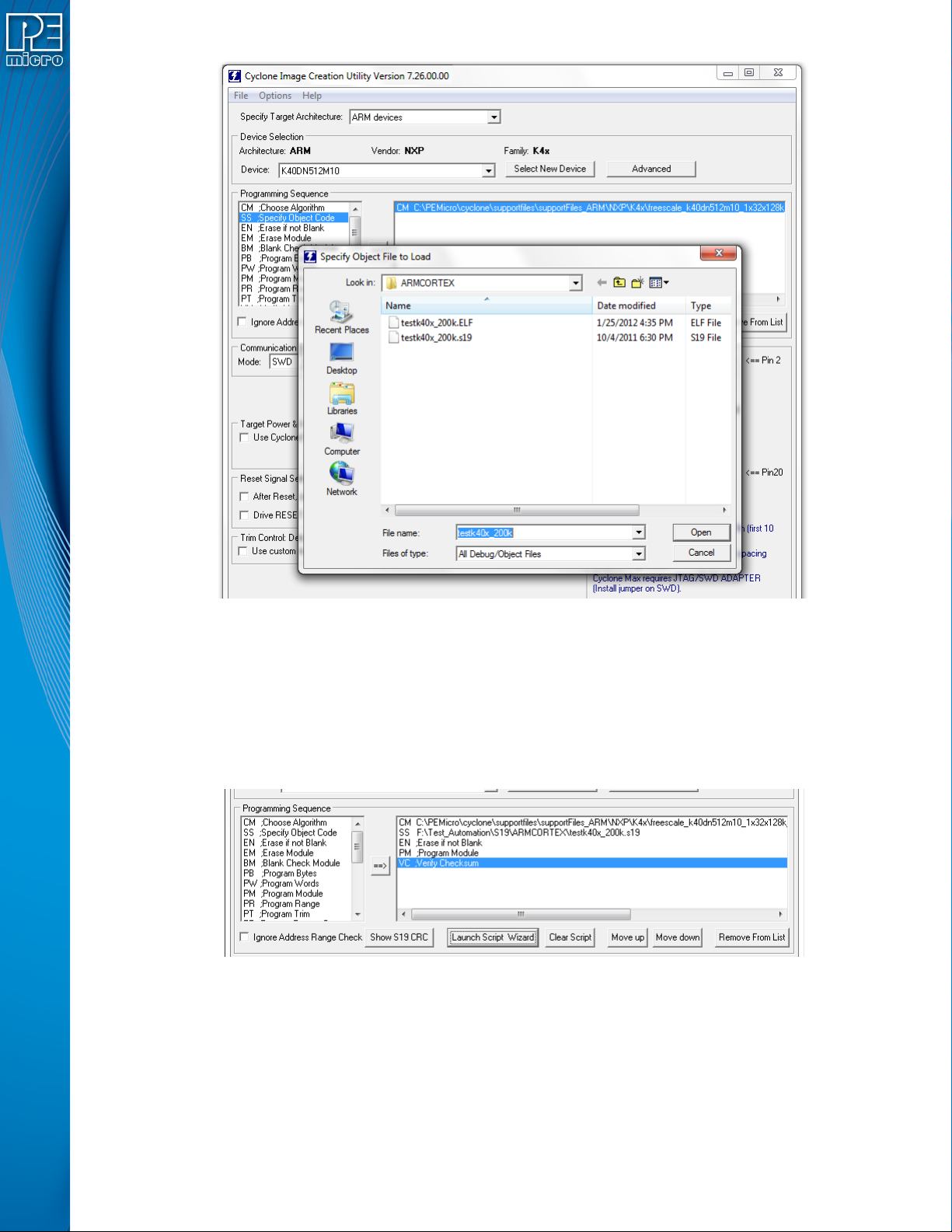
Step 4. Adding Basic Programming Commands
The user should then add other basic programming commands, using the list of commands on the left
side of the Programming Sequence area. The arrow and buttons allow the user to add, remove, and
re-sequence the commands, in the box on the right. As an example, some basic commands might be
• Erase
• Program
• Verify
Note: Launch Script Wizard can also be used to quickly complete Steps 3 and 4.
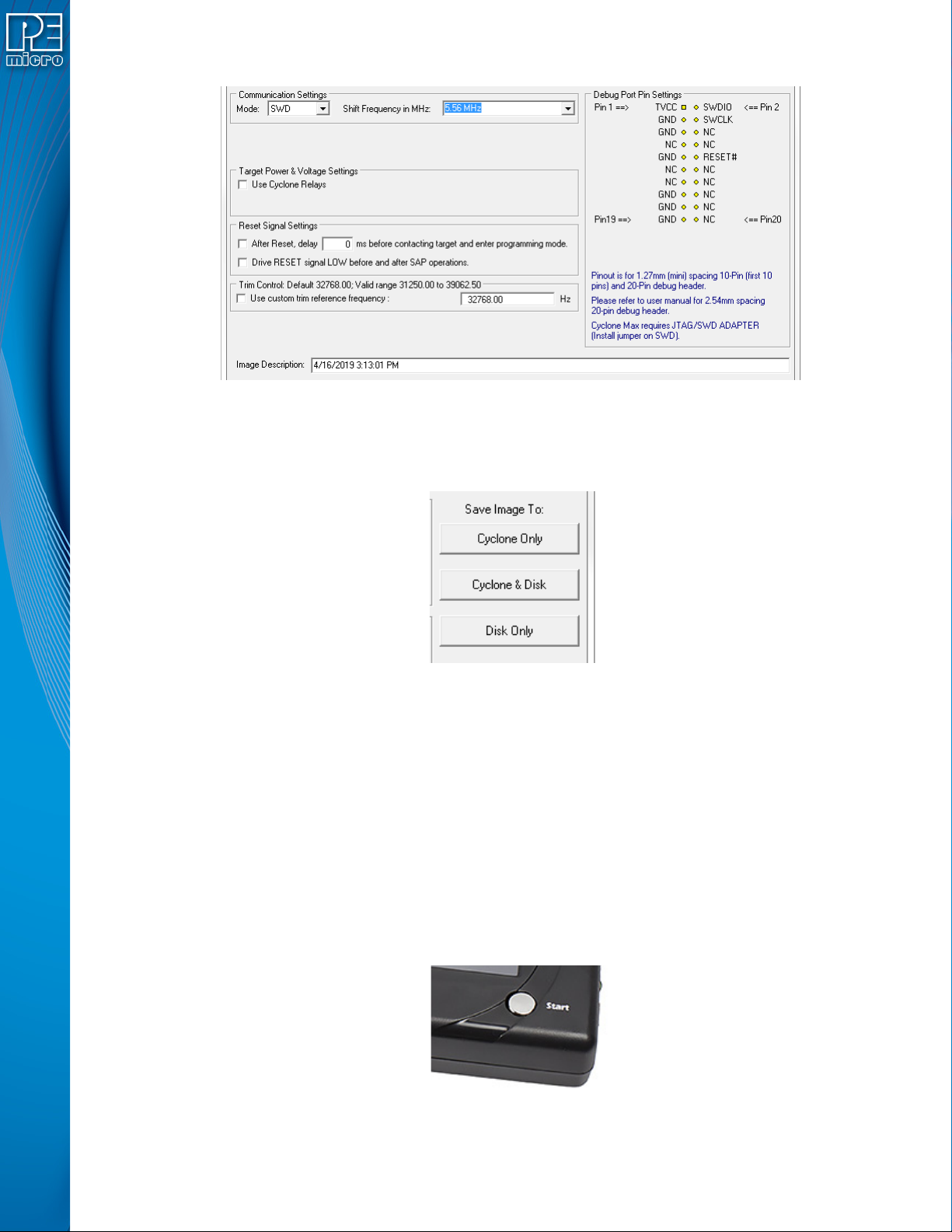
Step 5. Other Settings
The user should then specify any other settings that the SAP image should contain in order to program
correctly, such as
• Communication SWD vs JTAG
• Shift frequency
• Target Power and Voltage Settings
User Manual For Cyclone LC Programmers 16
These settings can be made using the corresponding areas of the Cyclone Image Creation Utility.
Step 6. Save SAP image to Cyclone
The user should then save the SAP image onto the Cyclone by clicking the button to save to “Cyclone
Only” or “Cyclone & Disk.” The image will be automatically selected as the current SAP image on the
Cyclone.
2.3.1 Advanced Features
Cyclone programmers can take advantage of several advanced features that are beyond the scope of
this Getting Started guide, such as RSA/AES encrypted programming images, programming
restrictions on images (see Section 6.1.8 - ProCryption Security License Features), and use of a
barcode scanner to launch programming (see CHAPTER 12 - USING A BARCODE SCANNER TO
SELECT AN IMAGE & INITIATE PROGRAMMING). CYCLONE FX programmers include all of these
features, and CYCLONE programmers can use many of these features with the appropriate activation
license.
2.4 Launching Cyclone Programming
There are three ways to launch programming.
1. Cyclone Start Button Press - The user simply presses the Start button located on top of
the Cyclone programmer.
2. Cyclone Control Console (command-line utility) - The user writes a script that specifies
parameters and initiates programming using the command line. More information is avail-

User Manual For Cyclone LC Programmers 17
able in the Cyclone’s User manual or at: http://www.pemicro.com/blog/
index.cfm?post_id=142
3. SDK - The SDK is a software library that is used in conjunction with the user’s own code.
The user writes a customer application that uses this library of functions to launch pro-
gramming. More information is available in the Cyclone’s User Manual, or at: http://
www.pemicro.com/blog/index.cfm?post_id=139
The “Success” or “Error” LED will illuminate to let the user know the result of programming.
Note: If programming is unsuccessful when using this quick start procedure, the user may instead wish
to use the included PROG software for their target device. The PROG software allows the user to
manually walk through the programming procedure step by step, which may help determine which
part of setup or programming function is causing difficulty.