CYCLONE-User-Manual.pdf - 第62页
User Manual For Cyclone LC Programmers 62 to update the Cyclone accordingly . No actual updates will occur to the Cyclone’ s internal/external memory or installed SD card until the user selects “Apply Changes. Note: Any …
User Manual For Cyclone LC Programmers 61
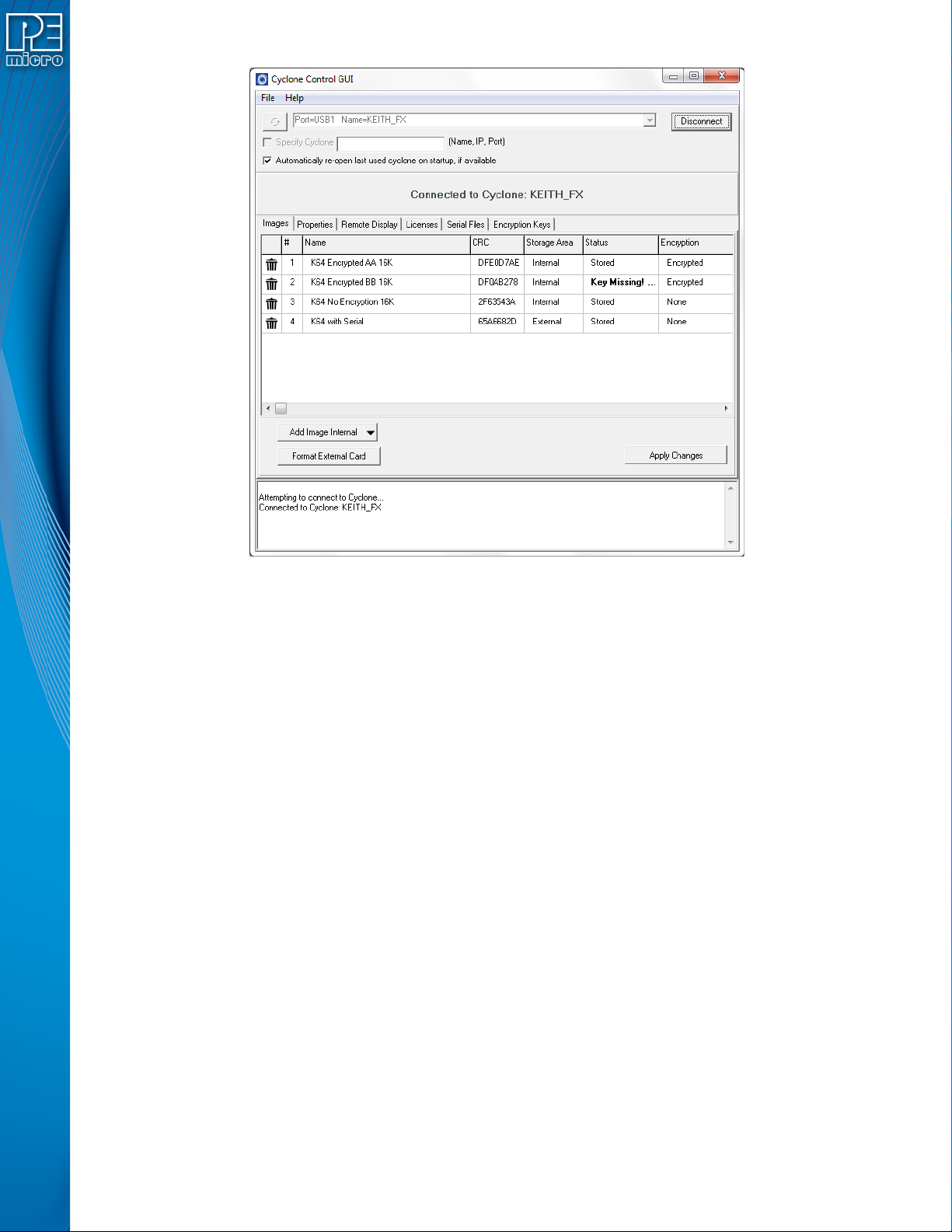
Figure 6-24: Manage Images Utility
Upon opening a selected Cyclone in the Cyclone Control GUI, the user is provided in the first tab
with a list of the images currently on the unit’s internal memory which are marked with a Storage
Area label of "Internal". A list of images on any installed SDHC card will also be displayed with a
Storage Area label of "External"
You can add images with the "Add Image Internal" button under the images panel. These images
will appear with a "Status" label of "Ready to Store". These images are not yet in the Cyclone, the
"Apply Changes" button will have to be clicked for the changes to take effect.
If the Cyclone’s SDHC port is activated, the user can also add images to the external memory by
using the drop-down next to the "Add Image Internal" button and selecting "External". Alternatively,
once an image has been added to the proposed changes and it is in the "Ready to Store" state, the
user may right click on the image and click the "Switch storage to External" option.
In Figure 6-25, note that the Encryption area displays “Encrypted” or “None” to indicate whether
or not each programming image is has been encrypted. The Status area will display “Key
Missing!” if the ImageKey for an encrypted image has been removed from the Cyclone.
For information on how to encrypt SAP Images and the significance of the ImageKey, please refer
to Section 6.1.8.1 - SAP Image Encryption. For an overview of Cyclone SAP Image encryption
and the process of using encrypted images in the production process, please see CHAPTER 11 -
SAP IMAGE ENCRYPTION.
6.2.1 Delete Images From Internal/External Memory
Any images that are already stored on the Cyclone or installed SD card can be deleted by just
clicking on the trash can on the left of the image or by selecting the image and clicking the Delete
key on the keyboard, the image status will be changed to "Ready to Erase.” The image will be
removed after "Apply Changes" is clicked.
6.2.2 Add/Remove Images From The Commit Changes Panels
Once the images that you wish to load appear in the images tab, you must press “Apply Changes”

User Manual For Cyclone LC Programmers 62
to update the Cyclone accordingly. No actual updates will occur to the Cyclone’s internal/external
memory or installed SD card until the user selects “Apply Changes.
Note: Any SAP images that are already stored on older Cyclone models such as the Cyclone PRO,
MAX, Renesas, STMicro, or Cyclone LC ARM - Rev. A/B (or on a CompactFlash card in one of
those units, if applicable) can not be removed individually and can only be erased by removing all
images.

User Manual For Cyclone LC Programmers 63
7 CYCLONE PROGRAMMER MANUAL CONTROL
The Cyclone LC must be configured before it can serve as a Stand-Alone Programmer. The user
may manually control the Cyclone via the LCD touchscreen menu and/or the Start button, or via
PC software. See CHAPTER 8 - CYCLONE PROGRAMMER AUTOMATED CONTROL
(CYCLONE CONTROL SUITE) for information on how to use the Cyclone Control Suite to
configure, control, and automate Cyclone operations. The target power management schemes
remain the same for each control method.
7.1 Operation Via Start Button
There is a Start button on the top of the Cyclone which is used for stand-alone programming. It is
specified as follows.
Button Function
START Start executing the tasks pre-configured into the Cyclone of the currently
selected programming image.
7.1.1 LED Indicators
The Cyclone has two (2) LEDs to indicate the current operation stage.
LED FUNCTION
Error The Cyclone failed to execute the functions as instructed.
Success The Cyclone executed the functions successfully.
7.1.2 Procedure via Start Button / LEDs
The following steps must be followed in order for the Cyclone to operate properly after it has been
configured:
1. Turn off the target power supply if the “POWER IN” Jack is adopted.
2. Turn off the Cyclone system power.
3. Set the correct Power Management jumper settings.
4. Connect the target power supply to the “POWER IN” Jack, if applicable.
5. Connect the “POWER OUT” Jack to the target board power, if applicable.
6. Connect the ribbon cable to the target board debug connector.
7. Turn on the Cyclone system power.
8. Turn on the target power supply, if applicable.
9. Press the “START” button on the Cyclone.
When the “Success” LED lights up, you have successfully programmed your target.
7.1.3 Example
After the user programs the contents and procedures into the Cyclone’s on-board flash, the
Cyclone may be used as a Stand-Alone Programmer. Suppose the user wants to perform the
following instructions for a target device:
1) Erase Module
2) Program Module
3) Verify Module.
If the Cyclone is providing power to the target board, the “Target Power” icon will illuminate on the
LCD display.
The Cyclone will then perform the operations. If they are performed successfully, the “Success”
LED will be illuminated. One stand-alone programming cycle will have just been completed.