CYCLONE-User-Manual.pdf - 第53页
User Manual For Cyclone LC Programmers 53 Figure 6-1 1: Specify Object File T o Load Next, the user would add additional programming functions to complete the programming script by selecting programming operation command…
User Manual For Cyclone LC Programmers 52
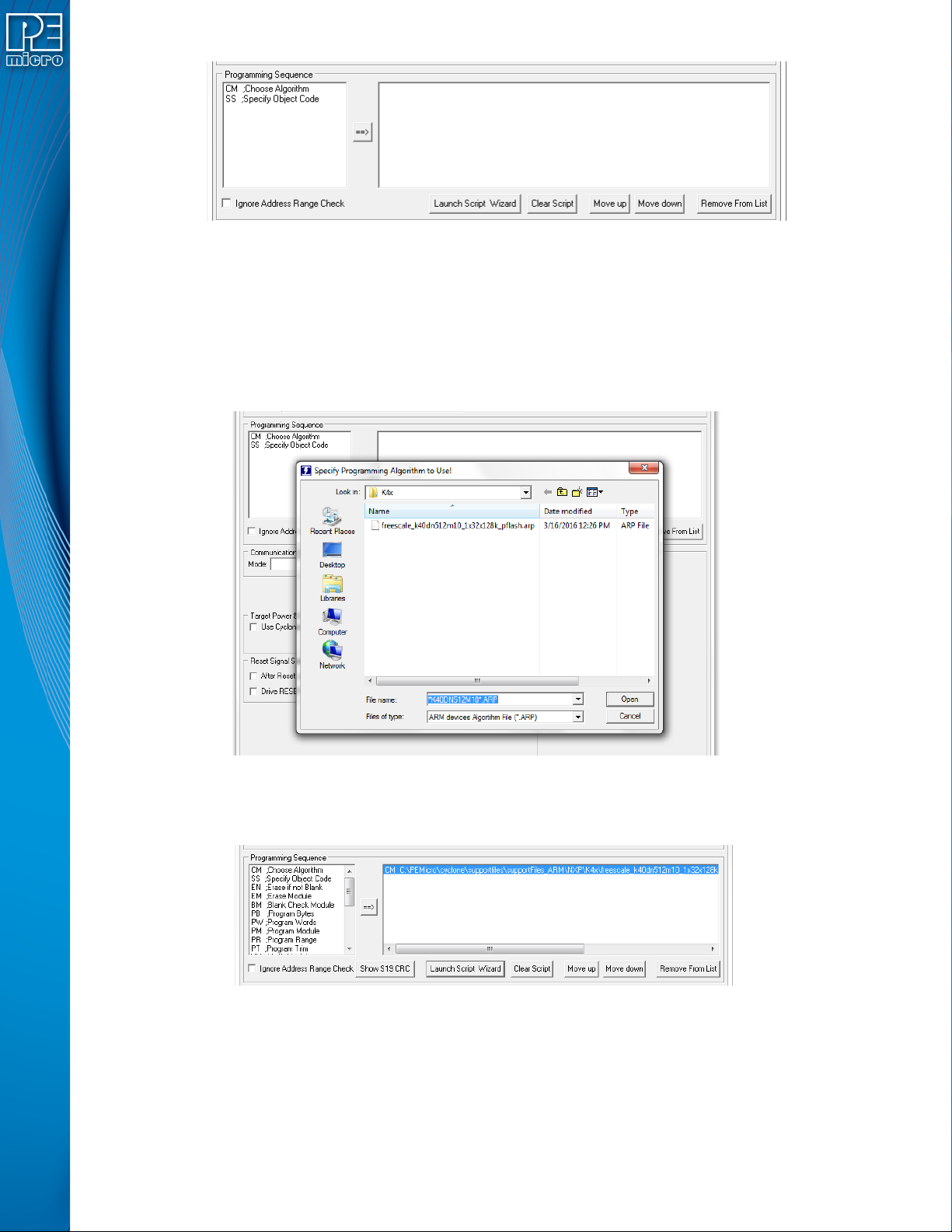
Figure 6-8: Specify Programming Sequence
There are two ways to create the programming sequence.
6.1.3.1 Manual Selection
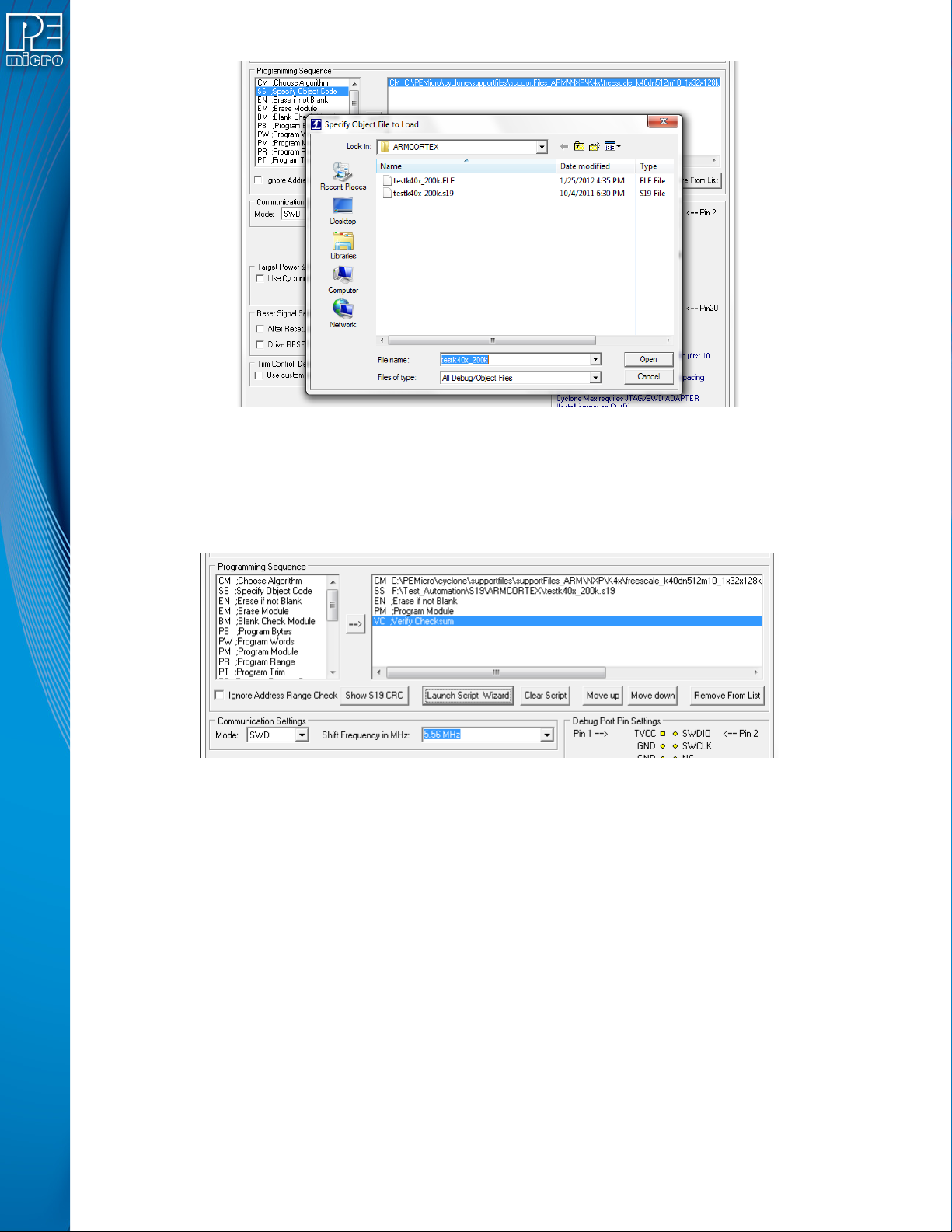
The user can individually specify the algorithm and the object code and then add commands. To
specify the programming algorithm for the target, double-click on the Choose Algorithm (CM)
function in the left panel. Or, it can be highlighted and added it to the right panel using the arrow
(->). This opens the “Specify Programming Algorithm to Use” dialog.
Figure 6-9: Specify Programming Algorithm To Use
The user should select the programming algorithm to be used. Once the algorithm is selected, the
full list of programming functions becomes available in the left panel.
Figure 6-10: Programming Functions Available
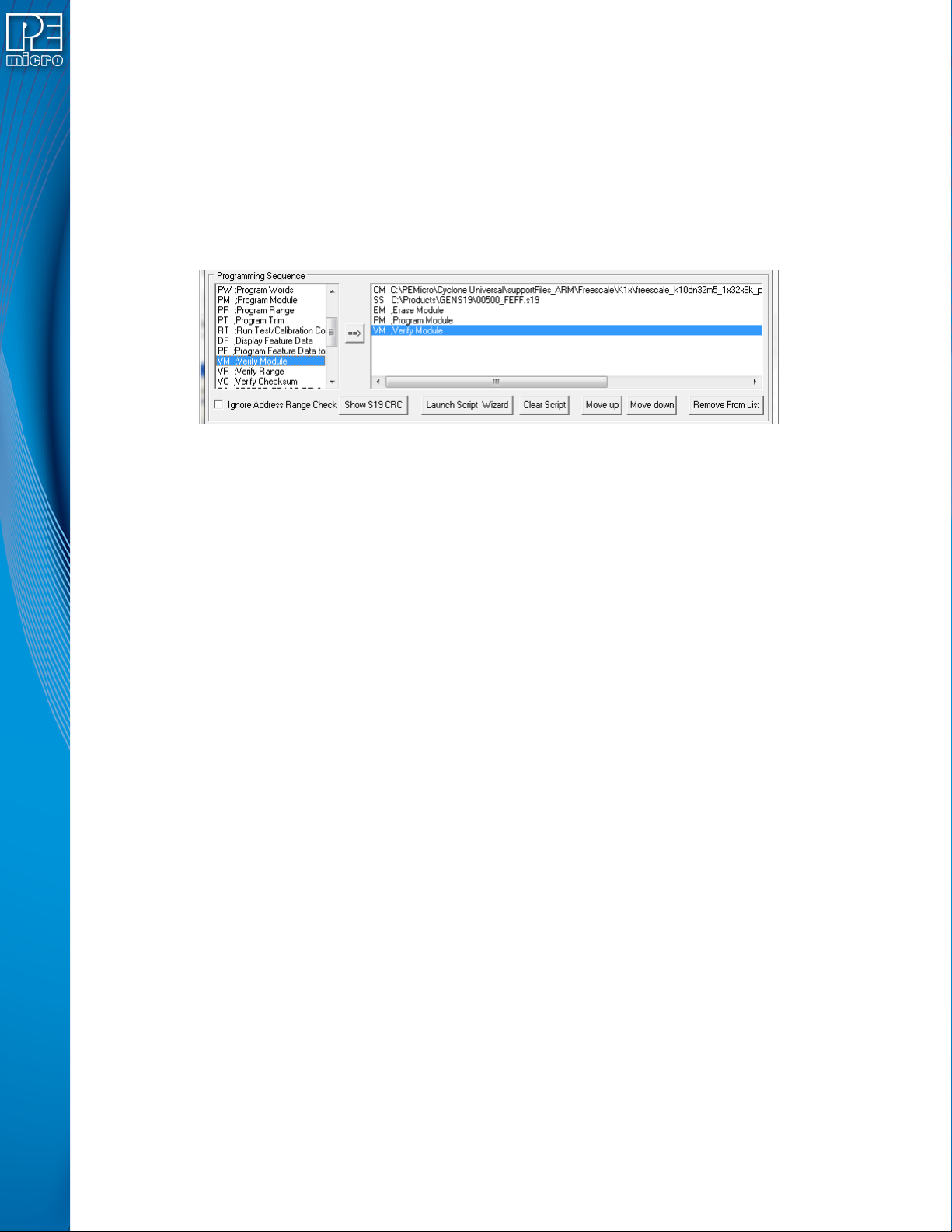
Similarly, to specify the S-Record to be programmed into the target, the user may double-click on
Specify Object Code (SS) in the left panel or highlight it and add it using the arrow (->). This opens
a dialog which allows you to select the appropriate S-Record.
User Manual For Cyclone LC Programmers 53
Figure 6-11: Specify Object File To Load
Next, the user would add additional programming functions to complete the programming script by
selecting programming operation commands from the Programming Sequence area. See Section
6.1.4 - Programming Operations for a description of these commands. The commands can
added by double-clicking them, or by selecting them and using the arrow (->). Commands can also
be removed or resequenced; see Section 6.1.3.3 - Function Buttons.
Figure 6-12: Add Programming Functions
6.1.3.2 Script Wizard
Another method that can be used to create a programming sequence is the Launch Script Wizard
button.
Note: Launch Script Wizard removes any commands that are already in the programming sequence
window and begins a new sequence.
The Launch Script Wizard button will automatically prompt the user for a programming algorithm,
followed by an object file, and then adds commands (EN - Erase if not blank, PM - Program
module, VC - Verify Checksum) to create a default programming script. The user can then use the
programming commands on the left and function buttons to modify the programming sequence as
needed.
6.1.3.3 Function Buttons
The arrow (->) will add the selected programming commands to the end of the programming
sequence. Double-clicking the command has the same effect.
The Clear Script button will remove all programming commands from the right panel.
The Move Up and Move Down buttons allow the user to manually re-sequence the order of the
User Manual For Cyclone LC Programmers 54
programming commands.
The Remove From List button can be used to remove a selected command from the right panel.
The user can also simply hit the Delete button on their keyboard when the command is selected in
the programing sequence.
6.1.3.4 Programming Sequence Complete
Once the programming sequence is complete, the programming image can be saved to a disk or
to the Cyclone unit. For more information, please see Section 6.1.10 - Store Image To Cyclone.
6.1.4 Programming Operations
Figure 6-13: Programming Operations Dialog Section
The Programming Sequence field, the user may specify the algorithm, object file, and operations
to be carried out.
6.1.4.1 Choose Module
Presents a list of available programming files. Each programming file contains information on how
to program a particular module. Usually, the name of the file indicates what kind of module it
relates to.
6.1.4.2 Specify Object File
Asks for the name (and/or path) to a file of object files to be used in programming or verifying a
module. If the file is not found, an error message is given. The currently-selected file is shown in
the S19 file selected window. The programmer accepts S1, S2, and S3 records. All other file
records are treated as comments. If you do not specify a file-name extension .S19 is used by
default. The programmer also supports ELF/Dwarf 2.0, 3.0, and 4.0 object files.
Your .S19 file may contain data for both EEPROM and flash. If you know that your S19 file
contains the correct data, “Ignore S19 Range” may be checked. This will cause any out of range
errors to be ignored.
6.1.4.3 Erase If Not Blank
This command performs a blank check of the module and erases it if it is not blank.
6.1.4.4 Erase Module
If “Erase Module” is specified, the Cyclone will erase the EEPROM/flash on the target device after
entering the Monitor Mode or BDM mode.
6.1.4.5 Blank Check Module
If “Blank Check Module” is checked, the Cyclone will check to see if the flash/EEPROM on the
target device is erased.
6.1.4.6 Program Bytes
Prompts for a starting address, which must be in the module. You are then asked to enter in
hexadecimal a byte to be programmed into the current location. Clicking the OK button will
automatically advance to the next data byte location.