CYCLONE-User-Manual.pdf - 第60页
User Manual For Cyclone LC Programmers 60 In the case of a Cyclone present on a different network (i.e., not displayed automatically in the drop-down list), the user may specify its IP address by using the Specify Cyclon…
User Manual For Cyclone LC Programmers 59
corresponding programming image when the date is on or between the dates specified. The
Cyclone has an onboard battery and clock which keeps a clock running even when power to the
Cyclone is removed. This clock date is the one used for comparison to the UTD Date specified in
the image. The ability to limit programming to a date is useful for making sure that an image will
stop working after a period of time. This could be for security purposes, or to make sure that a new
and updated image will need to be uploaded to the Cyclone after a period of time (for instance, to
not allow a firmware more than a year old to be programmed onto a target).
6.1.8.2.2 Limit Number of Programs Allowed
When “Limit Number of Programs Allowed” is checked and a number is specified in the
corresponding box (minimum = 1), the Cyclone operator will only be able to execute a number of
successful programming operations of this programming image less than or equal to the number
specified. The current programming count can be displayed on the main screen of the Cyclone or it
can be seen on the image's statistics page (see Section 6.1.8.2.4 - Image Restriction
Statistics).
6.1.8.2.3 Limit Number of Failures Allowed
When “Limit Number of Failures Allowed” is checked and a number is specified in the
corresponding box (minimum = 1), the Cyclone operator will only be able to execute programming
operations on the current image until the maximum number of errors specified has been reached.
This restriction exists largely to prevent an operator from intentionally generating an error as part
of the programming process in an attempt to circumvent the count restrictions. A recommended
limit on this number would be on the order of 5% of the allowed programming counts.
6.1.8.2.4 Image Restriction Statistics
Statistics related to any specified restrictions for the currently selected programming image may
viewed by navigating in the touchscreen menu to Current Image Operations - Show Current Image
Stats. For more information on viewing programming image stats, see Section 5.2.2.4 - Show
Image Restriction Stats (Requires FX or ProCryption Security License Activation).
In addition, the statistics for Number of Programs & Maximum Allowed can be set to display on the
home screen by navigating in the touchscreen menu to Configure Cyclone Settings -> Configure
Screen -> Configure Home Screen. For more information on how to configure the Cyclone’s home
screen, see Section 5.2.3.5.4 - Configure Home Screen.
6.1.9 FX Exclusive Features
This area contains a hardware feature that is exclusive to the Cyclone FX, and as such cannot be
licensed by Cyclone LC programmers.
6.1.10 Store Image To Cyclone
“Store Image to Cyclone” allows the current configuration to be programmed into the Cyclone. The
Cyclone will then be ready for operations. After you click “Store Image To Cyclone,” the Cyclone
Control GUI will pop up so that you can choose the Cyclone onto which you wish to save the SAP
image.
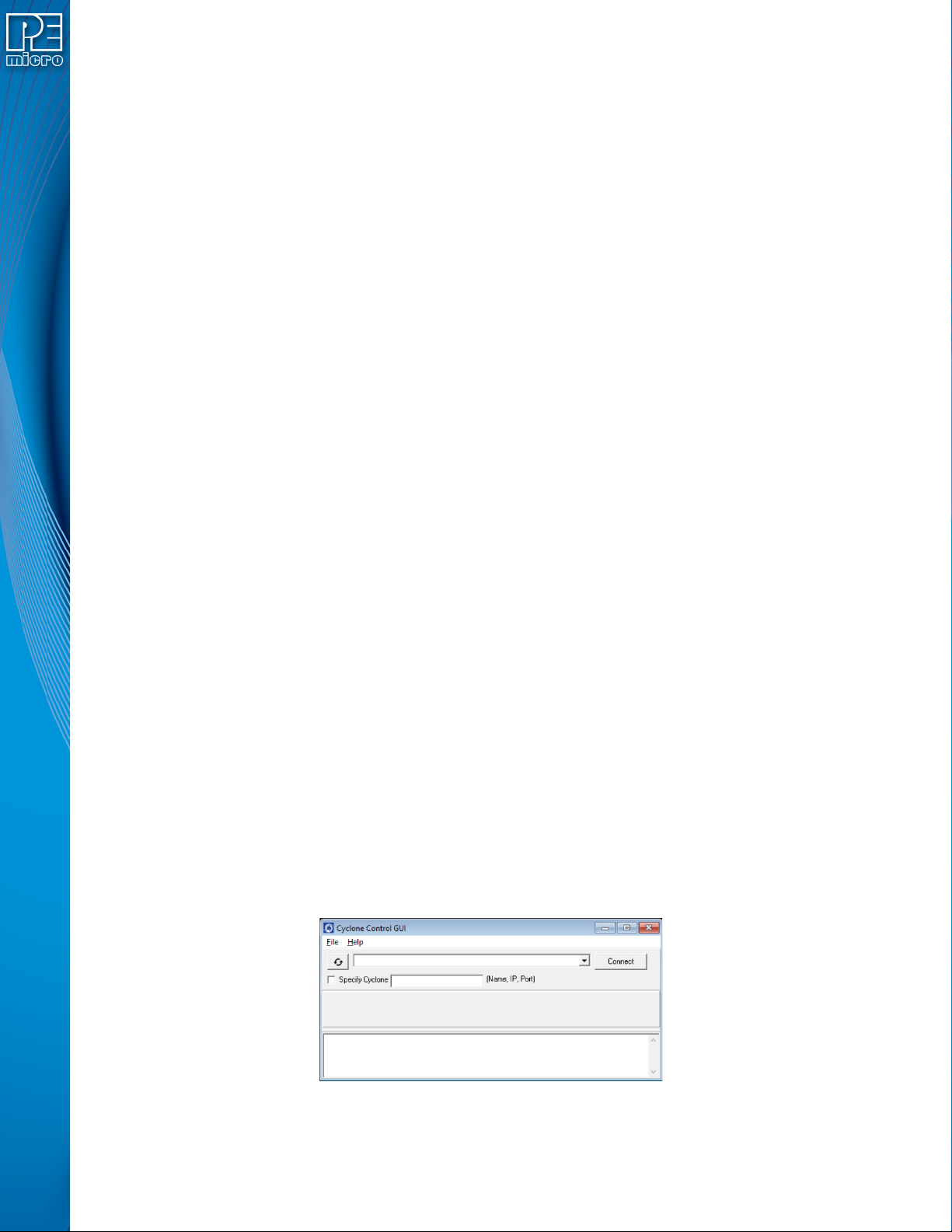
Figure 6-23: Cyclone Control GUI: Choose Cyclone for Stored Image
The Cyclone Control GUI drop-down list allows the user to select from all the Cyclones available.

User Manual For Cyclone LC Programmers 60
In the case of a Cyclone present on a different network (i.e., not displayed automatically in the
drop-down list), the user may specify its IP address by using the Specify Cyclone checkbox and
typing the identifier of the Cyclone.
Click on "Connect" to access the specified Cyclone. A click on the "Apply Changes" button will
then store the image on the selected Cyclone.
6.1.11 Store Image To Disk
“Store Image To Disk” allows the current configuration to be saved onto the hard drive. The image
can then be transferred to the Cyclone’s internal flash (or an installed SD card) via the Manage
Images Utility.
6.1.12 Save Cyclone Configuration
“Save Cyclone Configuration,” in the file menu, allows the user to save the configuration into a file,
which may be used for future reference, e.g., comparing the Cyclone contents with the file to see if
they are the same.
6.1.13 Load Cyclone Configuration
“Load Cyclone Configuration” in the file menu allows the user to load a configuration that has
previously been saved in order to create a new image.
6.2 Managing Multiple SAP Images
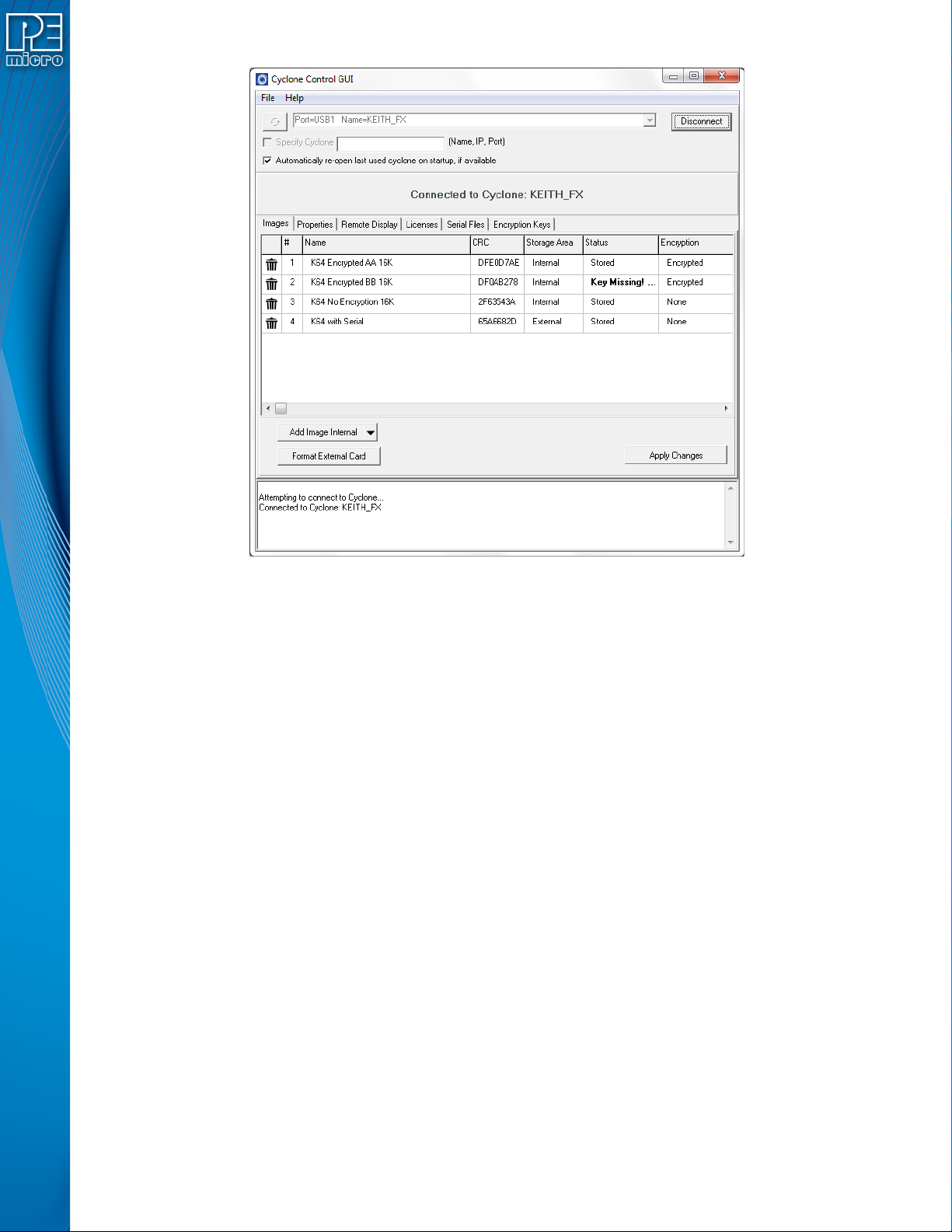
The Cyclone Control GUI, shown below in Figure 6-25, allows the Cyclone to store and manage
multiple images in the Cyclone’s internal memory and - on a Cyclone FX or a Cyclone LC with the
SDHC Port Activation License installed - on any compatible memory card that is loaded into the
SDHC port (CYCLONE programmers require SDHC License Activation).
Any programming images that have been created and saved to the disk using the Cyclone Image
Creation Utility may be loaded collectively onto the Cyclone, with one exception. Encrypted images
may only be loaded if their ImageKey resides on the Cyclone.
User Manual For Cyclone LC Programmers 61
Figure 6-24: Manage Images Utility
Upon opening a selected Cyclone in the Cyclone Control GUI, the user is provided in the first tab
with a list of the images currently on the unit’s internal memory which are marked with a Storage
Area label of "Internal". A list of images on any installed SDHC card will also be displayed with a
Storage Area label of "External"
You can add images with the "Add Image Internal" button under the images panel. These images
will appear with a "Status" label of "Ready to Store". These images are not yet in the Cyclone, the
"Apply Changes" button will have to be clicked for the changes to take effect.
If the Cyclone’s SDHC port is activated, the user can also add images to the external memory by
using the drop-down next to the "Add Image Internal" button and selecting "External". Alternatively,
once an image has been added to the proposed changes and it is in the "Ready to Store" state, the
user may right click on the image and click the "Switch storage to External" option.
In Figure 6-25, note that the Encryption area displays “Encrypted” or “None” to indicate whether
or not each programming image is has been encrypted. The Status area will display “Key
Missing!” if the ImageKey for an encrypted image has been removed from the Cyclone.
For information on how to encrypt SAP Images and the significance of the ImageKey, please refer
to Section 6.1.8.1 - SAP Image Encryption. For an overview of Cyclone SAP Image encryption
and the process of using encrypted images in the production process, please see CHAPTER 11 -
SAP IMAGE ENCRYPTION.
6.2.1 Delete Images From Internal/External Memory
Any images that are already stored on the Cyclone or installed SD card can be deleted by just
clicking on the trash can on the left of the image or by selecting the image and clicking the Delete
key on the keyboard, the image status will be changed to "Ready to Erase.” The image will be
removed after "Apply Changes" is clicked.
6.2.2 Add/Remove Images From The Commit Changes Panels
Once the images that you wish to load appear in the images tab, you must press “Apply Changes”