CYCLONE-User-Manual.pdf - 第96页
User Manual For Cyclone LC Programmers 96 can be used to make changes to the serialization of these images. Figure 8-1 1: Serial Files T ab 8.4.2.6 Encryption Keys T ab CYCLONE FX programmers and CYCLONE programmers with…
User Manual For Cyclone LC Programmers 95
showed will be the updated value of the property.
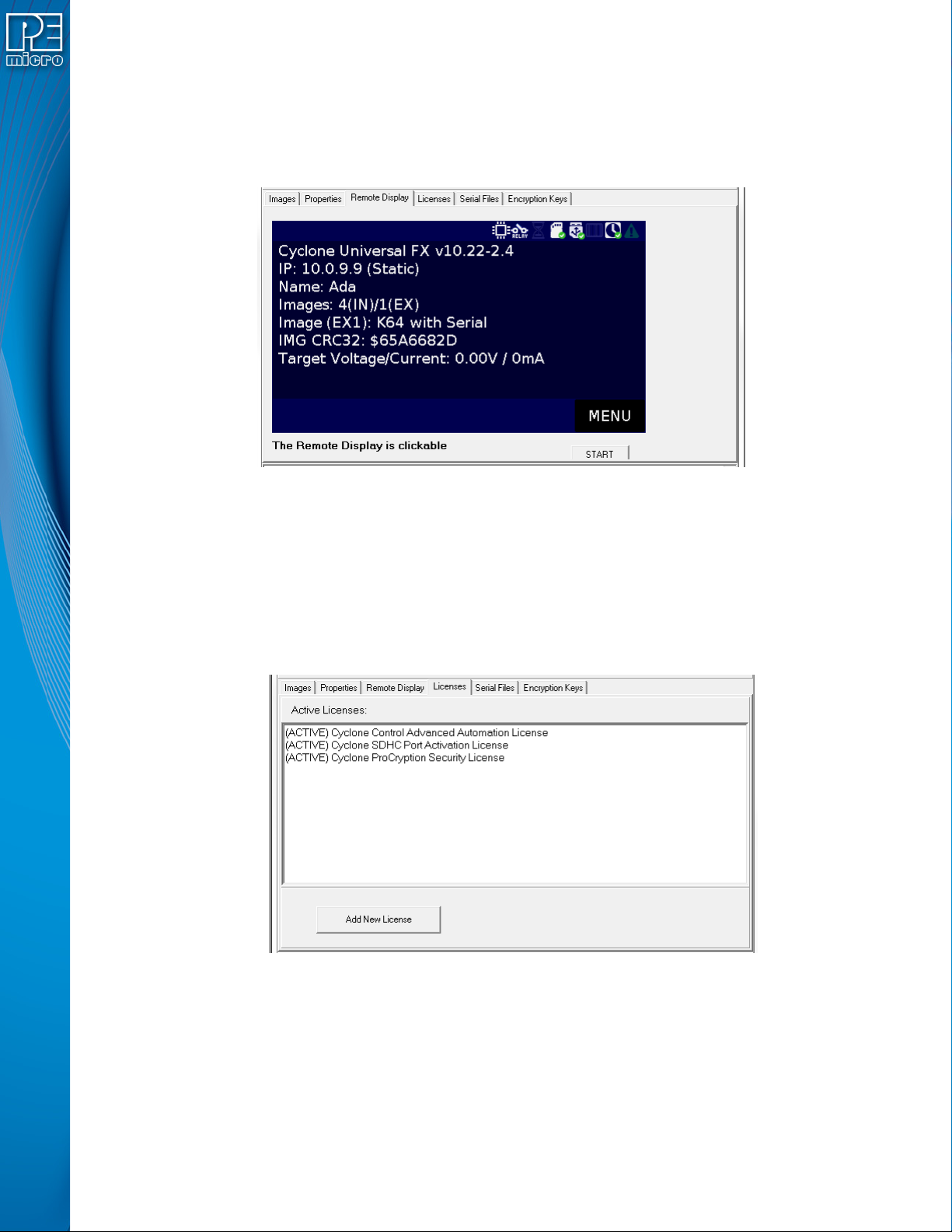
8.4.2.3 The Remote Display Tab
This tab will show the current display of the Cyclone. The utility checks every second for changes
in the display and updates the image to the current display. This image is also clickable so clicks
on the virtual screen are also registered by the Cyclone.
Figure 8-9: Remote Display & Control of Cyclone Screen
8.4.2.4 Licenses Tab
New licenses can be added to the Cyclone using the Licenses tab. Clicking on “Add New License”
will prompt the PEmicro License Activation Form. This form takes in the Installation Code for a
product and can automatically validate and register the installation.
This tab also shows the current licenses active in the Cyclone, including the Cyclone Control
Advanced Automation License, SDHC Port Activation License, and ProCryption Security
Activation License.
Figure 8-10: Licenses Tab
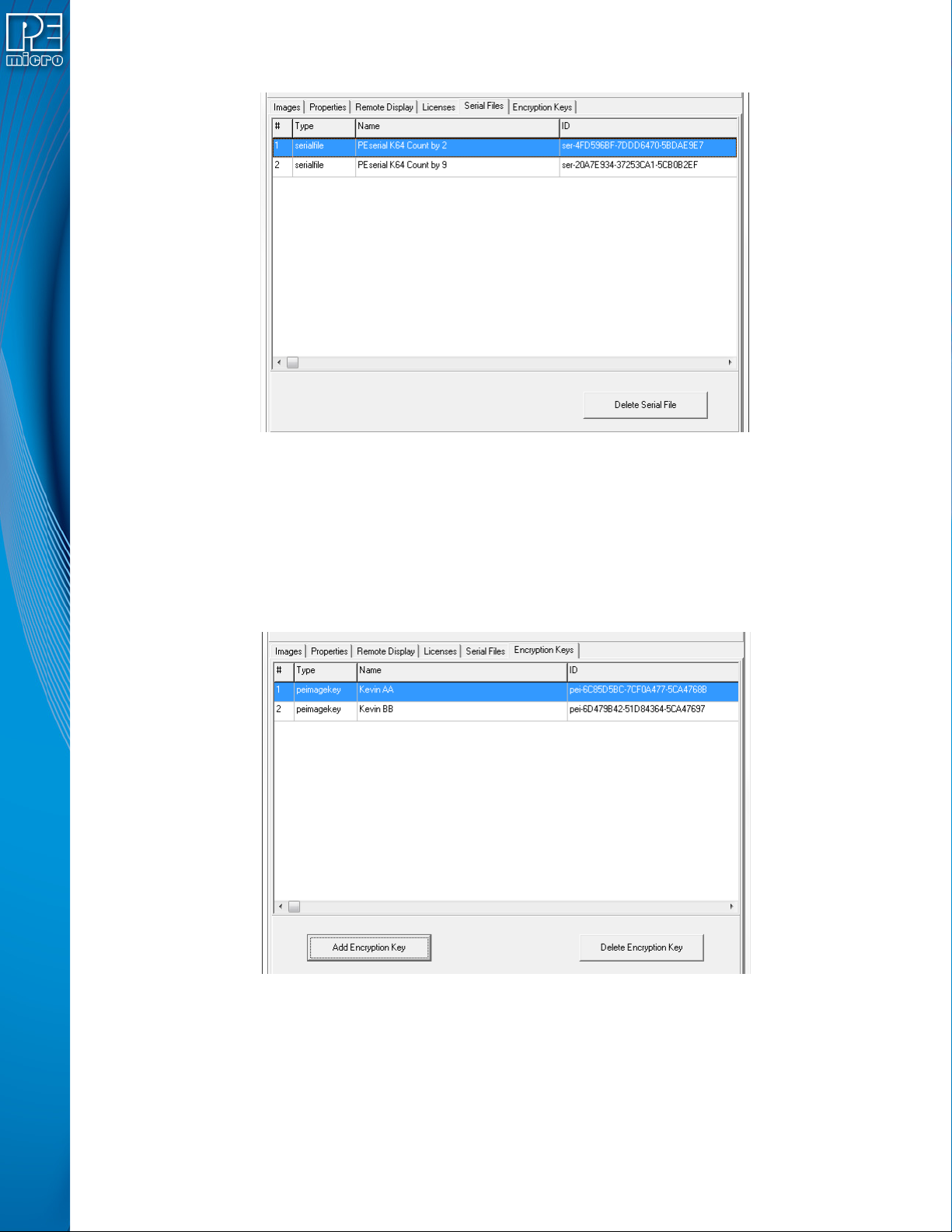
8.4.2.5 Serial Files Tab
The Serial Files Tab displays any Serial Files that are on the Cyclone. Serial Files can be “deleted”
with the “Delete Serial File” button, but in this case it simply means that they will not be displayed.
An image file that uses a “deleted” Serial File will simply cause the file to re-appear and resume
with its next serial number.
Note: Older images may reference Serial Files that are image-specific and cannot be shared among
images (like current Serial Files). These will not appear in the Serial Files tab. The Cyclone menu
User Manual For Cyclone LC Programmers 96
can be used to make changes to the serialization of these images.
Figure 8-11: Serial Files Tab
8.4.2.6 Encryption Keys Tab
CYCLONE FX programmers and CYCLONE programmers with the ProCryption Security
Activation License are able to encrypt programming images with a user-generated ImageKey. In
order to load an encrypted image onto a Cyclone, or to program with an encrypted image once it is
on the Cyclone, the ImageKey used to encrypt that image must be present on the Cyclone.
The Encryption Keys tab displays any ImageKeys that reside on the Cyclone. The Name and
unique ID number for each ImageKey is shown.
Figure 8-12: Encryption Keys Tab
The Add Encryption Key button allows the user to browse to an ImageKey that they wish to add to
the Cyclone. Encrypted (eSAP) programming images cannot be loaded onto the Cyclone unless
the ImageKey that was used to encrypt them is present on the Cyclone.
The Delete Encryption Key button will delete the selected ImageKey from the Cyclone. The user
should bear in mind that if the ImageKey is missing for an eSAP image, that image will be locked
and cannot be programmed.

User Manual For Cyclone LC Programmers 97
8.4.3 The Status and Error Window:
Figure 8-13: Status & Error Window
This section of the Cyclone Control GUI displays the status of the utility as well as any errors
during the connection or any of the actions performed by the utility. It’ll show detailed errors on
images that failed to be properly added or actions that require additional licensing.
This new status and error window increases the visibility of the user into the tasks the utility is
performing as well as the issues that may arise.
8.5 License
The Cyclone Control Suite software does not need a license to operate when using the standard
features with any touchscreen Cyclone or when using advanced features with a Cyclone FX.
When using the advanced automation features of the SDK or Console with non-FX cyclones, a
“Cyclone Control Advanced Automation License” needs to be present in the Cyclone. This
advanced license is available for purchase for the Cyclone LC programmers.
Information on how to install the license for your Cyclone LC programmer is available in
CHAPTER 8 - CYCLONE PROGRAMMER AUTOMATED CONTROL (CYCLONE CONTROL
SUITE).
Advanced automation features in the Cyclone Control Suite are not available for older, non-
touchscreen Cyclone models (Cyclone MAX, Cyclone PRO, Cyclone for STMicro, and Cyclone
Renesas). Please use the Classic Cyclone Automated Control Package when using advanced
features with these Cyclones
8.5.1 Hardware Licensing
PEmicro’s Cyclone licensing is hardware-based to provide the user with added flexibility. For
example, a customer in Germany can configure a Cyclone for a contract manufacturer in China,
without requiring the contract manufacturer to re-license PEmicro's software. The manufacturer
can simply download any PEmicro software, and as long as a licensed PEmicro hardware is
available on site, they can simply use the product.
Additionally, a hardware license does not require a networked or USB connection to a host PC,
thereby making possible stand-alone operations that may require other licensing (such as the use
of an SDHC card). Hardware licensing also simplifies the management of personal computers by
IT departments. PCs can be replaced, upgraded, or re-formatted, without any impact to the
functionality and /licensing in place on PEmicro's hardware.
One last beneficial feature of the hardware licensing mechanism is the fact that it requires no
change to how licenses are obtained from PEmicro. It preserves backwards compatibility, and it
maintains the same traditional licensing workflow that was previously used to license PEmicro
software.