CYCLONE-User-Manual.pdf - 第67页
User Manual For Cyclone LC Programmers 67 Figure 7-4: Increase or Decrease Serial Number The adjustment buttons will display “Increase Not Allowed” and “Decrease Not Allowed” if the image/algorithm/CS file that the user …
User Manual For Cyclone LC Programmers 66
7.4.3.1.1 Launch Programming
This allows the user to execute the programming function. The Cyclone will program the target
device, if able, using the currently selected programming image. This is functionally equivalent to
pressing the Start button.
7.4.3.1.2 Verify Data In Target
Performs a verify function on the data that has been programmed into the target device.
7.4.3.1.3 Toggle Power
Toggles the target power and makes sure all ports are driven to debug mode level.
7.4.3.1.4 Power Cycle Device To Run User Code
Toggles the target power and maintains tri-state mode for all signals.
7.4.3.1.5 Validate Image CRC32
Allows the user to perform a CRC32 validation on the currently selected programming image.
7.4.3.2 Set Image Validation
Allows the user to choose between two validation settings: 1) validate the image each time the
Start button is pressed, or 2) do not validate the image.
7.4.3.3 Serial Numbers
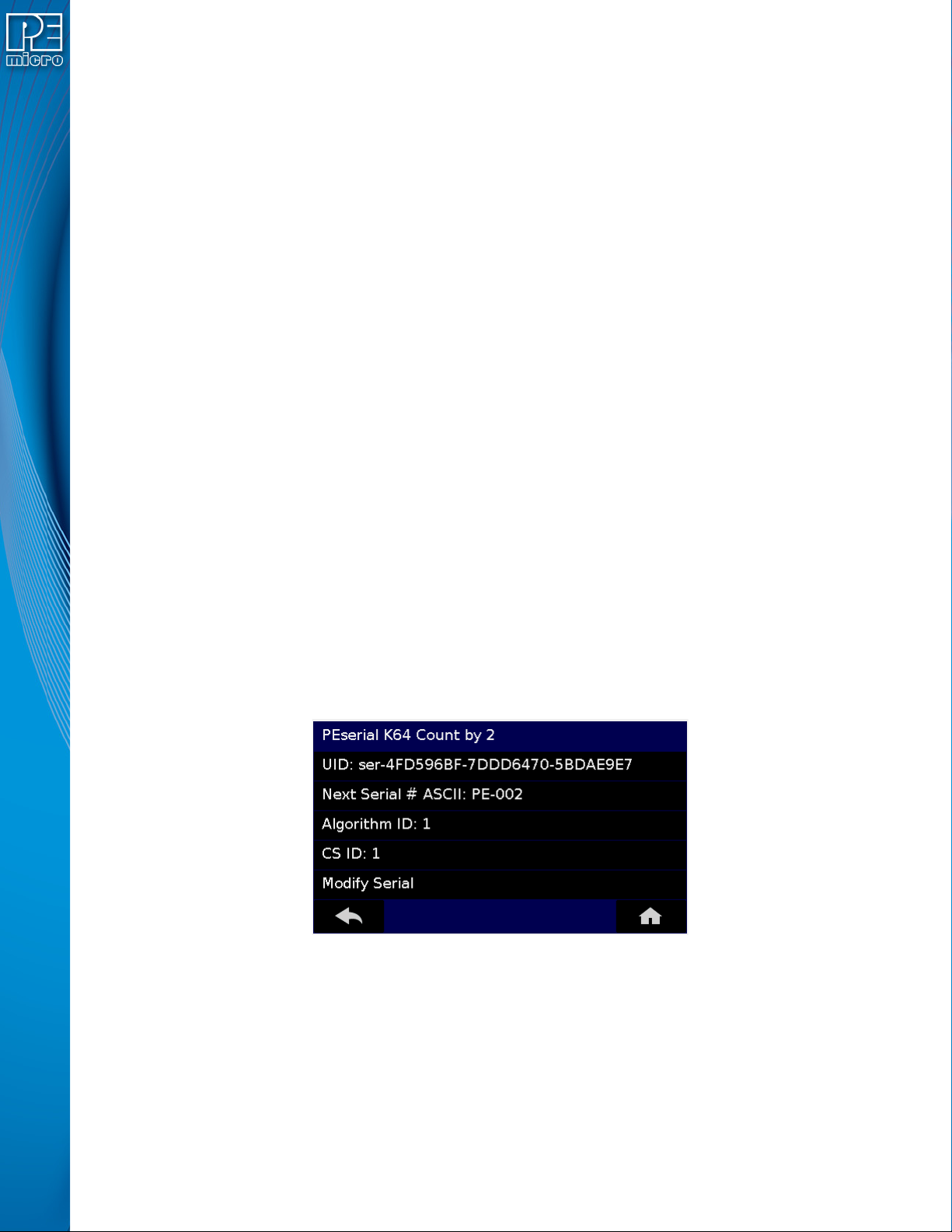
Displays the serial number information associated with the currently selected programming image.
If there is none, it will display, “This Image Contains No Serial Numbers.” There may be one or
more Serial Files associated with the image. The user can click on a specific Serial File name to
see the following information about that Serial File:
• UID - Unique identifier of the serial number
• Next Serial # ASCII - Next serial number to be programmed (shown in ASCII format)
• Algorithm ID - Displays the algorithm ID of the serial file
• CS ID - Displays the ID of the CS (Choose Serial) command in the SAP file.
Figure 7-3: Serial File Selection
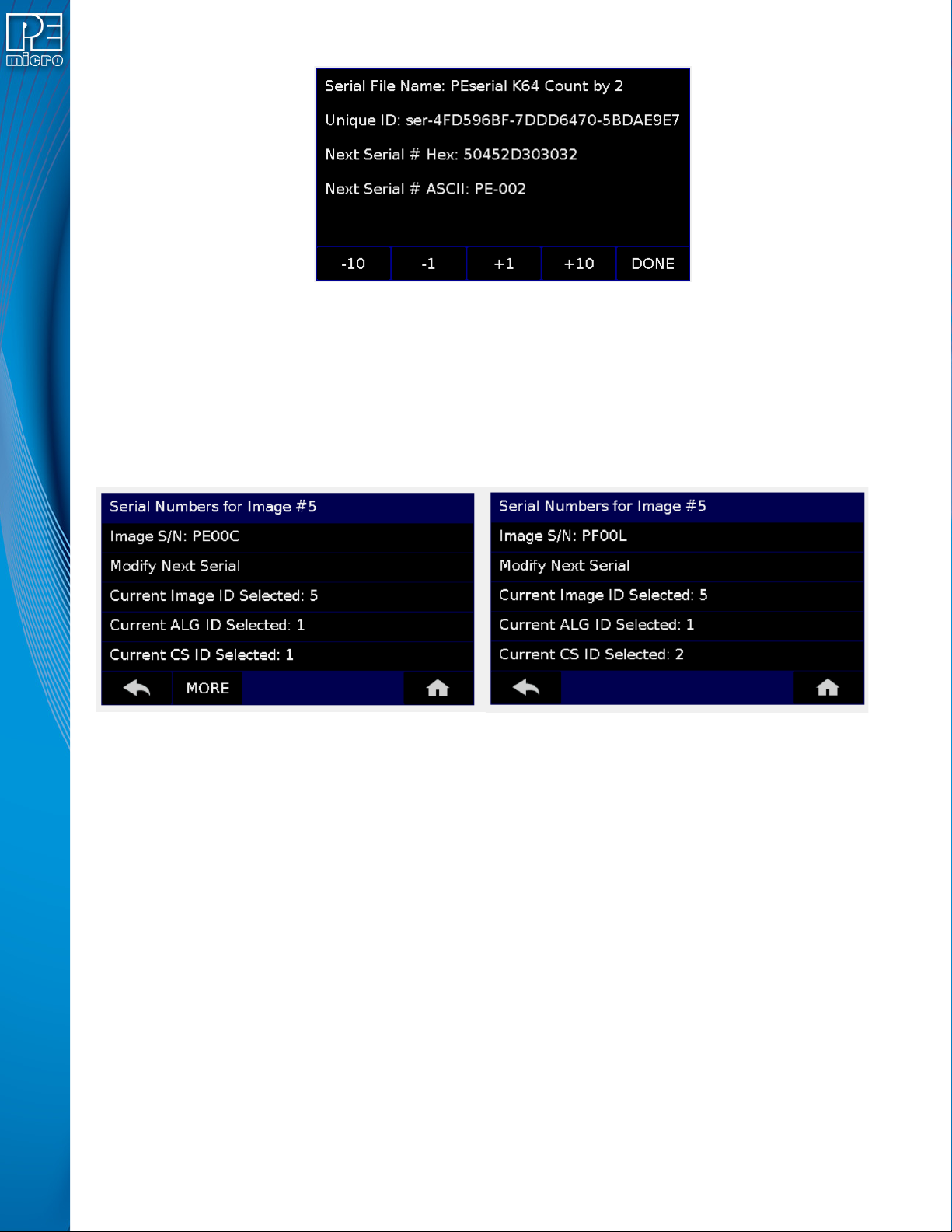
The user can also click on “Modify Serial Number” to edit that serial number. It is possible to
Decrease or Increase the Next Serial by -10, -1, +1, +10. This is often done to address issues in
the production process, such as during initial setup.
User Manual For Cyclone LC Programmers 67
Figure 7-4: Increase or Decrease Serial Number
The adjustment buttons will display “Increase Not Allowed” and “Decrease Not Allowed” if the
image/algorithm/CS file that the user has selected does not allow for this operation.
Note: Unlike PEmicro’s current serial files, earlier “legacy” serial files are specific to one programming
image, When viewing Serial Number info for an image that references one or more legacy serial
files, the Cyclone will not show links to the serial files but will instead display serial number info for
the first serial file. The user can then Modify Next Serial to change the next serial number, or click
MORE at the bottom to proceed to the next serial file (if any).
Figure 7-5: Serial Number View With Legacy Serial Files (CS IDs #1 & #2)
7.4.3.4 Show Image Restriction Stats (Requires FX or ProCryption Security License Activation)
Displays current statistics, if any, for Image Programmed Count & Maximum Allowed, Errors
Logged & Maximum Allowed, and Date Range Allowed. These limits can be set in the Security
Features section of the Cyclone Image Creation Utility (see Section 6.1.8.2 - Image
Restrictions).
Note: When Current Image Stats is displayed as a home screen item, only Image Programmed
Count & Maximum Allowed are displayed on the home screen.

User Manual For Cyclone LC Programmers 68
8 CYCLONE PROGRAMMER AUTOMATED CONTROL (CYCLONE CONTROL
SUITE)
Users who wish to control, configure, and automate one or more Cyclone units have several
options available. This chapter presents a brief overview of those options along with some
additional information about each.
8.1 Overview Of Cyclone Control Suite
The Cyclone Control Suite is a new generation of automated control software developed to support
PC based control of the popular Cyclone and Cyclone FX stand-alone programmers.
The suite provides comprehensive control of one or more Cyclones from the PC via the following
components: the Cyclone Control GUI application, the Cyclone Control Console application, or via
custom applications using the Cyclone Control SDK. Ways to control the Cyclone include
programming launch, recovering results, managing images resident on a Cyclone, adding unique
programming data for each target, as well as recovering descriptive errors.
Much of the cyclone control feature set works for all touchscreen Cyclones. Advanced features
require a Cyclone-resident Advanced Automation License which comes built into the Cyclone FX
and is available as an upgrade for all other touch screen Cyclones.
8.1.1 Components
The Cyclone Control Suite consists of three major components:
1. Cyclone Control SDK – This is a Software Development Kit with a comprehensive API
allowing multiple Cyclones to be managed simultaneously from a user developed custom
application that loads the provided Cyclone Control DLL. The DLL can be loaded from
many programming languages that are able to load a DLL (C, Delphi, C#, Java, Python,
etc) as well as environments such as LabVIEW. Examples and interface code are pro-
vided in C (MSVC and GCC), C#, and Delphi/FPC. See Section 8.2 - Cyclone Control
SDK.
2. Cyclone Control Console – This is a powerful command-line application can be launched
from a script, a command-line, or another application and allows control of one or more
Cyclones simultaneously. The command-line application displays comprehensive status
messages and also returns an error code which can be recovered from the calling applica-
tion. See Section 8.3 - Cyclone Control Console.
3. Cyclone Control GUI – This is an interactive GUI based application which provides an
easy way to control Cyclones and manage images resident in the Cyclones. Given its
graphical nature, it is very easy to explore Cyclone Control Suite capabilities to intuitively
control or interact with a Cyclone. See Section 8.4 - Cyclone Control GUI.
The Console and GUI were both built with the SDK and are good examples of the types of
applications which can be built using the SDK.
Additional sample applications come as part of the installation. They contain defined build scripts
that you should be able to use to build the sample application without any modifications.
8.1.2 Features
The SDK, Console, and GUI control applications provide the following Standard features for all
Cyclones:
• Control a Cyclone via USB, Serial, or Ethernet connections
• Select and Launch Images by Name or Enumeration
• Recover programming result and descriptive error information
• Use automatically counting local (Cyclone stored) serial numbers
• Add/Remove/Update a single image in the Cyclone
• Read/write Cyclone properties