CYCLONE-User-Manual.pdf - 第18页
User Manual For Cyclone LC Programmers 18 3 CYCLONE LC HARDW ARE The following is an overview of the features and interfaces of Cyclone LC programmers. Many of these interfaces are labeled on the underside of the plastic…

User Manual For Cyclone LC Programmers 17
able in the Cyclone’s User manual or at: http://www.pemicro.com/blog/
index.cfm?post_id=142
3. SDK - The SDK is a software library that is used in conjunction with the user’s own code.
The user writes a customer application that uses this library of functions to launch pro-
gramming. More information is available in the Cyclone’s User Manual, or at: http://
www.pemicro.com/blog/index.cfm?post_id=139
The “Success” or “Error” LED will illuminate to let the user know the result of programming.
Note: If programming is unsuccessful when using this quick start procedure, the user may instead wish
to use the included PROG software for their target device. The PROG software allows the user to
manually walk through the programming procedure step by step, which may help determine which
part of setup or programming function is causing difficulty.
User Manual For Cyclone LC Programmers 18
3 CYCLONE LC HARDWARE
The following is an overview of the features and interfaces of Cyclone LC programmers. Many of
these interfaces are labeled on the underside of the plastic case.
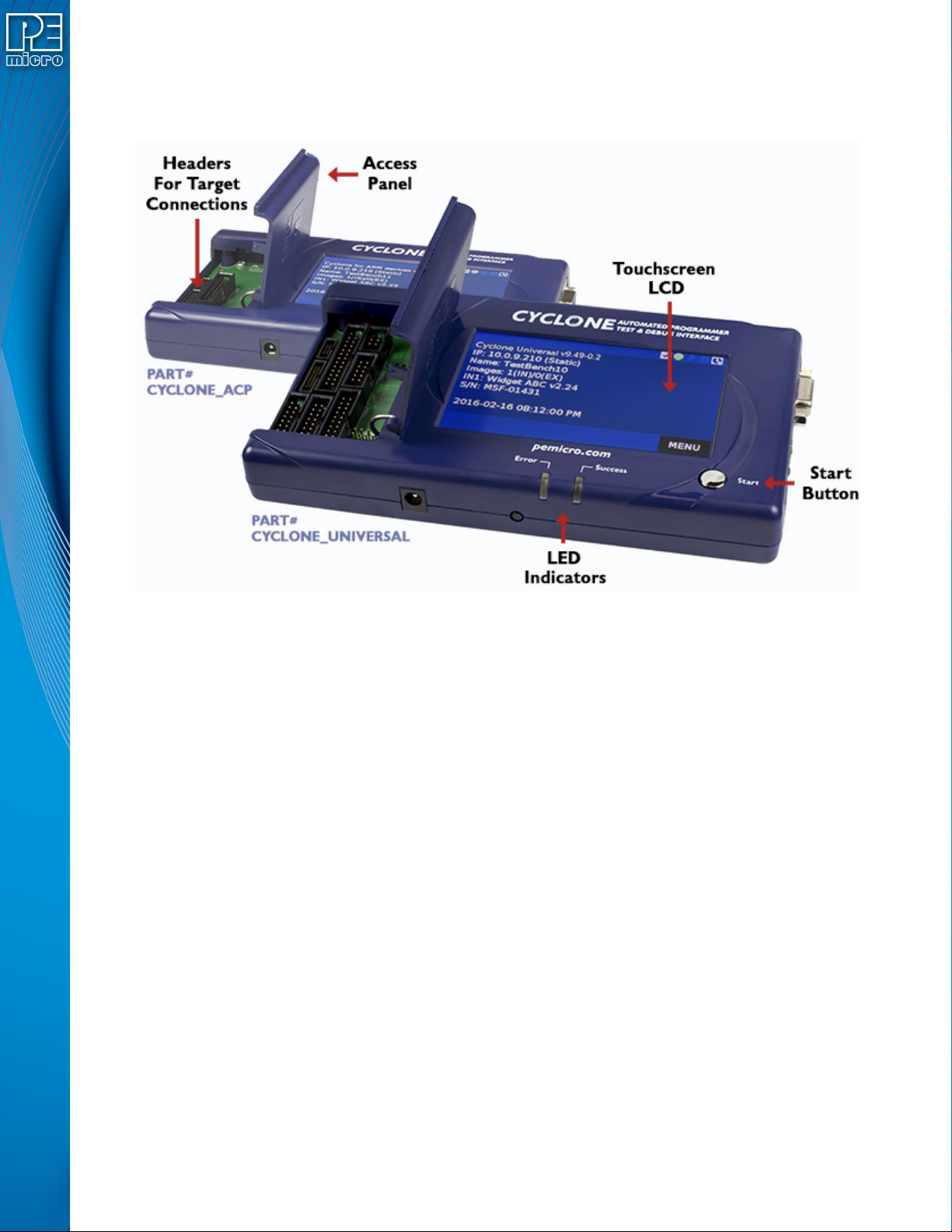
Figure 3-1: Cyclone LC Top View
3.1 Touchscreen LCD
The LCD Touchscreen displays information about the Cyclone’s configuration and the
programming process, and also allows the user to navigate the Cyclone’s menus. The location of
the Touchscreen LCD is shown in Figure 3-1.
3.2 LED Indicators
The LED indicators for Error or Success will illuminate depending on the results of the
programming process and provide a clear visual indication of the results. The location of the LED
Indicators is shown in Figure 3-1.
3.3 Start Button
The Start Button can be used to begin the programming process manually, provided that the
Cyclone is properly configured. The location of the Start Button is shown in Figure 3-1.
3.4 Access Panel
The Access Panel can easily be opened to allow the user to connect/disconnect ribbon cables
from the headers, or to configure the Cyclone’s Power Jumpers to select one of the available
Power Management setups. The location of the Access Panel is shown in Figure 3-1; a layout of
the headers and jumpers beneath the Access Panel is shown in Figure 3-5.
User Manual For Cyclone LC Programmers 19
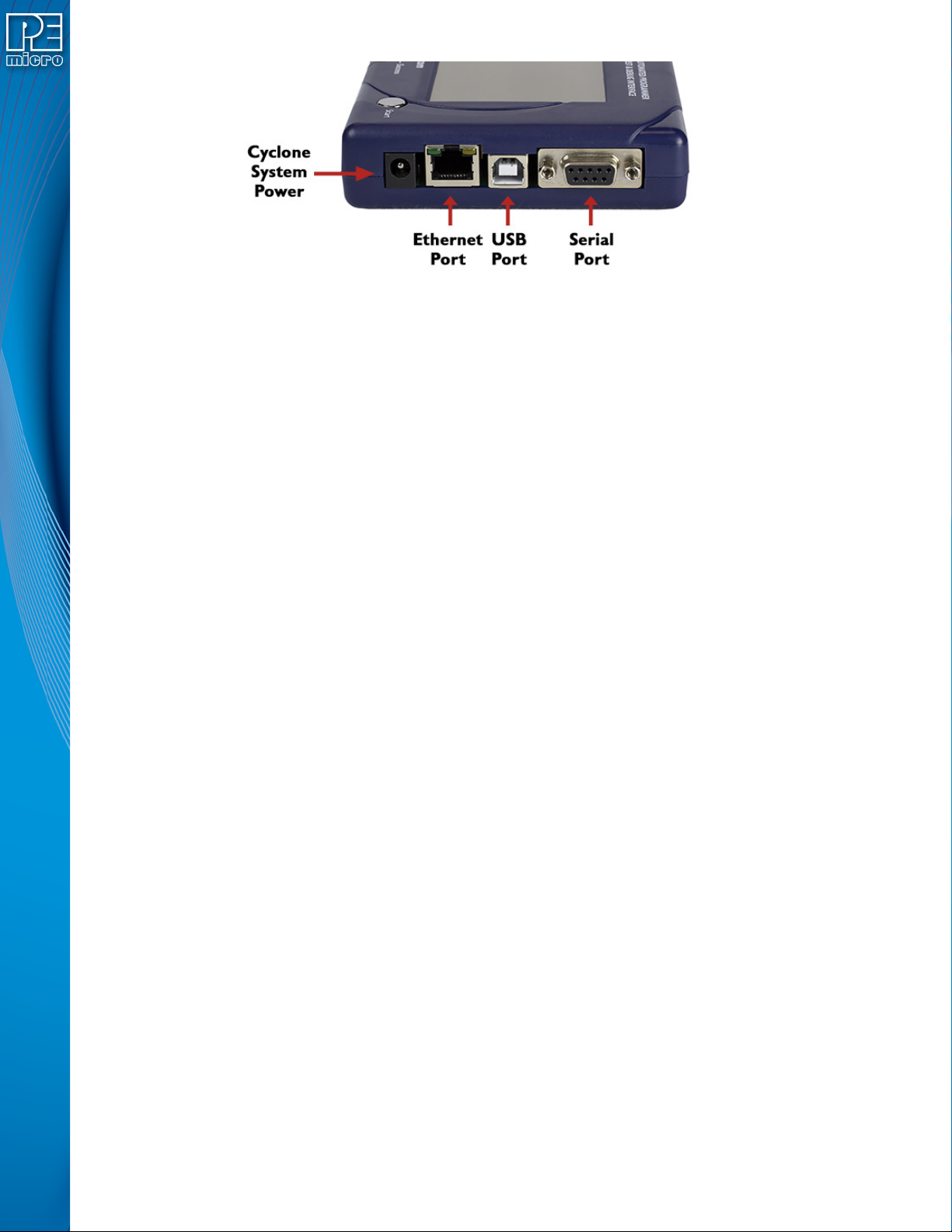
Figure 3-2: Cyclone LC Right Side View
3.5 Cyclone System Power
The Cyclone LC programmer requires a regulated 6V DC Center Positive power supply with 2.5/
5.5mm female plug. Cyclones derive power from the Power Jack located on the right end of the
unit. The location of Cyclone System Power is shown in Figure 3-2.
3.6 RS232 Communication (Serial Port)
The Cyclone LC provides a DB9 Female connector to communicate with a host computer through
the RS232 communication (115200 Baud, 8 Data bits, No parity, 1 Stop bit). The location of the
Serial Port is shown in Figure 3-2.
3.7 Ethernet Communication
The Cyclone LC provides a standard RJ45 socket to communicate with a host computer through
the Ethernet Port (10/100 BaseT). The location of the Ethernet Port is shown in Figure 3-2.
3.8 USB Communications
The Cyclone LC provides a USB connector for Universal Serial Bus communications between the
Cyclone and the host computer. The Cyclone LC is a USB 2.0 Full-Speed compliant device. The
location of the USB Port is shown in Figure 3-2.
3.9 Electromechanical Relays
Inside the Cyclone LC programmer, two electromechanical relays are used to cycle target power.
The specifications of the relays are as following:
Maximum switched power: 30W or 125 VA
Maximum switched current: 1A
Maximum switched voltage: 150VDC or 300VAC
UL Rating: 1A at 30 VDC
1A at 125 VAC
PEmicro only recommends switching DC voltages up to 24 Volts.