CYCLONE-User-Manual.pdf - 第126页
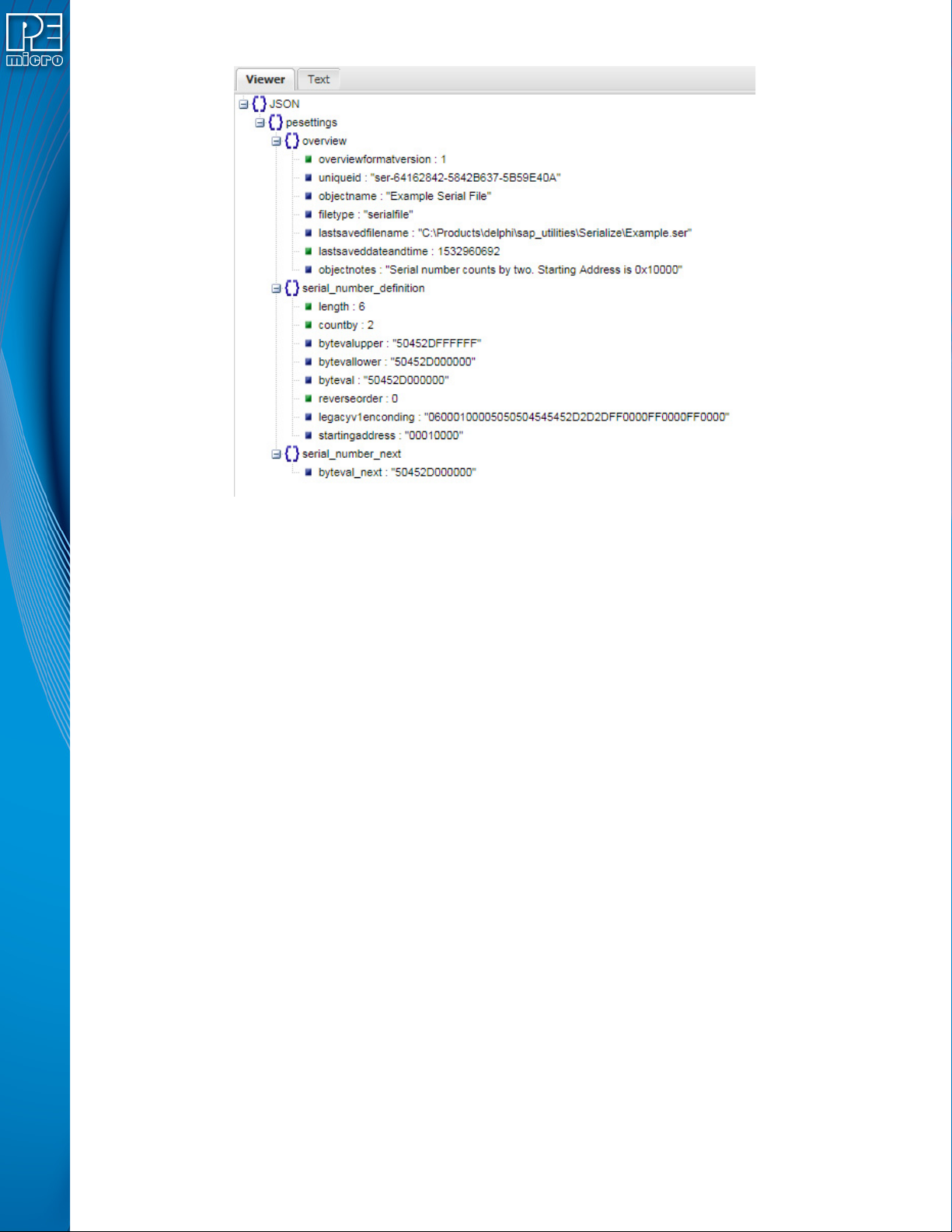
User Manual For Cyclone LC Programmers 126 Figure 12-2: Example Serial File In JSON Viewer 12.4 Serial Number Handling The Cyclone LC firmware implements the automatic serial number mechanism (see Section 5.2.2.3 - Seria…

User Manual For Cyclone LC Programmers 125
• Down Arrow Click - Counts the serial number down.
• Click into the edit Box to enter any number within range. Values entered will be limited by the
upper and lower bounds.
12.2.10 Hex Upper Bounds
There is one display column for each upper bound of the byte in the serial number in hex.
• Up Arrow Click - Increases the upper bound by one with a maximum of FF Hex.
• Down Arrow Click - Decreases the upper bound by one with a minimum of the current
serial number byte value.
• Click into the edit Box to enter any number within range (from the Serial number value up
to a maximum of Hex FF).
12.2.11 Hex Lower Bounds
There is one display column for each byte of the lower bound of the serial number in hex.
• Up Arrow Click - Increases the lower bound by one with a maximum of the current serial
number byte value.
• Down Arrow Click - Decreases the lower bound by one with a minimum of 00 Hex.
• Click into the edit Box to enter any number within range (from the Serial number value to a
minimum of 00 Hex).
12.2.12 Binary, Numeric, Constant, Alpha Upper, Alpha Lower, and Printable
Checkboxes at the bottom will select properties to set for each serial number byte. Selections will
be highlighted in yellow. The buttons below may be used to set the boundary type for the selected
serial byte(s).
12.2.13 Byte Program Order
The user can choose whether the serial number increments from left to right, or from right to left, in
the Byte Program Order section.
12.3 Serial File Properties
Serial File properties are easy to access, as the generated serial file is stored in JSON format. This
makes it simple for the user to save and parse the information.
Note: Serial Files in JSON format are compatible with Cyclone LC firmware version 10.13 and later.
Users that wish to retrieve the original text serial number format can parse out the JSON file:
object->pesettings-> serial_number_definition -> legacyv1encoding
12.3.1 Serial File Example
An example file is provided, Example.ser, located in the Image Creation folder of your installation
directory. Below is a screen snapshot of the saved serial file as seen from a JSON viewer.
User Manual For Cyclone LC Programmers 126
Figure 12-2: Example Serial File In JSON Viewer
12.4 Serial Number Handling
The Cyclone LC firmware implements the automatic serial number mechanism (see Section
5.2.2.3 - Serial Numbers). The same serial number files are used with the Cyclone Image
Creation Utility, and the same commands are used to specify the serial number file and initiate
serial number programming and incrementation. The serial number data structure is saved in the
SAP image. Once a “PS” command is carried out, a serial number is programmed into the target.
Only after all operations have been completed successfully does the Cyclone firmware
automatically increment the serial number and store it in the Cyclone’s flash for internal images (or
external CompactFlash for external SAP images).
The CS and PS commands are not present in the Cyclone Image Creation Utility until a valid
programming algorithm is specified.
To complement the Cyclone’s usage in production environments, the Cyclone supports multiple
serial number structures for each programming algorithm block. Each SAP image may contain
multiple programming algorithms for every memory module it needs to program, and each
programming algorithm block may contain multiple serial number structures. The SAP image
sequence below illustrates this briefly:
CM algorithm_file_1
SS object_code_1
EM
PM
VC
CS serial_file1.ser
PS
CS serial_file2.ser
PS
User Manual For Cyclone LC Programmers 127
CS serial_file_3.ser
PS
CM algorithm_file_2
SS object_code_2
EM
PM
VC
CS serial_file4.ser
PS
CS serial_file5.ser
PS
12.4.1 Invoking A Serial File Via Command-Line
The command to invoke the serial number file in PEmicro’s interactive programming software is
“CS Choose Serial File”. The command to actually program the serial number to target and
automatically increment the serial number afterward is “PS Program Serial Number”.
PEmicro’s command line software uses the same commands in a command line fashion to invoke
the serial number file, initiate its programming, and increment:
CS serial_number_file.ser
PS
12.5 Creating A SAP Image With Multiple Serial Numbers
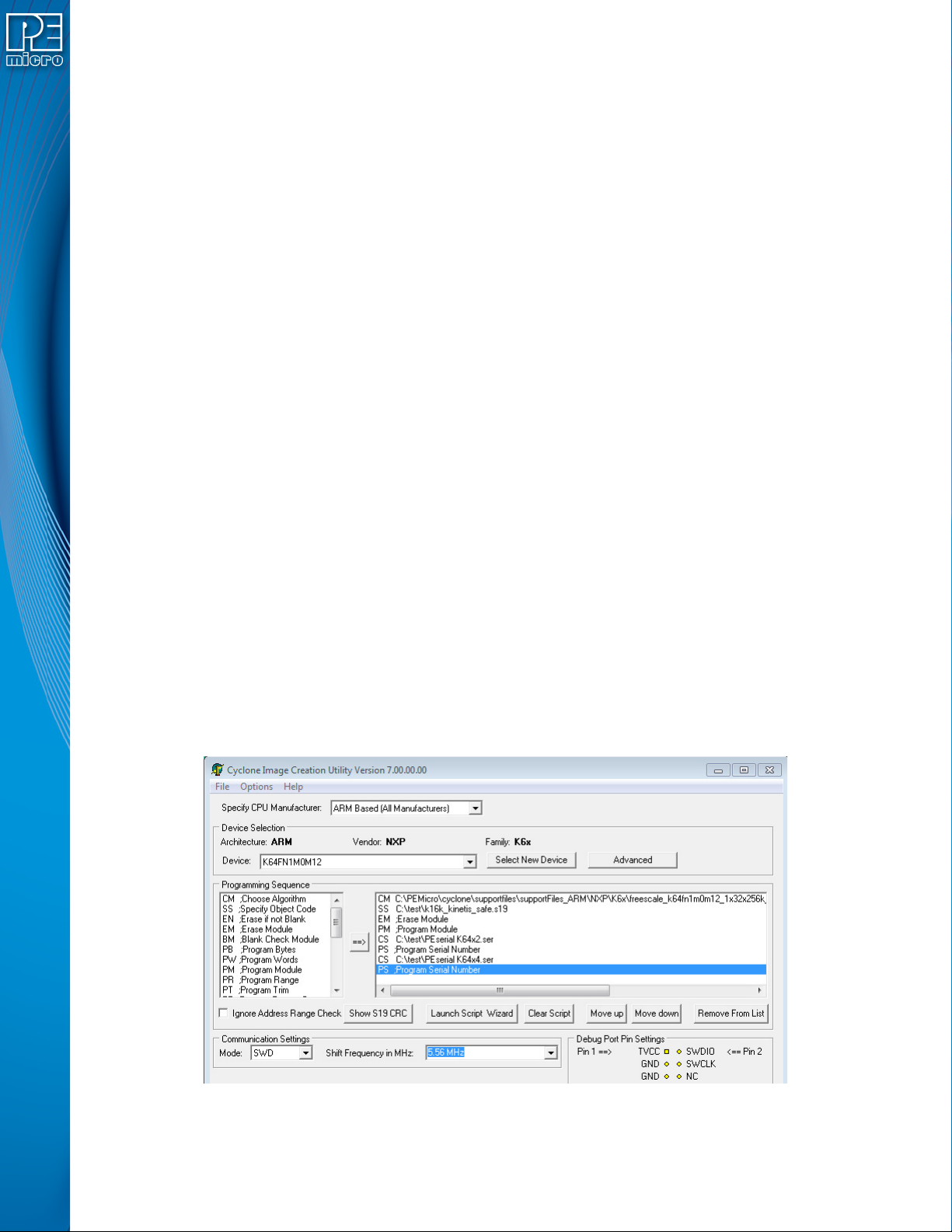
In the example shown in Figure 13-3, a SAP image was created that will select and program two
different serial numbers into different locations in memory as part of the programming sequence.
The first serial number counts by two with starting address 0x00020000 and the second serial
number counts by four with starting address 0x00021000.
As indicated by the programming sequence, first the Algorithm is selected, followed by the S19 file.
The part is erased, and then the s19 is programmed into the device. Once this is done, the first
serial file is selected and programmed, and then the second serial file. These same unique serial
numbers may be used by other SAP images, and each program will increase the serial number by
the designated count defined in the serial number file.
Figure 12-3: Cyclone Image Creation Utility: Serial Files In Programming Sequence