CYCLONE-User-Manual.pdf - 第134页
User Manual For Cyclone LC Programmers 134 4. Click the “Add New License” button. Figure 13-2: Add New License Button
User Manual For Cyclone LC Programmers 133
13 CYCLONE LICENSE INSTALLATION
PEmicro’s current-generation Cyclone LC programmers can have optional licenses installed into
them: the SDHC Port Activation License, the ProCryption Security Activation License, and the
Cyclone Control Suite Advanced Features License. Once a license is installed into the Cyclone, it
will be available to the Cyclone even after it is reset and/or powered down. Having a license
installed in the Cyclone is often advantageous since it moves with the Cyclone (if the Cyclone is
moved from PC to PC).
13.1 How to Install Your License
Follow the steps below to install a license on your Cyclone LC programmer:
1. Make sure the Cyclone is powered and connected to the PC or PC’s network (via USB,
Ethernet, or Serial).
2. Open the Cyclone Control GUI and connect to the appropriate Cyclone.
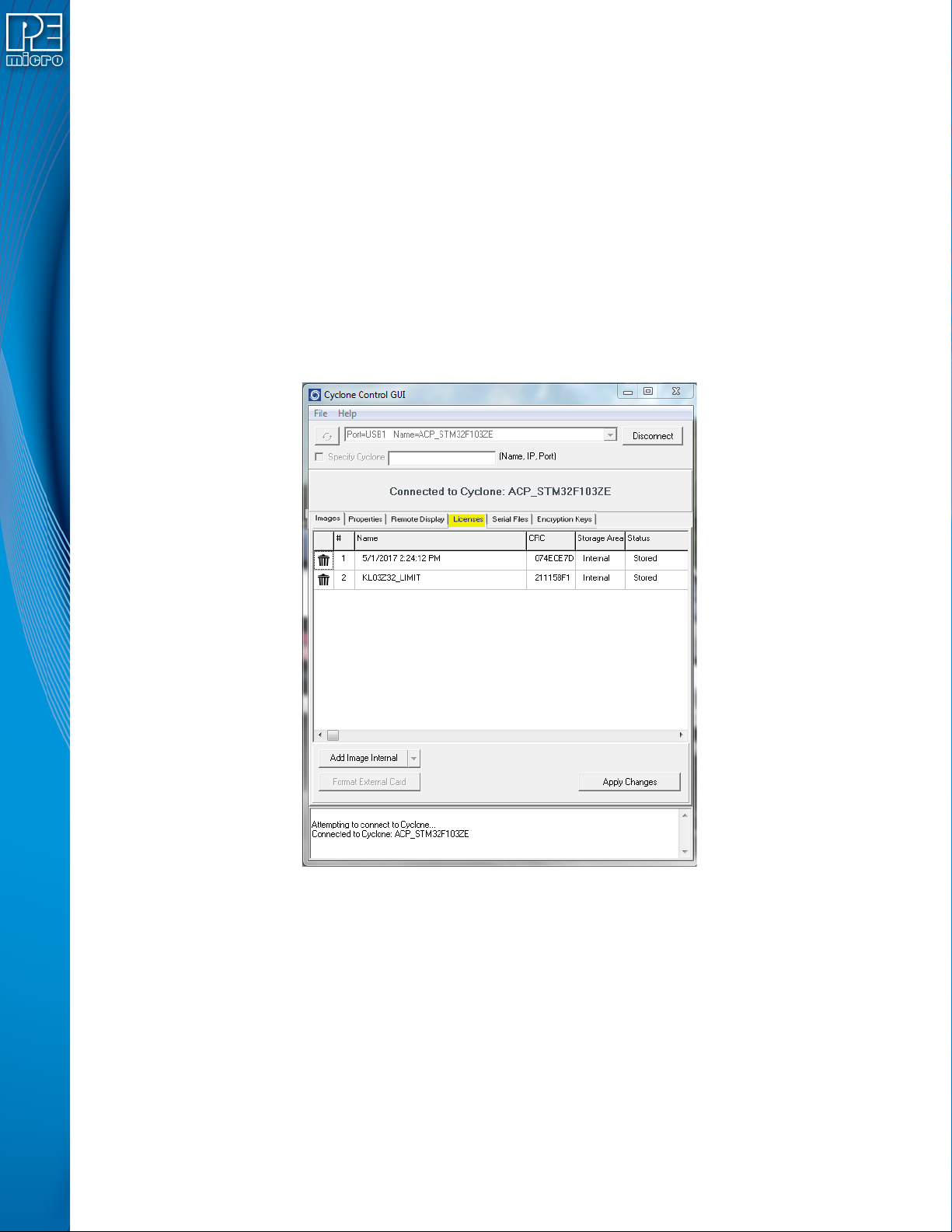
3. Click the “License” tab in the Cyclone Control GUI.
Figure 13-1: Cyclone Control GUI: License Tab
User Manual For Cyclone LC Programmers 134
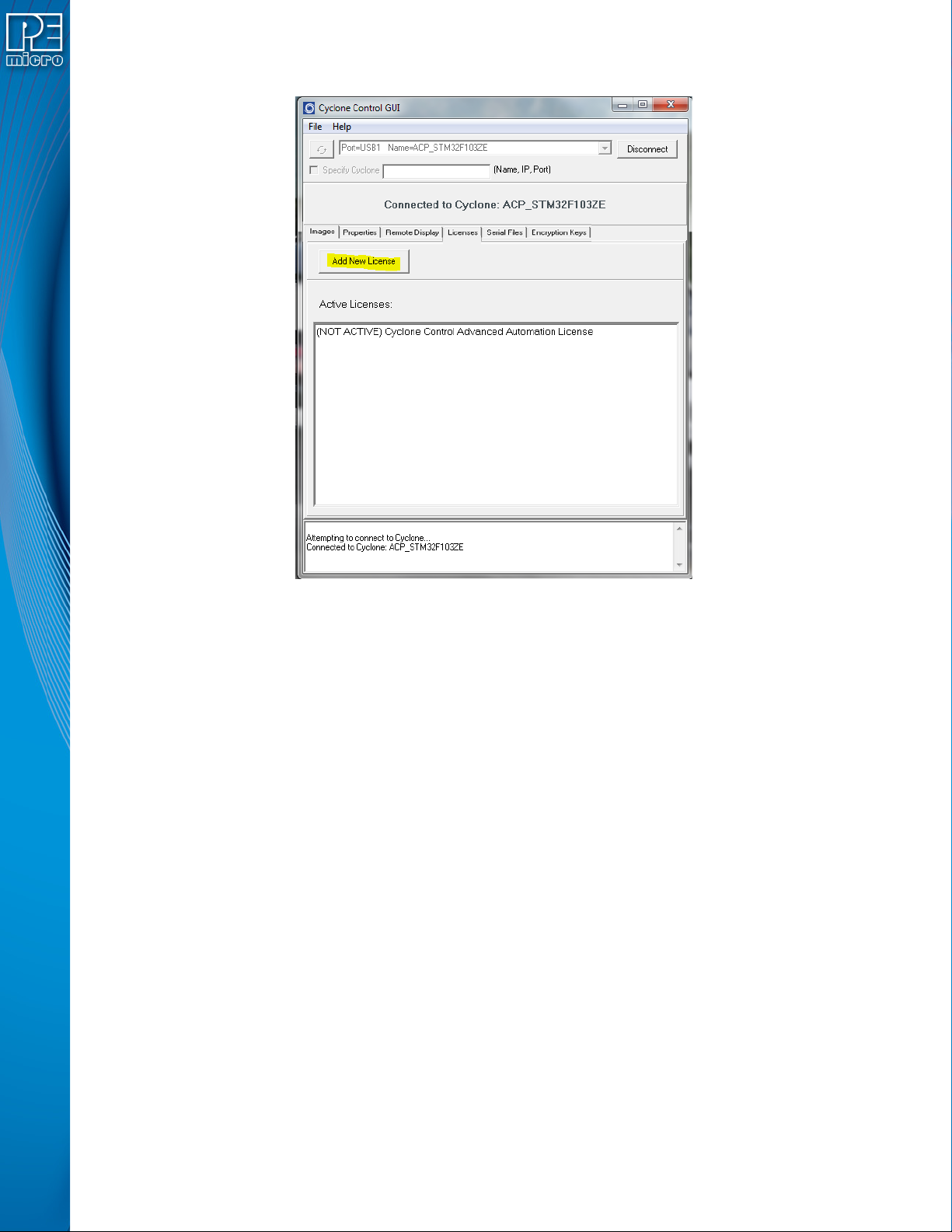
4. Click the “Add New License” button.
Figure 13-2: Add New License Button
User Manual For Cyclone LC Programmers 135
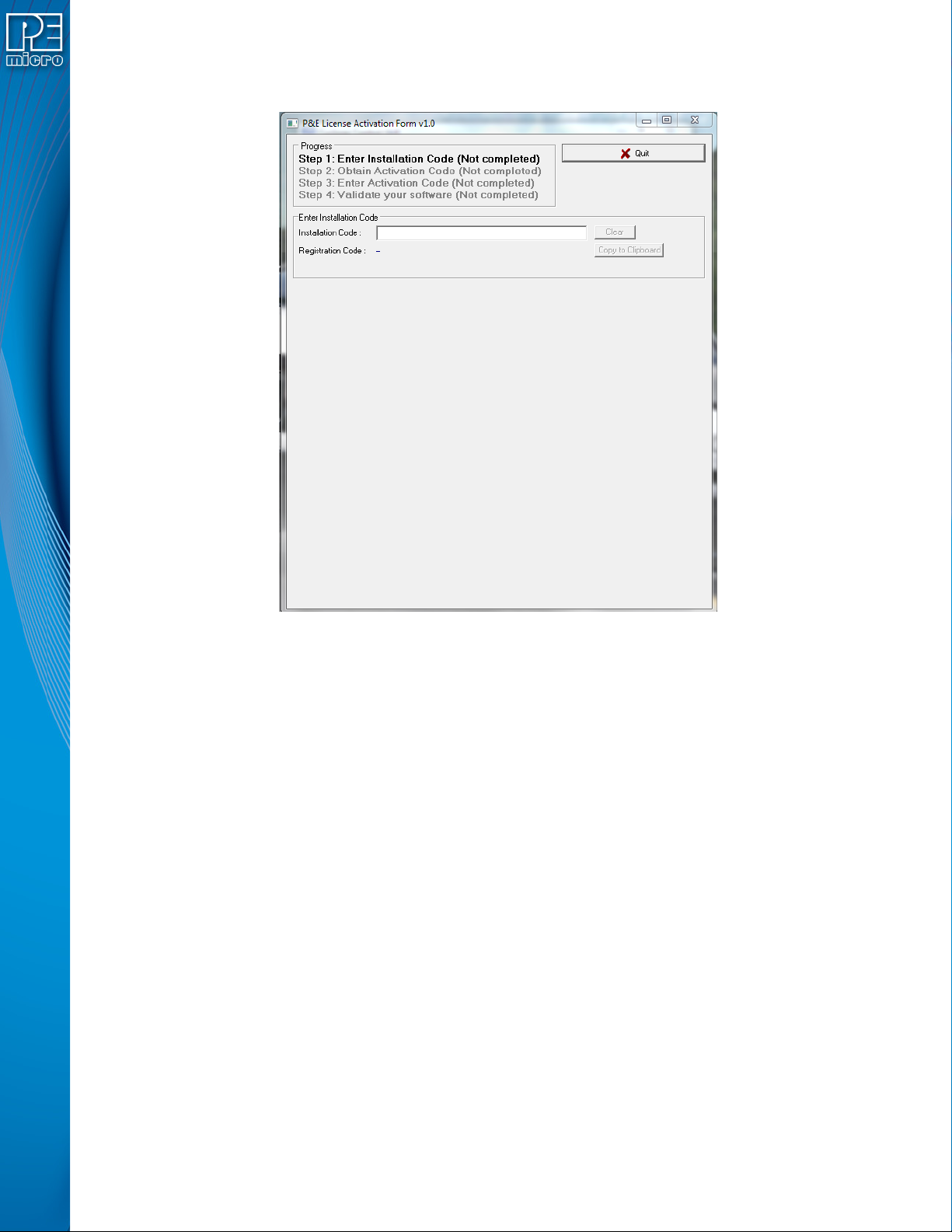
5. A new window will pop-up and ask for you installation code. Add the Installation code for
the license, which can be found on your invoice.
Figure 13-3: Add Installation Code For License