CYCLONE-User-Manual.pdf - 第58页
User Manual For Cyclone LC Programmers 58 By default, the ImageKey will stay selected in the Image Creation Utility . If a dif ferent ImageKey is required for encryption, or the user does not wish to encrypt their SAP im…
User Manual For Cyclone LC Programmers 57
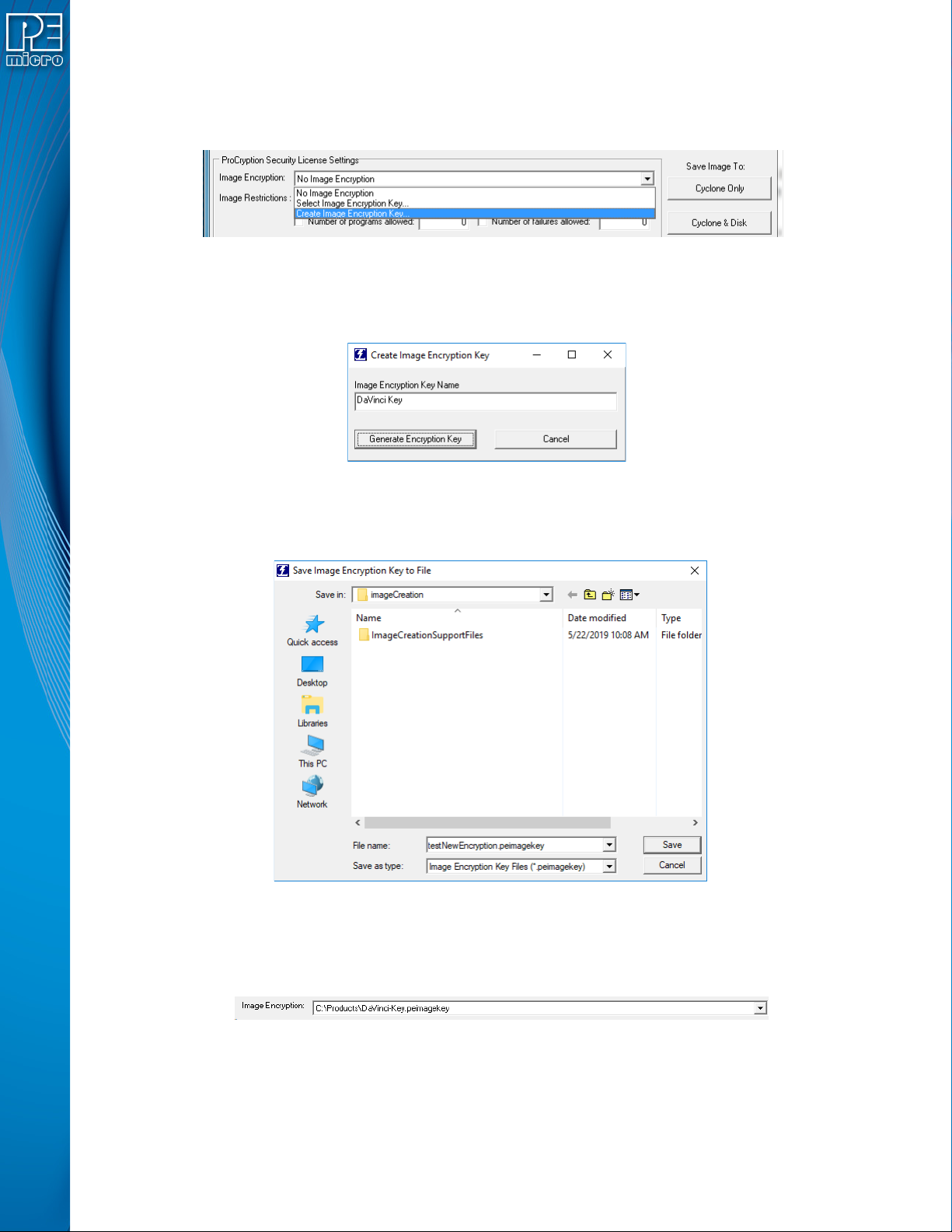
6.1.8.1.1 Creating an ImageKey
If an ImageKey has not been created or a new ImageKey is required, the user should select the
“Image Encryption” combo-box in the Cyclone Image Creation Utility and choose the “Create
Image Encryption Key...” option.
Figure 6-17: Create Image Encryption Key - Drop Box
This will pop up a box asking for a descriptive ImageKey Name (this name will be used for display
in many dialogs):
Figure 6-18: Create ImageKey
After entering the name, the user should click Generate Encryption Key. This will bring up a dialog
which allows the user to choose the save location:
Figure 6-19: Save Image Encryption Key To File Dialog
The user should navigate to the desired location and then click "Save". The ImageKey will be
generated and automatically selected in the Cyclone Image Creation Utility, such that generating
an image will use this ImageKey for encrypting.
Figure 6-20: ImageKey Selected After Creation
Note: Every ImageKey created is unique and may not be recreated. This means that once generated,
the user should keep the ImageKey in a secure place. Users may also wish to keep track of which
SAP images have been encrypted with each ImageKey, as the current software does not track this
information.
User Manual For Cyclone LC Programmers 58
By default, the ImageKey will stay selected in the Image Creation Utility. If a different ImageKey is
required for encryption, or the user does not wish to encrypt their SAP image, the corresponding
change may easily be selected using the drop-down box.
6.1.8.1.2 Encrypting A SAP Image
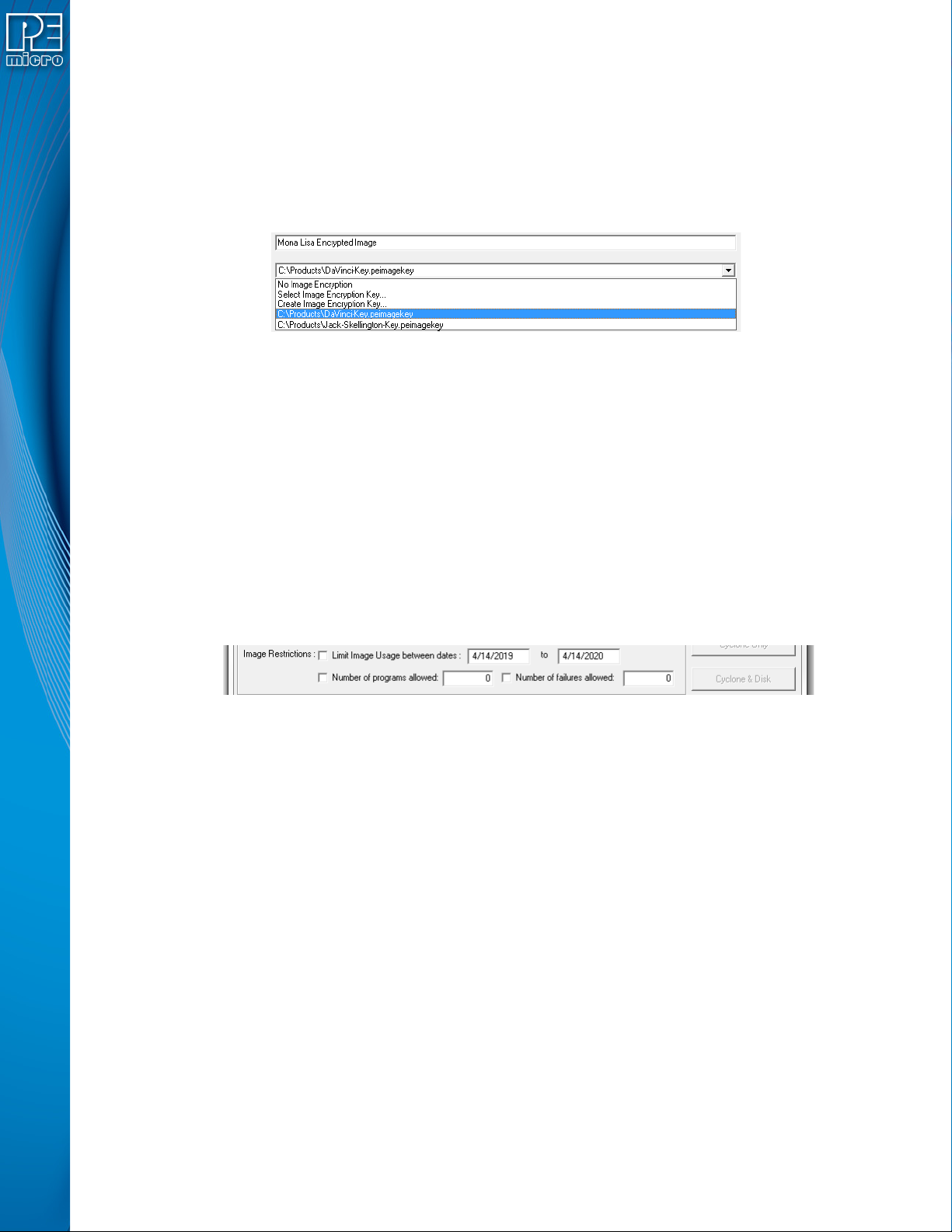
To create an encrypted programming image, the user sets up their parameters in the Cyclone
Image Creation Utility as usual, and then simply selects the desired ImageKey in the "Image
Encryption" combo-box.
Figure 6-21: ImageKey Selection
The image will automatically be generated as an encrypted image, encrypted with the selected
ImageKey. An encrypted stand-alone programming image is called an eSAP (Encrypted Stand
Alone Programming) file. This eSAP file may be downloaded to any Cyclone which has been
provisioned with the same ImageKey (i.e. the ImageKey has already been added to the Cyclone).
This is discussed in Section 11.4.1 - Provisioning a Cyclone with an ImageKey.
6.1.8.2 Image Restrictions
There are any number of reasons why the user may want to place restrictions on the use of
specific programming images on a Cyclone programmer: from added ease when managing
production to a desire to protect intellectual property.
Cyclone FX programmers and Cyclone LC programmers with the ProCryption Security Activation
License are able to restrict the use of programming images via the associated fields in the Cyclone
Image Creation Utility.
Figure 6-22: Image Restrictions
This area allows you to specify one or more restrictions and tie them to specific programming
images. Even if restricted programming images are deleted from Cyclone’s internal memory or an
SD card, the Cyclone platform has a persistent memory that continues to tie security restrictions to
that programming image. Thus, if an image is removed and re-added to a Cyclone, the image
counts are maintained and would continue counting from where it left off. Also, if the SD Card is
moved from Cyclone to Cyclone, the count is maintained in both Cyclones as well as the SD Card.
Every time an image is generated by the Cyclone Image Creation utility, it is encoded with a unique
image ID number. All counts are stored relative to this unique ID number. So, when an image is
regenerated in the Cyclone Image Creation utility, it will have its own counts which will not conflict
with the previously generated image, even if the images are otherwise exactly the same. In this
way, the user can regenerate an image to allow a new batch of targets to be programmed.
Note: The user may set more than one type of restriction on a programming image. The ability to
program the image will be restricted by whichever triggers first. E.g., if the user creates settings to
allow 100 programs, and also sets an allowed date range restriction, the ability to program the
image will be restricted as soon as the first of these conditions is triggered.
Currently the user may set the following restrictions:
6.1.8.2.1 Limit Image Usage Between Dates
When “Limit Usage Between Dates” is checked and the start and end dates are specified with valid
dates (format: DD/MM/YYYY), the Cyclone operator will only be allowed to program the
User Manual For Cyclone LC Programmers 59
corresponding programming image when the date is on or between the dates specified. The
Cyclone has an onboard battery and clock which keeps a clock running even when power to the
Cyclone is removed. This clock date is the one used for comparison to the UTD Date specified in
the image. The ability to limit programming to a date is useful for making sure that an image will
stop working after a period of time. This could be for security purposes, or to make sure that a new
and updated image will need to be uploaded to the Cyclone after a period of time (for instance, to
not allow a firmware more than a year old to be programmed onto a target).
6.1.8.2.2 Limit Number of Programs Allowed
When “Limit Number of Programs Allowed” is checked and a number is specified in the
corresponding box (minimum = 1), the Cyclone operator will only be able to execute a number of
successful programming operations of this programming image less than or equal to the number
specified. The current programming count can be displayed on the main screen of the Cyclone or it
can be seen on the image's statistics page (see Section 6.1.8.2.4 - Image Restriction
Statistics).
6.1.8.2.3 Limit Number of Failures Allowed
When “Limit Number of Failures Allowed” is checked and a number is specified in the
corresponding box (minimum = 1), the Cyclone operator will only be able to execute programming
operations on the current image until the maximum number of errors specified has been reached.
This restriction exists largely to prevent an operator from intentionally generating an error as part
of the programming process in an attempt to circumvent the count restrictions. A recommended
limit on this number would be on the order of 5% of the allowed programming counts.
6.1.8.2.4 Image Restriction Statistics
Statistics related to any specified restrictions for the currently selected programming image may
viewed by navigating in the touchscreen menu to Current Image Operations - Show Current Image
Stats. For more information on viewing programming image stats, see Section 5.2.2.4 - Show
Image Restriction Stats (Requires FX or ProCryption Security License Activation).
In addition, the statistics for Number of Programs & Maximum Allowed can be set to display on the
home screen by navigating in the touchscreen menu to Configure Cyclone Settings -> Configure
Screen -> Configure Home Screen. For more information on how to configure the Cyclone’s home
screen, see Section 5.2.3.5.4 - Configure Home Screen.
6.1.9 FX Exclusive Features
This area contains a hardware feature that is exclusive to the Cyclone FX, and as such cannot be
licensed by Cyclone LC programmers.
6.1.10 Store Image To Cyclone
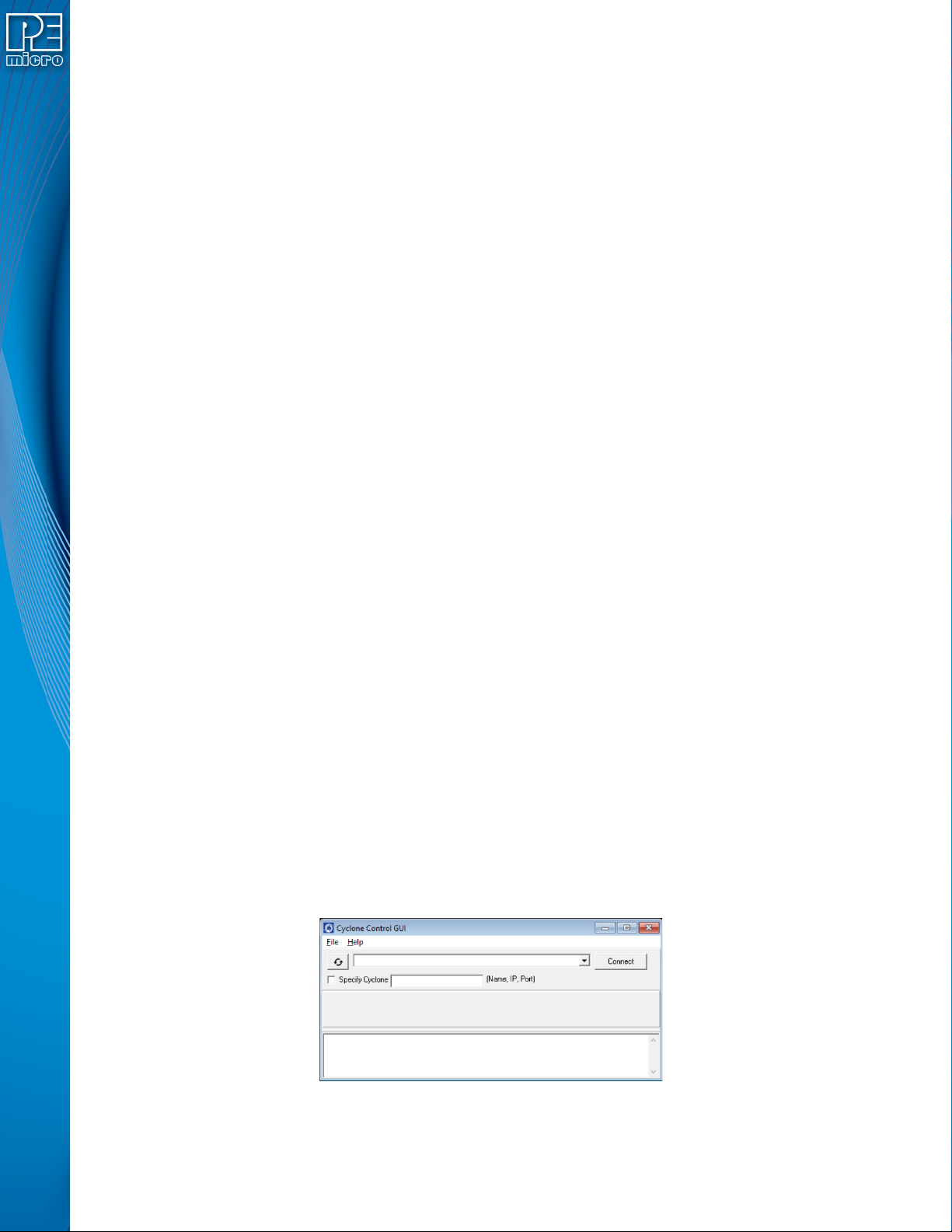
“Store Image to Cyclone” allows the current configuration to be programmed into the Cyclone. The
Cyclone will then be ready for operations. After you click “Store Image To Cyclone,” the Cyclone
Control GUI will pop up so that you can choose the Cyclone onto which you wish to save the SAP
image.
Figure 6-23: Cyclone Control GUI: Choose Cyclone for Stored Image
The Cyclone Control GUI drop-down list allows the user to select from all the Cyclones available.