CYCLONE-User-Manual.pdf - 第55页
User Manual For Cyclone LC Programmers 55 6.1.4.7 Program Words Prompts for a starting address, which must be in the module. Y ou are then asked to enter , in hexadecimal, a word to be programmed into the current locatio…
User Manual For Cyclone LC Programmers 54
programming commands.
The Remove From List button can be used to remove a selected command from the right panel.
The user can also simply hit the Delete button on their keyboard when the command is selected in
the programing sequence.
6.1.3.4 Programming Sequence Complete
Once the programming sequence is complete, the programming image can be saved to a disk or
to the Cyclone unit. For more information, please see Section 6.1.10 - Store Image To Cyclone.
6.1.4 Programming Operations
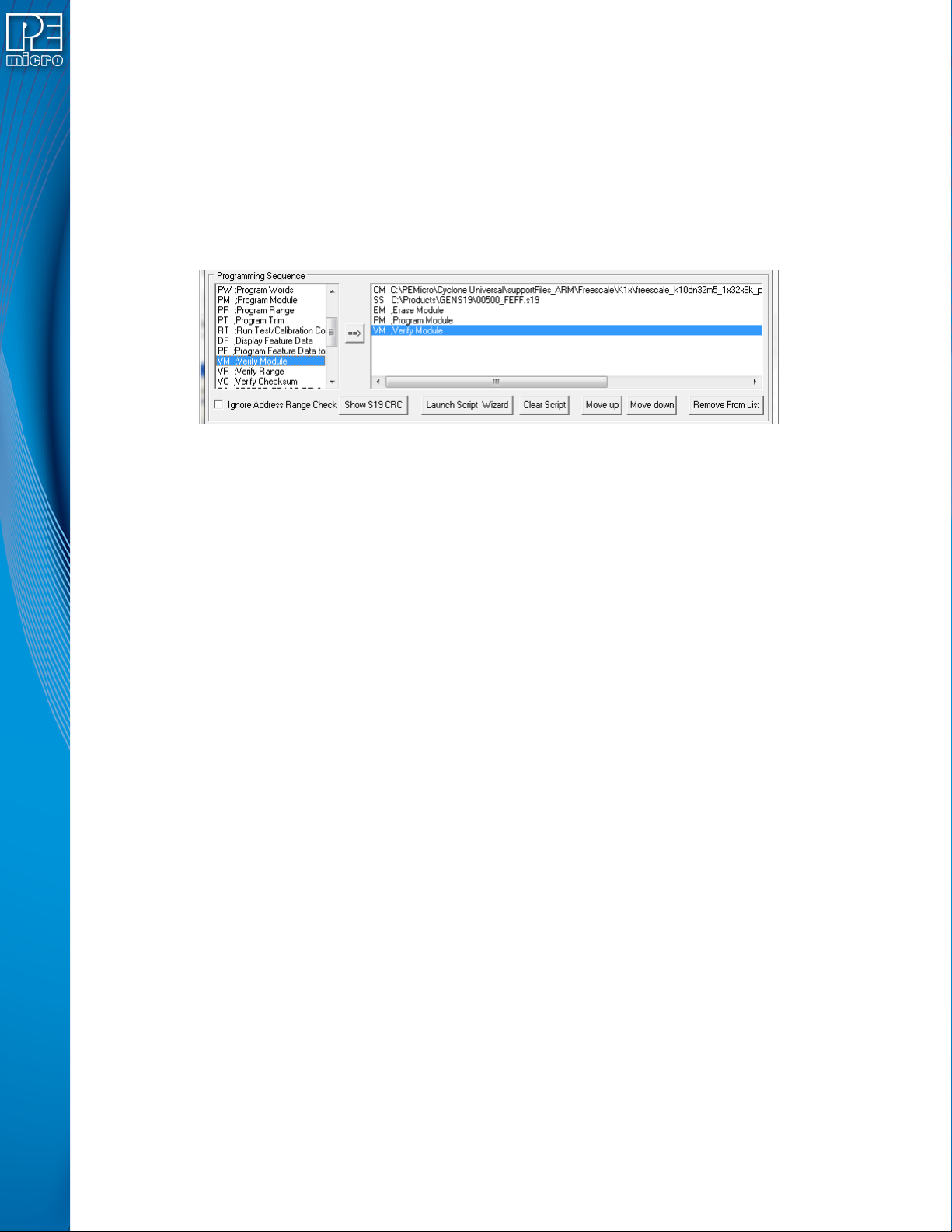
Figure 6-13: Programming Operations Dialog Section
The Programming Sequence field, the user may specify the algorithm, object file, and operations
to be carried out.
6.1.4.1 Choose Module
Presents a list of available programming files. Each programming file contains information on how
to program a particular module. Usually, the name of the file indicates what kind of module it
relates to.
6.1.4.2 Specify Object File
Asks for the name (and/or path) to a file of object files to be used in programming or verifying a
module. If the file is not found, an error message is given. The currently-selected file is shown in
the S19 file selected window. The programmer accepts S1, S2, and S3 records. All other file
records are treated as comments. If you do not specify a file-name extension .S19 is used by
default. The programmer also supports ELF/Dwarf 2.0, 3.0, and 4.0 object files.
Your .S19 file may contain data for both EEPROM and flash. If you know that your S19 file
contains the correct data, “Ignore S19 Range” may be checked. This will cause any out of range
errors to be ignored.
6.1.4.3 Erase If Not Blank
This command performs a blank check of the module and erases it if it is not blank.
6.1.4.4 Erase Module
If “Erase Module” is specified, the Cyclone will erase the EEPROM/flash on the target device after
entering the Monitor Mode or BDM mode.
6.1.4.5 Blank Check Module
If “Blank Check Module” is checked, the Cyclone will check to see if the flash/EEPROM on the
target device is erased.
6.1.4.6 Program Bytes
Prompts for a starting address, which must be in the module. You are then asked to enter in
hexadecimal a byte to be programmed into the current location. Clicking the OK button will
automatically advance to the next data byte location.
User Manual For Cyclone LC Programmers 55
6.1.4.7 Program Words
Prompts for a starting address, which must be in the module. You are then asked to enter, in
hexadecimal, a word to be programmed into the current location. Clicking the OK button will
automatically advance to the next data word location.
6.1.4.8 Program Module
This command will program the selected S-record file into EEPROM/flash. For this command to
work, you must have previously selected an S-record file.
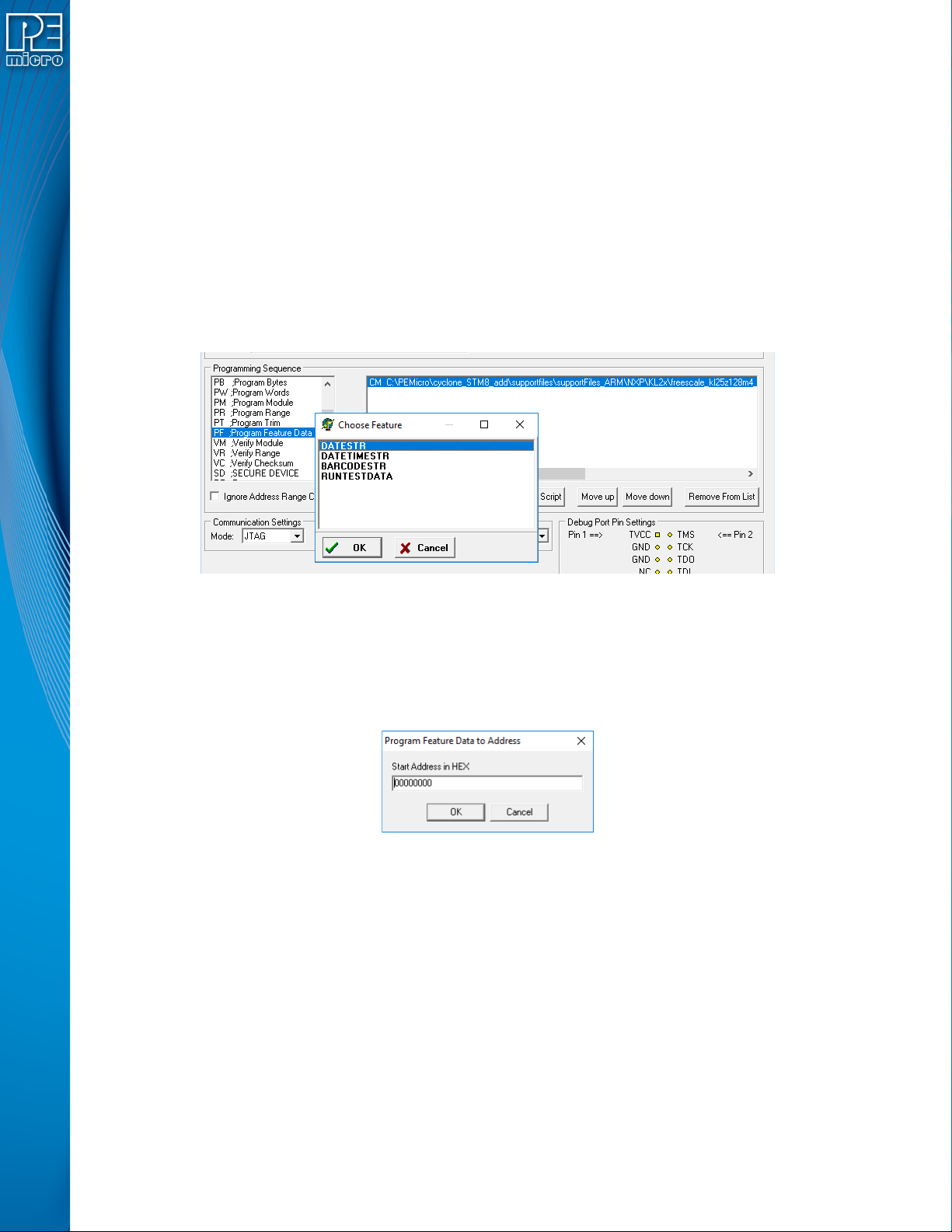
6.1.4.9 Program Feature Data
The Program Feature Data option on the Cyclone Image Creation Utility gives the user more
options to program dynamic data programming on the target device. To use Program Feature Data
select the "PF" command when creating a programming image. A window will show you the
options for feature data to program.
Figure 6-14: Using PF Command (Dynamic Data)
The options can be 1) a string of the current date (YYYY-MM-DD), 2) a string of the current date
and time, 24-hour clock (YYYY-MM-DD HH:MM:SS), 3) run test data.
Cyclone FX only: To 4) program the barcode into the flash of the target device, BARCODESTR
should be selected. The next window contains the hex address of where the dynamic data will be
stored:
Figure 6-15: Program Feature Address Dialog (Hex)
6.1.4.10 Verify Module
This command will verify that the selected S-record file was programmed into the EEPROM/flash.
For this command to work, you must have previously selected an S-record file.
6.1.4.11 Verify Checksum
This command verifies the module content via a CRC calculation. This command is typically much
faster than performing a full Verify Module command.
6.1.4.12 Choose Serial File
This command becomes available once a programming algorithm is selected. It specifies the serial
file that holds the serial numbers to be programmed to the target.

User Manual For Cyclone LC Programmers 56
6.1.4.13 Program Serial Number
This command becomes available once a programming algorithm is selected. It will instruct the
Cyclone to program the serial number to the target once executed. As with other commands, the
serial number will not be programmed until the SAP operations are carried out.
Note:
6.1.5 Communication Mode and Rate Settings
Cyclone LC programmers support multiple communication modes and communication rates. A
user needs to select proper communication mode and rate from the drop down list after
programming operations are specified. The debug connector pin definitions are listed for
reference.
6.1.6 Target Voltage and Power Settings
A user may elect to use Cyclone to supply power to the target. In this case, the Target Voltage
specifies the target MCU I/O voltage level.
The user needs to take into account the power discharge time for the Power Down delay. The
reset driver delays, power stabilization time, and the target clock stabilization time should be
considered for the Power Up delay.
A checkbox is available for a user to instruct the Cyclone to turn off target power after SAP
operations. If unchecked, the target power will remain on.
The user has the option to provide Reset Delay if certain reset monitoring devices are used. The
Cyclone will delay for the specified time after allowing the target out of reset.
6.1.7 Image Description
The Cyclone Image Creation Utility allows the user to summarize the purpose of their current
configuration for future reference by adding text to the Image Description box. The description will
be either programmed into the Cyclone or saved into an encrypted file.
The image description will appear on the Cyclone’s touchscreen LCD for image identification. This
field will not affect the Cyclone’s operations with the target.
Tip: If your image will be encrypted, it can be helpful to indicate this as part of the Image
Description.
Figure 6-16: Image Description Box
6.1.8 ProCryption Security License Features
Cyclone FX programmers, and Cyclone LC programmers with the ProCryption Security
Activation License installed, can take advantage of the powerful security features that can be
configured in this area of the Cyclone Image Creation Utility.
6.1.8.1 SAP Image Encryption
Users can create unique ImageKeys which can be used to encrypt their programming images.
SAP images encrypted in this way can only be loaded onto a Cyclone that has been provisioned
with the identical ImageKey.
Note: Both the Cyclone and the ImageKey are needed to decrypt the image. If the ImageKey is later
removed from the Cyclone, the encrypted SAP image cannot be decrypted for programming.
Likewise, the encrypted image cannot be read on a PC.
This section will detail how to use the Cyclone Image Creation Utility to encrypt a SAP image. For
a more in-depth description of Cyclone SAP image encryption, please see CHAPTER 11 - SAP
IMAGE ENCRYPTION. For detailed information about how to use and manage encrypted
programming images during the production process, the user should refer specifically to Section
11.4 - Managing Encryption For Production Programming.