CYCLONE-User-Manual.pdf - 第41页
User Manual For Cyclone LC Programmers 41 Figure 5-2: Main Menu Structure
User Manual For Cyclone LC Programmers 40
10. Status Window and Main Menu button (always shown).
11. Programming count & limit
12.
5.1.3 Status Window
The status window appears in the lower left corner of the home screen and displays the results of
programming operations.
5.1.4 Error Information Icon
When the Cyclone experiences an error during programming operations, the Info icon will appear
to the left of the Menu button (or AUX button, if configured).
Info Icon:
Press the Info icon to view a detailed description of the error.
5.1.5 AUX Button (Appears If Configured)
The Cyclone allows the user to add an Auxiliary (AUX) button to the home screen which will
perform a specific function when pressed. The specific function is chosen by the user when the
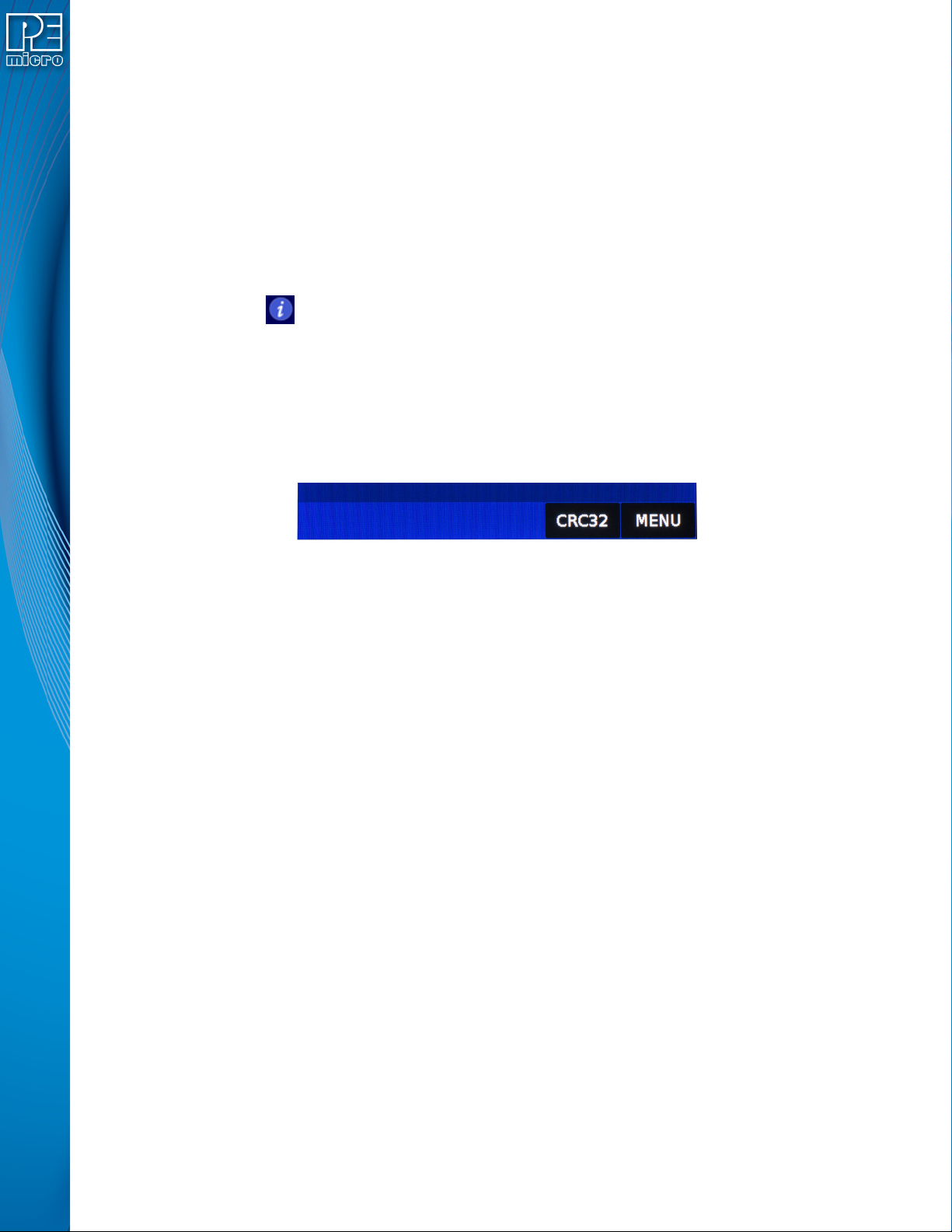
AUX button is configured. The AUX button will appear on the home screen to the left of the “Menu”
button, in the lower right corner of the home screen.
Figure 5-1: AUX Button On Home Screen (configured to perform CRC32 function)
For information on how to configure the AUX button, see Section 5.2.4 - Status.
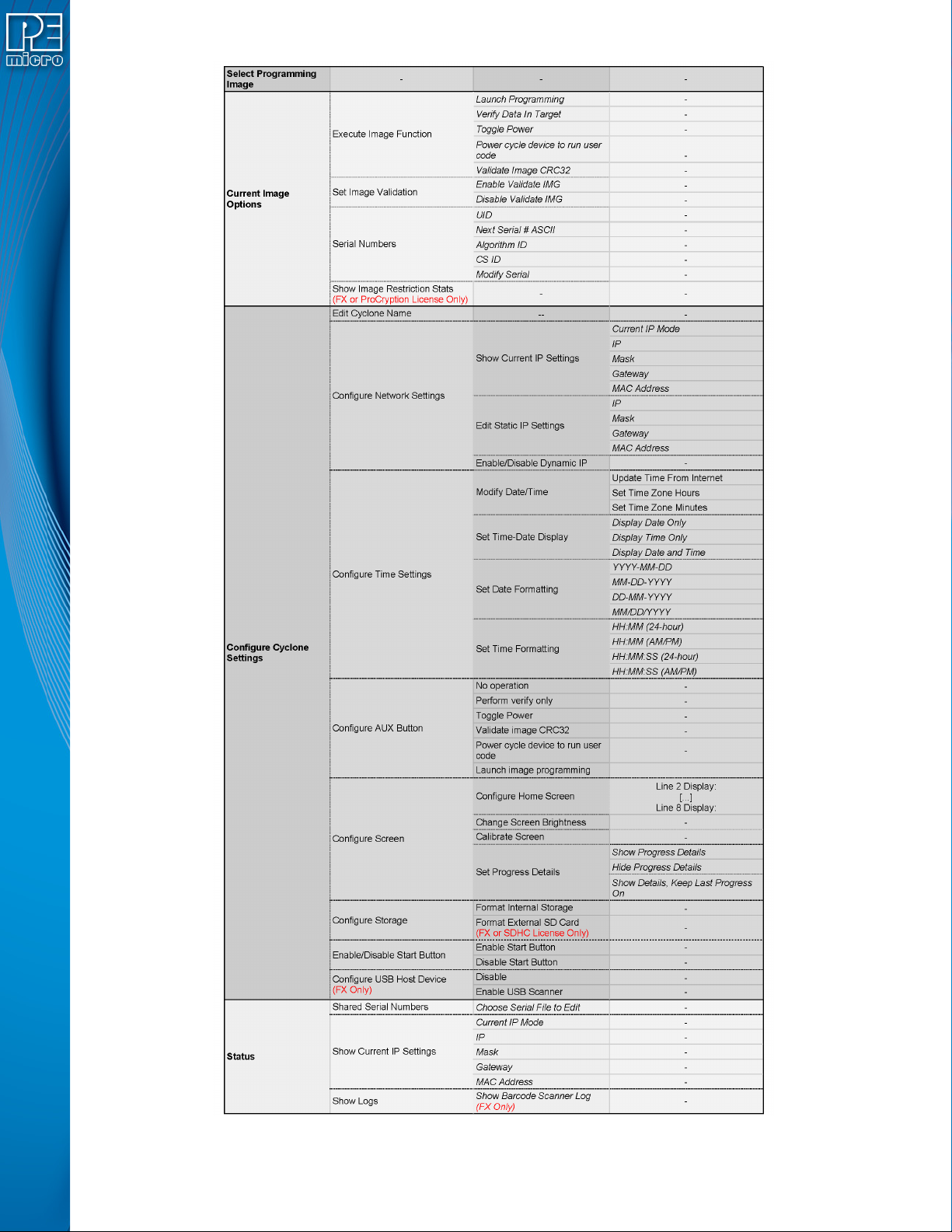
5.2 Main Menu
The Main Menu is accessible by pressing the “Menu” button when the Home Screen is displayed.
The Main Menu contains the following selections:
User Manual For Cyclone LC Programmers 41
Figure 5-2: Main Menu Structure
User Manual For Cyclone LC Programmers 42
5.2.1 Select Programming Image
Displays a list of the available programming images so that the user may select one for
programming. Images in the Cyclone’s internal memory are preceded by the designation “IN” and
numbered sequentially, i.e., IN1: first image name, IN2: second image name. If the SDHC port of
the Cyclone is activated and contains a memory card (and the SDHC License Activation is
installed), any programming images that reside on the SD card will be preceded by the designation
“EX” in similar fashion.
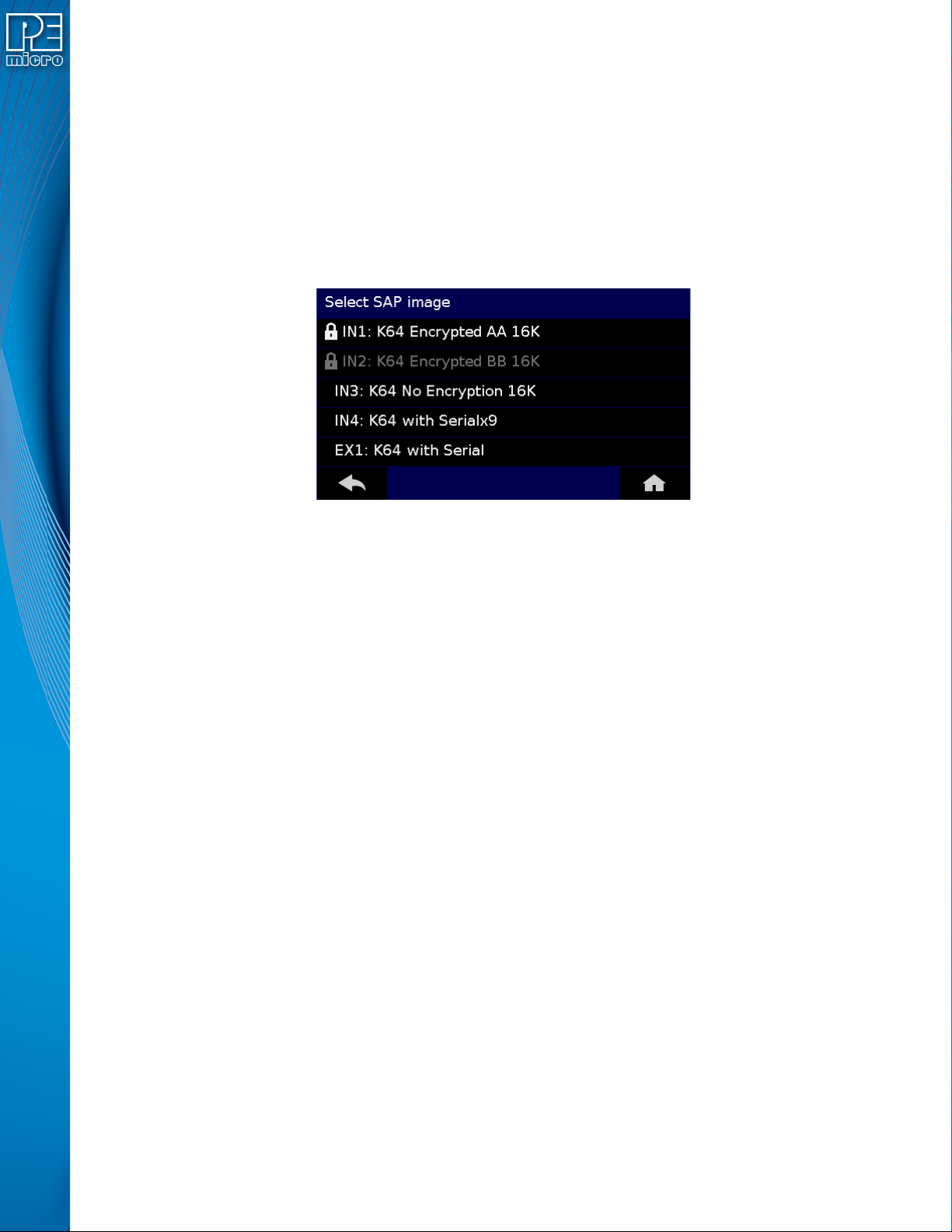
Encrypted (eSAP) images will display a lock icon to the left of the image description. If the
ImageKey needed to decrypt an eSAP image is missing from the Cyclone, the image will appear
grayed out. and cannot be selected for programming until the appropriate ImageKey is loaded onto
the Cyclone (see image #2 in Figure 5-3).
Figure 5-3: Lock Icon Denotes Encrypted Images
You may tap the appropriate image to select it. The image name shown is the one specified in the
Cyclone Configuration Utility when saving the image to the Cyclone/SD card.
5.2.2 Current Image Options
This menu presents options that allow the user to select or configure programming images on the
Cyclone LC.
5.2.2.1 Execute Image Function
Execute Specific SAP Function presents four Stand-Alone Programming functions that you may
execute by tapping the function that you wish to execute:
5.2.2.1.1 Launch Programming
This allows the user to execute the programming function. The Cyclone LC will program the target
device, if able, using the currently selected programming image. This is functionally equivalent to
pressing the Start button.
5.2.2.1.2 Verify Data In Target
Performs a verify function on the data that has been programmed into the target device.
5.2.2.1.3 Toggle Power
Toggles the target power and makes sure all ports are driven to debug mode level.
5.2.2.1.4 Power Cycle Device To Run User Code
Toggles the target power and maintains tri-state mode for all signals.
5.2.2.1.5 Validate Image CRC32
Allows the user to perform a CRC32 validation on the currently selected programming image.