CYCLONE-User-Manual.pdf - 第44页
User Manual For Cyclone LC Programmers 44 bottom to proceed to the next serial file (if any). Figure 5-6: Serial Number View W ith Older Serial Files (CS IDs #1 & #2) 5.2.2.4 Show Image Restriction Stats (Requires FX…
User Manual For Cyclone LC Programmers 43
5.2.2.1.6 Launch Image Programming
Launches the selected programming image. Replaces the hardware Start Button.
5.2.2.2 Set Image Validation
Allows the user to choose between two validation settings: 1) validate the image each time the
Start button is pressed, or 2) do not validate the image.
5.2.2.3 Serial Numbers
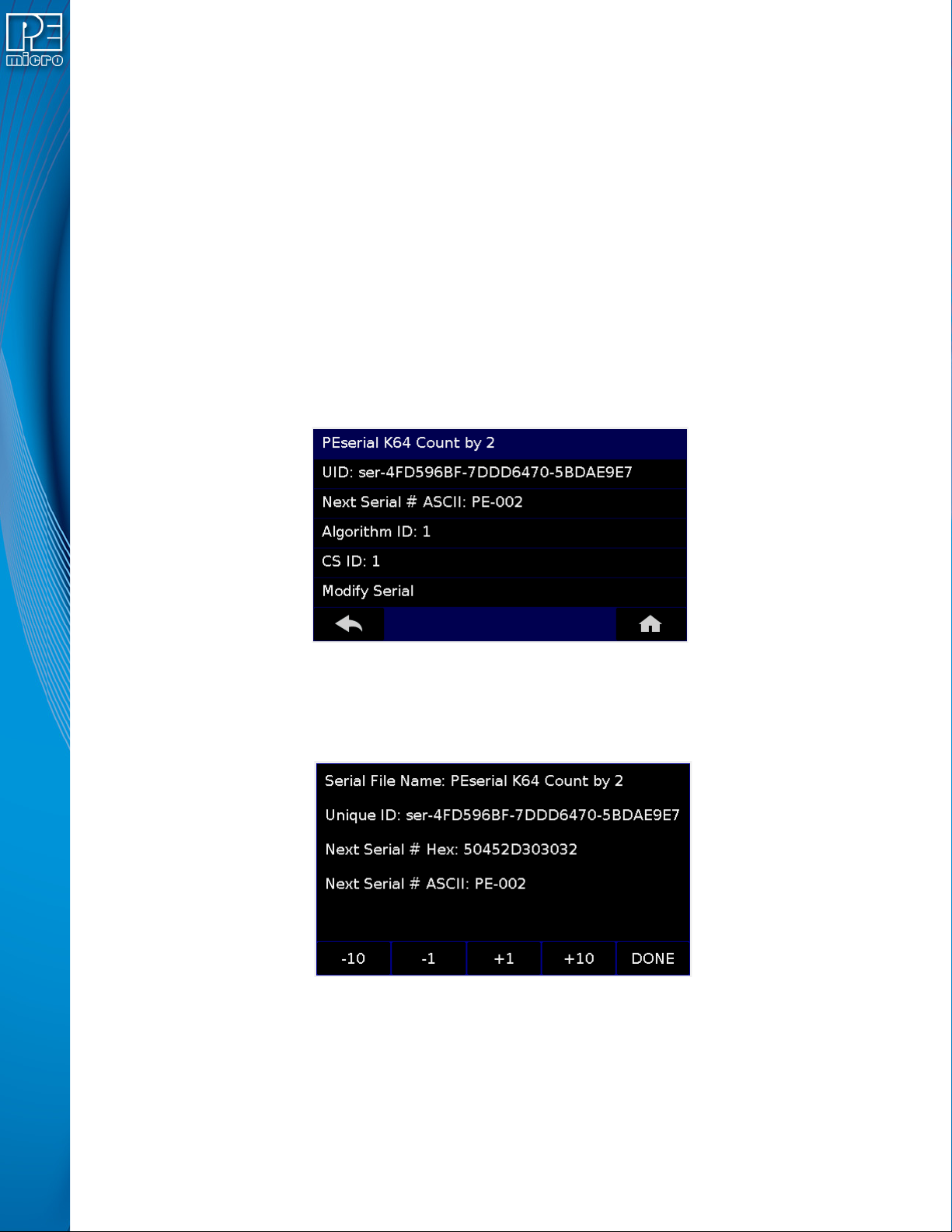
Displays the serial number information associated with the currently selected programming image.
If there is none, it will display, “This Image Contains No Serial Numbers.” There may be one or
more Serial Files associated with the image. The user can click on a specific Serial File name to
see the following information about that Serial File:
• UID - Unique identifier of the serial number
• Next Serial # ASCII - Next serial number to be programmed (shown in ASCII format)
• Algorithm ID - Displays the algorithm ID of the serial file
• CS ID - Displays the ID of the CS (Choose Serial) command in the SAP file.
Figure 5-4: Serial File Selection
The user can also click on “Modify Serial Number” to edit that serial number. It is possible to
Decrease or Increase the Next Serial by -10, -1, +1, +10. This is often done to address issues in
the production process, such as during initial setup.
Figure 5-5: Increase or Decrease Serial Number
The adjustment buttons will display “Increase Not Allowed” and “Decrease Not Allowed” if the
image/algorithm/CS file that the user has selected does not allow for this operation.
Note: Older serial files are specific to one programming image, unlike PEmicro’s current serial files. If
viewing Serial Number info for an image that references one or more older serial files, the Cyclone
will not show links to the serial files but will instead display serial number info for the first serial file.
The user can then Modify Next Serial to change the next serial number, or click MORE at the
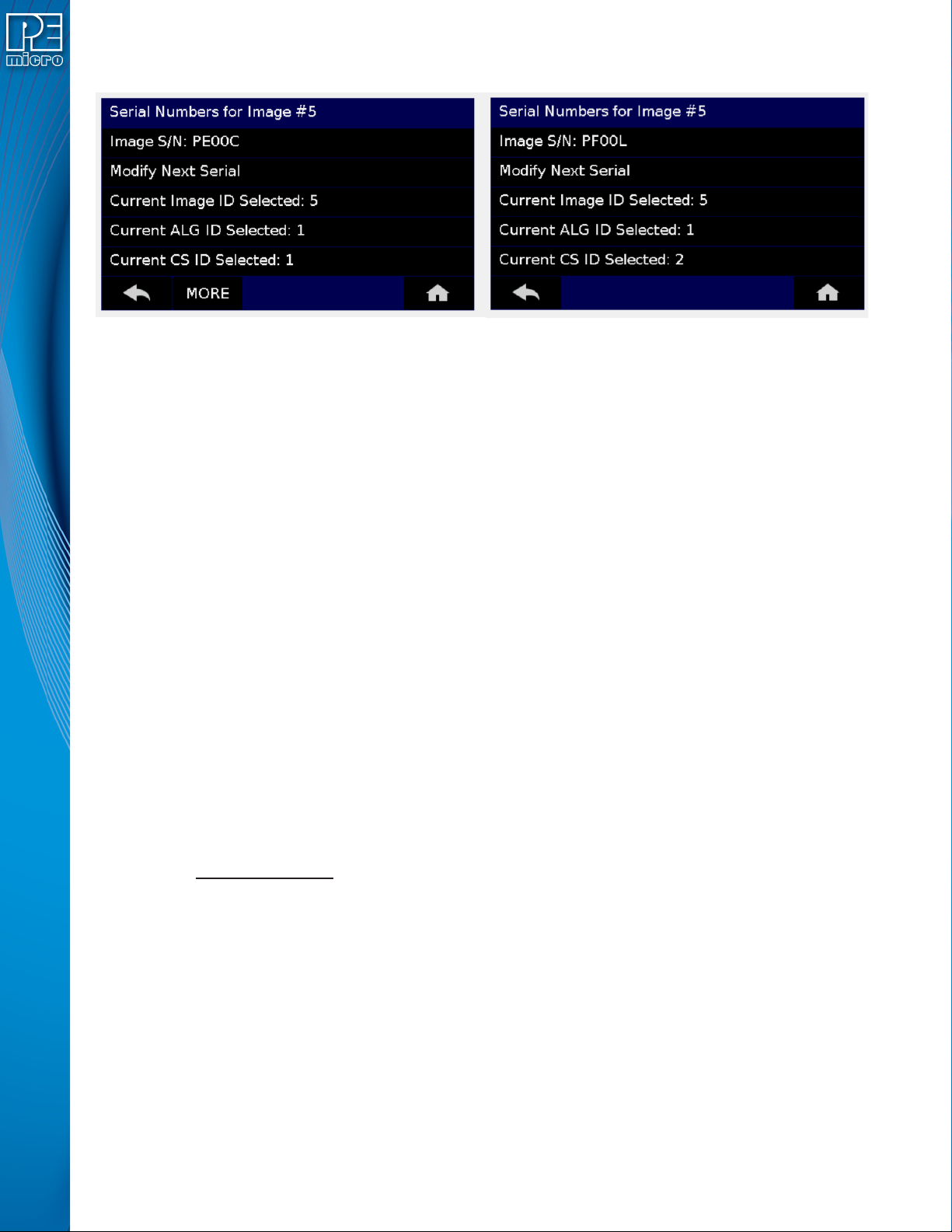
User Manual For Cyclone LC Programmers 44
bottom to proceed to the next serial file (if any).
Figure 5-6: Serial Number View With Older Serial Files (CS IDs #1 & #2)
5.2.2.4 Show Image Restriction Stats (Requires FX or ProCryption Security License Activation)
Displays current statistics, if any, for Image Programmed Count & Maximum Allowed, Errors
Logged & Maximum Allowed, and Date Range Allowed. These limits can be set in the Security
Features section of the Cyclone Image Creation Utility (see Section 6.1.8.2 - Image
Restrictions).
Note: When Current Image Stats is displayed as a home screen item, only Image Programmed
Count & Maximum Allowed are displayed on the home screen.
5.2.3 Configure Cyclone Settings
Presents options that allow the user to choose to configure the Cyclone LC network settings, time/
date settings, and LCD touchscreen display settings, or to set the display to dynamic.
5.2.3.1 Edit Cyclone Name
Allows the user to edit the name of the Cyclone using the on-screen keyboard. Click “Done” to
save the new Cyclone name or “Cancel” to exit without saving a new Cyclone name. This name
will be displayed on the Cyclone LC home screen if the Cyclone is configured to do so.
5.2.3.2 Configure Network Settings
Presents options that allows the user to view or edit various IP settings, toggle the IP settings
between static and dynamic, and re-name the Cyclone LC.
5.2.3.2.1 Show Current IP Settings
This menu allows you to view the Cyclone LC IP address, Mask, and Gateway, and MAC address.
You may also tap these entries to edit, as long as the Cyclone is set to Static IP mode.
Dynamic vs. Static
There are two schemes for assigning IP addresses. One is the Static IP addressing mode. This
involves the user manually setting the IP address for every device on the network. In this case, it
falls to the user to ensure the IPs assigned do not conflict and are within the boundaries of the
network. The other is the Dynamic Host Configuration Protocol (DHCP). This involves setting up a
separate server to manage the IP addresses. The server is given a list of valid IP addresses for the
network. Using a predetermined set of rules, each new device that wishes to connect to the
network is given an IP address by the server. This takes the task of managing the validity and
uniqueness of IP addresses out of the user's hands and relegates it to the server. Cyclone LC
programmers are capable of using either Static IP addressing or DHCP.
5.2.3.2.2 Edit Static IP Settings
This menu allows you to edit the Cyclone’s IP address, Mask, and Gateway, and view the
Cyclone’s MAC address. If you are unable to edit these values, you may wish to check to be

User Manual For Cyclone LC Programmers 45
certain that the Cyclone is not set to Dynamic IP mode.
IP
Edit IP Numbers allows the user to set an IP number for the Cyclone. The current IP number is
displayed on the second line. Tap a number to edit and use the touchscreen keyboard to set the
new number. When you are finished, hit Done. If you change your mind and decide not to save, hit
Cancel to leave the IP number as is and return to the Main Menu.
Mask
Edit IP Mask allows the user to set an IP Mask for the Cyclone. The current IP Mask is displayed
on the second line. Use the Up/Down buttons to scroll through the characters. To select a
character, hit the Select button. When you are finished, scroll through the characters until you
reach the -> (right-arrow) character. Selecting this character will complete the process. The default
IP mask is 255.255.255.0.
Gateway
Edit IP Gateway allows the user to set the IP Gateway for the Cyclone. The current IP Gateway is
displayed on the second line. Use the Up/Down buttons to scroll through the characters. To select
a character, hit the Select button. When you are finished, scroll through the characters until you
reach the -> (right-arrow) character. Selecting this character will complete the process.
MAC Address
Show MAC Address displays the current MAC address for the Cyclone.
5.2.3.2.3 Enable/Disable Dynamic IP
Allows the user to toggle the Cyclone configuration between utilizing a Static IP address or a
Dynamic IP address. The user must reset the Cyclone LC after changing from Static to Dynamic
or vice-versa. The reset button on the front side of the unit may be used.
5.2.3.3 Configure Time Settings (Cyclone Time / Real Time Clock)
The Cyclone LC is equipped with a Real Time Clock (RTC) module designed to keep accurate
timing even when the Cyclone is turned off. The Date & Time are displayed on the home screen.
This menu presents options that allow the user to configure the Cyclone’s various date/time/
timezone settings, including formatting options.
5.2.3.3.1 Modify Date / Time
1. Update Time from Internet - Connects to an SNTP server, fetches the current time, and
saves it to the Cyclone. When executed it displays a
message that this can freeze the Cyclone for up to 3
minutes – This is due to an invalid ARP response due to a
bad gateway configuration. Proper configuration will
ensure the problem is resolved. If the network connection
is not configured/connected this displays a message that
the time failed to update. If it is successful no message is
displayed.
2. Set Time Zone Hours - Allows you to set the timezone offset, in hours +/-, from GMT
time
3. Set Time Zone Minutes - Allows you to set the timezone offset, in minutes +/-, from
GMT time
5.2.3.3.2 Set Time-Date Display
Allows you set the Cyclone’s Time-Date Display to one of the following configurations:
1. Display Date Only
2. Display Time Only
3. Display Date and Time