CYCLONE-User-Manual.pdf - 第49页
User Manual For Cyclone LC Programmers 49 Figure 6-1: Cyclone Image Creation Utility 6.1.1 Specify CPU Manufacturer The user should select the manufacturer of their target device from the drop-down list. Cyclone LC progr…

User Manual For Cyclone LC Programmers 48
6 CREATING AND MANAGING PROGRAMMING IMAGES
The Cyclone Image Creation Utility is used to create programming images which may be loaded
into the Cyclone. The user creates programming images based on data sets to be programmed
and programming instructions which are all self contained. The next step is to download these
programming images to the Cyclone via the GUI, Console, or SDK. Programming can then be
launched either manually via the button, or automatically via the Console.exe or SDK. Learn about
how to download and launch programming images in CHAPTER 8 - CYCLONE PROGRAMMER
AUTOMATED CONTROL (CYCLONE CONTROL SUITE).
Cyclone LC programmers, or Cyclone LC programmers with the ProCryption Security Activation
License, can also use the The Cyclone Image Creation Utility to encrypt programming images,
such that only Cyclones with a specific key can decrypt and program these images. Instructions on
how to encrypt using the Cyclone Image Creation Utility are found in Section 6.1.8.1 - SAP Image
Encryption. A more in-depth description of the encryption process is available in CHAPTER 11 -
SAP IMAGE ENCRYPTION.
Note: If the user wishes to use a programming image created with an earlier generation Cyclone (such
as the Cyclone PRO or MAX, or the Cyclone for ARM devices Rev. A/B) they should first convert
the image using the conversion utility described in CHAPTER 14 - TROUBLESHOOTING.
6.1 Cyclone Image Creation Utility
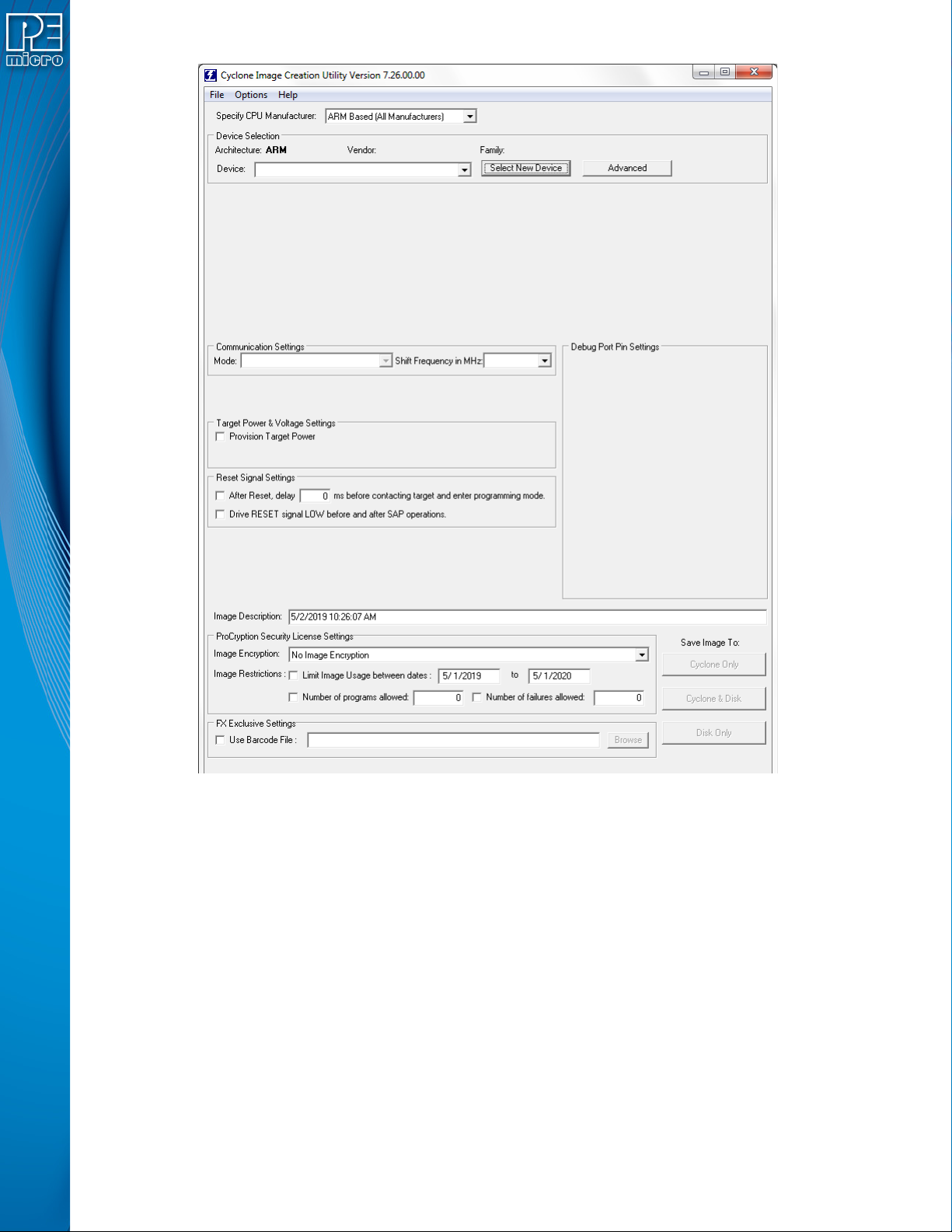
This section describes in detail how use the Cyclone Image Creation Utility, shown in Figure 6-1,
to configure, create, and save a SAP image that will be used for stand-alone programming with the
Cyclone LC. The Cyclone LC does not require a target to be connected when it is being
configured. However, the Cyclone must be powered on and one of the communications interfaces
must be connected to the Cyclone if an image is to be stored on it.
User Manual For Cyclone LC Programmers 49
Figure 6-1: Cyclone Image Creation Utility
6.1.1 Specify CPU Manufacturer
The user should select the manufacturer of their target device from the drop-down list.
Cyclone LC programmers support ARM Cortex devices from several manufacturers, including
NXP’s Kinetis and LPC devices. For a complete index of PEmicro-supported ARM Cortex devices,
please view pemicro.com/arm.
If you are using PEmicro Part# CYCLONE-LC-UNIV, this Cyclone also supports these 8-16/32-bit
architectures: NXP’s S32, ColdFire® V2/V3/V4, ColdFire+/V1, MPC5xx/8xx, MPC55xx-57xx,
DSC, ARM® Nexus (MAC7xxx), S12Z, HC(S)12(X), HCS08, HC08, and RS08 devices, as well as
STMicroelectronics’ SPC5 & STM8 (w/ adapter) devices.
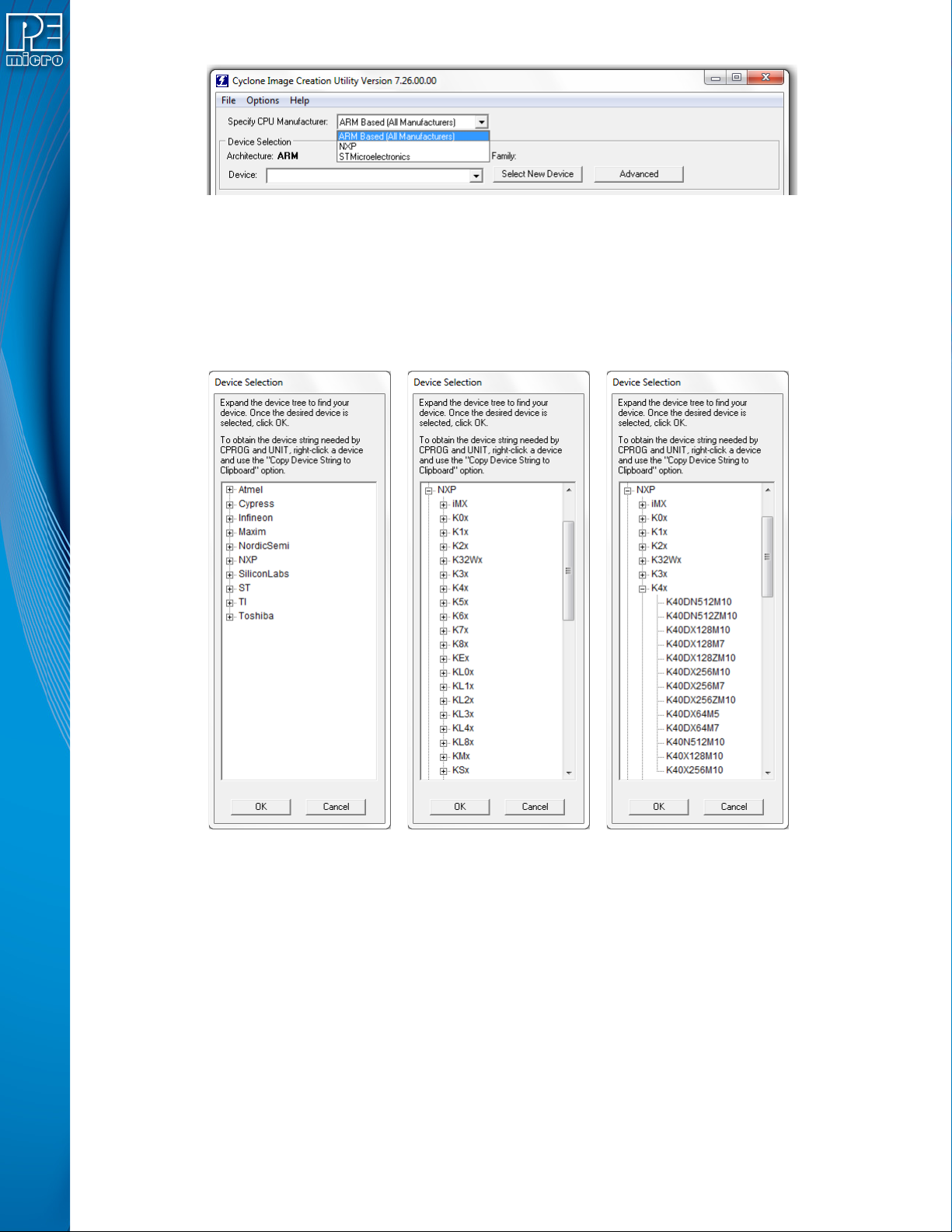
Figure 6-2 shows the Specify CPU Manufacturer drop-down box. The options are:
• ARM-based (All Manufacturers)
• NXP
• STMicroelectronics
User Manual For Cyclone LC Programmers 50
Figure 6-2: Specify CPU Manufacturer
6.1.1.1 ARM-Based Devices
If the user chooses “ARM Based (All Manufacturers)” they should then select their specific device.
A recently used device can be selected from the Device drop-down box on the left (see Section
6.1.1.3 - Device Box). The user may also click the "Select New Device" button. The Device
Selection window will then appear. This dialog directs the user how to navigate the device tree to
select their ARM device.
Figure 6-3: Device Selection - Drill Down To Specific Target Device
6.1.1.2 NXP or STMicroelectronics Devices
If the user chooses NXP or STMicroelectronics from the Specify CPU Manufacturer list, they
should then select the appropriate architecture from the Specify Target Architecture drop-down.