CYCLONE-User-Manual.pdf - 第51页
User Manual For Cyclone LC Programmers 51 Figure 6-4: Specify T arget Architecture (NXP) Figure 6-5: Specify T arget Architecture (STMicroelectronics) Note: The user can still select an ARM-based device when using the NX…
User Manual For Cyclone LC Programmers 50
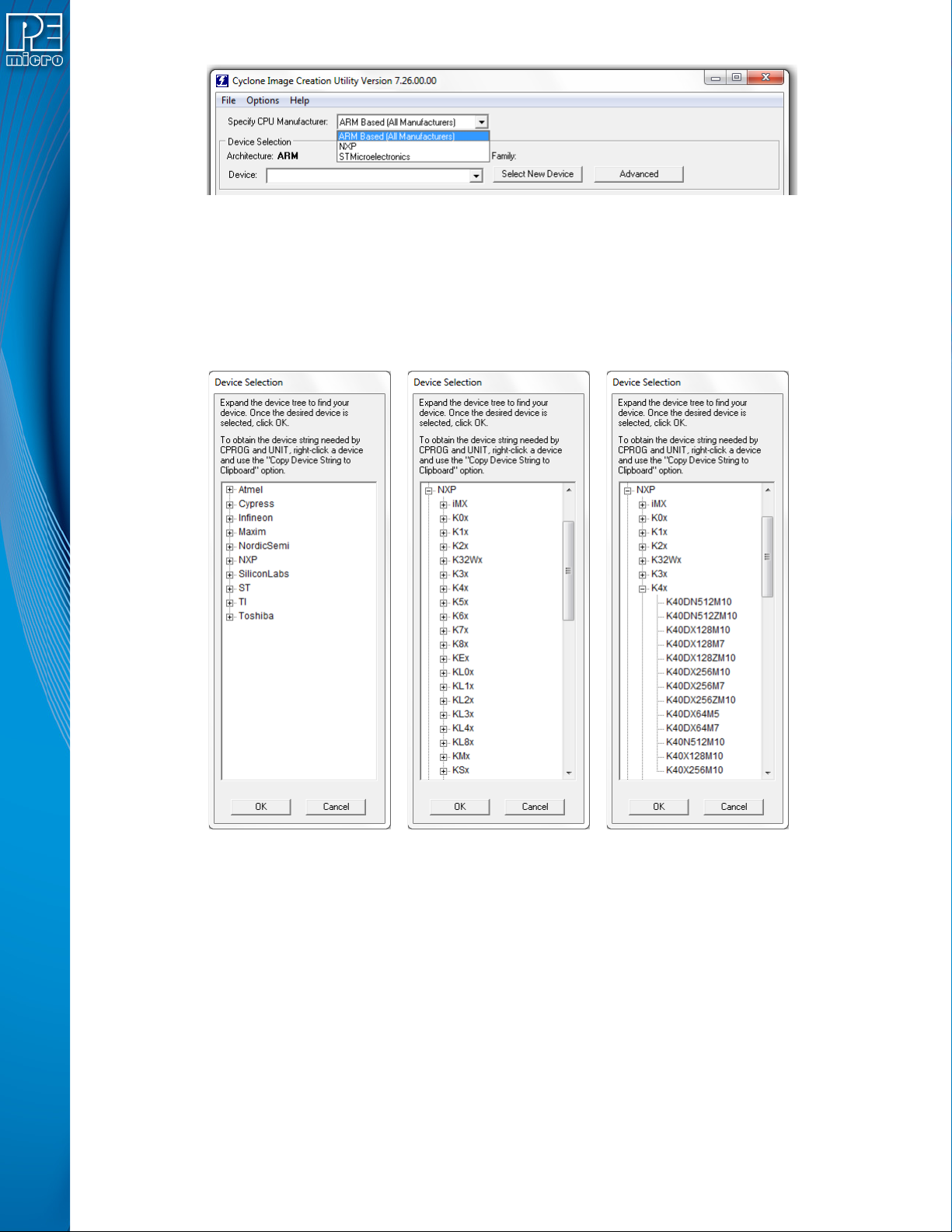
Figure 6-2: Specify CPU Manufacturer
6.1.1.1 ARM-Based Devices
If the user chooses “ARM Based (All Manufacturers)” they should then select their specific device.
A recently used device can be selected from the Device drop-down box on the left (see Section
6.1.1.3 - Device Box). The user may also click the "Select New Device" button. The Device
Selection window will then appear. This dialog directs the user how to navigate the device tree to
select their ARM device.
Figure 6-3: Device Selection - Drill Down To Specific Target Device
6.1.1.2 NXP or STMicroelectronics Devices
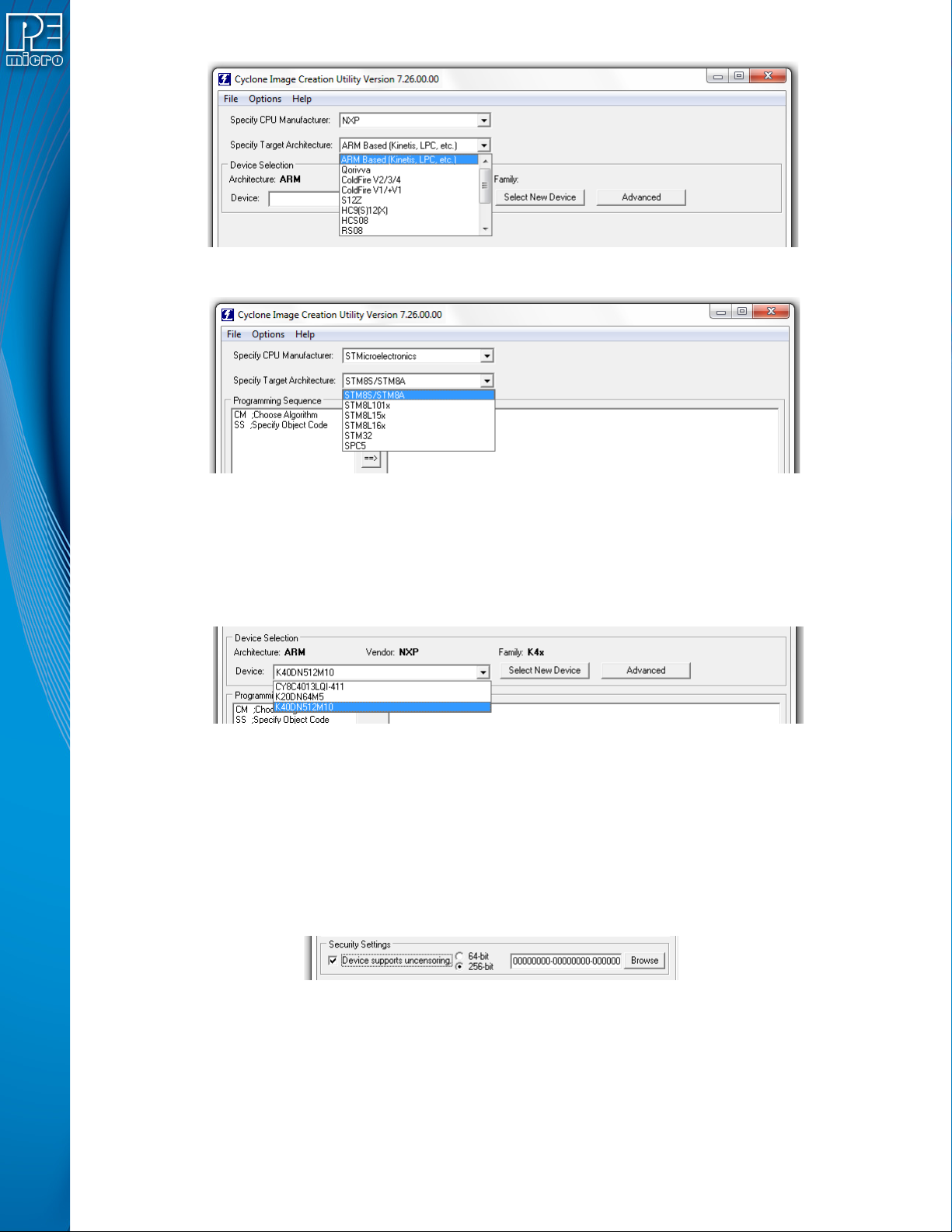
If the user chooses NXP or STMicroelectronics from the Specify CPU Manufacturer list, they
should then select the appropriate architecture from the Specify Target Architecture drop-down.
User Manual For Cyclone LC Programmers 51
Figure 6-4: Specify Target Architecture (NXP)
Figure 6-5: Specify Target Architecture (STMicroelectronics)
Note: The user can still select an ARM-based device when using the NXP or STMicroelectronics
manufacturer selections.
6.1.1.3 Device Box
The Device box can be used to choose from any devices that have recently been selected.
Figure 6-6: Device Drop-Down - Select From Recently Chosen Devices
6.1.2 Security Settings - Qorivva (MPC55xx-57xx) Only
If your selected target architecture was Qorivva (MPC55xx-57xx), the Cyclone Image Creation
Utility will display an area called Security Settings (see Figure 6-7). If your MPC55xx-57xx device
supports uncensoring, click the “Device supports uncensoring” checkbox and select the
appropriate bit depth for the device’s password (64-bit or 256-bit). The box to the right is where the
password must be entered. Optionally you may use the Browse button to navigate to a text file that
contains the correct password for the device. The contents of the text file that you select will
automatically be used to fill the password text box.
Figure 6-7: Security Settings - Qorivva (MPC55xx-57xx) Only
6.1.3 Programming Sequence
This is the two-panel interface directly below the Device Selection area. This is where the user
creates the sequence of commands to be carried out during programming. The left panel provides
a list of available programming functions. The right panel displays the ordering of the functions.
User Manual For Cyclone LC Programmers 52
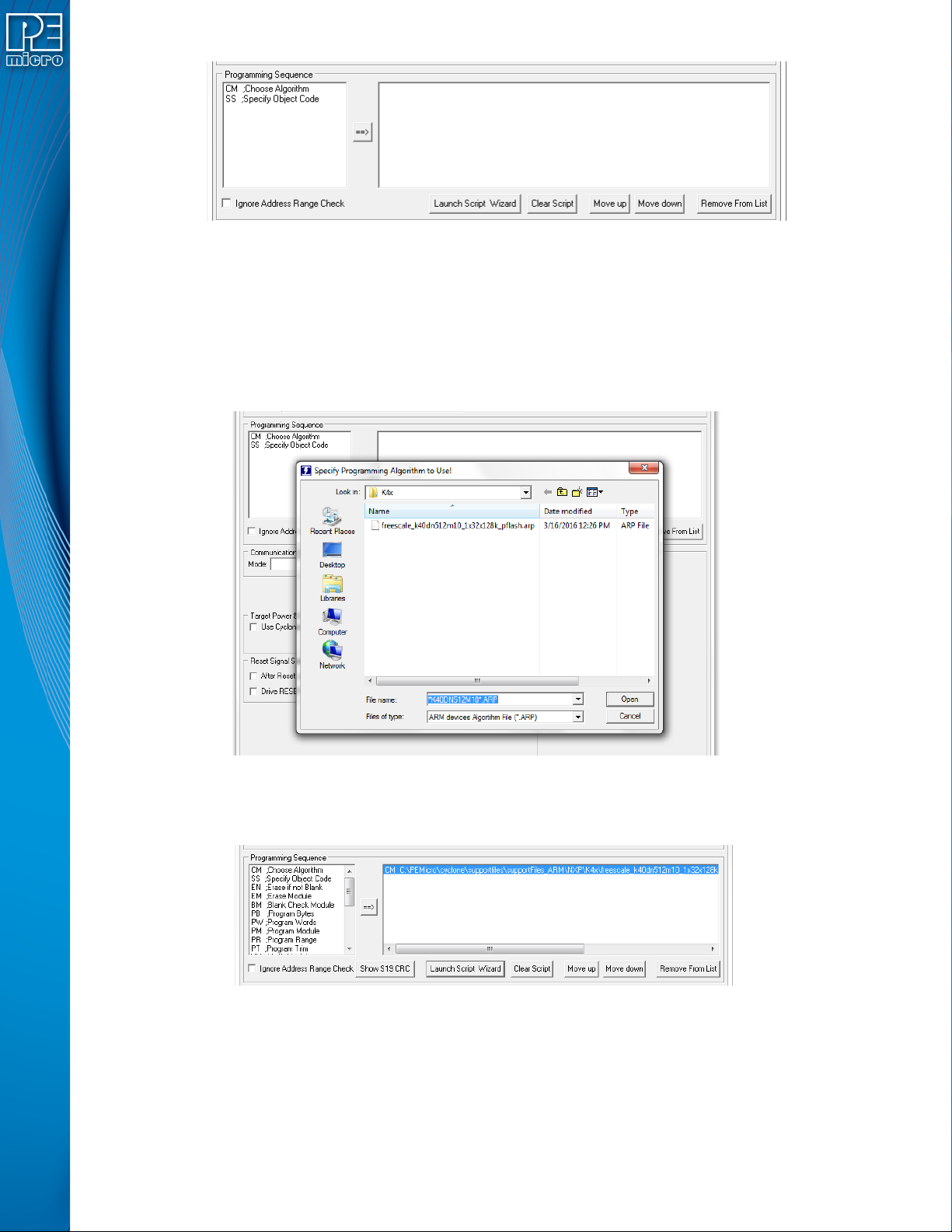
Figure 6-8: Specify Programming Sequence
There are two ways to create the programming sequence.
6.1.3.1 Manual Selection
The user can individually specify the algorithm and the object code and then add commands. To
specify the programming algorithm for the target, double-click on the Choose Algorithm (CM)
function in the left panel. Or, it can be highlighted and added it to the right panel using the arrow
(->). This opens the “Specify Programming Algorithm to Use” dialog.
Figure 6-9: Specify Programming Algorithm To Use
The user should select the programming algorithm to be used. Once the algorithm is selected, the
full list of programming functions becomes available in the left panel.
Figure 6-10: Programming Functions Available
Similarly, to specify the S-Record to be programmed into the target, the user may double-click on
Specify Object Code (SS) in the left panel or highlight it and add it using the arrow (->). This opens
a dialog which allows you to select the appropriate S-Record.