DECAN_S1_Administrator′s_Guide(Eng_Ver1.5)_Print.pdf - 第202页
7-38 Next Generation, Multi-Functional Plac er DECAN S1 Administrator’s Guide Figure7.9 “Auto Teach the selected part-Go od” dialog box <Result> Displays whether or not Auto T eac h has been successfully performe…
7-37
Part Registration
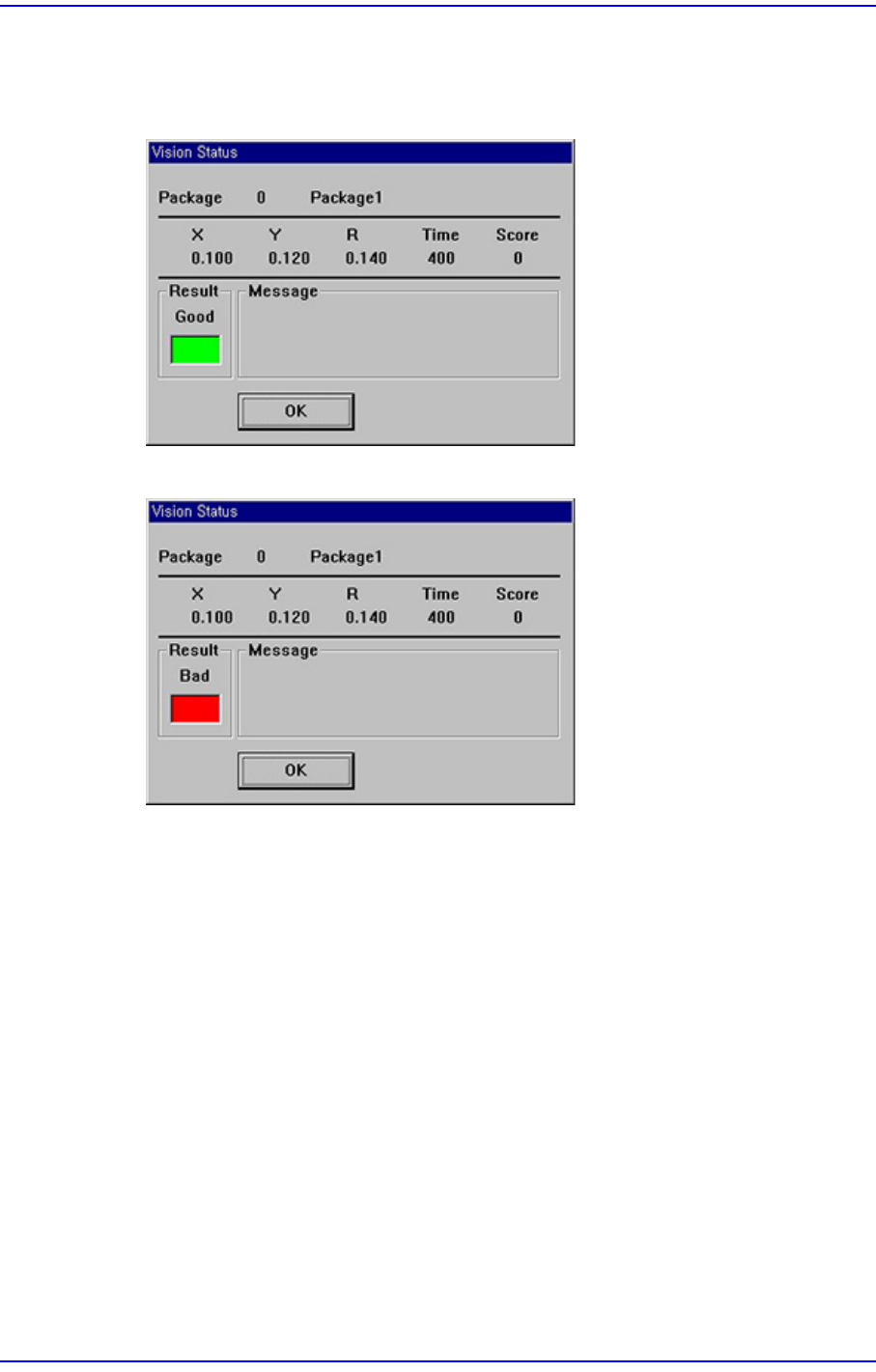
<Test> button
Tests component recognition by using the set align data. When the test is successful,
the following message box is displayed.
When the test is not successful, the following message box is displayed.
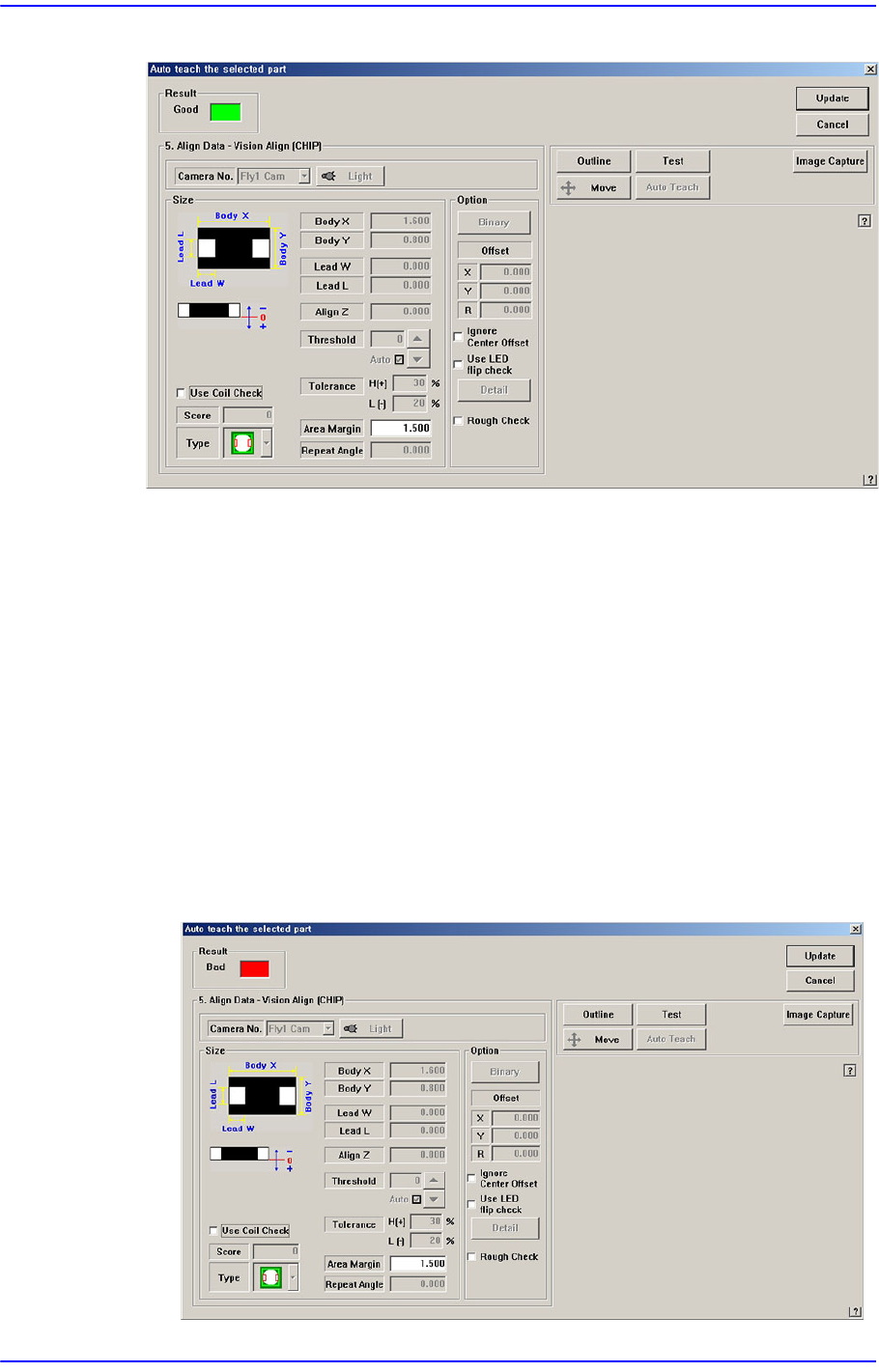
<Auto Teach> button
Automatically finds out the component align data. If Auto Teach is successfully
performed, following dialog box is displayed.
Auto Teach is supported only for CHIP-Rect, TR, TR2,BGA, SOP, SOP2, SOJ, SOJ2,
QFP, PLCC and FLIPCHIP.
7-38
Next Generation, Multi-Functional Placer DECAN S1 Administrator’s Guide
Figure7.9 “Auto Teach the selected part-Good” dialog box
<Result>
Displays whether or not Auto Teach has been successfully performed.
<Update> button
Saves the component align data obtained by Auto Teach and closes the dialog box.
<Cancel> button
Neglects the component align data obtained by Auto Teach and closes the dialog
box.
<Align Data> group
Displays Auto Teach results.
Following is the message box when auto teach fails.
Figure7.10 “Auto Teach the selected part-Bad” dialog box
7-39
Part Registration
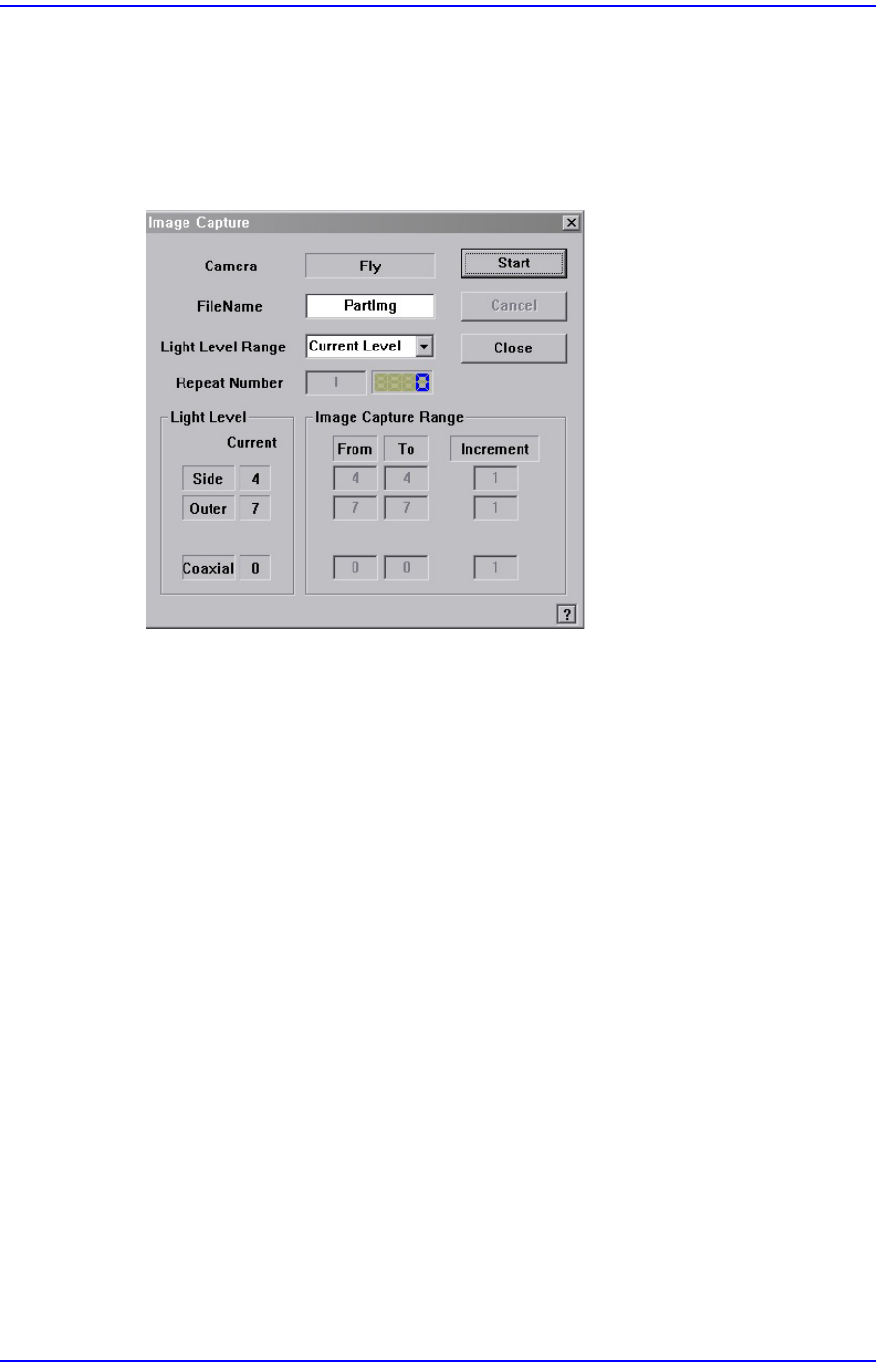
<Image Capture> button
Helps to specify the optimum lighting value. The lighting is gradually changed
automatically and the images are saved. The user can check the best image and
identify the optimum lighting value.
Figure7.11 “Image Capture” dialog box
<Camera> caption box
Displays the camera to be used for image capture.
<Filename> edit box
Enters the filename to be used for image saving.
<Light Level Range> combo box
Enters the filename to be used for image saving.
Rough
Saves the image by increasing the level of each light by 5.
Fine
Saves the image by increasing the level of each light by 1 within the range of
the light level before and after the currently set light level.
All Range
Saves the image for all light levels.
User Define
The user sets the range and interval of the light level change.
Repeat Number
Indicates the number of times an image has been saved.