DECAN_S1_Administrator′s_Guide(Eng_Ver1.5)_Print.pdf - 第504页
15-38 Next Generation, Multi-Functional Plac er DECAN S1 Administrator’s Guide 5. Select the <Manual> check box in the <3. T ool Setting> group. Then click the <Start> button in the <Mapping> grou…
15-37
System Setup
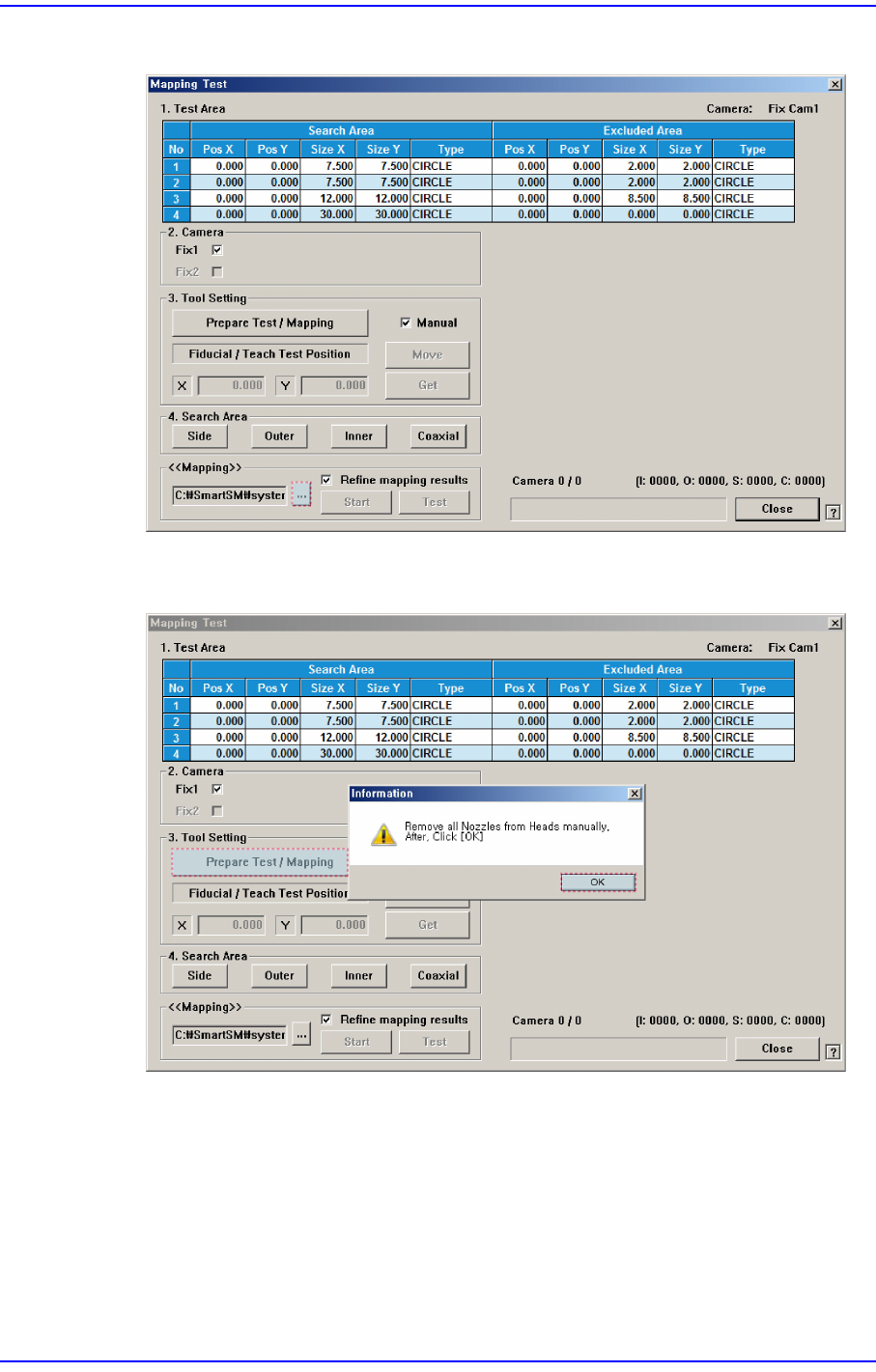
3. Click the <...> button in the <<Mapping>> group to select the file for calibration.
4. After clicking the <Prepare Test / Mapping> button in the <3. Tool Setting> group,
click the <OK> button.
15-38
Next Generation, Multi-Functional Placer DECAN S1 Administrator’s Guide
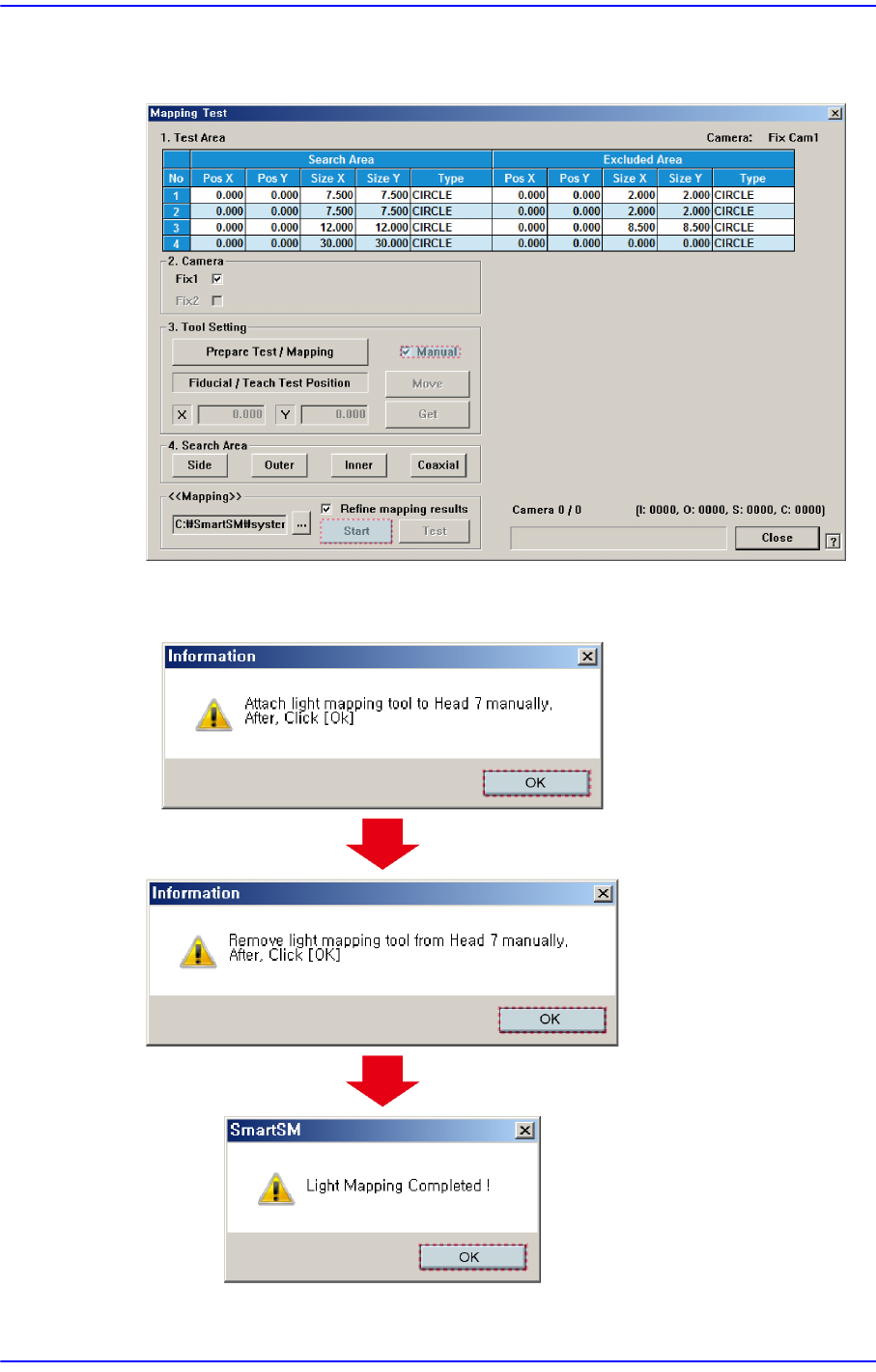
5. Select the <Manual> check box in the <3. Tool Setting> group. Then click the <Start>
button in the <Mapping> group and insert the light mapping tool into the Head 7.
6. Once the light mapping is completed, the following dialog box is displayed. clicking
the <OK> button will display the dialog box for testing.
15-39
System Setup
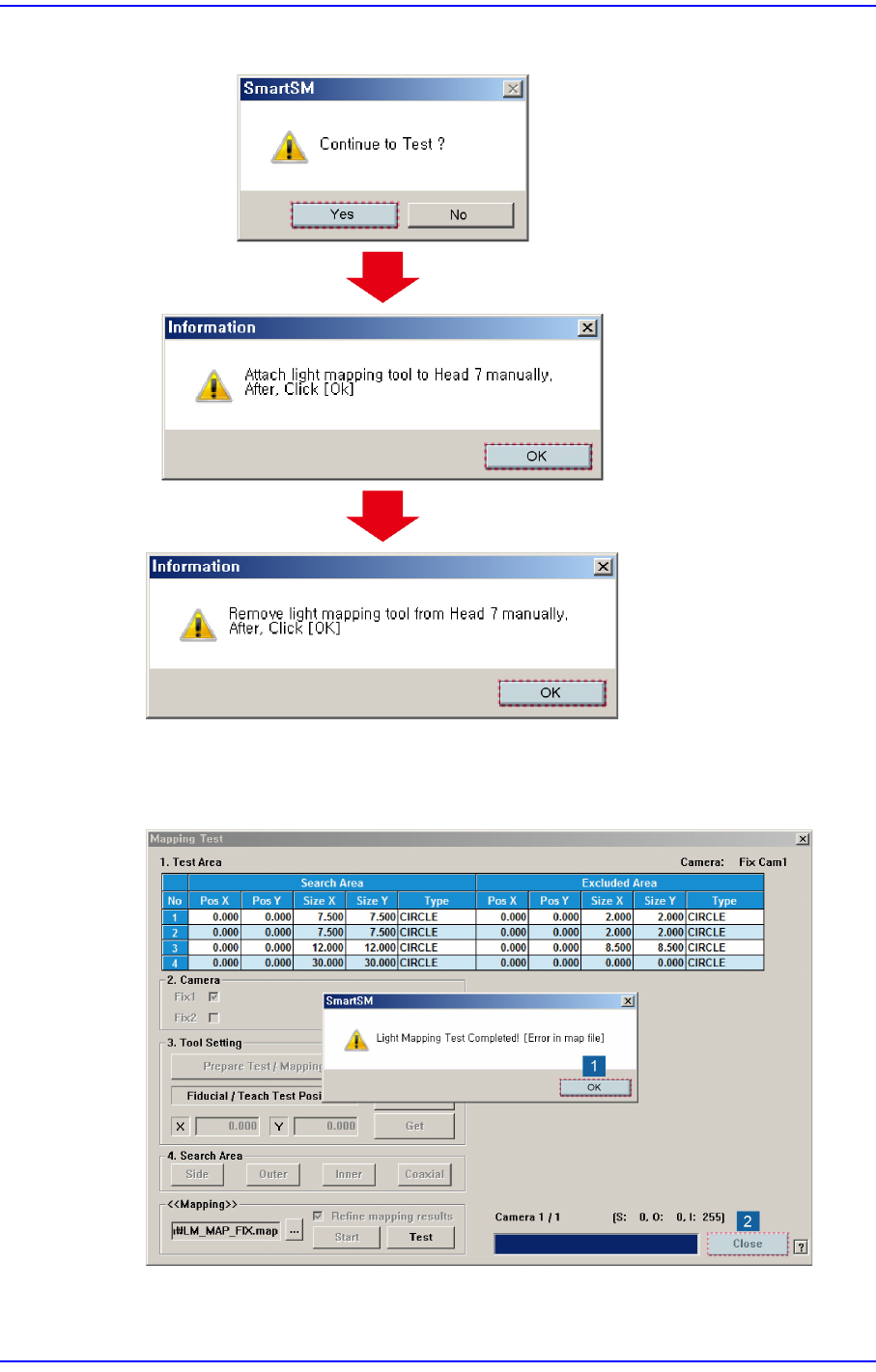
7. Click the <(Y)> button to perform the test automatically.
8. If the dialog box saying that the light mapping test has been completed is displayed,
click the <OK> button. Then click the <Close> button to close the mapping test dialog
box.