DECAN_S1_Administrator′s_Guide(Eng_Ver1.5)_Print.pdf - 第95页
4-13 Tools Shortcut Menu By utilizing ‘drag and drop ’ to move a PC B in working station to the finished PCB location, the PCB is sent to th e equipment of the next process. 4.5.2. Manual Control Function A function us…
4-12
Next Generation, Multi-Functional Placer DECAN S1 Administrator’s Guide
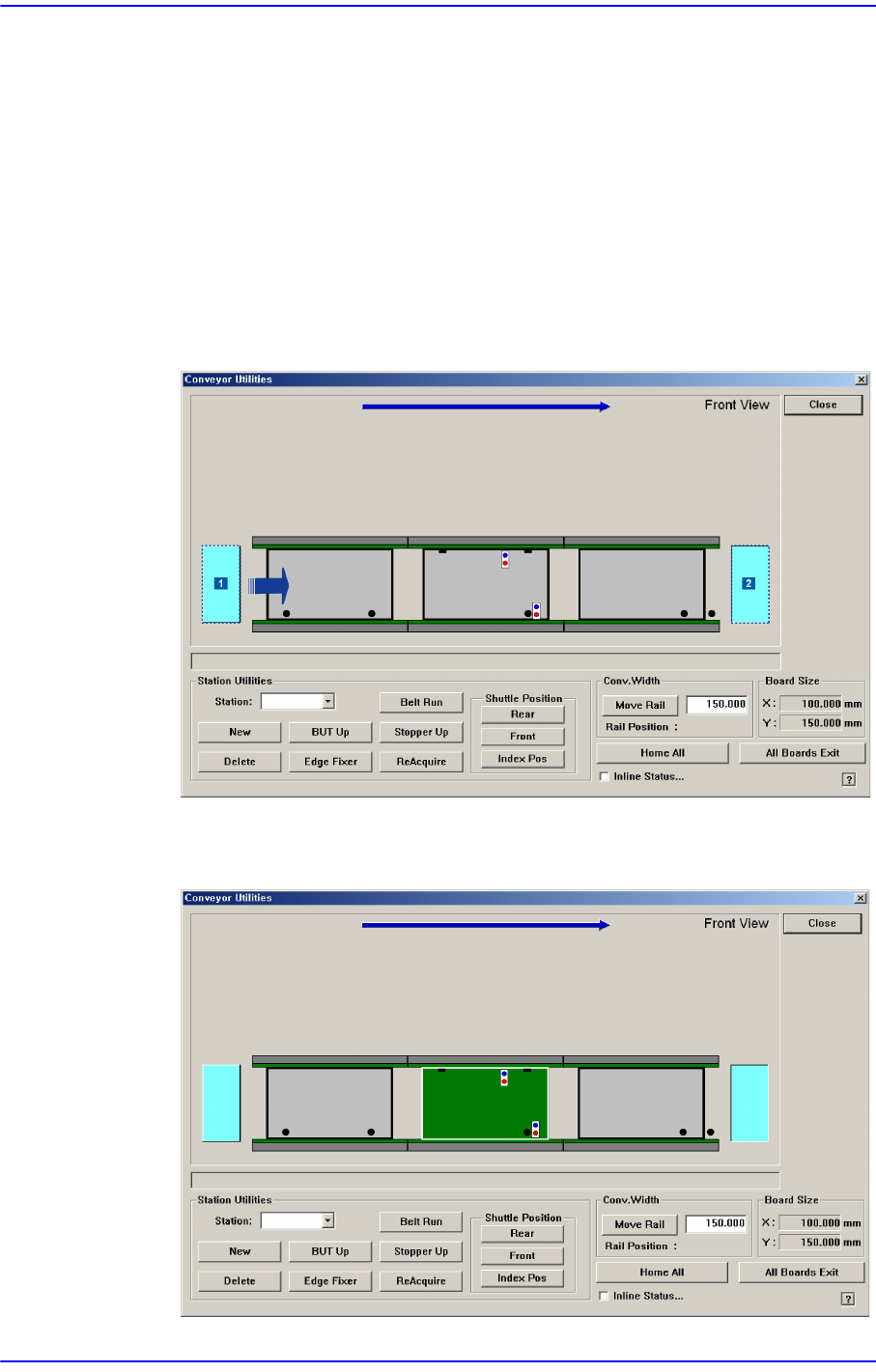
4.5.1. PCB In/Out Function
Able to place PCB in the working station in the conveyor or forward it to the next process
of the working station in the conveyor using ‘drag & drop’ with the mouse.
To put a PCB into the machine, select the light green PCB on the left with the mouse and
drag it to the working station to put and drop it (drag and drop). To release a PCB from the
machine, select the PCB in the working station to release and drag and drop it to the light
green PCB on the left (drag and drop).
Board Flow (left → Explain for the instance of right side)
The PCB is moved to the working station by ‘drag and drop’ of a PCB in standby
at the left hand side.
1: PCB in standby
2: The released PCB

4-13
Tools Shortcut Menu
By utilizing ‘drag and drop’ to move a PCB in working station to the finished PCB
location, the PCB is sent to the equipment of the next process.
4.5.2. Manual Control Function
A function used to manually operate the Backup Table /Stopper /Fixer.
Performs manual operation of BUT, stopper, edge fixer and conveyor belt for the entry,
working and exit stations of the conveyor.
<Station Utilities> group
<Station> combo box
Select the current conveyor station. (StationF1, StationF2, StationR2StationF3)
<BUT Up/Down> button
When ‘StationF2’ or ‘StationR2’ is selected in the <Station> combo box, Up/
Down of the backup table is performed.
<Stopper Up/Down> button
Moves up/down the Stopper.
<Edge Fixer> button
When ‘StationF2’ or ‘StationR2’ is selected in the <Station> combo box, performs
operation of edge fixer.
<ReAcquire> button
This is the function used for testing.
<Belt Run> button
Operates the driving belt of selected station.
<New> button
This function is enabled only for the station from which PCBs are removed using
the <Delete> button. It is used to remove the PCB to which an error occurred
during operation and to feed a new PCB to the corresponding station manually.
<Delete> button
This is used to perform forced deletion of the PCB fed to the selected conveyor
station by the program. That is, it is used to remove the PCB from the
corresponding station since an error occurred during operation.
<Shuttle Position> group
This is used to select the Shuttle (Station F1, Station F3) and move it to the work
area at the front side (Station F2) or rear side (Station R2).
<Rear> button: Moves the selected shuttle to the working area at the rear side.
<Front> button: Moves the selected shuttle to the working area at the front
side.
4-14
Next Generation, Multi-Functional Placer DECAN S1 Administrator’s Guide
<Index Pos> button: If Exit Shuttle is selected, the corresponding shuttle is
moved to the currently set index position.
The index position can be set in the submenu ‘Calib’ of the ‘System Setup’.
<Conv.Width> group
The width of the conveyor can be adjusted manually.
<Move Rail> button -When the user enters a transport rail width in the edit box
next to this button and click on this button, the transport rail width is adjusted to
the corresponding width.
<Home All> button
Finds the homes of all axes.
<All Board Exit> Button
Discharges all PCBs on the conveyor.
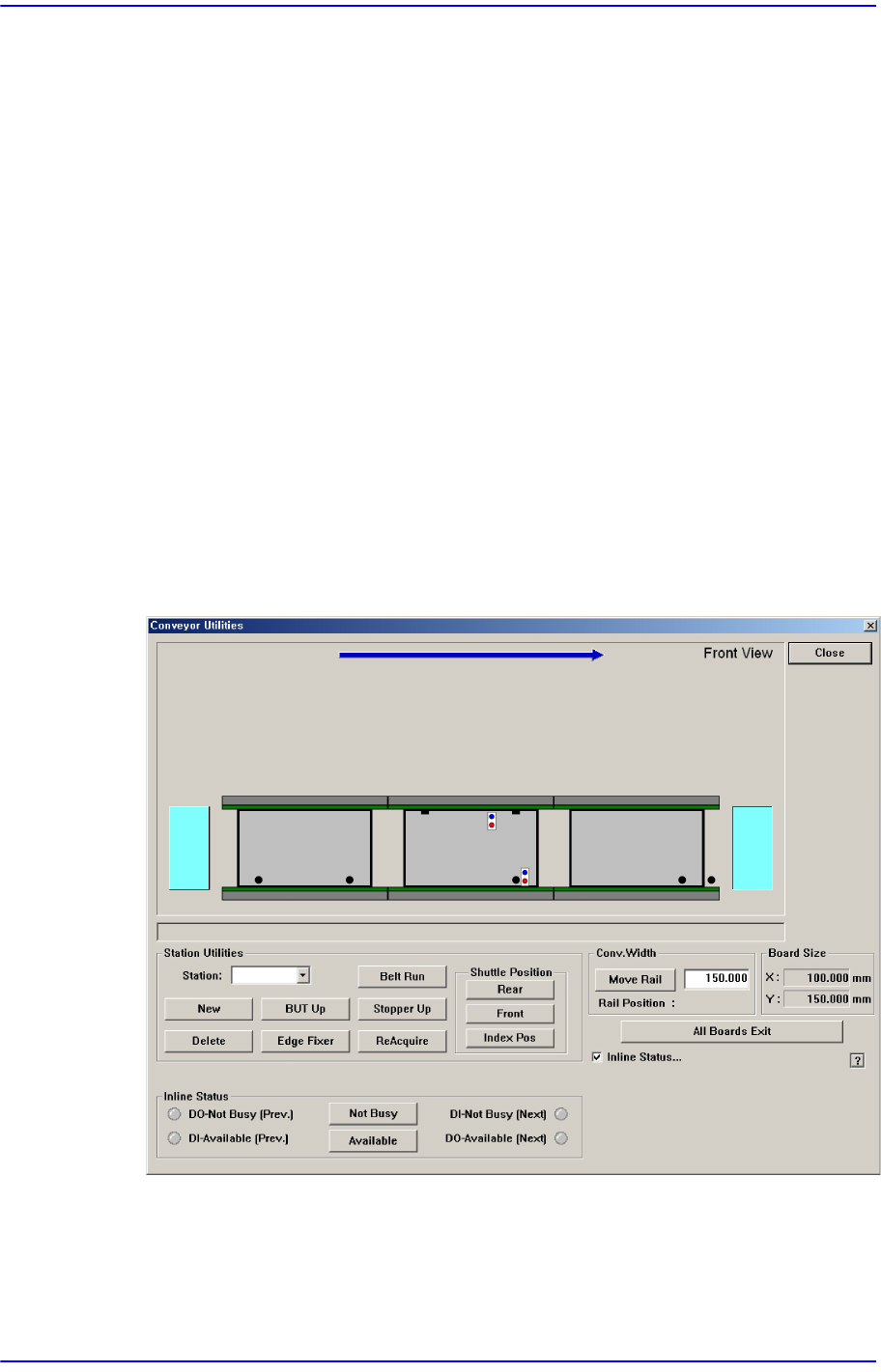
<Inline Status…> check box
The menu that indicates the In-line status of the machine and performs the operation
test of the machine is created.
Figure4.5 “Conveyor System-Inline Status” dialog box
<Inline Status> group
Can handle SMEMA related output manually and display the input status (light
on-On, light off-Off).
DO-Not Busy (Pre.)