DECAN_S1_Administrator′s_Guide(Eng_Ver1.5)_Print.pdf - 第88页
4-6 Next Generation, Multi-Functional Plac er DECAN S1 Administrator’s Guide <Etc> T ab Dialog Option setup screen. Do not change anything. <Check Speed Condition> T ab Dialog A function to check if the s…
4-5
Tools Shortcut Menu
<Check All Errors> check box group
Able to assign parts type and save errors of the corresponding parts, or assign
a camera and save the errors of the parts recognized by the corresponding
camera.
<Number of File> edit box
This can set the maximum number of files that can be saved. The maximum
available number is 5000.
<Directory> group
Saved location is ‘D:\ErrorVisFile’.
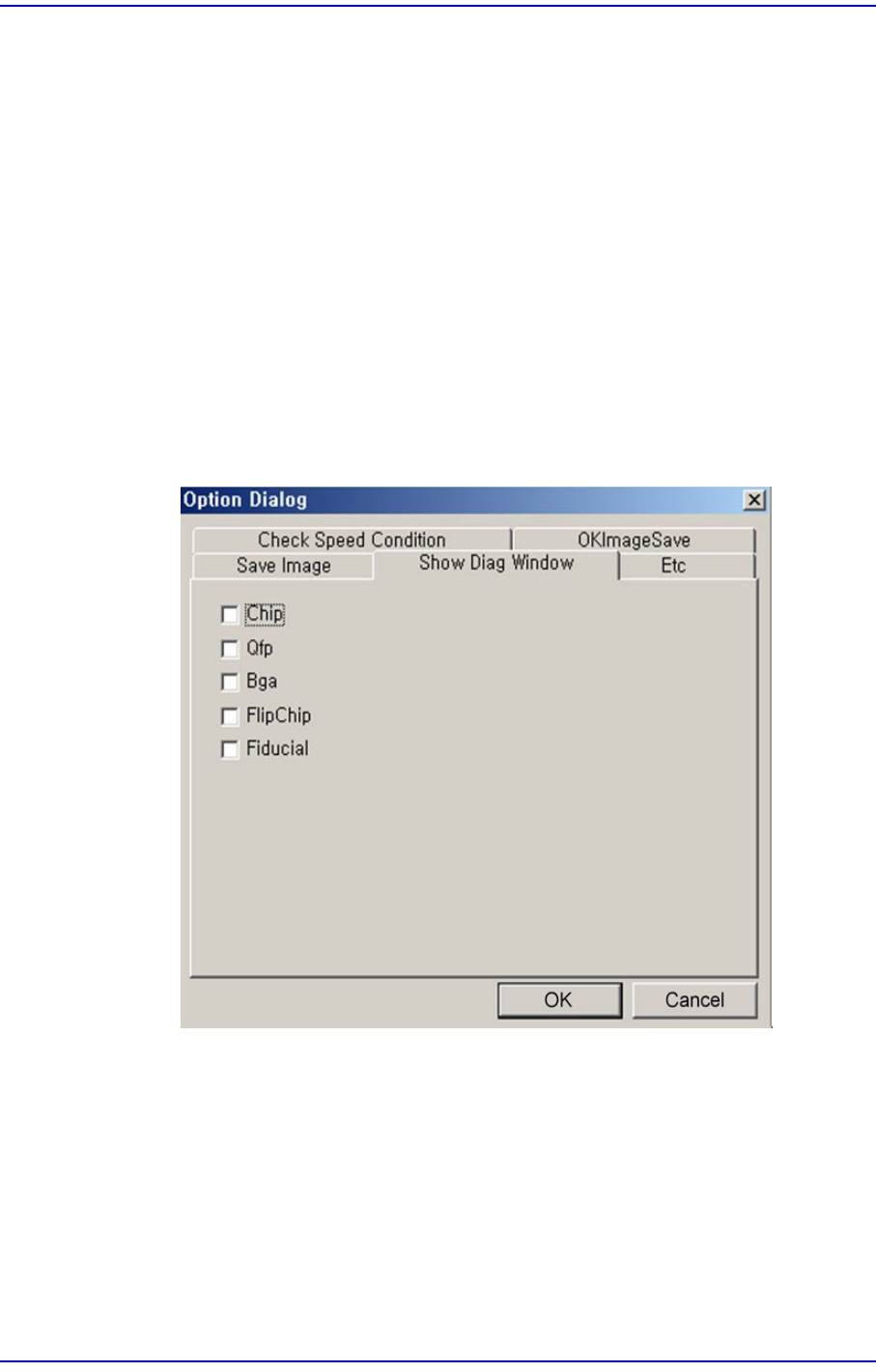
<Show Diag Window> Tab Dialog
In case error occurs while recognizing, the data used for recognition and the
corresponding images are saved. Also, saving all of the successfully recognized
images is possible.
4-6
Next Generation, Multi-Functional Placer DECAN S1 Administrator’s Guide
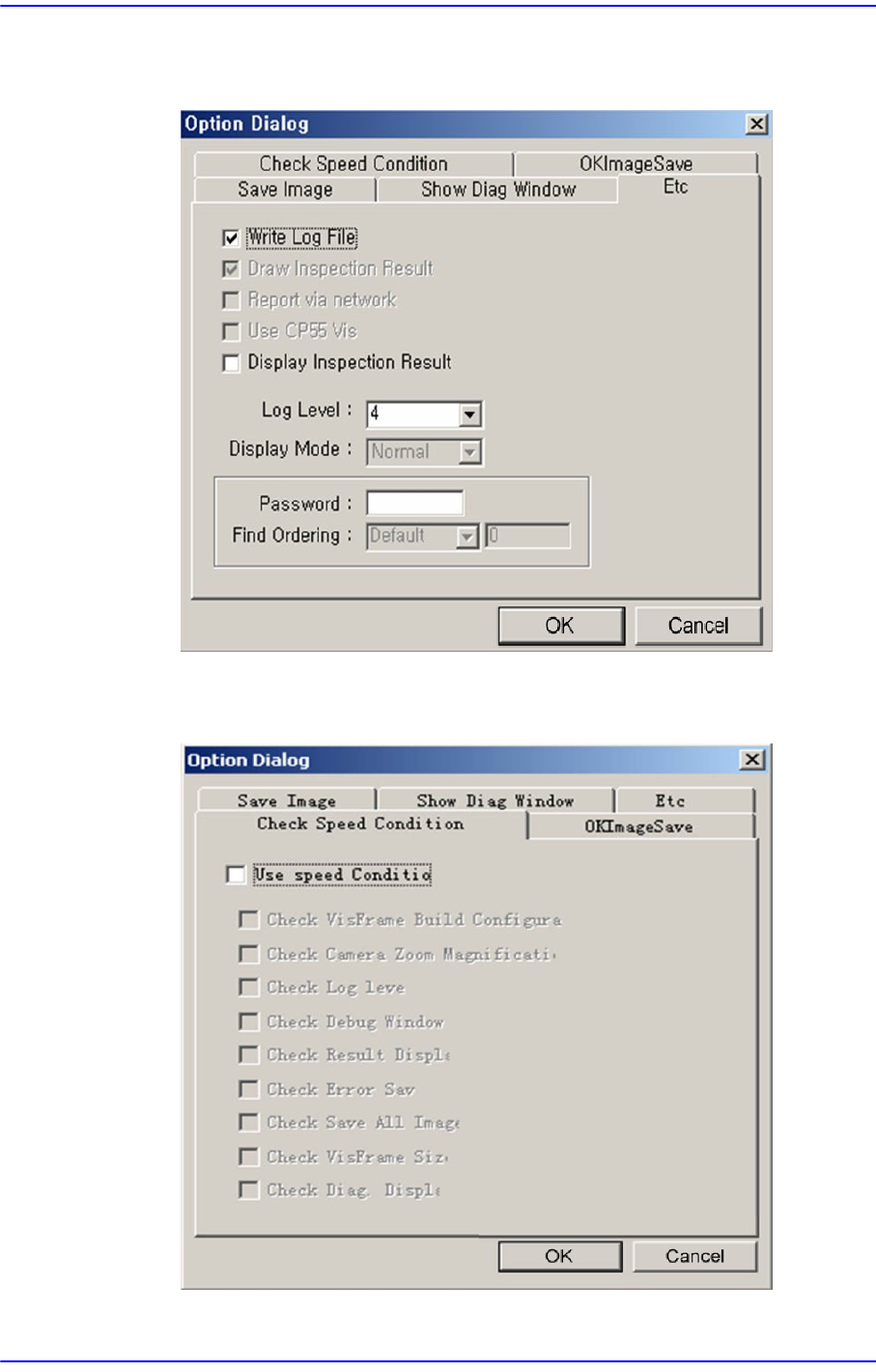
<Etc> Tab Dialog
Option setup screen. Do not change anything.
<Check Speed Condition> Tab Dialog
A function to check if the speed is in optimum condition.
4-7
Tools Shortcut Menu
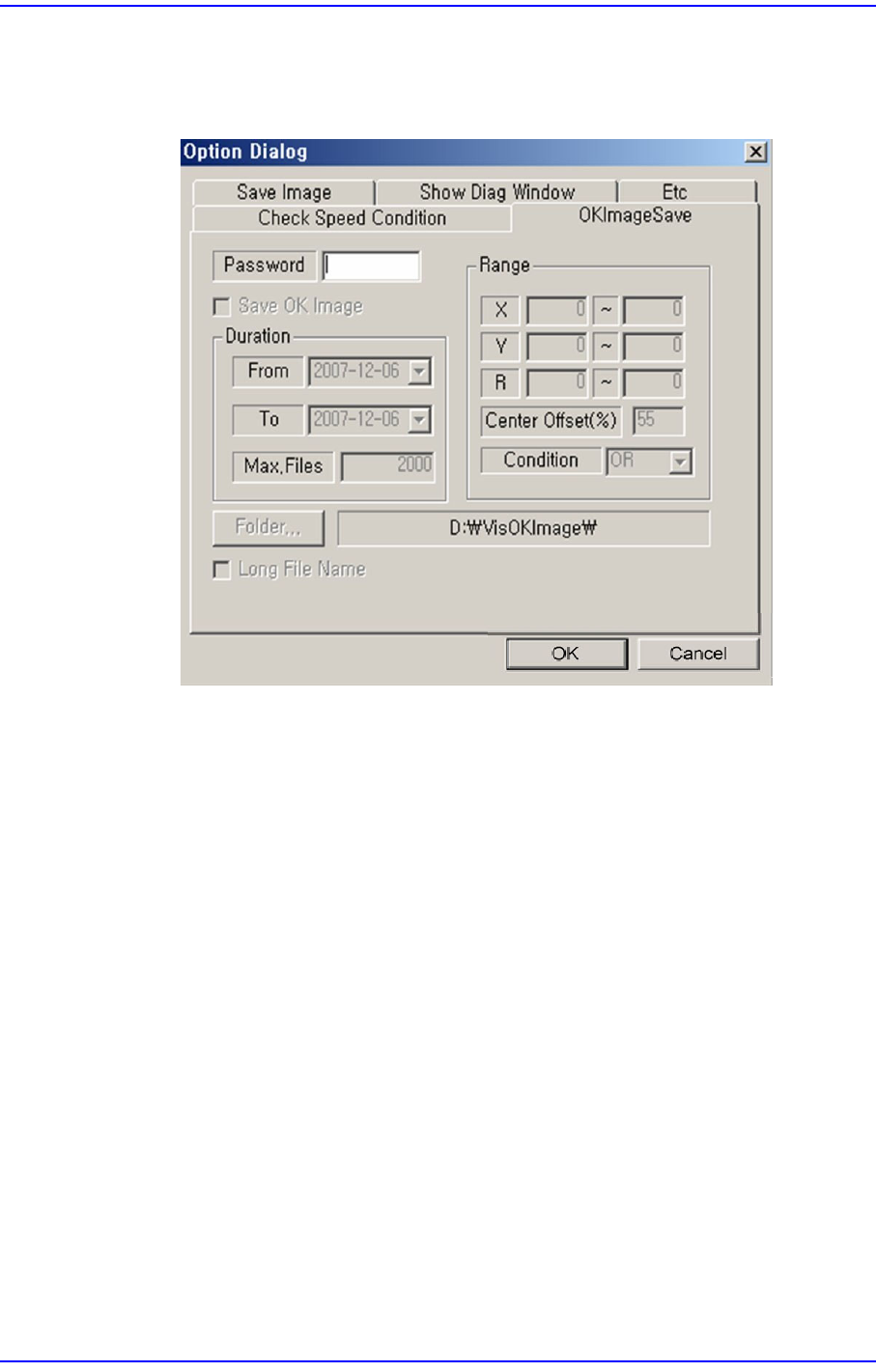
<OKImageSave> Tab Dialog
Refers to the function that can save the errors in a certain range and over a certain
period. The maximum available number is 5000.
Zoom Toolbar…
Hides or display the zoom tool bar.
4.2.1.5. Display Window
Display the real image of the camera, grabbed image, bitmap image, etc.
4.2.1.6. State Bar
Outputs the zooming ratio of the screen.