DECAN_S1_Administrator′s_Guide(Eng_Ver1.5)_Print.pdf - 第245页
7-81 Part Registration Check Rev . Check (Reverse Check) <Body X> edit box Set the size of component body in X direction. <Body Y > edit box Set the size of component body in X direction. <Ball Num X…
7-80
Next Generation, Multi-Functional Placer DECAN S1 Administrator’s Guide
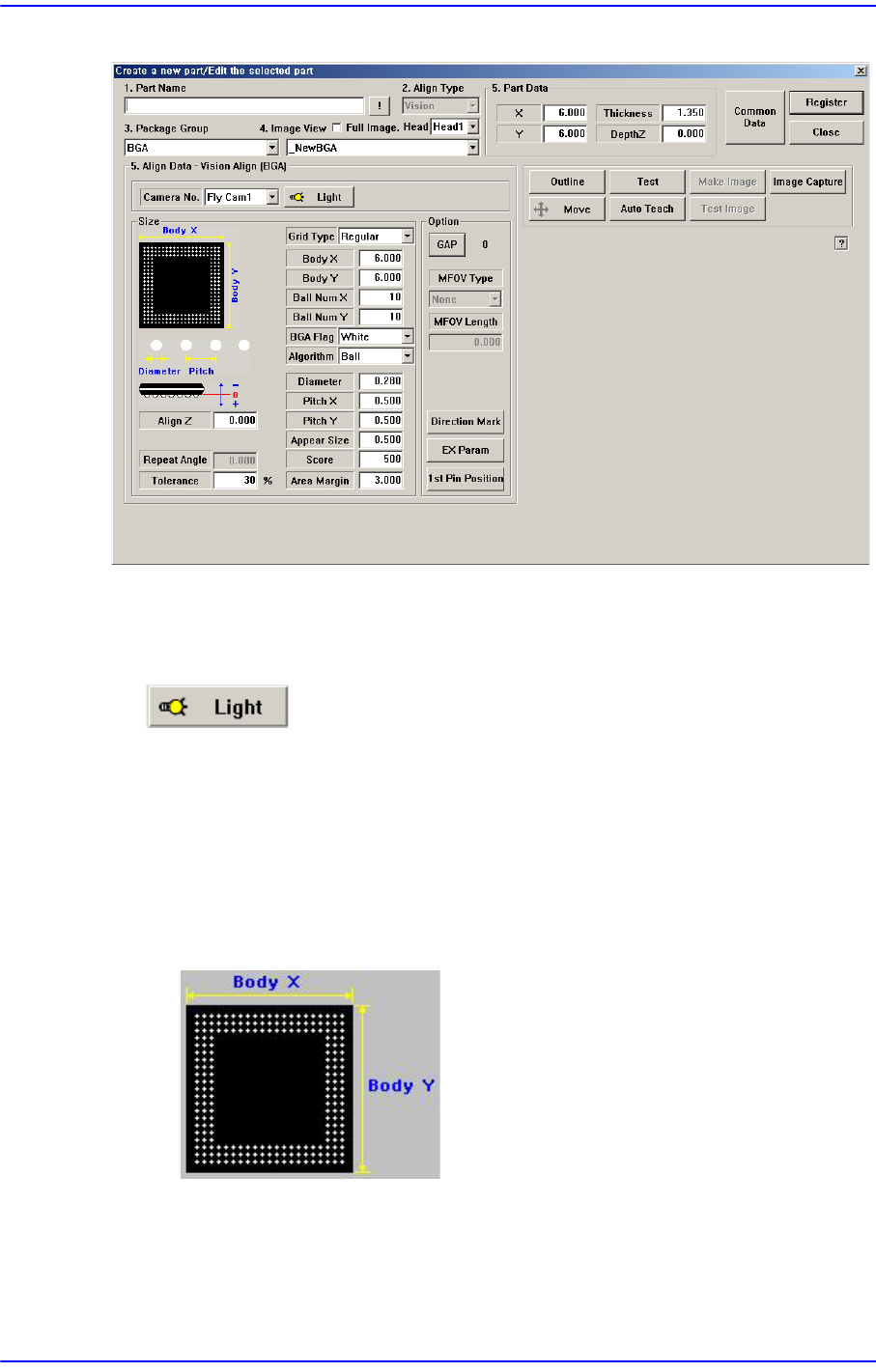
Figure7.27 “Package Group =BGA” dialog box
<Camera No.> combo box
Select the camera to recognize the component. Please refer to“7.1.1 common Align
Data” for more information.
button
Set the light for the camera to recognize the component. Please refer to“7.1.1 common
Align Data” for more information.
<Size> group
Set the align size.
<Grid Type> combo box
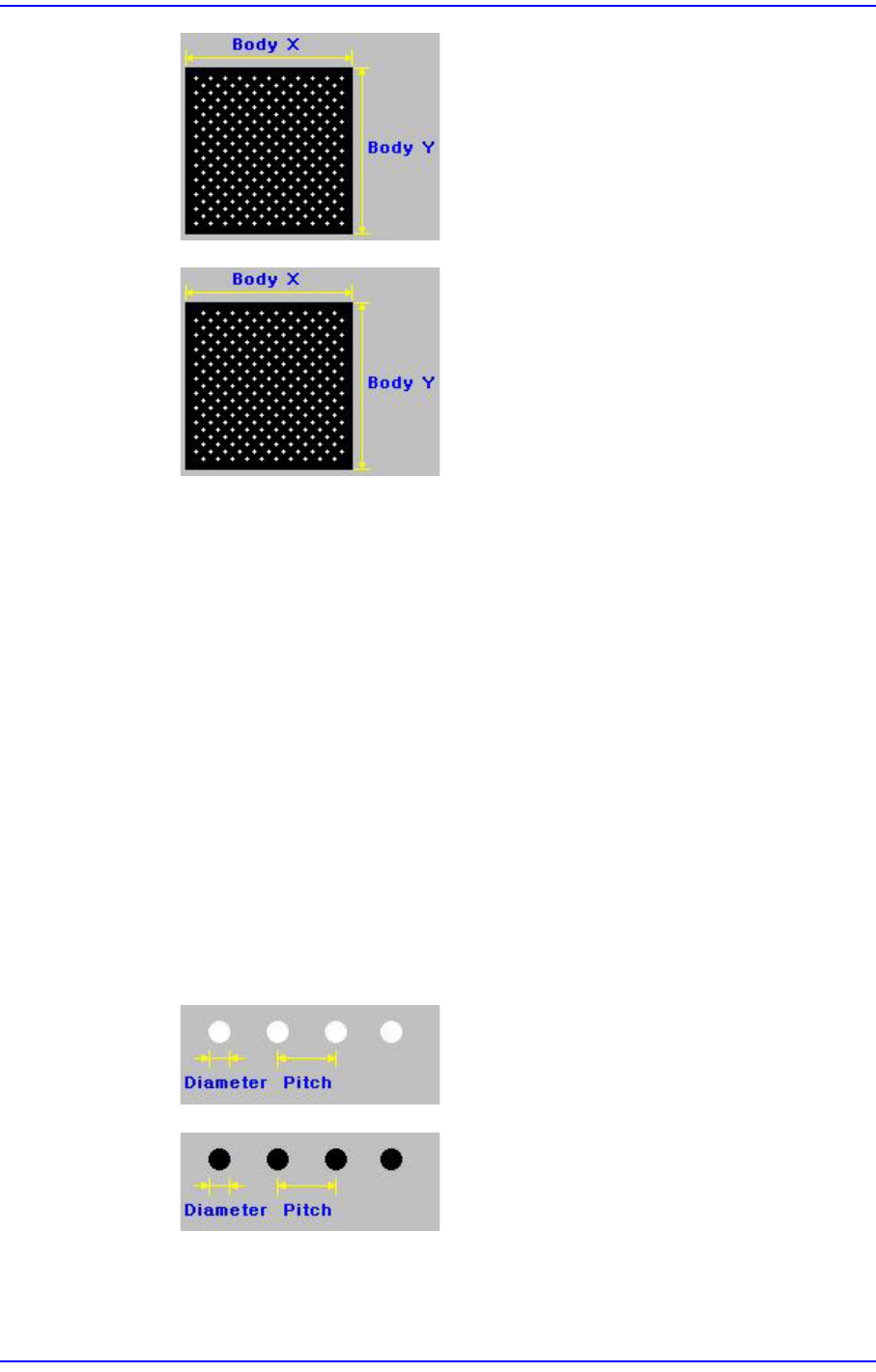
Select the ball array of BGA components. Available types are as follows.
Regular
7-81
Part Registration
Check
Rev. Check (Reverse Check)
<Body X> edit box
Set the size of component body in X direction.
<Body Y> edit box
Set the size of component body in X direction.
<Ball Num X> edit box
Set the number of balls in X direction. In the case of “Check” or “Rev. Check”
type, the empty area is also included. Therefore, in the case of “Check” or “Rev.
Check” type, the number of balls is always an odd number.
<Ball Num Y> edit box
Set the number of balls in Y direction. In the case of “Check” or “Rev. Check”
type, the empty area is also included. Therefore, in the case of “Check” or “Rev.
Check” type, the number of balls is always an odd number.
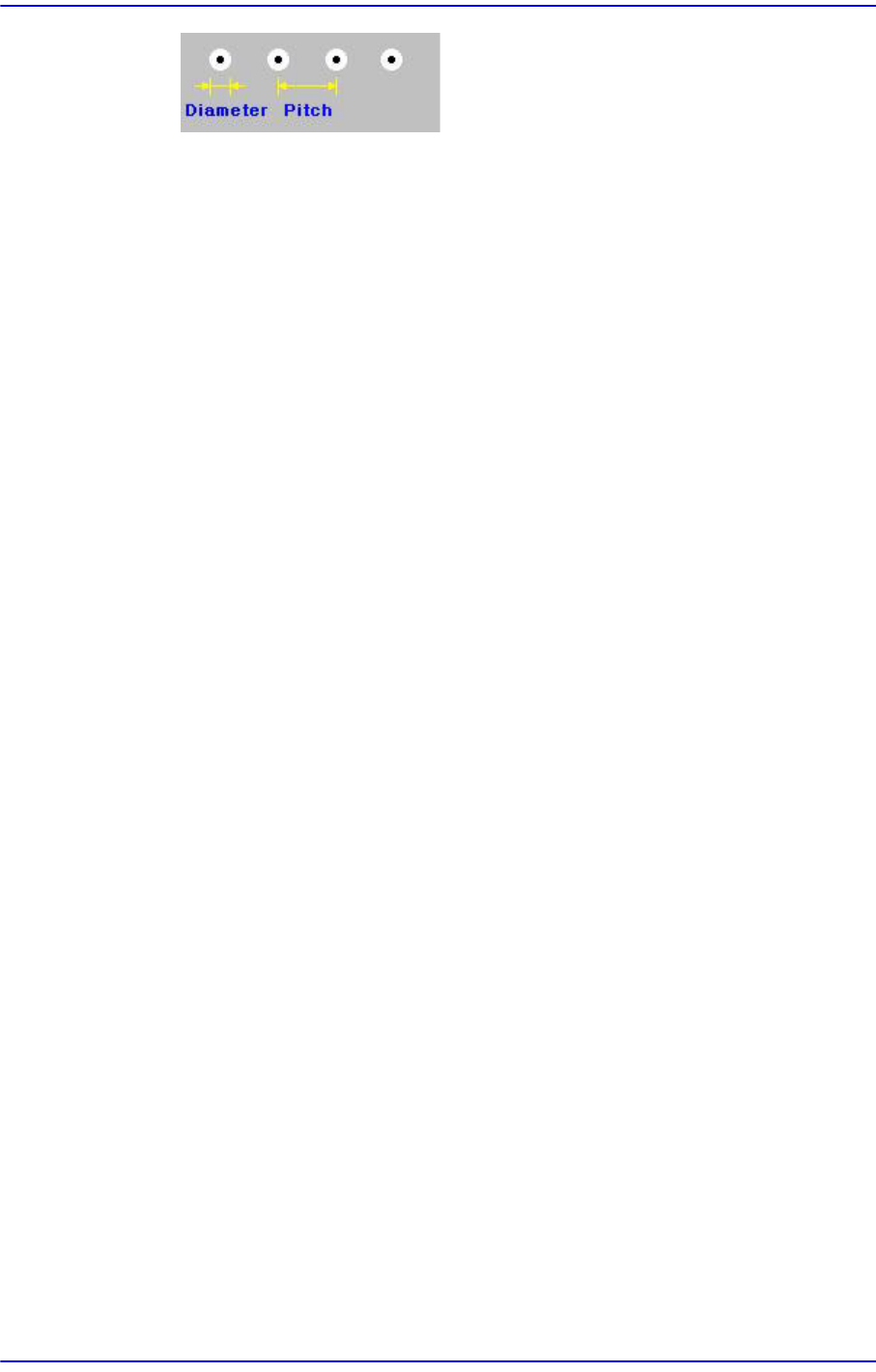
<BGA Flag> combo box
Select the color of balls. Available colors are as follows.
White: for when the ball looks white.
Black: for when the ball looks black.
7-82
Next Generation, Multi-Functional Placer DECAN S1 Administrator’s Guide
W & B (White and Black): for when the center of
the ball looks black and the outer side looks white.
<Algorithm> edit box
Selects algorithm for BGA component recognition. Available algorithms are as
follows;
Ball: Recognizes using ball only. It is used for BGA that has distinct balls as in the
PBGA.
Ball & Body: Considers the component body and ball simultaneously. It is used
for the BGA where it is difficult to distinguish the ball and the body as in the
CBGA.
<Diameter> edit box
Set the diameter of the ball.
<Pitch X> edit box
Sets the distance X from the ball center to the nearest ball center. In the case of
“Check” or “Rev. Check”, set the distance assuming that there is a ball at the
empty space.
<Pitch Y> edit box
Sets the distance Y from the ball center to the nearest ball center. In the case of
“Check” or “Rev. Check”, set the distance assuming that there is a ball at the
empty space.
<Appear Size> edit box
The ratio between the actual ball size and the size seen in the vision image. For
example, if the value is 1, then the ball is seen in its actual size, and if the value is
0.9, then the ball is seen at 90% of its actual size.
<Score> edit box
When a ball is searched, the degree of conformity to the specifications is shown as
a score. 1000 means total conformity. But in reality, it is best to use about 600. If
you set a lower value, it can adversely affect recognition. And if you set too high a
score, the rejection rate increases.
<Tolerance> edit box
Tolerance for the ball. Set it as a percentage of <Ball Pitch>.
For other setups, please refer to “7.1.1 common Align Data”.
<Option> group
Set the align option data.