DECAN_S1_Administrator′s_Guide(Eng_Ver1.5)_Print.pdf - 第375页
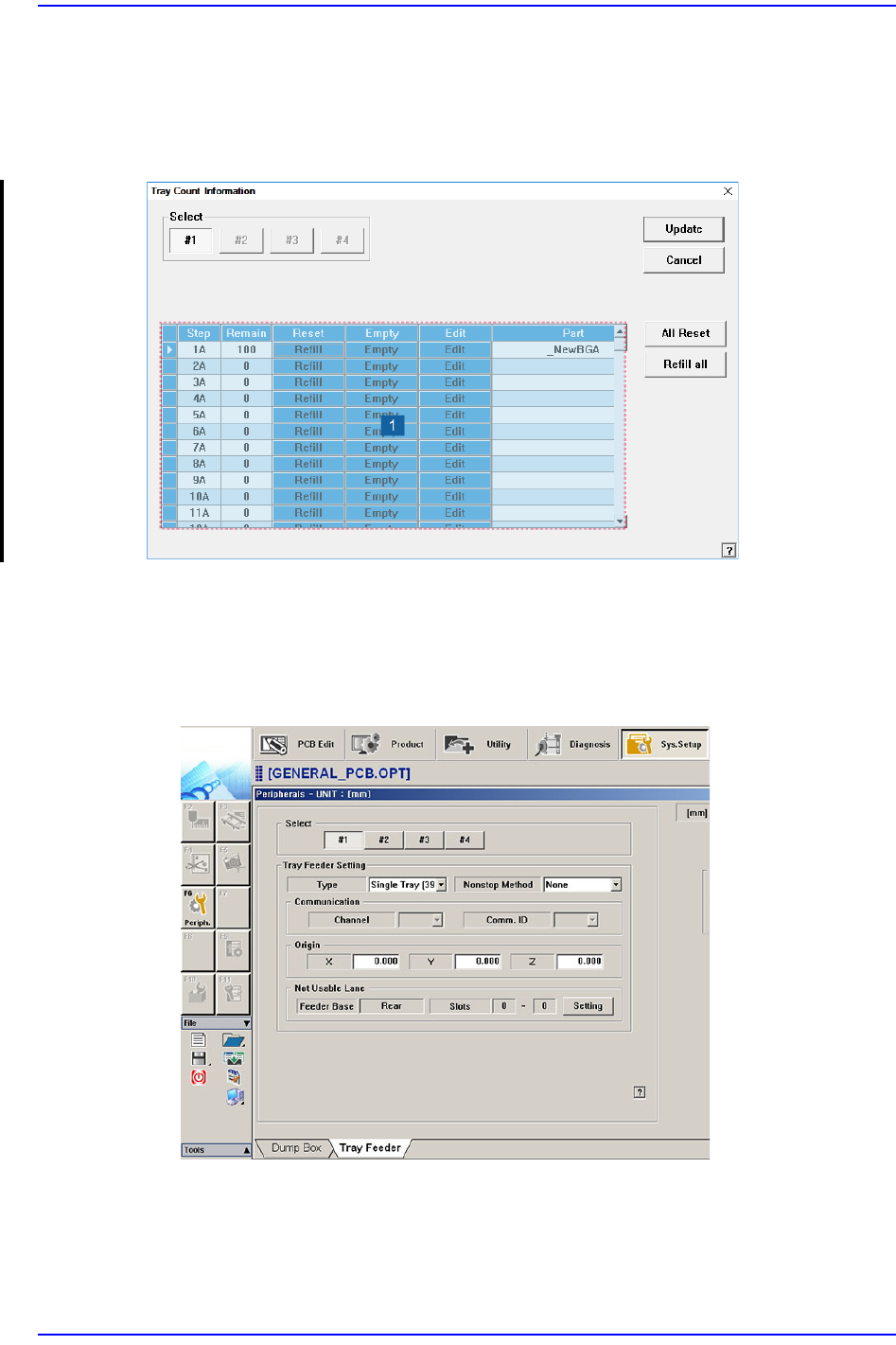
13-23 Production Setup 13.6. T/F Cnt [F6] Set the start position of the pocket on the tray feeder to pick up th e component. When this button is clicked on, the followin g dialog box is display e d. Figure13.7 “Tray Coun…

13-22
Next Generation, Multi-Functional Placer DECAN S1 Administrator’s Guide
13.5. Finish [F5]
This submenu transmits to the equipment the command to completely stop the placement
related to the downloaded PCB data.
13-23
Production Setup
13.6. T/F Cnt [F6]
Set the start position of the pocket on the tray feeder to pick up the component. When this
button is clicked on, the following dialog box is displayed.
Figure13.7 “Tray Count Information” dialog box
1: Grid group
<Select> option button
Select the tray feeder unit to set. The tray feeder unit follows the setup of the tray
feeder registered in the Tray dialog box of the System Setup menu.
<Grid> group
Set the position of the pocket to start.
<Step> column
13-24
Next Generation, Multi-Functional Placer DECAN S1 Administrator’s Guide
Displays the number of tray step.
<Remain> column
Indicates the number of parts remaining in the corresponding pallet.
<Reset> column
<Refill> button
After refilling components for empty pallets, Clicking this button, The
number of parts displayed in the <Remain> column changes to the initial
value. (e.g., for a 10 x 10 pallet, the number of parts in the <Remain> column
changes to “100”.)
<Empty> column
<Empty> button
The number of parts displayed in the <Remain> column changes to ‘0’.
<Edit> column
<Edit> button
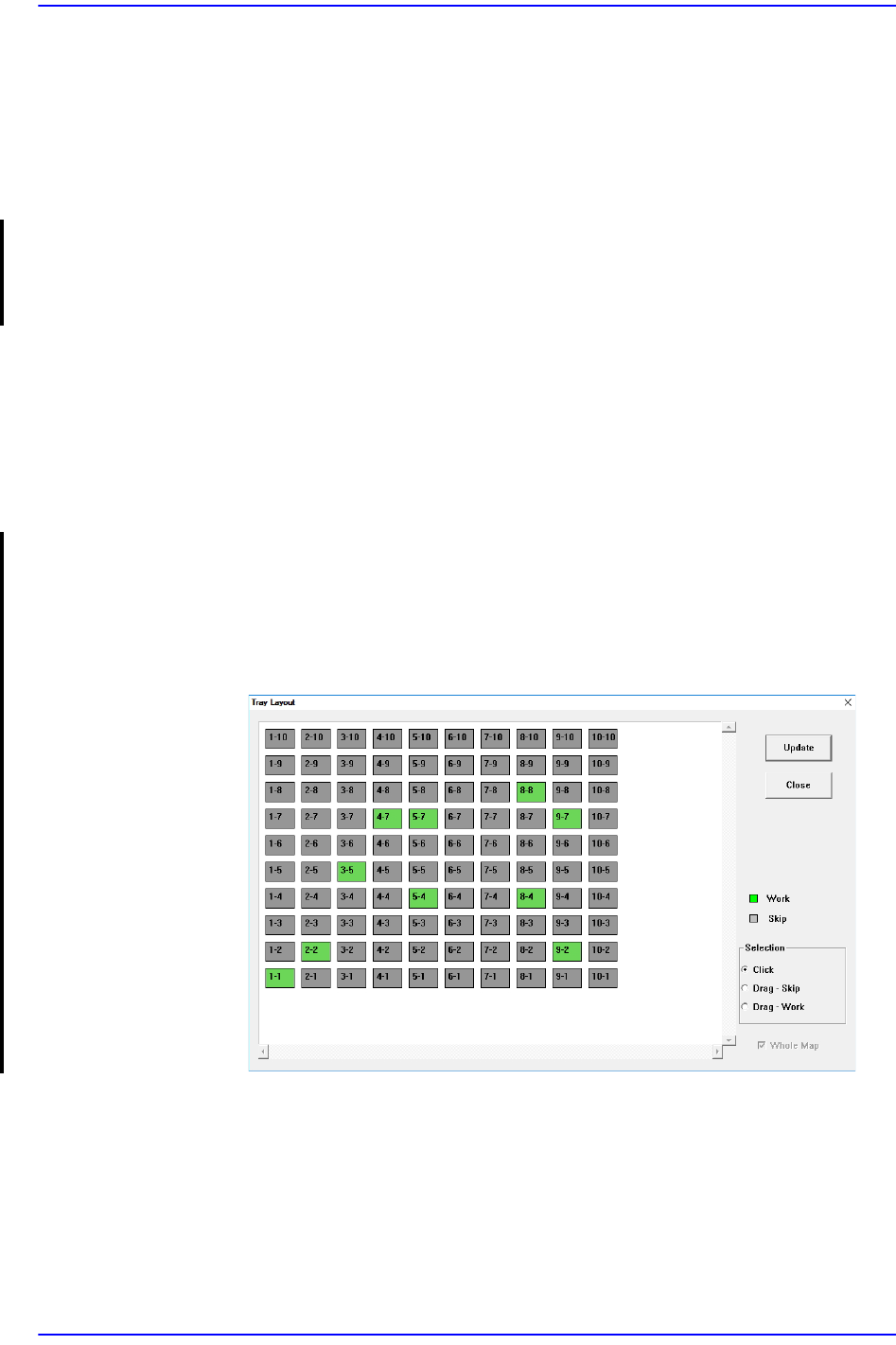
You can manually set whether parts remaining in the palette exist or not.
During production, if it fails to adsorb/recognize a part, that part is dumped to
the pallet's original pocket location. At this time, the positions of remaining
parts are irregular. When reusing the pallet for production, manually select the
pocket position where the part is located.