FCM_User Reference Manual.pdf.pdf - 第169页
4022 591 96082 User Re ference Manual 02.02 FCM Multiflex 5-77 MIS NOTE: A lt hough the [ Collect data. ..] dialogu e responds imme -diately, this does not mean t he data collection has been fini shed! No ac t ual data c…
MIS
User Reference Manual 4022 591 96082
5-76 FCM Multiflex 02.02
5.3.6.3 [Control] > [Collect data...]
TABLE 5-35 Quick Reference
fcm0564a/0565a.tif
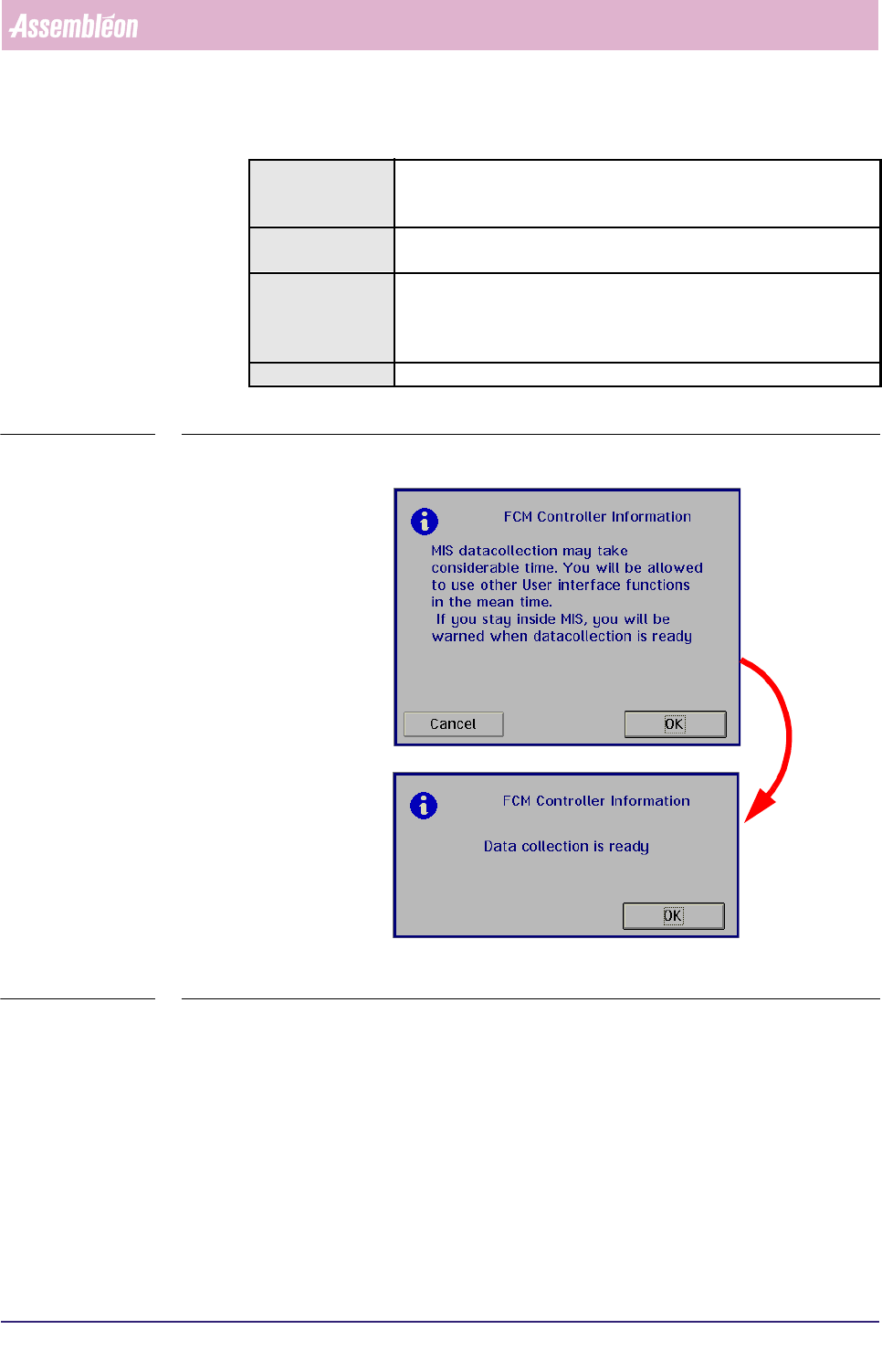
SCREEN 5-57 [Collect data...] screen dialogues
✱✱Detailed Information
MIS data is collected from different parts of the FCM Multiflex. Some of these FCM
Multiflex parts write data directly into the MIS database, whereas some other parts
do only on a MIS data collection command.
As a consequence of this, the MIS database of a running order may be inconsistent
at sometime. So, when you want to create a report that is surely based upon
consistent data at any moment, a manual MIS data collection command should be
given first.
Depending on the state of your FCM Multiflex, this data collection may take some
time.
Actions ■ select [Functions...] in the MIS pull-down menu
■ select [Control]
■ select [Collect data...]
Conditions ■ order active
■ production status [Running] or [Stopped]
Information ■ by this function, you can manually force a data collect action
■ all MIS data from the different FCM Multiflex parts are then col-
lected and
stored in the MIS database (see also 2.3.1)
Display Options -
4022 591 96082 User Reference Manual
02.02 FCM Multiflex 5-77
MIS
NOTE: Although the [Collect data...] dialogue responds imme-diately, this does
not mean the data collection has been finished!
No actual data collection is done as long as any placement module is busy.
As soon as data collection is finished, you will be notified via the menu
dialogue.
▼Controls
■ select [Cancel] to quit the function without action
■ select
[OK] to start the (manual) MIS data collection
■ After you have been notified that the data collection is finished, select
[OK] to
leave the dialogue
MIS
User Reference Manual 4022 591 96082
5-78 FCM Multiflex 02.02
5.3.7 Print Options
5.3.7.1 [Print] > [Last report]
TABLE 5-36 Quick Reference
✱✱Detailed Information
Not applicable
5.3.7.2 [Print] > [All reports]
TABLE 5-37 Quick Reference
✱✱Detailed Information
Not applicable
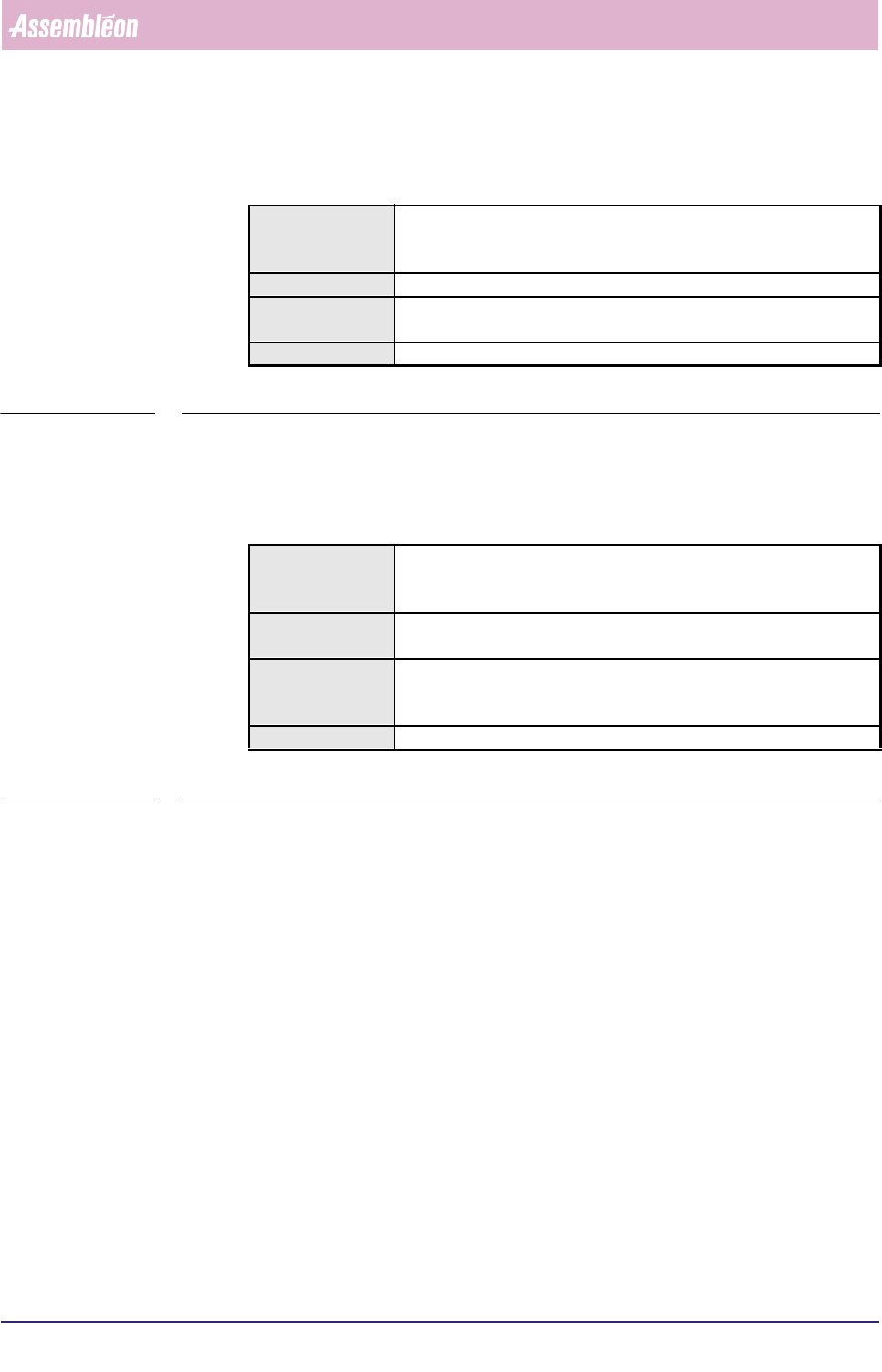
Actions ■ select [Functions...] in the MIS pull-down menu
■ select [Print]
■ select [Last report]
Conditions ■ order active
Information ■ initiates a print-out of the last displayed report
■ for further information, see the proper report section
Display Options -
Actions ■ select [Functions...] in the MIS pull-down menu
■ select [Print]
■ select [All reports]
Conditions ■ supervisor access level
■ order active
Information ■ initiates a print-out of all reports as selected in the
[Parameters] > [Print set...] menu
■ for further information, see the proper report section
Display Options -