FCM_User Reference Manual.pdf.pdf - 第27页
4022 591 96082 User Re ference Manual 02.02 FCM Multiflex 3-11 Hu man Inte rfac e ■ Communicat ion Stat e (only with option al SECS - II (GEM) Host Link ) • Di s ab l e d: C o mmu nication b etween FCM -II and host c omp…
Human Interface
User Reference Manual 4022 591 96082
3-10 FCM Multiflex 02.02
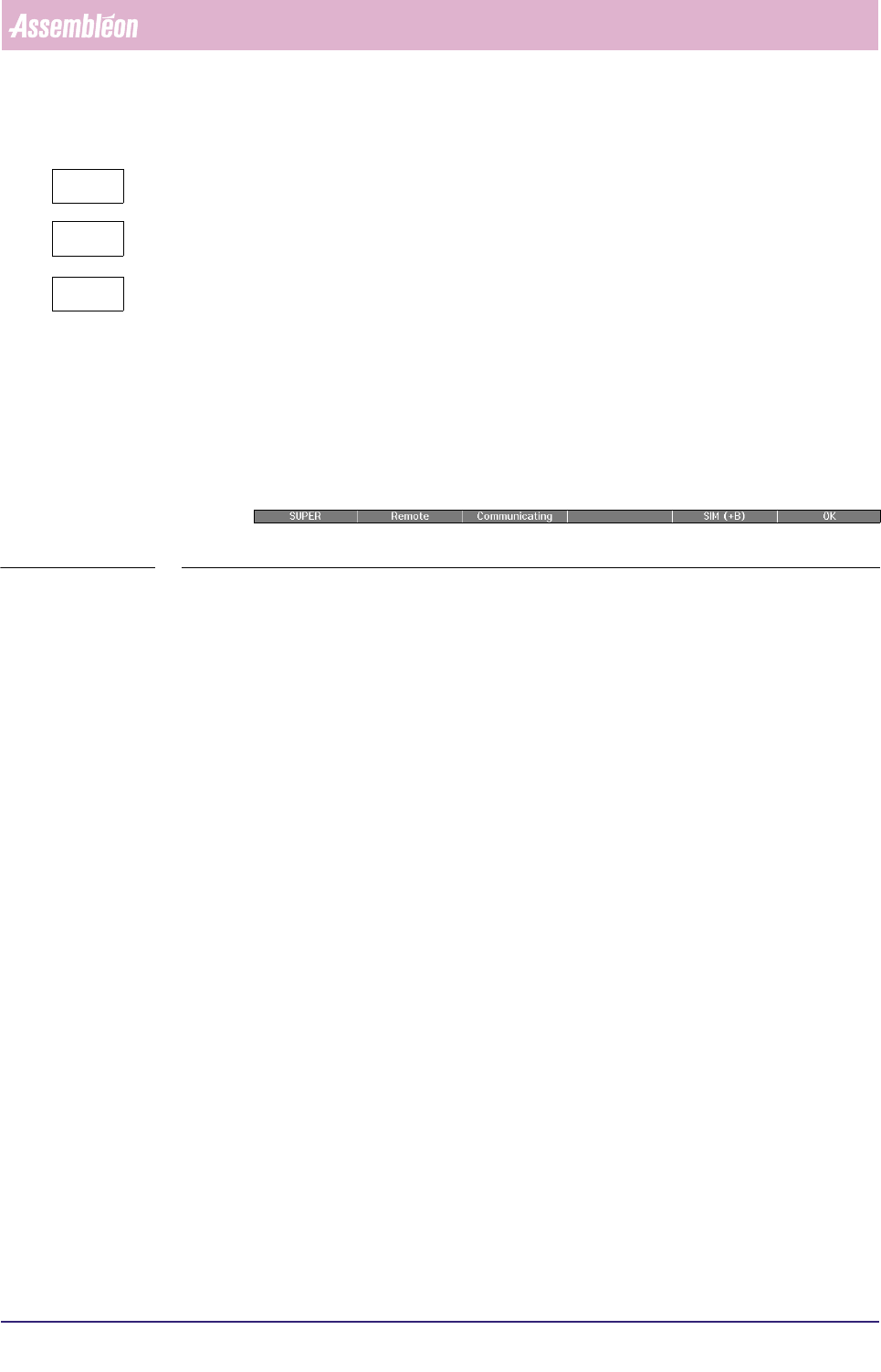
An empty block means the board is progressing normally
The board has been skipped (e.g. “Skip Board” has been selected).
The board is suspected (e.g. “Skip Action” has been selected ).
3.4 Status Bar
The status bar is located at the bottom of the Human Interface screen and is split
up into 6 sections (of which section 4 is currently not used). It gives the operator a
brief overview of the operation statuses of the FCM Multiflex (see SCREEN 3-6).
SCREEN 3-6 Example of Status bar
The following information can be displayed:
■ User level:
• OPER(ator),
• SUPER(visor),
• MAINT(enance/Service Engineer).
■ Control State (only with optional SECS-II (GEM) Host Link):
• Offline:
The FCM Multiflex is operated locally using the Human Interface of the FC
controller, but is not sending data (e.g. MIS) to the host computer. The FCM
Multiflex will only respond to host messages requesting to go on-line.
• Attempt:
The FCM Multiflex has requested the host to go on-line (either local or
remote).
• Local:
An on-line state in which the FCM Multiflex is operated locally using the
Human Interface of the FC controller. Data may be exchanged with the host.
• Remote:
An on-line state in which the FCM Multiflex is operated via the host
computer, and data may be exchanged.
-
?
4022 591 96082 User Reference Manual
02.02 FCM Multiflex 3-11
Human Interface
■ Communication State (only with optional SECS-II (GEM) Host Link)
• Disabled:
Communication between FCM-II and host computer has been switched off by
the FCM Multiflex User.
• Enabled:
Communication between FCM Multiflex and host computer has been switched
on by the FCM Multiflex User, but the host is currently not responding.
• Communicating:
The host communication is enabled, and the connection between host and
FCM Multiflex has been established.
■ Simulation:
• SIM(+B): Only displayed if simulation with boards is active.
• SIM(-B): Only displayed if simulation without boards is active.
■ Overall FCM Multiflex State:
• OK (green colour)
• ERROR (red colour)
• WARNING (yellow colour)
• WAITING (blue colour)
Human Interface
User Reference Manual 4022 591 96082
3-12 FCM Multiflex 02.02
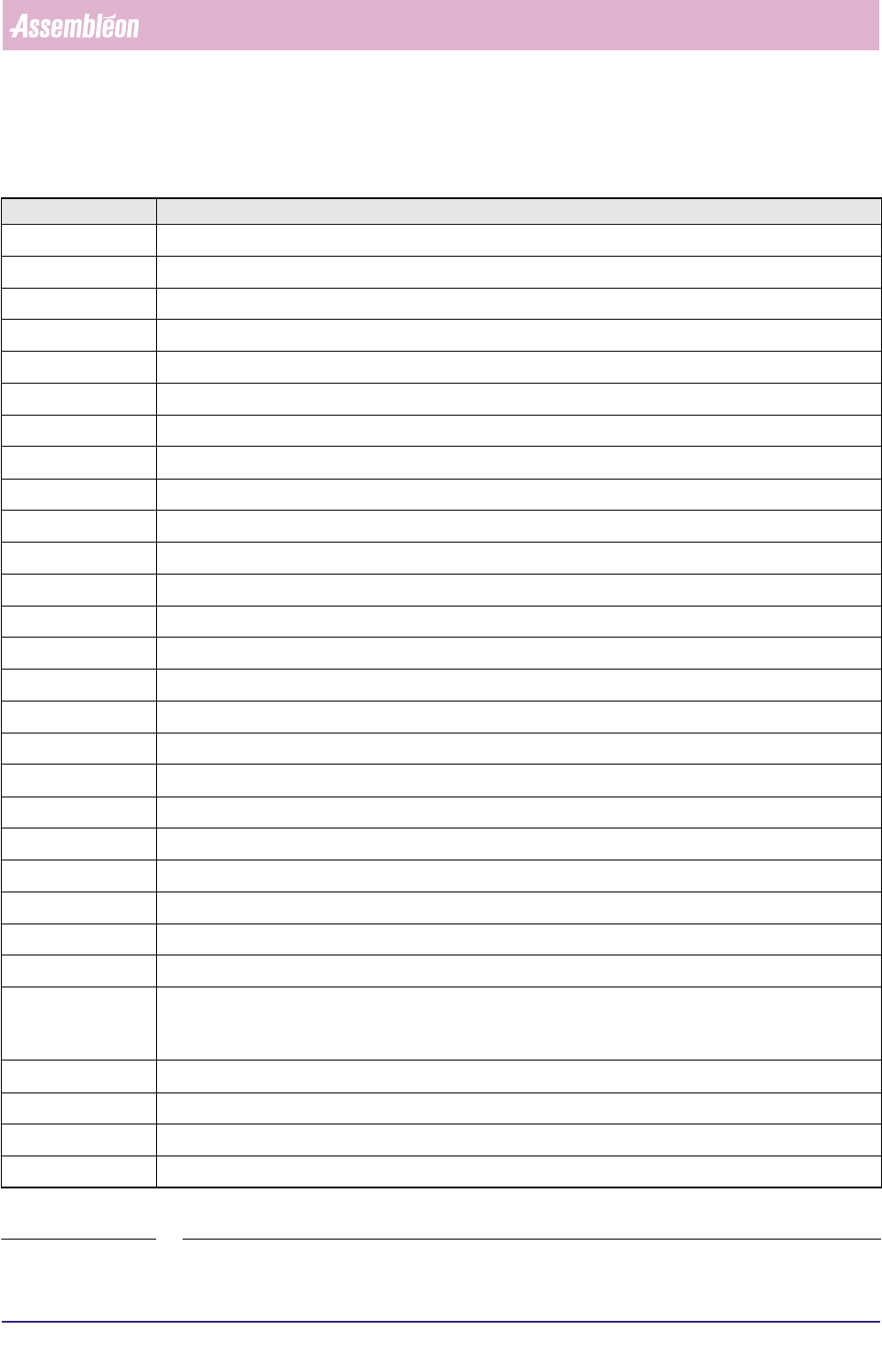
3.5 Function and Control Keys
TABLE 3-1 Function and Control keys
Key Function
<Esc> Cancel current dialogue or menu screen.
<F1> Help, general and context sensitive
<F2> Show the MIS Process Graph of the currently running Order
<F3> Error recovery, show Error recovery dialogue
<F4> FCM Multiflex Warnings, show Warning recovery dialogue ; Drops down List Box (if not dropped already)
<F5> Start, production
<F6> Stop, production
<F7> Variable meaning, depending on active dialogue
<F8> Displays Order Setup dialogue ; If FCM Multiflex Status = Change Setup!, displays Order-Setup-View dialogue
<F9> Variable meaning, depending on active dialogue
<F10> Menu, display WVM Monitor ; Error Recovery Dialogue: Maximize WVM Monitor display
<F11> Variable meaning, depending on active dialogue
<Tab> Next group, used in dialogue to advance to the next group, sequence defined in dialogues
<Shift>+<Tab> Previous group, used in dialogue to go back to the previous group, sequence defined in dialogues
<Enter> Activate current selection
<Alt> Menu, activate bar (used in combination with underlined letter)
<Home> Move cursor in a pull-down menu/dialogue to the beginning
<End> Move cursor in a pull-down menu/dialogue to the end
<Space> Selects or deselects a check box or an item in a listbox
<Delete> Delete character highlighted by cursor
<Backspace> Delete character to the left of the character highlighted by the cursor
<Insert> Insert character to the right of highlighted character
<Page Down> Move cursor in list one page down
<Page Up> Move cursor in list one page up
Left control button Activate option currently pointed at. Holding the left control button while pointing at the upper border of a dialogue
screen permits the moving of the box within the menu. Double-tapping maximizes WVM Monitor display in the
Error Recovery Dialogue.
↑ Move cursor upwards in pull-down menu, dialogue or list
↓ Move cursor from main menu to pull-down menu, and move cursor downwards in pull-down menu, dialogue or list
→ Move cursor to the right in menu bar/dialogue
← Move cursor to the left in menu bar/dialogue