FCM_User Reference Manual.pdf.pdf - 第22页
Hu man Inte rfac e User Re ference Manual 4022 5 91 96082 3-6 FCM Multiflex 02.02 3.2.2.5 List B o x A list b o x is used in co mbination with an entry f i eld. Once an item is selected from the list, it is h i ghligh te…
4022 591 96082 User Reference Manual
02.02 FCM Multiflex 3-5
Human Interface
Moving through a dialogue screen can be done in 2 ways:
■ Pressing the <Tab> or <Shift>+<Tab> key.
■ Tapping the touch pad in the desired area.
A dialogue screen may contain the following items:
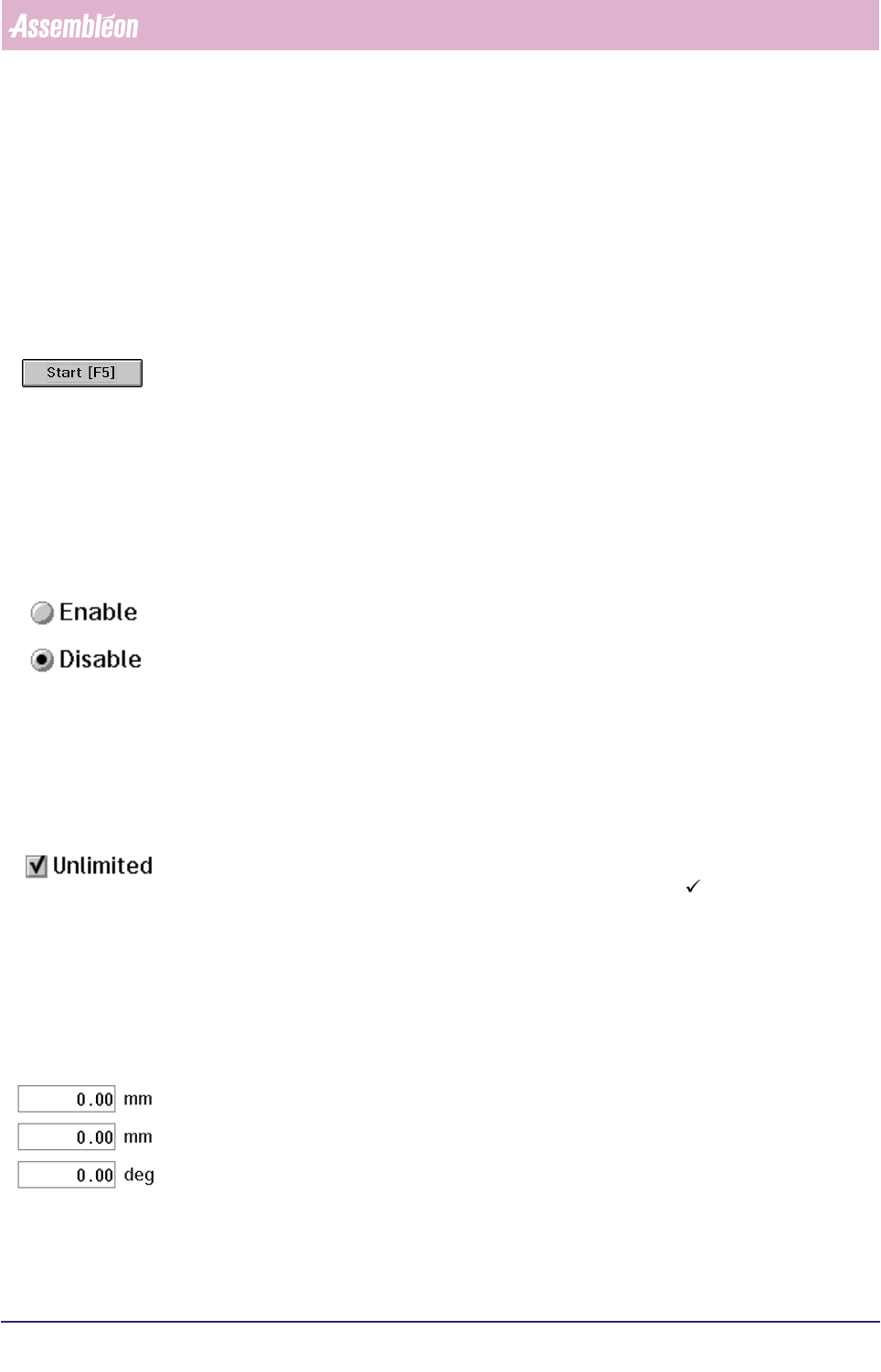
3.2.2.1 Push buttons
A push button is a rounded-corner rectangle with text inside. When activated, a
push button performs the function mentioned on the button itself. They can be
activated by:
■ Pressing the <Enter> key whenever the button is selected (dotted line around
the text). Use the
→ and ← cursor keys to switch between push buttons.
■ Tapping the touch pad on the push button
■ Pressing a function key if mentioned on the button itself (e.g “Start [F5]”).
3.2.2.2 Radio Buttons
A radio button consists of a circle and choice text. Users can select only one radio
button in each selection field. If users, after selecting one radio button, select a
different one, the previous button is no longer selected. In some cases a radio
button also performs a single function (e.g. Pusher “Down”). One radio button is
always selected as default (the circle is partially filled in). Switching between radio
buttons is done by:
■ Using the cursor keys (
↑, ↓,← and →) or
■ Tapping the touch pad on the radio button.
3.2.2.3 Check Box
A check box consists of a square box and choice text. Check boxes can be used alone
or grouped in related sets. Unlike radio buttons user can select more than one
check box. An activated check box can be identified by a “ ” mark placed within
the square box. It can be selected by:
■ Pressing the space bar
■ Tapping the touch pad on the check box.
3.2.2.4 Entry Field
An entry field consists of text and a rectangular box in which users type infor-
mation. When an entry field is first displayed, it is either blank or contains an
initial value. They can be entered by:
■ Selecting the left or right <Tab> key
■ Tapping the touch pad in the entry field.
Inside an entry field the cursor keys (
↑, ↓, → and ←), <Home>, <End>, <Delete>,
<Insert> and <Backspace> keys can be used.
Some entry fields can be filled in by selecting an item from a List Box.
Human Interface
User Reference Manual 4022 591 96082
3-6 FCM Multiflex 02.02
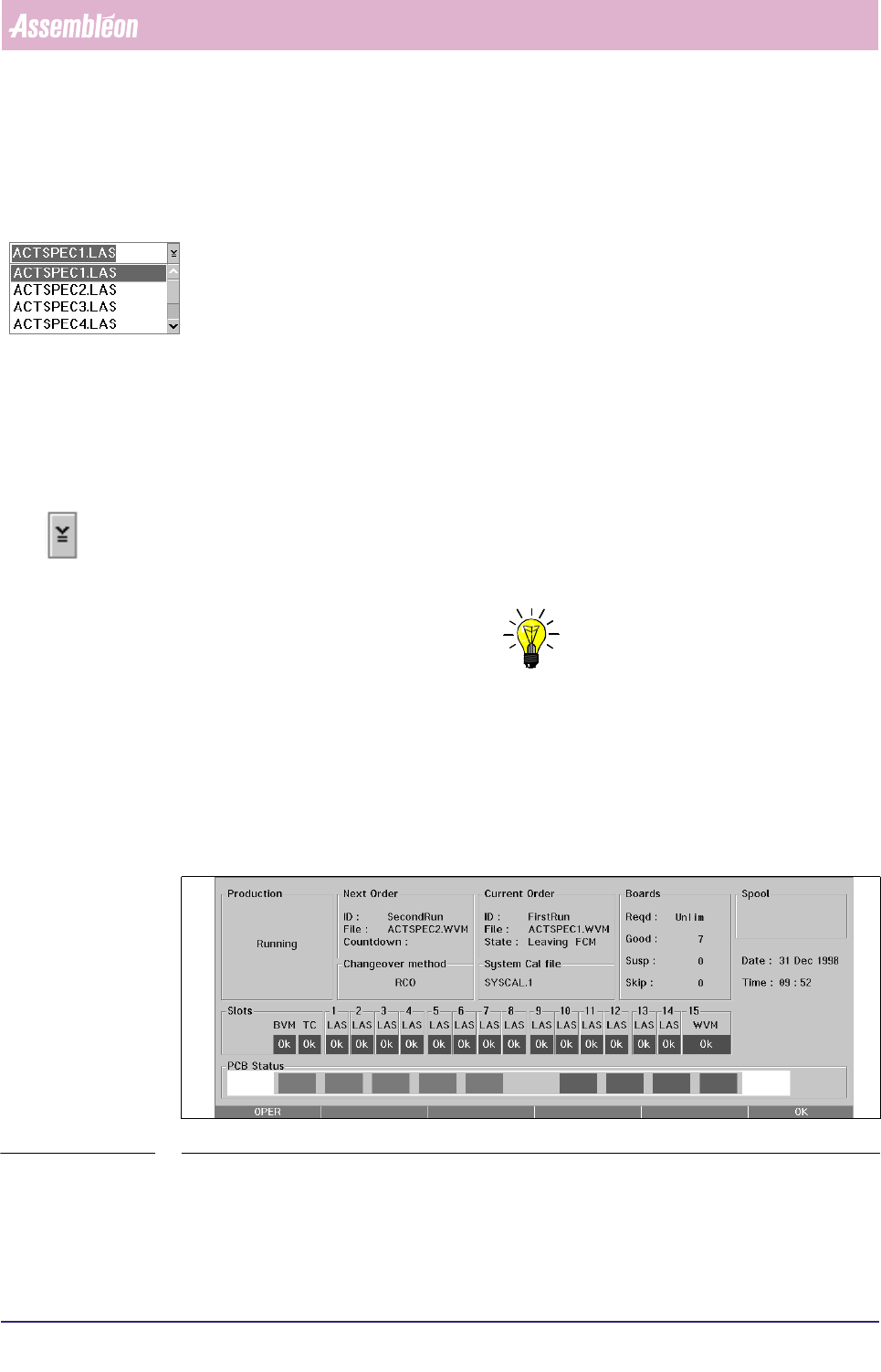
3.2.2.5 List Box
A list box is used in combination with an entry field. Once an item is selected from
the list, it is highlighted and automatically filled in to the entry field.
The user can scroll through the list by:
■ Using the
↑ and ↓ cursor keys and/or the <Page Up> and <Page Down> keys.
■ Tapping the touch pad on the Up or Down Arrow of the Scroll Bar. Quick
scrolling can be done by moving the Slider Box up and down with the touch pad
(keep left control button pressed).
Sometimes a list box is hidden and can be displayed after pushing a drop down
button.
3.2.2.6 Drop Down Button
A Drop Down Button is a button which displays a hidden List Box after it is pressed
(e.g. in the“Copy to archive” dialogues). It can be activated by:
■ Pressing the <F4> function key or
■ Tapping the touch pad on the Drop Down Button.
NOTE: At all times, the <Esc> key can be used to leave a dialogue.
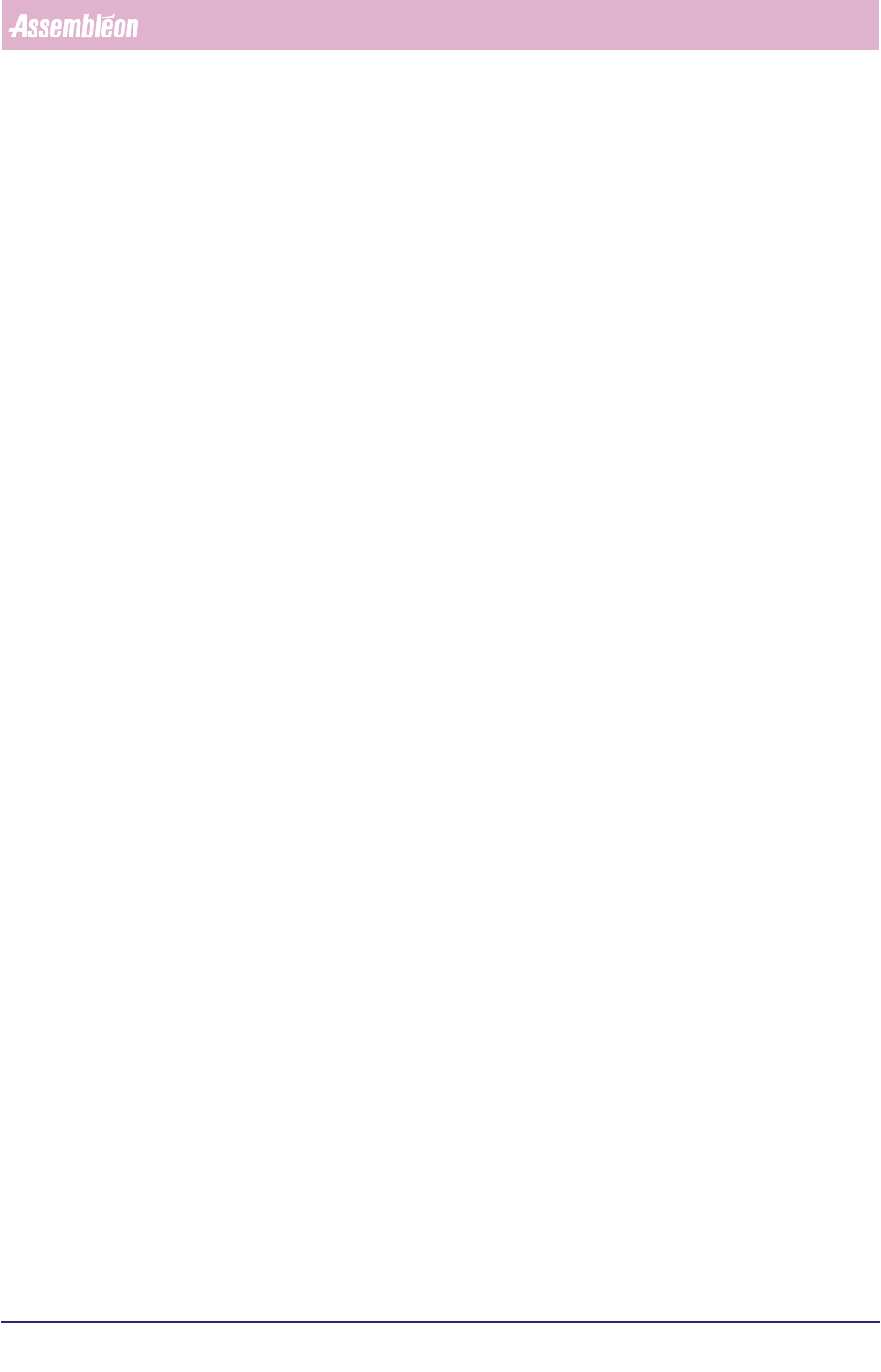
3.3 FCM Multiflex Status Window
The FCM Multiflex Status window displays detailed information on the status of the
FCM Multiflex (see SCREEN 3-5). The status is updated for each significant status
event and provides the operator with a detailed overview of the operation of the
FCM Multiflex at a glance.
SCREEN 3-5 An example of FCM Multiflex Status window
It consists of the following windows:
■ Production
■ Current Order
4022 591 96082 User Reference Manual
02.02 FCM Multiflex 3-7
Human Interface
■ Next Order
■ Boards
■ Spool (only used with the optional FCM Multiflex SECS II (GEM) Host Link FC 5)
■ Slots
■ board Status.
3.3.1 Production
This window displays the current FCM Multiflex production state. It is the main
status area, which may contain the following statuses:
■ Stopped:
The machine state is stopped. No boards will be produced.
■ Running:
Indicates that the production is running normally and boards are being
produced.
■ Waiting (board runin):
No board is present in the runin section of the FCM Multiflex.
■ Waiting (board runout):
There are boards present in the runout section which cannot leave the FCM
Multiflex.
■ Change Setup!:
Production has stopped because the machine setup has to be changed.
■ Error:
Production has stopped due to an error. The operator may need to take action.
3.3.2 Current Order
The following fields are related to the current Order:
■ ID:
Identification of the Order as entered by the User in the “Order - Entry” dialogue.
■ File:
The Production Action Spec which is used for this Order.
■ State:
The following current order states can be displayed:
• No Order: There is no order currently running in the FCM Multiflex.
• Running: There is an order running in the FCM Multiflex.
• Entering FCM Multiflex: There is an order currently entering the FCM
Multiflex (on an RCO).
• Leaving FCM Multiflex: The current order is leaving the FCM Multiflex (on an
RCO).
• Completing: The current order is being completed (only if a specified number
of boards was entered in the “Order - Entry” dialogue, or no RCO was
possible).
• Running out: The current order is being run out of the FCM Multiflex