FCM_User Reference Manual.pdf.pdf - 第19页
4022 591 96082 User Re ference Manual 02.02 FCM Multiflex 3-3 Hu man Inte rfac e 3.2.1 Me nu Screen Op er ation T o activate an i tem from the menu bar , you c an: ■ Press <A lt> toge ther with the underli ned lett…
Human Interface
User Reference Manual 4022 591 96082
3-2 FCM Multiflex 02.02
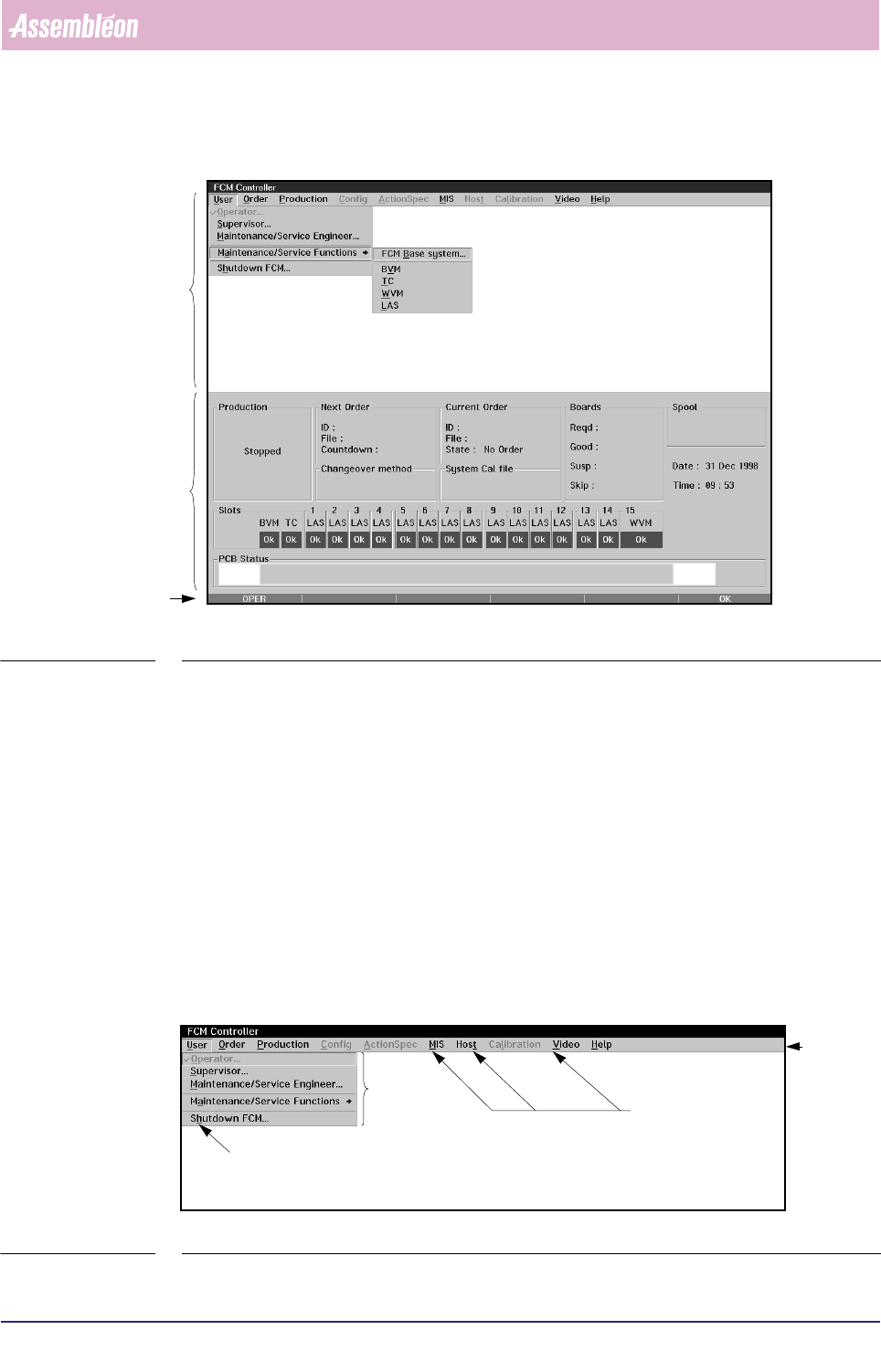
SCREEN 3-2 Example of the Human Interface Main Screen
3.2 Menu Screen
A menu screen is used to access the various functions of the FCM Multiflex system.
After selecting a function from the pull-down list the FCM Multiflex gives direct
access to a dialogue screen which enables the user to communicate with the system.
All accessible items on menus and dialogue screens are displayed in black letters; all
non-accessible items are greyed. An item is not accessible if:
■ The current user level (e.g. Operator Level) does not permit you to select this
function.
■ The current FCM Multiflex status does not allow you to select this item (e.g. FCM
Multiflex status is “Running”).
■ The item has already been selected.
SCREEN 3-3 Example of a Menu Screen
Menu
Screen
Status Bar
FCM Multiflex
Status
Window
Menu Bar
Underlined
Item
Pull-down
Menu
Underlined
Items
4022 591 96082 User Reference Manual
02.02 FCM Multiflex 3-3
Human Interface
3.2.1 Menu Screen Operation
To activate an item from the menu bar, you can:
■ Press <Alt> together with the underlined letter in this item (e.g. pressing “Alt-
U” activates the “U
ser” pull-down menu).
■ Tap the touch pad on the desired menu item directly.
Activating an item from the menu bar automatically displays the pull-down menu
of this particular item.
After one item has been selected, other menu items with its pull-down menus can
be accessed by using the left or right cursor key (
← ,→).
To activate a function from the pull-down menu, you can:
■ Press the underlined letter of the function itself (e.g. pressing “h” in the “User”
pull-down menu activates the “Sh
utdown FCM Multiflex...” function)
■ Move with the up or down cursor key (
↑ , ↓) to the desired function (which will
be highlighted), and press <Enter>.
■ Tap the touch pad on the desired function directly.
Activating a function from the pull-down menu automatically accesses the dialogue
screen or switches to a next sub-menu.
NOTE: At all times the <Esc> key can be used to clear the menu screen.
Human Interface
User Reference Manual 4022 591 96082
3-4 FCM Multiflex 02.02
3.2.2 Dialogue Screen Operation
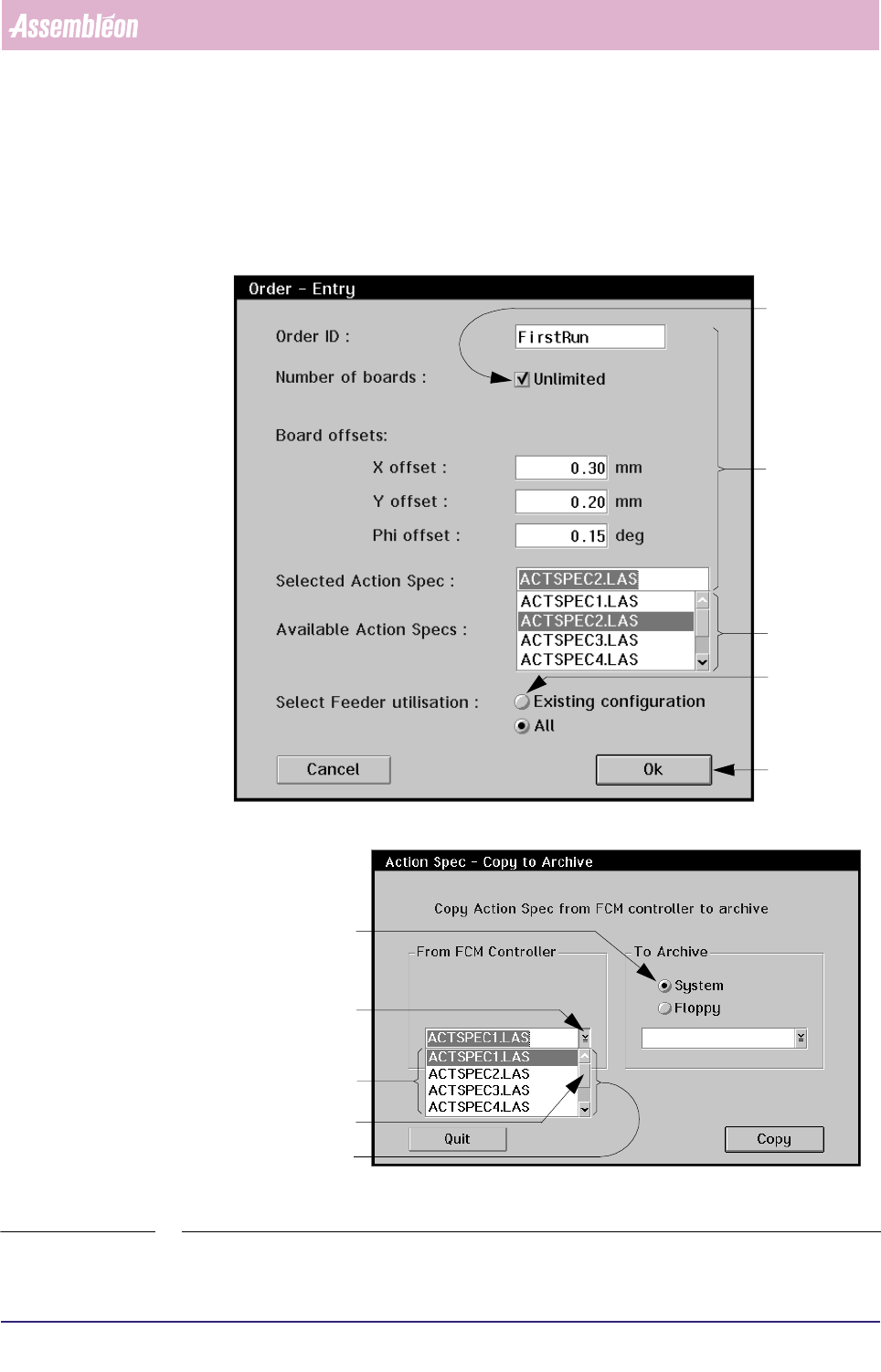
Whenever a function has been selected from a pull-down menu, a Dialogue Screen
appears (see SCREEN 3-4).
SCREEN 3-4 Examples of a dialogue screen
Radio Button
Drop Down Button
List Box
Slider Box
Scroll Bar
Check Box
Entry Fields
Scroll Bar
Radio Button
Push Button