FCM_User Reference Manual.pdf.pdf - 第36页
Hu man Inte rfac e User Re ference Manual 4022 5 91 96082 3-20 F CM Mult ifl ex 02.02 ■ Select [ Bo ar d V is i on Mo du le] via the [Opt i ons ] menu SCREE N 3-1 0 ■ Select [Ena ble] and [Qui t] in the B V M d ial ogue …
4022 591 96082 User Reference Manual
02.02 FCM Multiflex 3-19
Human Interface
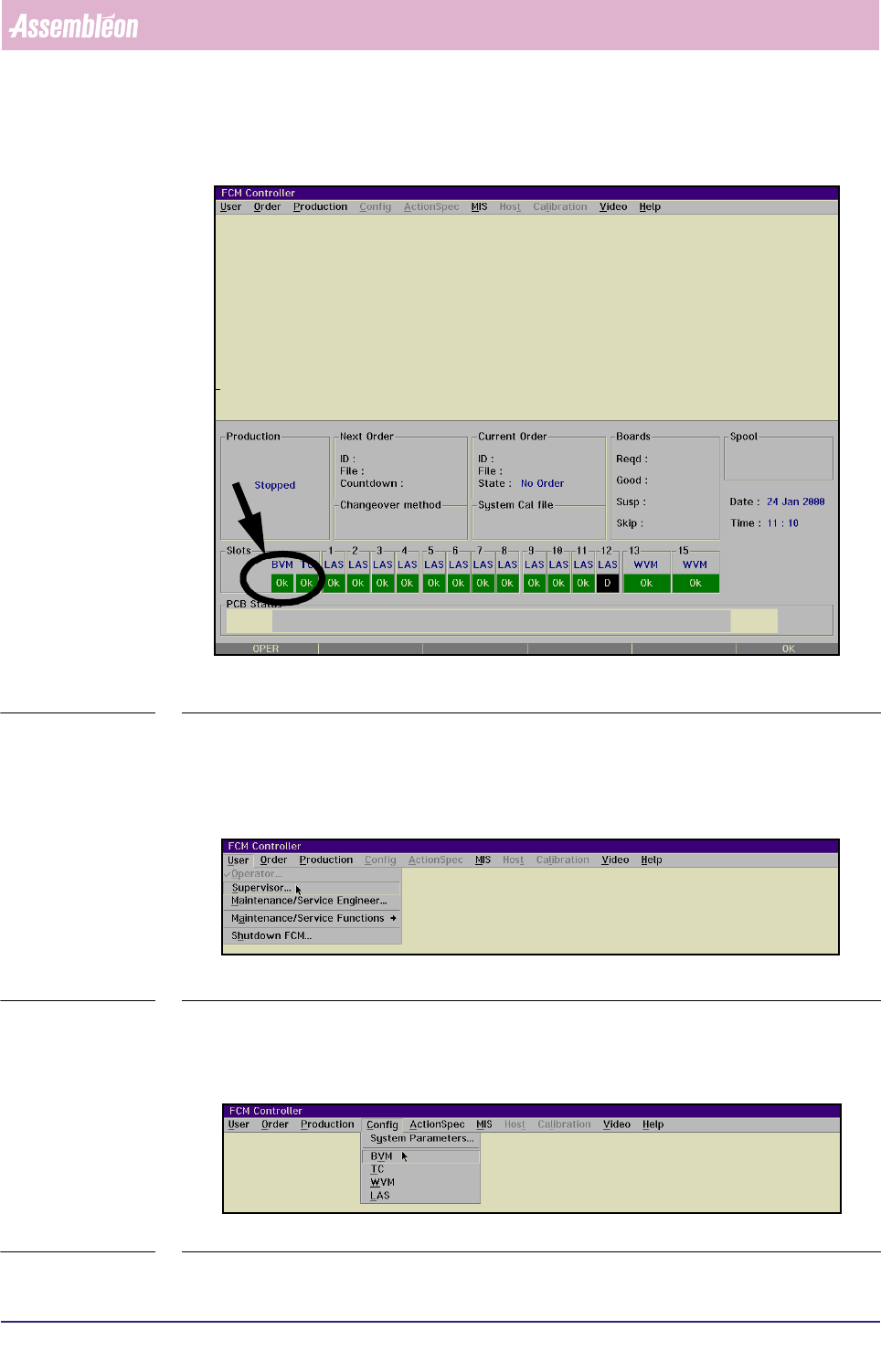
SCREEN 3-7 FCM Multiflex status window when the BVM is present
3.8.1 BVM Settings
■ To be authorized for the following BVM settings, switch to supervisor level via
the [User] pull-down menu (see below).
SCREEN 3-8
3.8.1.1 Enabling the BVM
■ Select [BVM] via the [Config] menu
SCREEN 3-9
Human Interface
User Reference Manual 4022 591 96082
3-20 FCM Multiflex 02.02
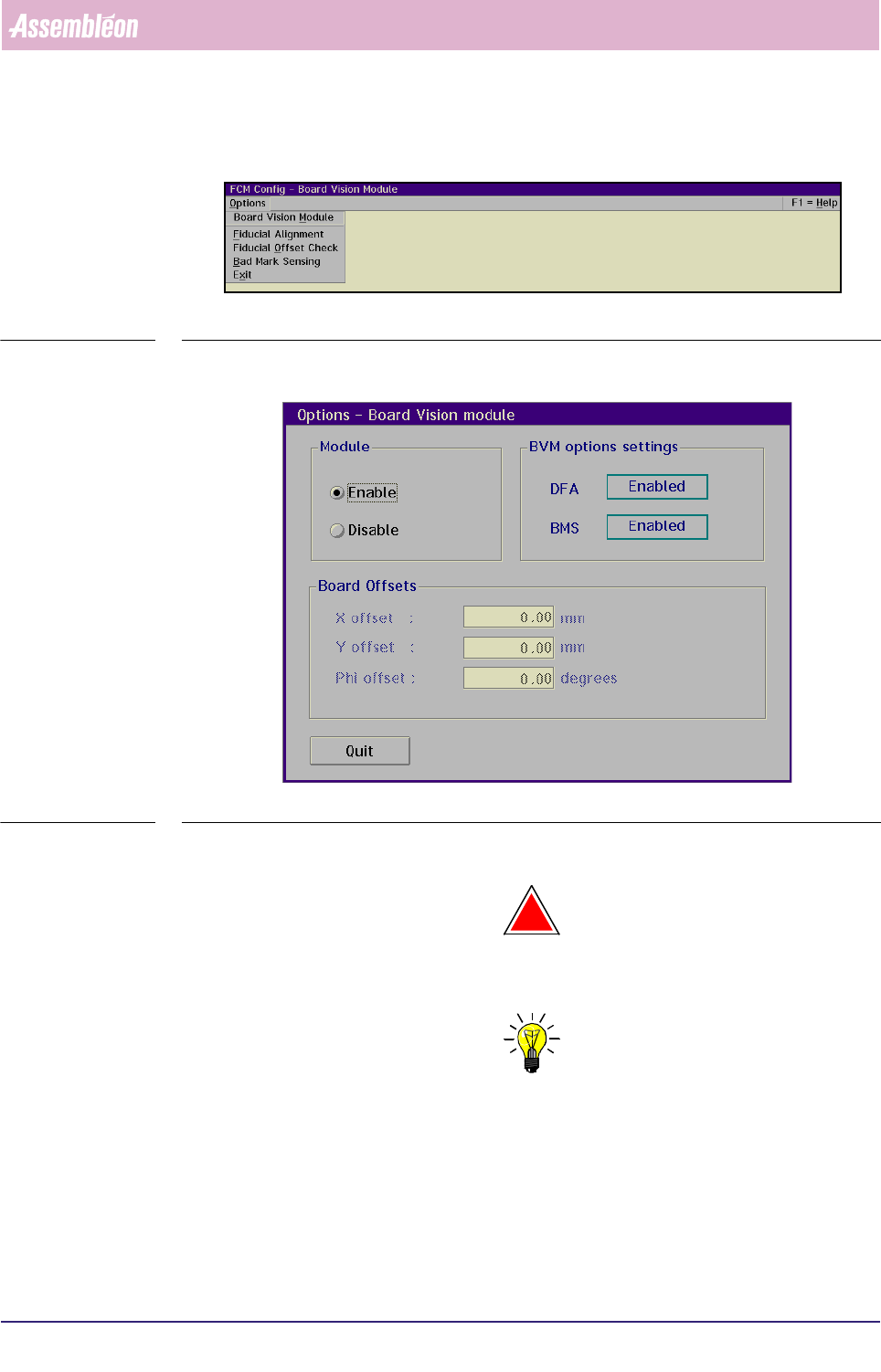
■ Select [Board Vision Module] via the [Options] menu
SCREEN 3-10
■ Select [Enable] and [Quit] in the BVM dialogue box
SCREEN 3-11
The BVM is now active.
!
WARNING: THIS DOESN’T NECESSARILY MEAN THAT THE DFA OR BMS OPTIONS HAVE
BEEN ENABLED!
NOTE: To indicate the presence of an active BVM, the BVM status indication in the
FCM Multiflex status window (see SCREEN 3-7) will now be [Ok].
3.8.1.2 Disabling the BVM
To disable the BVM, follow the same menu path as explained before (section
3.8.1.1) however selecting [Disable] instead.
4022 591 96082 User Reference Manual
02.02 FCM Multiflex 3-21
Human Interface
3.8.1.3 BVM Options Settings
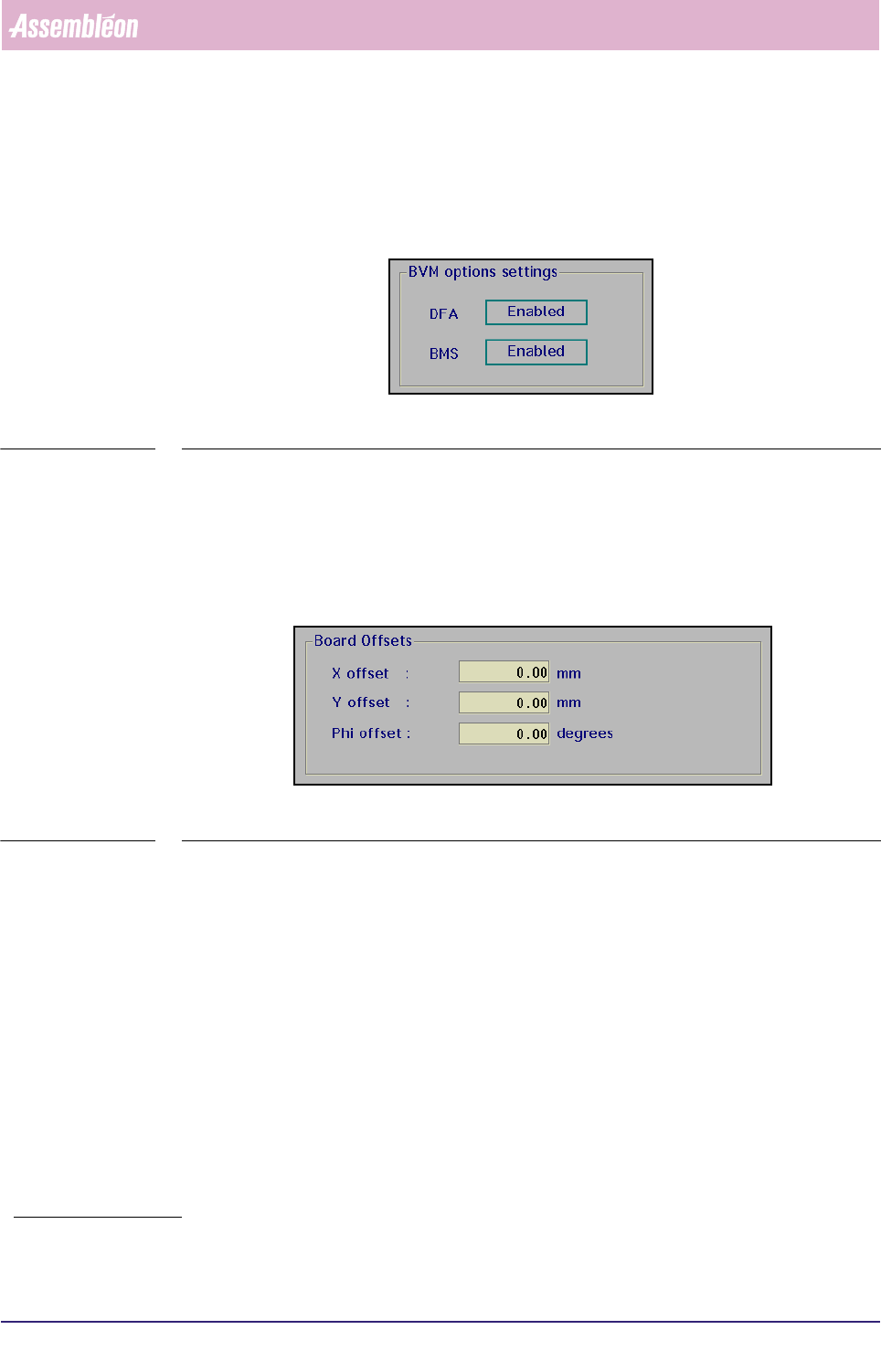
The BVM options settings [DFA] and [BMS] appearing in the BVM dialogue box are
only indications and can not be set in this stage.
SCREEN 3-12
3.8.1.4 Board Offsets
When the Dynamic Fiducial Alignment (DFA) has not been selected
1
or the BVM has
been disabled, a fixed manual offset can be entered.
The maximum offset in the X- or Y-direction is ± 1 mm, in the phi-direction ± 5
degrees.
SCREEN 3-13
1. If DFA has been selected, the software will take
care of this.