FCM_User Reference Manual.pdf.pdf - 第28页
Hu man Inte rfac e User Re ference Manual 4022 5 91 96082 3-12 F CM Mult ifl ex 02.02 3.5 Funct ion and Con tr o l K ey s T ABL E 3-1 Fun ct ion and C ont rol k eys Key Func tio n <Esc> Cancel c urrent dial ogu e o…
4022 591 96082 User Reference Manual
02.02 FCM Multiflex 3-11
Human Interface
■ Communication State (only with optional SECS-II (GEM) Host Link)
• Disabled:
Communication between FCM-II and host computer has been switched off by
the FCM Multiflex User.
• Enabled:
Communication between FCM Multiflex and host computer has been switched
on by the FCM Multiflex User, but the host is currently not responding.
• Communicating:
The host communication is enabled, and the connection between host and
FCM Multiflex has been established.
■ Simulation:
• SIM(+B): Only displayed if simulation with boards is active.
• SIM(-B): Only displayed if simulation without boards is active.
■ Overall FCM Multiflex State:
• OK (green colour)
• ERROR (red colour)
• WARNING (yellow colour)
• WAITING (blue colour)
Human Interface
User Reference Manual 4022 591 96082
3-12 FCM Multiflex 02.02
3.5 Function and Control Keys
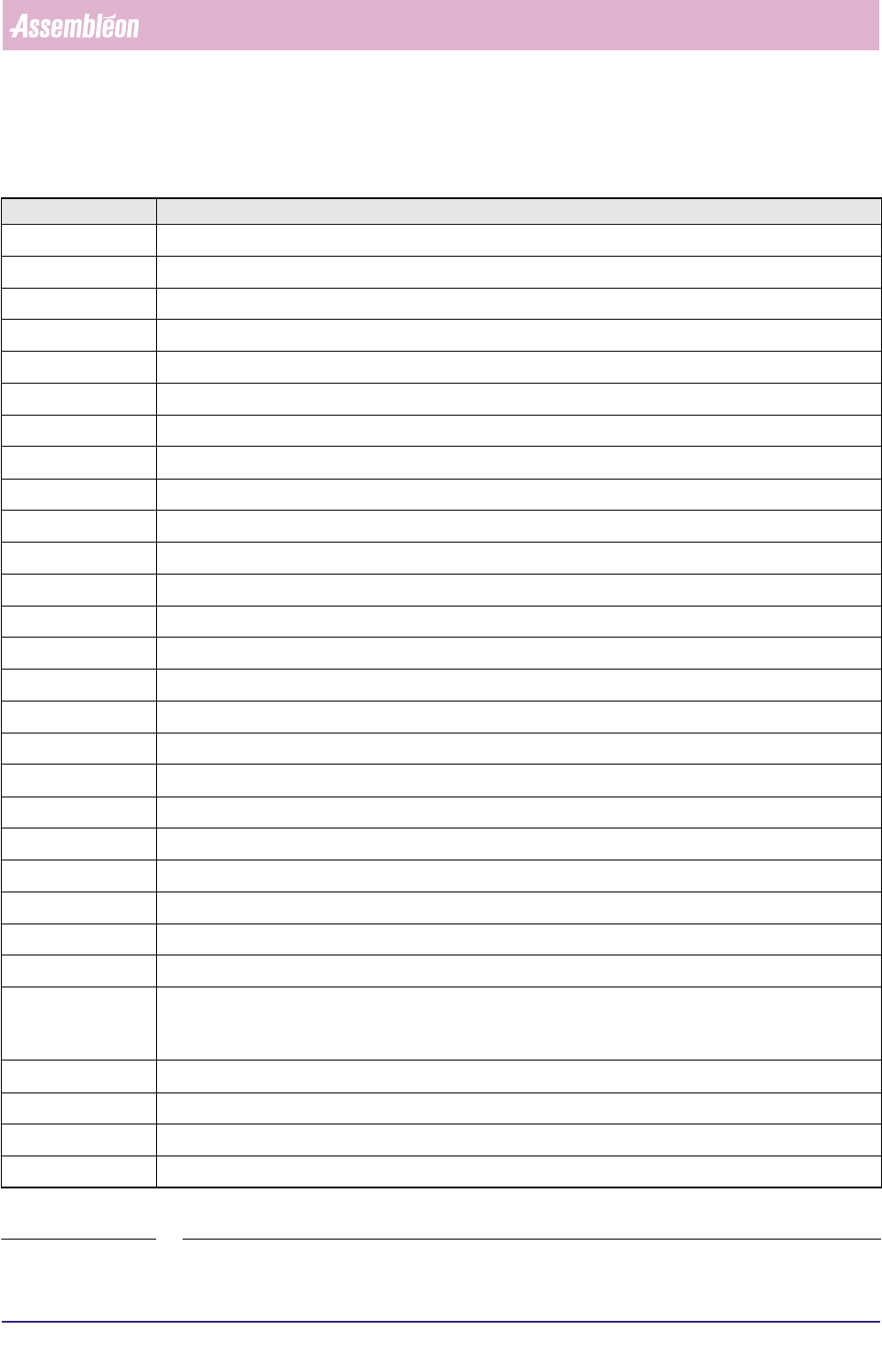
TABLE 3-1 Function and Control keys
Key Function
<Esc> Cancel current dialogue or menu screen.
<F1> Help, general and context sensitive
<F2> Show the MIS Process Graph of the currently running Order
<F3> Error recovery, show Error recovery dialogue
<F4> FCM Multiflex Warnings, show Warning recovery dialogue ; Drops down List Box (if not dropped already)
<F5> Start, production
<F6> Stop, production
<F7> Variable meaning, depending on active dialogue
<F8> Displays Order Setup dialogue ; If FCM Multiflex Status = Change Setup!, displays Order-Setup-View dialogue
<F9> Variable meaning, depending on active dialogue
<F10> Menu, display WVM Monitor ; Error Recovery Dialogue: Maximize WVM Monitor display
<F11> Variable meaning, depending on active dialogue
<Tab> Next group, used in dialogue to advance to the next group, sequence defined in dialogues
<Shift>+<Tab> Previous group, used in dialogue to go back to the previous group, sequence defined in dialogues
<Enter> Activate current selection
<Alt> Menu, activate bar (used in combination with underlined letter)
<Home> Move cursor in a pull-down menu/dialogue to the beginning
<End> Move cursor in a pull-down menu/dialogue to the end
<Space> Selects or deselects a check box or an item in a listbox
<Delete> Delete character highlighted by cursor
<Backspace> Delete character to the left of the character highlighted by the cursor
<Insert> Insert character to the right of highlighted character
<Page Down> Move cursor in list one page down
<Page Up> Move cursor in list one page up
Left control button Activate option currently pointed at. Holding the left control button while pointing at the upper border of a dialogue
screen permits the moving of the box within the menu. Double-tapping maximizes WVM Monitor display in the
Error Recovery Dialogue.
↑ Move cursor upwards in pull-down menu, dialogue or list
↓ Move cursor from main menu to pull-down menu, and move cursor downwards in pull-down menu, dialogue or list
→ Move cursor to the right in menu bar/dialogue
← Move cursor to the left in menu bar/dialogue
4022 591 96082 User Reference Manual
02.02 FCM Multiflex 3-13
Human Interface
3.6 On-line Help operation
Depending on the context, on-line help information is available for the user of the
FCM Multiflex system. It can be obtained when pressing function key <F1> after:
■ An FCM Multiflex function has been highlighted in a pull-down menu.
This will give a description of the function itself.
■ Entering a function dialogue.
This will give the following information:
• A description of the function.
• Operating instruction.
• Displayed information.
• Errors which may occur (only if available).
■ An error or warning message is displayed (either immediately after display or
after entering the “Error Recovery” or “FCM Multiflex Warnings” dialogue).
If more than one error and/or warning is displayed, the operator has to select
one first by:
• Pressing the space bar (first item will be highlighted) and moving the ↑ and ↓
cursor keys to the requested message.
• Tapping the touch pad directly on the requested message.
This will give the following information:
• A description of the error/warning.
• Possible cause of the error/warning.
• Possible error recovery method.