FCM_User Reference Manual.pdf.pdf - 第286页
Advanced O r d er Sche duling User Re ference Manual 4022 5 91 96082 7-4 FCM Multiflex 02.02 7.1.3 D eleti ng Or ders O rders m ay b e dele ted fro m th e Orde r Sch edu le if no i n te nsi on ex is ts to use them in a c…
4022 591 96082 User Reference Manual
02.02 FCM Multiflex 7-3
Advanced Order Scheduling
• Stop for Setup:
RCO is possible, but there are differences in the setup of one or more CLM
(LAS) or WVM positions (e.g. different feeders, component ids, nozzle or PPU
type). During production, the FCM Multiflex will stop at each position where
the setup has to be changed (FCM Production Status will change to “Change
Setup !”). After the setup has been changed, production can be continued.
• NO RCO:
RCO is not possible because there are differences in the FCM Multiflex Base
setup (e.g. different board carriers, stopper adjustment or transport width). If
this order is started, the FCM Multiflex will run-out the current order first.
After that, the FCM Multiflex stops and requests the user to change the setup
(FCM Production Status will change to “Change Setup !”). After the setup has
been changed, production can be started.
5. If you want to activate more Orders repeat the above mentioned procedure.
6. Select [Quit] or press <Esc> if you wish to leave the Order - Schedule Dialogue.
7.1.2 Suspending Orders
Orders may be suspended from the Order Schedule, when they are currently not
being used in a production period. Only orders which are currently “Active” can be
suspended.
Procedure:
7. Select [Suspend] or press <F11> if you wish to change the selected “Active”
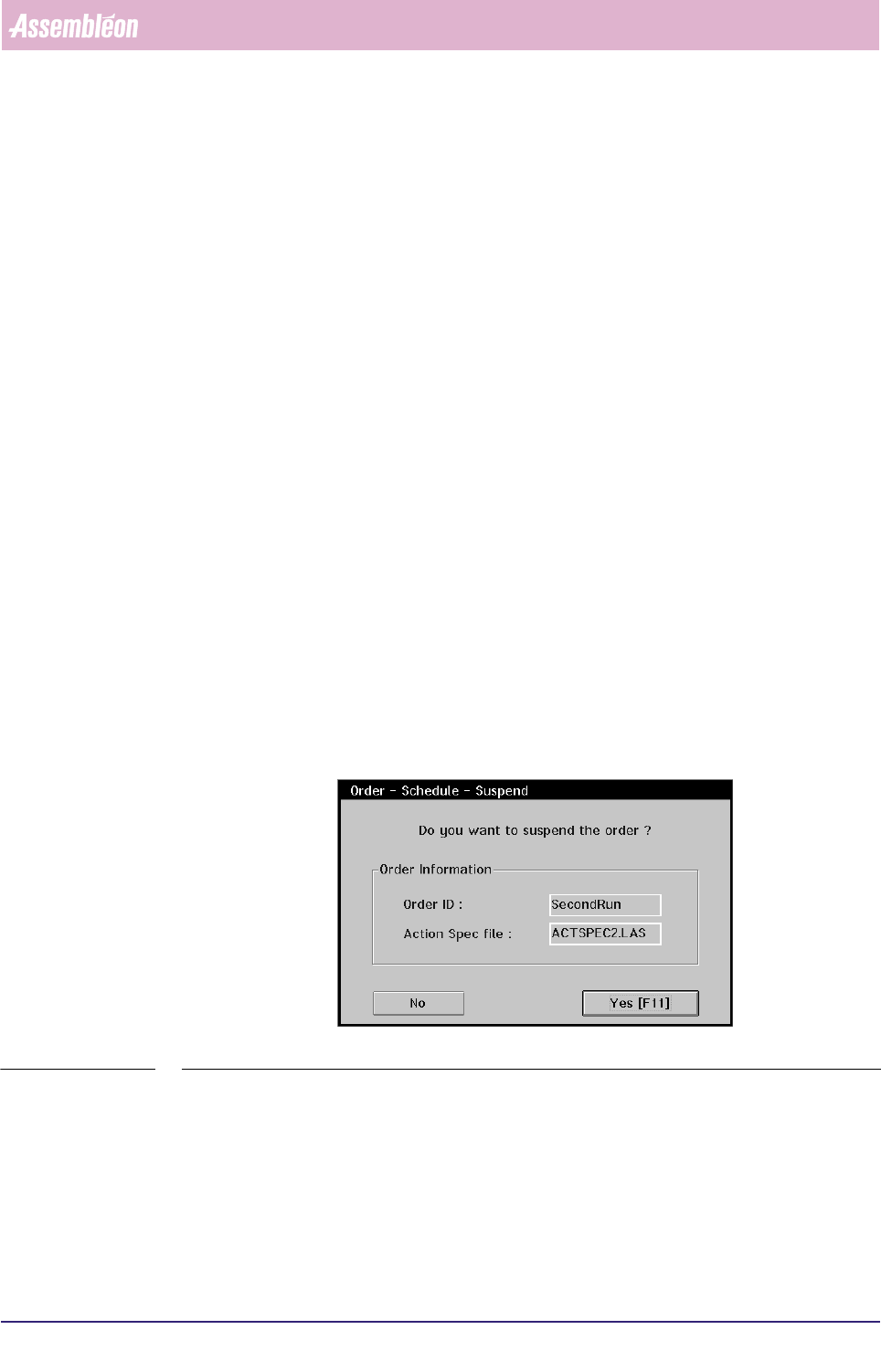
order back to “Idle”. The following dialogue will appear (see SCREEN 7-4).
SCREEN 7-4 Order - Schedule - Suspend Dialogue
8. Select [Yes] or press <F11> if you want to suspend the order. The screen will
return to the Order - Schedule Dialogue.
9. Select [Quit] or press <Esc> if you wish to leave the Order - Schedule Dialogue.
Advanced Order Scheduling
User Reference Manual 4022 591 96082
7-4 FCM Multiflex 02.02
7.1.3 Deleting Orders
Orders may be deleted from the Order Schedule if no intension exists to use them in
a current production period (e.g. after an accident order entry). Only orders which
are currently “Idle” can be deleted.
10.Select [Delete] or press <F9> if you wish to remove the selected “Idle” order
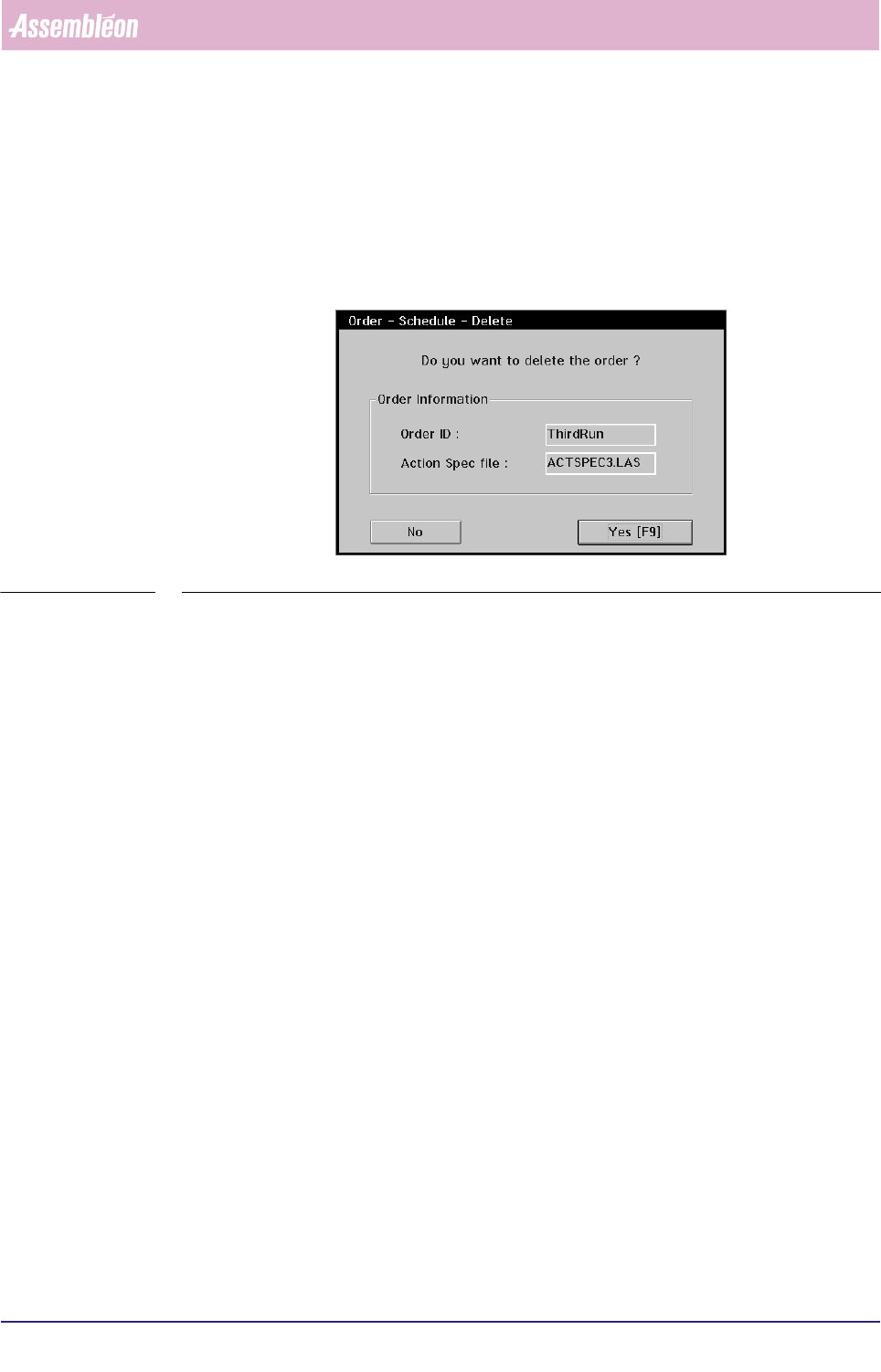
from the Order - Schedule. The following dialogue will appear (see SCREEN 7-5):
SCREEN 7-5 Order - Schedule - Delete Dialogue
11.Select [Yes] or press <F9> if you want to delete the order. The screen will return
to the Order - Schedule Dialogue.
12.Select [Quit] or press <Esc> if you wish to leave the Order - Schedule Dialogue.

4022 591 96082 User Reference Manual
02.02 FCM Multiflex 8-1
SVS Pro Configuration
CHAPTER 8 SVS Pro Configuration
SVS Pro has a lot of features and parameters that can be configured by the user.
These configurable items are maintained in a file that is needed on the machine and
on the SVS Pro loading unit.
■ The configuration file resides on the machine controller and is downloaded to
the SVS Pro controller on its request on start up of the machine.
■ On the SVS Pro loading unit the configuration file is located on the hard disk of
the loading unit controller.
To edit the SVS Pro configuration, switch to the operating system,
■ on the machine controller: go to c:\fcm\cim\data
■ on the loading unit controller: go to c:\svspro\data\lu\configuration
and edit the SVSPRO.CFG file.
NOTE: The file on the machine and the file on the loading unit need to be
identical.