a3369b.pdf - 第36页
Control Unit MDC VTK - TR -BA- 171e - 1 - User Manua l MDS 3080 -V 27 4.5 Menu S tructure The main menu of t he control unit MDC 309 0- V contains fi ve su bmenus: “Pul se Parame ters ” , “Heat er ” ( in applicable t o t…
Control Unit MDC
26
VTK-TR-BA-171e-1 - User Manual MDS 3080-V
Function Key Function
[←]
-key
The screen moves one menu step back.
or
The cursor is shifted one position to the left.
or
A parameter is modified.
[→]-key
The screen moves one menu step ahead.
or
The cursor is shifted one position to the right.
or
A parameter is modified.
The [F1]-key opens the valve, taking into consideration the current values for
“Rising” and “Falling”. The valve remains opened until the key is released. Maximum
length: 2 min. Then the valve closes automatically in order to protect the actuator.
If you start the control unit, while holding the
[F2]
-key, you have the option to
format the EEPROM. With [enter] you agree, with [esc] you skip this point and
reach the main menu just as normal. This function will only be necessary in
exceptional cases.
Important Note!
Settings for Scenarios will not be reset back to the factory settings. That is only
possible with the options “Scenario” and “Reset ALL” after entering the service code
1000 (see paragraph 4.5.6 "Submenu “Service-Option”", page 33).
If the [F2]-key is pressed during operation and while in first drop mode (see
paragraph 7.11, page 71), the first drop adjust starts (i.e. while the “FirstDrop”
function is switched “ON” in the submenu “Status”). When “FirstDrop” is “OFF”, then
nothing happens when pressing [F2].
When the system is in fixed adjust mode, the same is true, since fixed adjust mode
automatically includes first drop mode (see paragraph 7.12, page 76).
Control Unit MDC
VTK-TR-BA-171e-1 - User Manual MDS 3080-V
27
4.5 Menu Structure
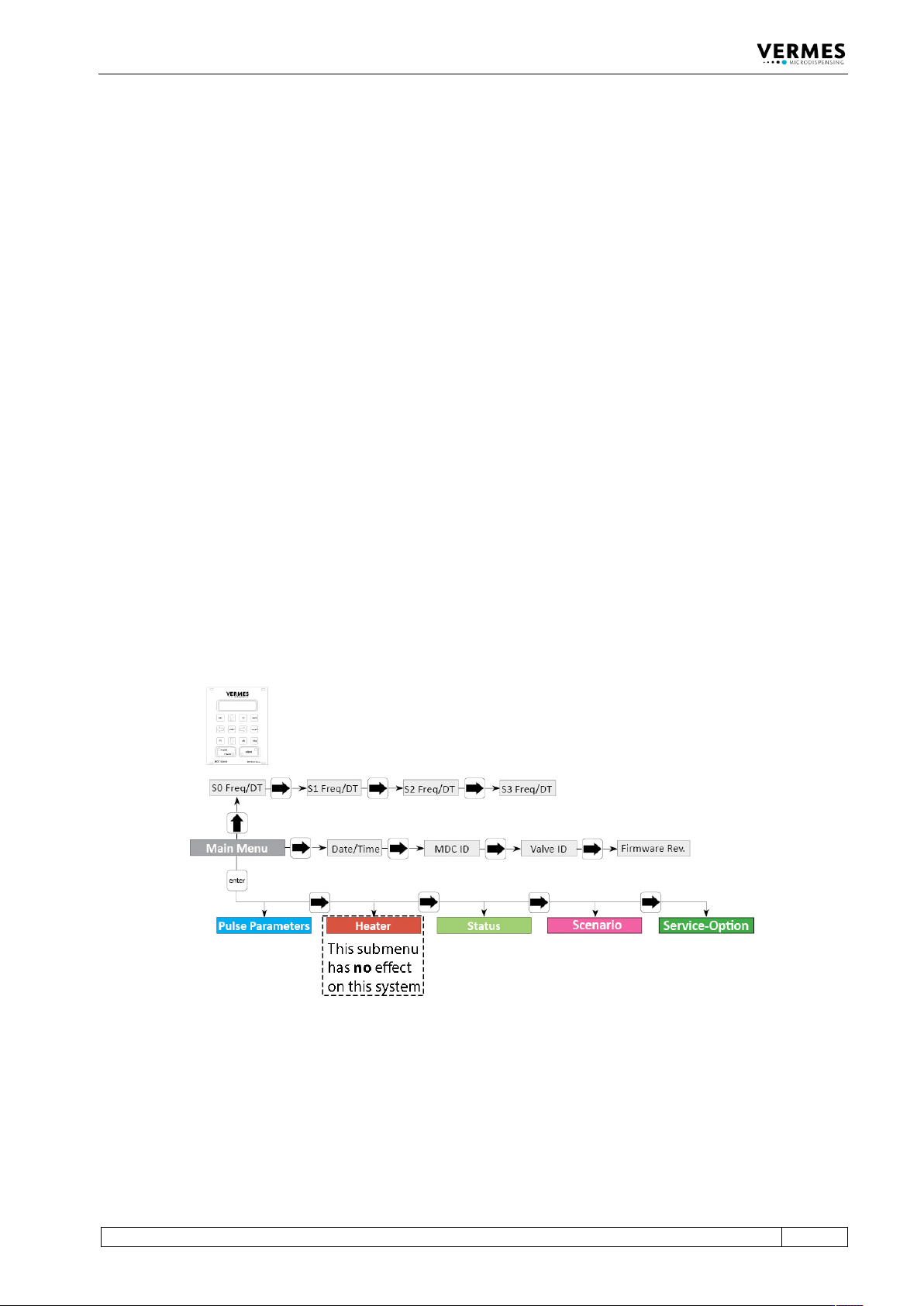
The main menu of the control unit MDC 3090-V contains five submenus: “Pulse Parameters”,
“Heater” (inapplicable to the MDS 3080-V), “Status”, “Scenario” and “Service-Option”. With the
[enter]-key you can reach the level of the submenus. There you can switch around with the keys
[→] and [←]. Another option from the main menu is to use [→] or [←], which allows you to
gather some information about the system, like maintenance situation or ID numbers. The items
are “Date”, “MDC ID”, “Valve ID” and “Firmware Rev.”. “Firmware Rev.” will give you the current
revision of the firmware on your MDC. “Date” gives the current date and time (as UTC), as the
MDC has a real time clock (RTC). With [↑] you reach a level, where you can find information about
the frequencies of your setups or scenario (depending on, if scenario is “ON” or “OFF”). Menu
levels are always “wrap-around”, i.e. you can move on from the last item in a menu directly on to
the first. With [esc] you can change from a submenu into the next higher menu level.
The information shown in the display differs, depending on the menu level (see paragraph 4.5.1
"Main Menu", page 28).
• Dispensing parameters for a particular process can be recalled and modified in the submenu
“Pulse Parameters”.
• The submenu “Heater” is not used in the MDS 3080-V. Completely ignore it.
• You can use the submenu “Status” to switch the functions “FixedAdjust” (see paragraph 7.12,
page 76) and “FirstDrop” (see paragraph 7.11, page 71) ON or OFF. The current number of
cycles can be verified by the function “Cycle Counter”. Error messages concerning the system
are shown with the function “Error”.
• In the submenu “Scenario” you can enter values for pre-defined scenarios. Here you can also
set the option to work with these scenarios.
• The submenu “Service-Option” is used to enter service codes and to change the baud rate.
Fig. 3: Main menu
Control Unit MDC
28
VTK-TR-BA-171e-1 - User Manual MDS 3080-V
4.5.1 Main Menu
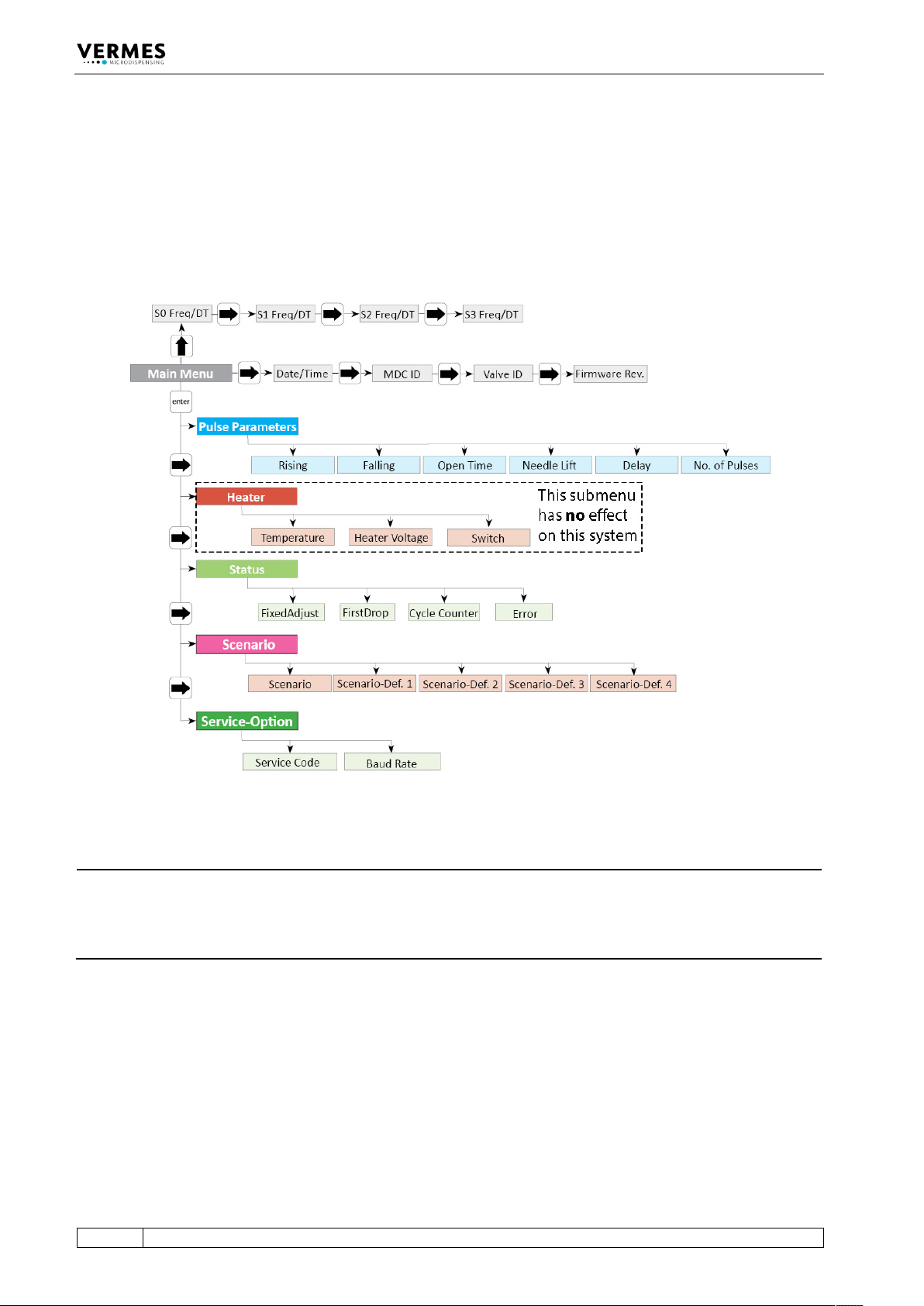
When you switch ON the MDC, you always start in the “Main Menu”. The display shows “3090+”
(upper left). With [enter] or [↓] you can reach the submenus. For the information on the main
level use [→] or [←]. With [↑] you can find information about the frequency and dispensing time
(DT) of your scenarios or setups (depending on if scenario is “ON” or “OFF”). All levels are “wrap-
around”, i.e. you can circle around between the items with both keys.
Fig. 4: Menu structure
INFORMATION
Automatic change back to the main menu
On this level, the display jumps automatically back to “3090+”, if you do not press any button for
longer than about 10 sec. From the submenus, the display will jump back as well, if no buttons
are pressed, but the wait is a bit longer.
In the upper right corner of the display a frequency is shown. This is the dispensing frequency
resulting from your current parameter settings. While “Scenario” is “ON”, the word “Scenario” is
shown instead (only while entering parameters in the submenu, the frequency is always shown).
If you are in one of the submenus, instead of the frequency one or two letters show the submenu
you are in (PP = Pulse Parameters, S = Status, Sc = Scenario, SO = Service-Option).
In case the system is in first drop mode (function “FirstDrop” in the submenu “Status” set to “ON”)
or fixed adjust mode (function “FixedAdjust” in the submenu “Status” set to “ON”) the second line
shows the current TNLmax.