00198783-01_AI_Kit_TwinVHF_Gantry_SXV3_de_en.pdf - 第132页
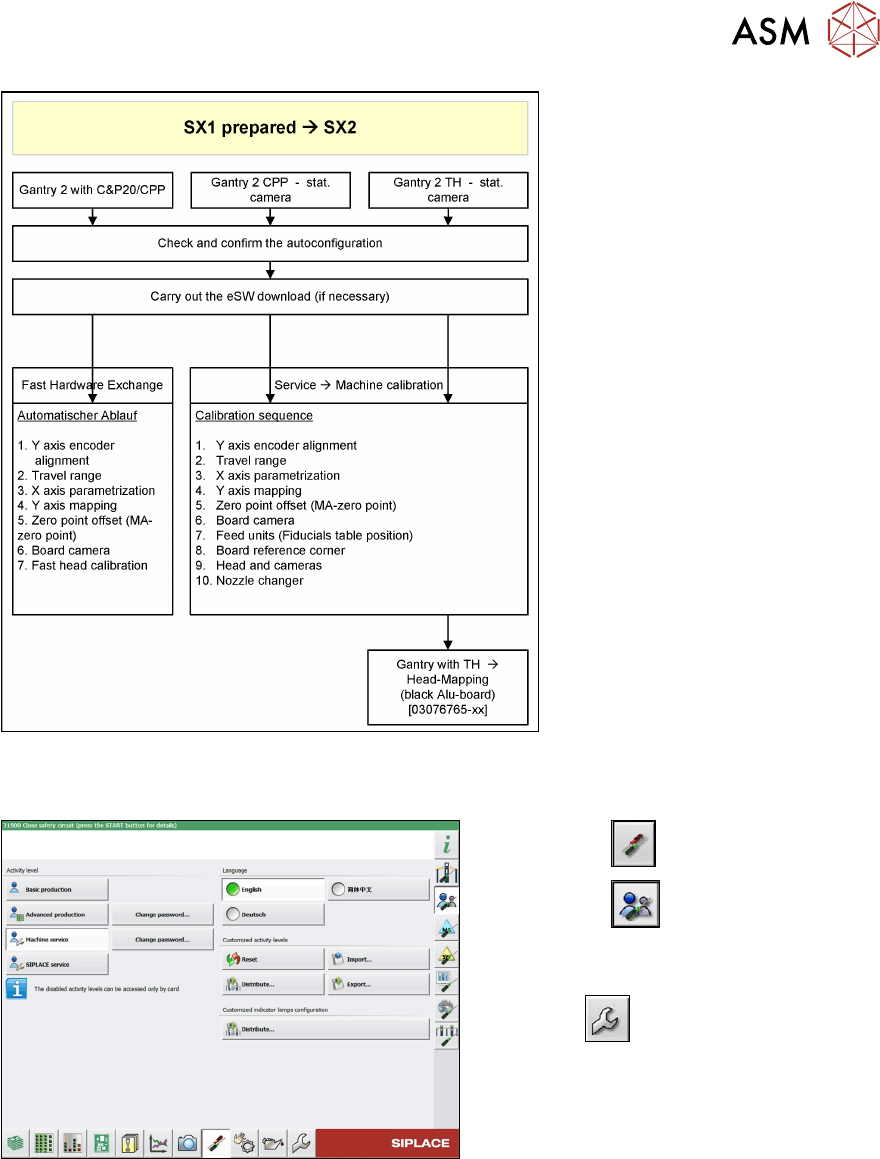
3 Fitting the gantry 3.7 Final Work 132 Assembly Instructions / Montageanleitung SIPLACE SX1/SX2 V3 Reconfiguration Kit Twin VHF mit Portal Reconfiguration Kit Twin VHF with Gantry 06/2020 Fig.67: Service menu ► Select …
3 Fitting the gantry
3.7 Final Work
Assembly Instructions / Montageanleitung SIPLACE SX1/SX2 V3 Reconfiguration Kit Twin VHF mit Portal
Reconfiguration Kit Twin VHF with Gantry 06/2020
131
Fig.65: Gantry with TH->component mapping
Confirming the autoconfiguration (SW 713.x)
Fig.66: Select operator level
► Select the button.
► Select the button.
► Switch over to the operator level Ma-
chine service.
ð The button will be shown.
3 Fitting the gantry
3.7 Final Work
132 Assembly Instructions / Montageanleitung SIPLACE SX1/SX2 V3 Reconfiguration Kit Twin VHF mit Portal
Reconfiguration Kit Twin VHF with Gantry 06/2020
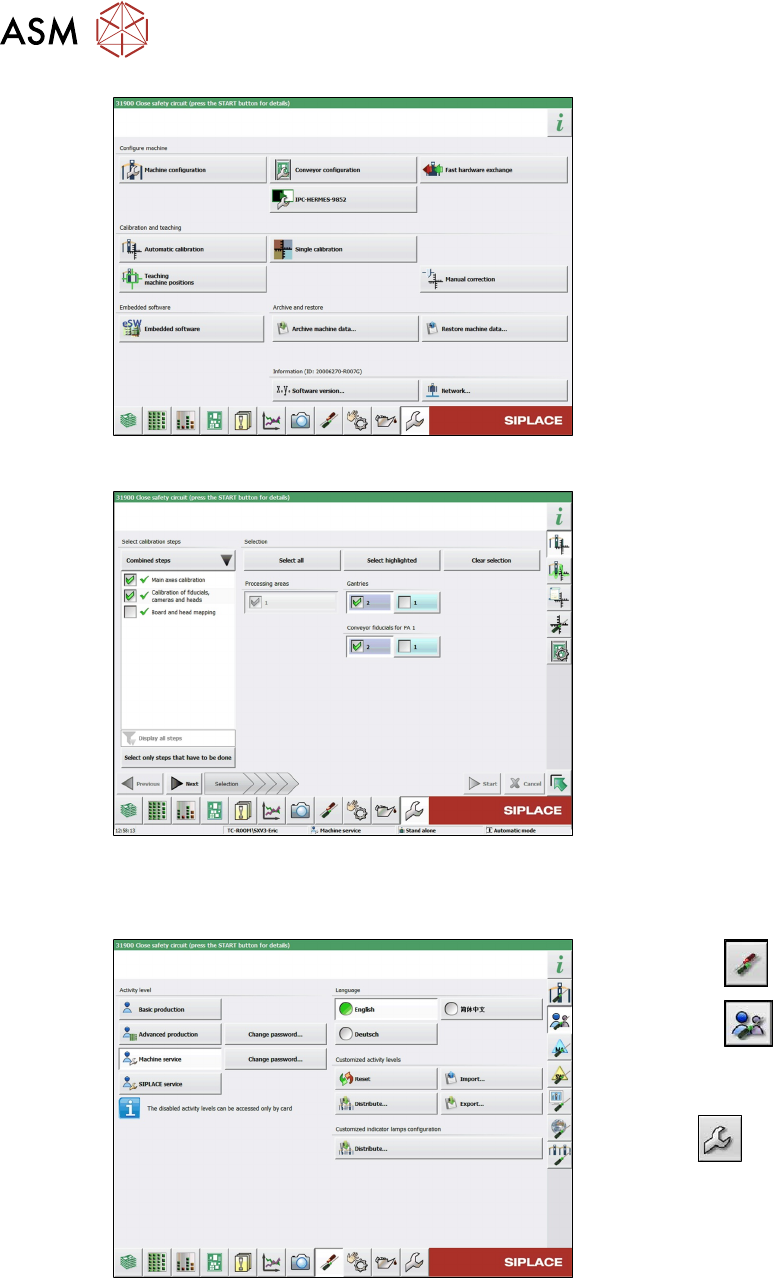
Fig.67: Service menu
► Select Automatic Calibration.
Fig.68: Calibration
► Go to Combined steps and select the
items Main axes calibration
and Cali-
bration of fiducials, cameras and
heads.
► Select the gantry.
► Select Next and follow the instruction
on the screen.
3.7.8.1 eSW Download (SW 70x)
Fig.69: Select operator level
► Select the button.
► Select the button.
► Switch over to the operator level Ma-
chine service.
ð The button will be shown.
3 Fitting the gantry
3.7 Final Work
Assembly Instructions / Montageanleitung SIPLACE SX1/SX2 V3 Reconfiguration Kit Twin VHF mit Portal
Reconfiguration Kit Twin VHF with Gantry 06/2020
133
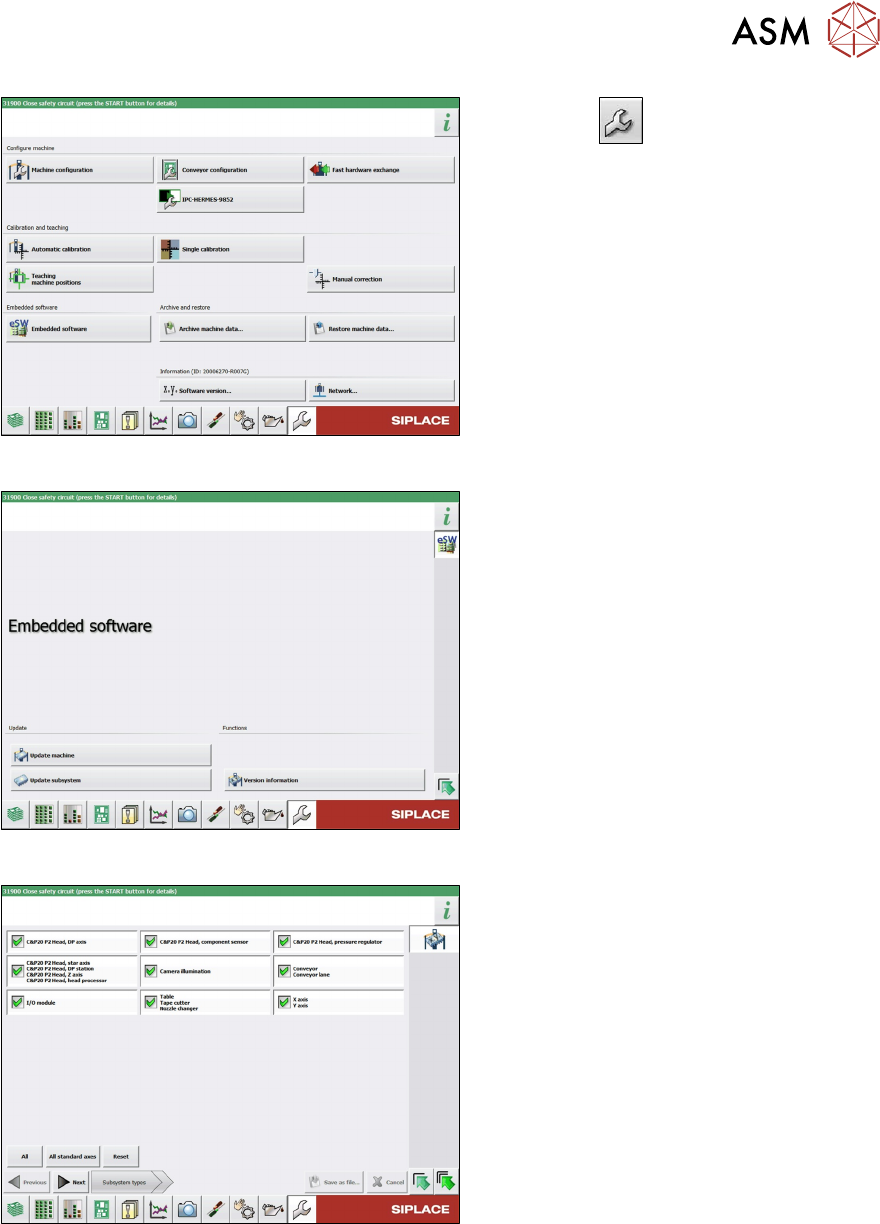
Fig.70: Service menu
► Click the button to enter the Ser-
vice menu.
► Click on the Embedded software but-
ton.
Fig.71: Embedded software menu
Select the required function:
► Click on Update machine… to check
the entire machine and to perform an
eSW download for multiple subsystems
(see next picture).
► Click on Update subsystem… to se-
lect one subsystem, check and to per-
form an eSW download.
► Click on the button Version informa-
tion…, to view all versions of the sub-
systems, BIOS, application 1/2/3/5.
Fig.72: Select subsystem
► Select the subsystem for the eSW
download.
► Click on the Continue button.