00196504-02_UM_X-Serie_SR70X_EN.pdf - 第305页
User manual SIPLACE X-series Tasks on the machine From software version SR.70x.xx 01/ 2011 EN edition The user interface 305 5.5 The user interface The -user interface is divided into the areas described below . By way o…
Tasks on the machine User manual SIPLACE X-series
Switch off the SIPLACE line From software version SR.70x.xx 01/2011 EN edition
304
5.4 Switch off the SIPLACE line
CAUTION
ALWAYS carry out the sequence of actions described below before you switch off the line. 5
5.4.1 Switch off stations
Follow these steps to switch off the station:
End all placement processes so that there are no more PCBs in the machine.
Check that the Z-axes of all placement heads are in their top end position.
Check whether there are still components at the placement head, and remove these if nec-
essary.
Exit the station computer software from the following view:
Settings --> Machine settings --> Shut down machine...
Once the computer has shut down, switch off the station at the main switch.
5.4.2 Exit SIPLACE Pro (Windows)
On the SIPLACE Pro menu bar, select Object --> Exit.
Close all other programs running on the computer.
Select Shut down machine from the Windows Start menu.
User manual SIPLACE X-series Tasks on the machine
From software version SR.70x.xx 01/2011 EN edition The user interface
305
5.5 The user interface
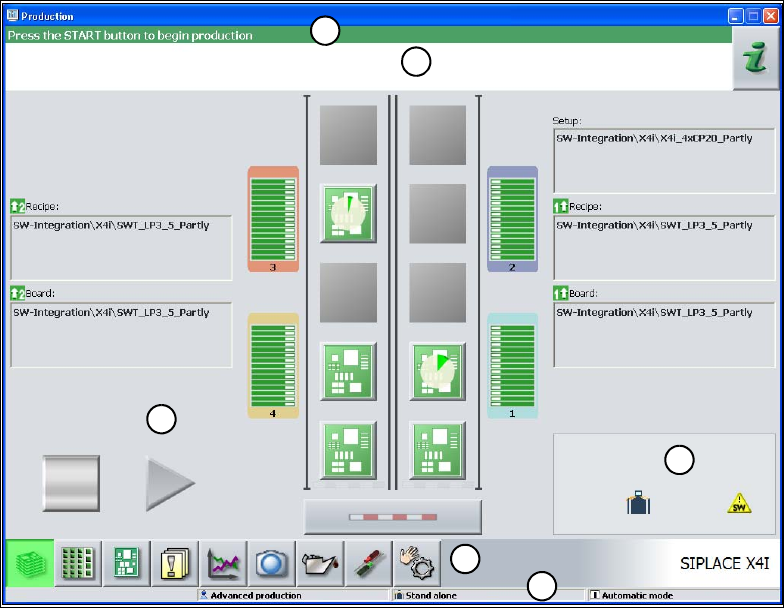
The -user interface is divided into the areas described below.
By way of example, here you can see the user interface in the "Basic production" view for the X4I
machine.
5
Fig. 5.5 - 1 Components of the user interface in the "Basic production" view (in the example of the SIPLACE X4I)
(1) Title bar
(2) Status field (status and error display)
(3) Processing area / display area
(4) Toolbar
(5) Info line
(6) Displays modified configurations and additional options, e.g. barcode mode
5.5.1 Status field
The status field displays the current machine status, the most recent error and the associated ac-
tion required.
The following symbols appear on the right-hand side of the status field, depending on the status:
1
2
3
4
5
6
Tasks on the machine User manual SIPLACE X-series
The user interface From software version SR.70x.xx 01/2011 EN edition
306
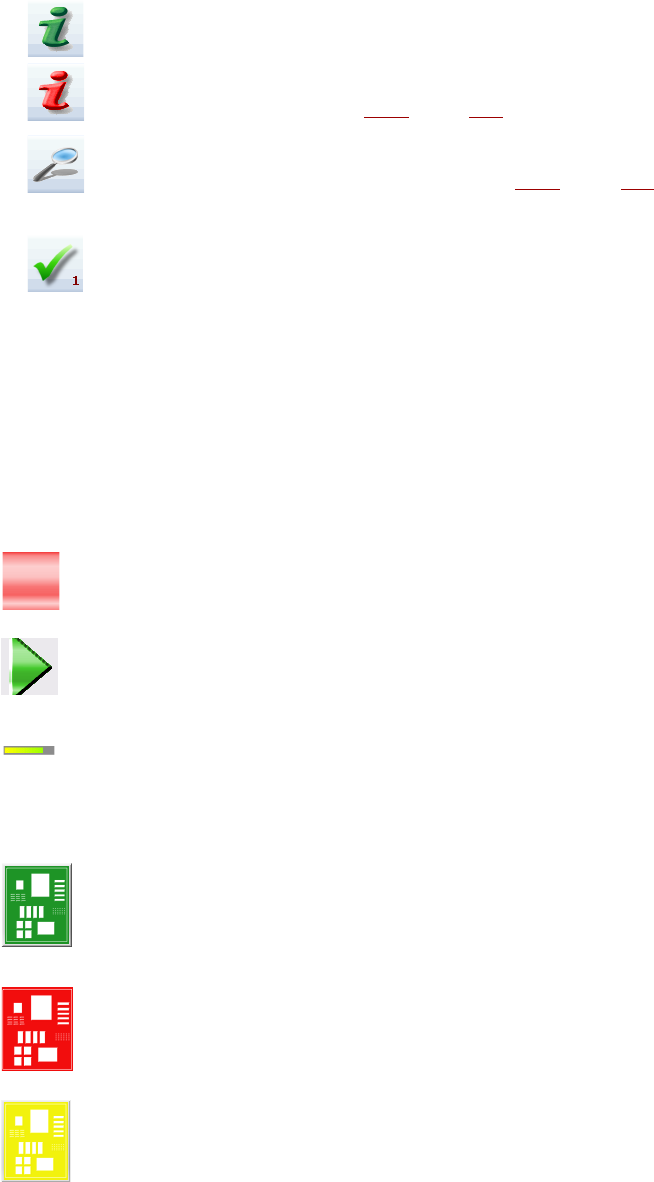
(Green) Starts the context-sensitive help for the current view. All the controls in the view are briefly
explained.
(Red) Starts the help system that lists possible causes of the current error and suggests ways to
eliminate them (see section 5.6.1
, page 313).
Opens a dialog box containing the source of the error, the error message text and the date and
time at which the error occurred (see section 5.6.1
, page 313). You can also call up help about
the current error from here.
Clears the currently-displayed error from the status field.
5.5.2 Display and processing area
This area contains the buttons for setting / starting functions, general information about the PCB,
set-up, batch and other notes.
Animated objects identified by different colors are used to display operations or statuses (e.g. pro-
cessing, location empty, etc.).
The "Production" view (main view) signals certain operating statuses (processing, error, etc.).
Pause processing. Pauses the current placement process.
Resume processing. Starts or resumes placement of the PCBs.
Progress bar
Displays the how far the placement process has progressed for each PCB.
PCB in progress
The PCB is in the system and is being processed. The PCB symbol appears dark green in the
form of a button.
Processing of PCB canceled
If processing was cancel, the PCB symbol turns red.
PCB must be checked
If the PCB is on the output belt and the status of the PCB has to be checked by the operator, the
PCB symbol turns yellow.