03217917-01-01E By DEK Technical Reference Manual Vol 1_enPDFA.pdf - 第224页
15 BOARD STOP 15.6 ADJUSTMENTS AND SETTINGS 224 TECHNICAL REFERENCE MANUAL Vol 1 E By DEK 04/2019 1 2 ► Slide the remote board stop to the front of the machine, until it abuts the front rail. ► Close the front printhead …
15 BOARD STOP
15.6 ADJUSTMENTS AND SETTINGS
TECHNICAL REFERENCE MANUAL Vol 1 E By DEK 04/2019 223
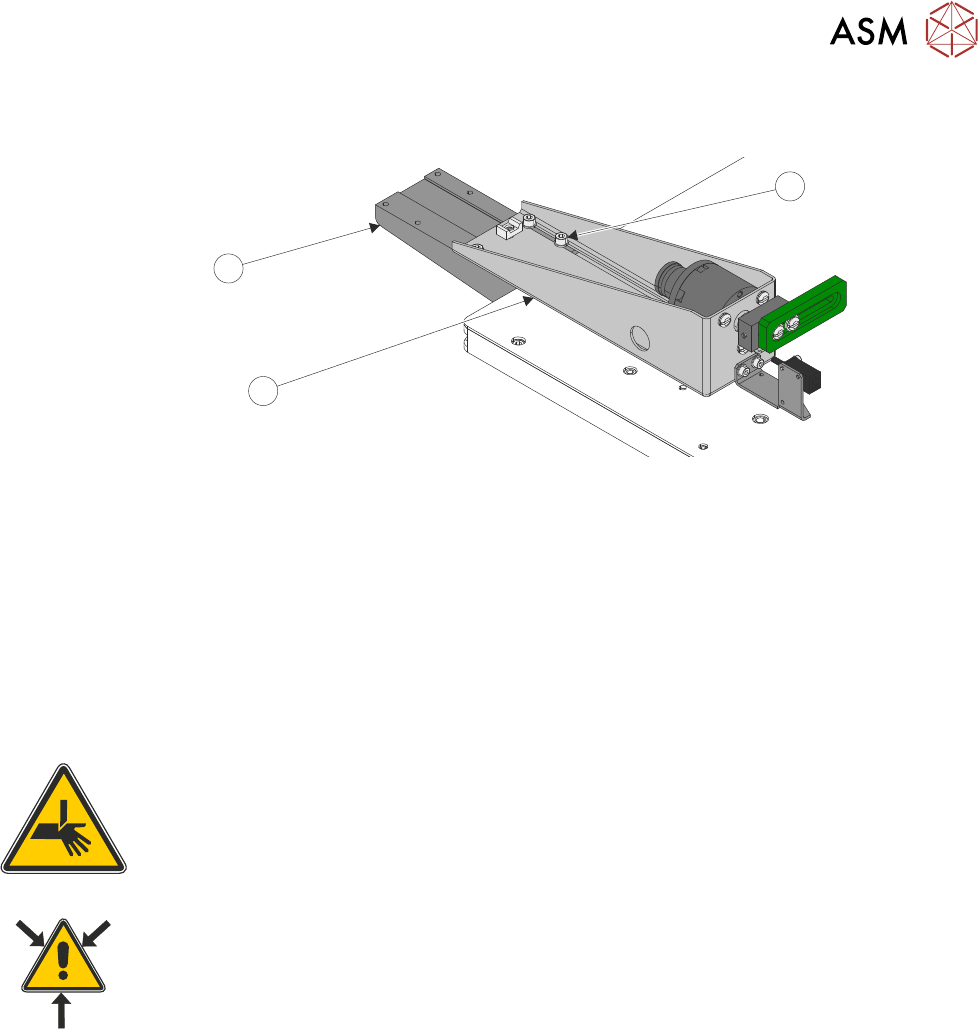
► Lay the remote board stop assembly (3) onto the base clamp (1) so that the board stop is
clear of the board.
3
1
2
► Using the appropriate slots, loosely secure the remote board stop assembly (3) to the base
clamp (1), using the four M5 cap head screws (2).
► Connect plug 8PL05 to socket 8SK05L.
► Connect the pipe marked Remote/B/Stop L1 to the in-line connector on the pipe marked 1 on
the remote board stop.
► Connect the pipe marked Remote/B/Stop L2 to the in-line connector on the pipe marked 2 on
the remote board stop.
► Carry out 15.6.3 "Setting the Remote Board Stop" [}203].
15.6.8 Remote Board Stop - Same Side Configuration
WARNING
BOARD CLAMPS. EXTREME CARE MUST BE EXERCISED WHEN WORKING IN
THE TOOLING AREA OF THE MACHINE TO AVOID INJURY. THE FOILS ON THE
FRONT AND REAR BOARD CLAMPS ARE VERY SHARP.
WARNING
COMPRESSED AIR. COMPRESSED AIR SHOULD NEVER IMPINGE UPON THE
BODY. PORTS, PIPES, ETC MUST NEVER BE BLOCKED BY HAND. BEFORE
CONNECTING OR DISCONNECTING ANY PNEUMATIC COMPONENTS, ENSURE
THE COMPRESSED AIR SUPPLY HAS BEEN DISSIPATED AND DISCONNECTED
FROM THE MACHINE.
This procedure details the changes required to alter the remote board stop position when switching
between products with different board widths.
15.6.8.1 Preparation
► Select Open Cover Commands.
► Select Carriage To Rear.
► Select Unload Screen.
► Open the front printhead cover.
► Remove the screen from the machine.
► Remove the appropriate safety cover.
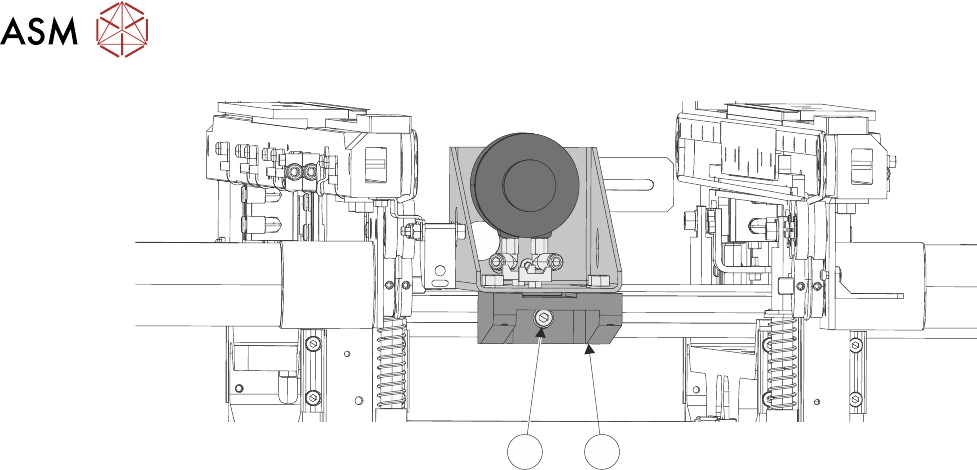
► Loosen the securing screw (2) from the underside of the base clamp (1), using a 4mm Allen
key.
15 BOARD STOP
15.6 ADJUSTMENTS AND SETTINGS
224 TECHNICAL REFERENCE MANUAL Vol 1 E By DEK 04/2019
12
► Slide the remote board stop to the front of the machine, until it abuts the front rail.
► Close the front printhead cover.
► Press the System button.
► Select Back.
► Select Setup Product.
► Select Load Product.
► Select the product file to be used with the remote board stop.
NOTE
The selected product file must have a board width of 130mm or greater.
► Select Load.
► Select Back.
► Select Back.
► Open the front printhead cover.
► Slide the remote board stop to the correct position in the Y axis, for the product to be printed
and tighten the securing screw at the bottom of the base clamp, using a 4mm Allen key.
► Carry out 15.6.3 "Setting the Remote Board Stop" [}203].
15 BOARD STOP
15.7 CALIBRATION
TECHNICAL REFERENCE MANUAL Vol 1 E By DEK 04/2019 225
15.7 CALIBRATION
15.7.1 Board Stop X Offset
WARNING
BOARD CLAMPS. EXTREME CARE MUST BE EXERCISED WHEN WORKING IN
THE TOOLING AREA OF THE MACHINE TO AVOID INJURY. THE FOILS ON THE
FRONT AND REAR BOARD CLAMPS ARE VERY SHARP.
The board stop X offset is the distance between the leading edge of the board and the centre of the
camera view whilst the board is at the board stop position.
► Place a board on the inroad conveyor.
► Select Maintenance.
► Select Calibrations.
► Select Board Stop X Offset from the table.
► Select Load Board.
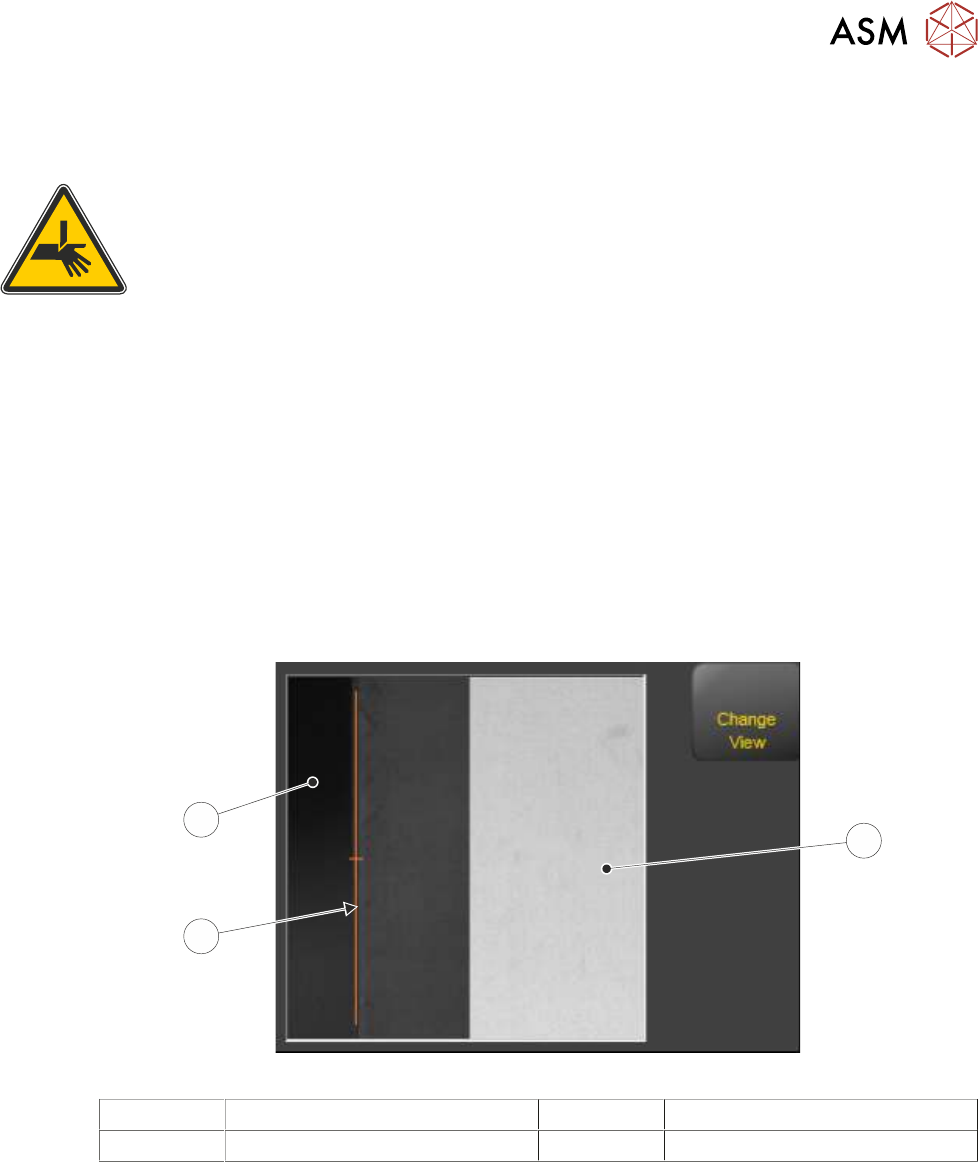
The board loads to the board stop. The board stop is retracted and the camera moves to-
wards the leading edge of the board by the distance stated in the board stop X offset para-
meter. If the offset is correct, the amber marker line in the vision window aligns with the edge
of the board.
1
3
2
1 Camera Looking Up 3 Board as seen by the Camera
2 Marker
NOTE
The vision view may display Single View (looking down on the board) or Split View (looking up and
down) depending on the camera fitted. The graphic above is showing Split View.
► If the offset is correct, Select Confirm. Go to Close Up.
► Select Board Stop X Offset.
► Increasing the value moves the board right of the amber marker. Decreasing the value moves
the board left. the nudge function can be used to make the move.
► Select Accept. The vision window updates with the new value.
► Repeat previous three Steps until the board edge matches up with the amber marker.
► Select Save And Exit.