Utah-94-721002-System-Manual.pdf - 第113页
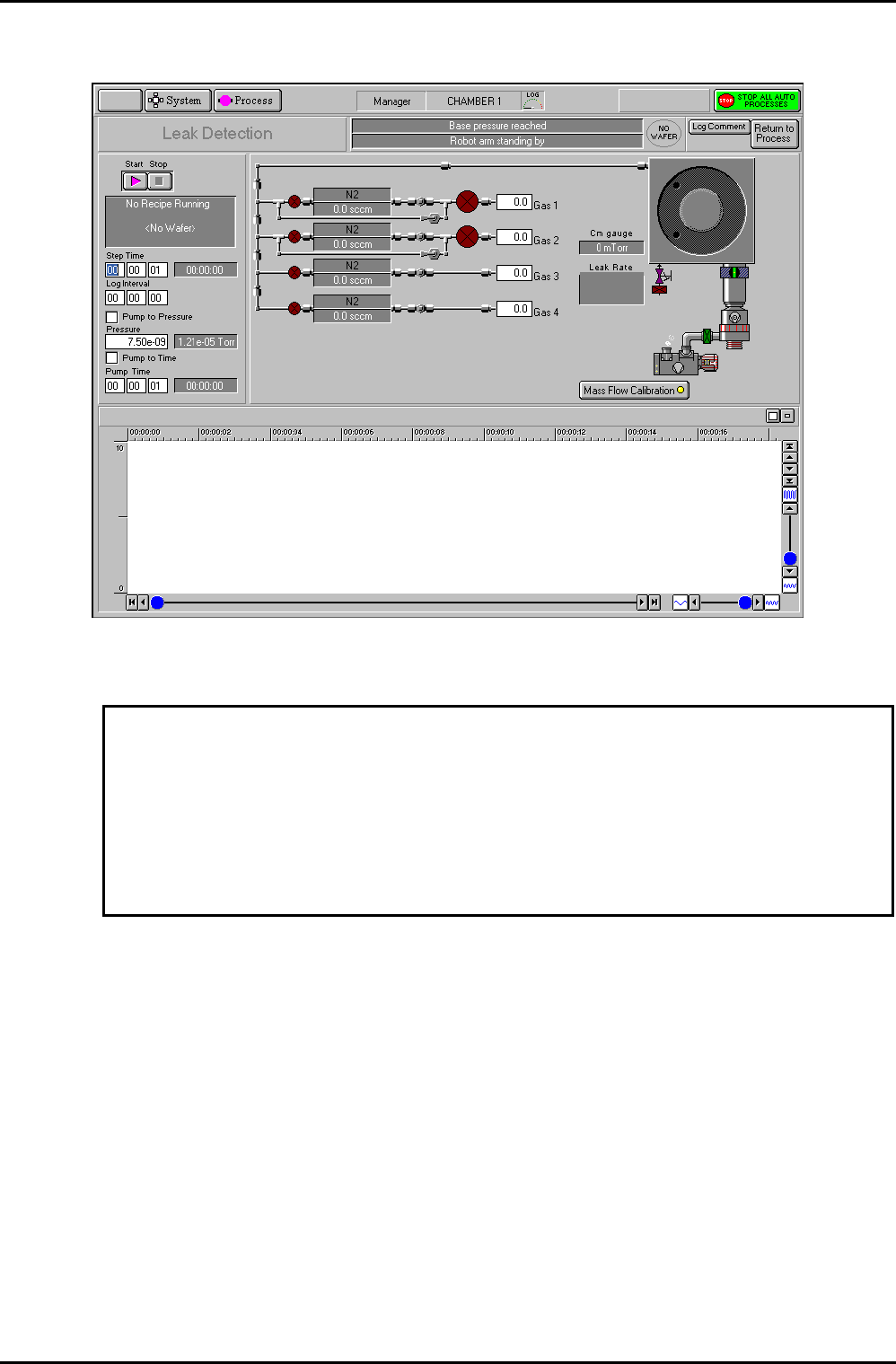
System Manual lñÑçêÇ=fåëíêìãÉåíë=mä~ëã~=qÉ ÅÜåçäçÖó== mä~ëã~ä~Ä póëíÉãNMM RKUKT= j~ëë=Ñäçï=Å~äáÄê~íáçå=é~ÖÉ= Fig 5.18: M ass flow calibration page CAUTION Some gas mixture s may produce particles in th e chamber or ga s …

mä~ëã~ä~ÄpóëíÉãNMM lñÑçêÇ=fåëíêìãÉåíë=mä~ëã~=qÉÅÜåçäçÖó== System Manual
Transfer status/
Log Comment
message field
Displays context related messages about wafer transfer status. This
field is also used to enter comments about the current process run
which can be viewed on the log viewer page.
Wafer status
field
Displays context related messages about the currently selected wafer.
Log Comment
button
Allows comments about the current process to be entered in the
Transfer status/Log Comment message field. While entering a
comment, the button title changes to OK to allow the comment to be
accepted.
Return to
Process button
Select to return to the Chamber 1 or Chamber 2 process page.
Start button
Select to commence a leak detection test.
Stop button
Select to halt a leak detection test and return to pumping.
Recipe message
field
Displays information about the current recipe, step, loaded wafer
identity etc.
Step Time fields
Enter the required step time (in hours:minutes:seconds) for the
duration of the pressure-rise test. While a process is running, the
adjacent field displays the time remaining to the end of the step.
Log Interval
fields
Enter the sampling rate for the datalogging log file (in
hours:minutes:seconds).
If set to zero, no data log will be made.
Pump to
Pressure
checkbox
Select to cause the initial pumpdown to continue until a given
pressure is reached. The step will remain active until this condition is
met. (9Indicates selected). All setpoints are automatically set to zero,
except for base pressure. See the NOTE at the end of this sub-section.
Pressure fields
Enter the required Process Chamber target pressure. The measured
pressure is displayed in the adjacent field.
Pump to time
checkbox
Select to give the initial pumpdown a fixed duration. See the NOTE at
the end of this sub-section.
Pump Time
Duration of initial pumpdown (in hours:minutes:seconds).
Gas pod and
process chamber
mimic
Displays a mimic of the gas pod, process chamber and vacuum system.
The pressures read by the chamber Penning and CM gauges are also
displayed.
Mass Flow
Calibration
button
Select to calibrate the MFCs. Calibration is carried out by clicking on
each MFC mimic, then entering the Gas Name, Gas Factor and Mass
Flow.
NOTE:
If both ‘Pump to pressure’ and ‘Pump to time’ are selected, then
‘Pump to time’ takes precedence.
Operating Instructions
UC Davis 94-721001 Issue 1: March 06 Page 5-46 of 52 Printed: 22-Mar-06, 10:42
System Manual lñÑçêÇ=fåëíêìãÉåíë=mä~ëã~=qÉÅÜåçäçÖó== mä~ëã~ä~ÄpóëíÉãNMM
RKUKT= j~ëë=Ñäçï=Å~äáÄê~íáçå=é~ÖÉ=
Fig 5.18: Mass flow calibration page
CAUTION
Some gas mixtures may produce particles in the chamber or gas lines.
Check only ONE gas at a time.
Allow at least 15 minutes of pumping before and after any chamber fill using
Silane or SiCl4.
This is similar to the Leak Detection page (see sub-section 5.8.6, page 5-45.) with the addition
of setpoint boxes for the Mass Flow Controllers. Only the ‘Pump to Time’ feature should be
selected, because the selected gases will turn on during the initial pumpdown period. (If
‘Pump to pressure’ is selected with a gas flowing, it is unlikely to reach the target pressure).
When the initial pumping and MFC stabilisation period ends, the chamber seals and fills
slowly. The rate-of-pressure rise is calculated and displayed.
NOTE: Chamber pressure depends on quantity of gas added and on the chamber
temperature. If a high-power plasma has been run recently, the chamber
will be hotter and the rate-of-pressure rise will be greater for the same gas
flow.
Operating Instructions
Printed: 22-Mar-06, 10:42 Page 5-47 of 52 UC Davis 94-721001 Issue 1: March 06
mä~ëã~ä~ÄpóëíÉãNMM lñÑçêÇ=fåëíêìãÉåíë=mä~ëã~=qÉÅÜåçäçÖó== System Manual
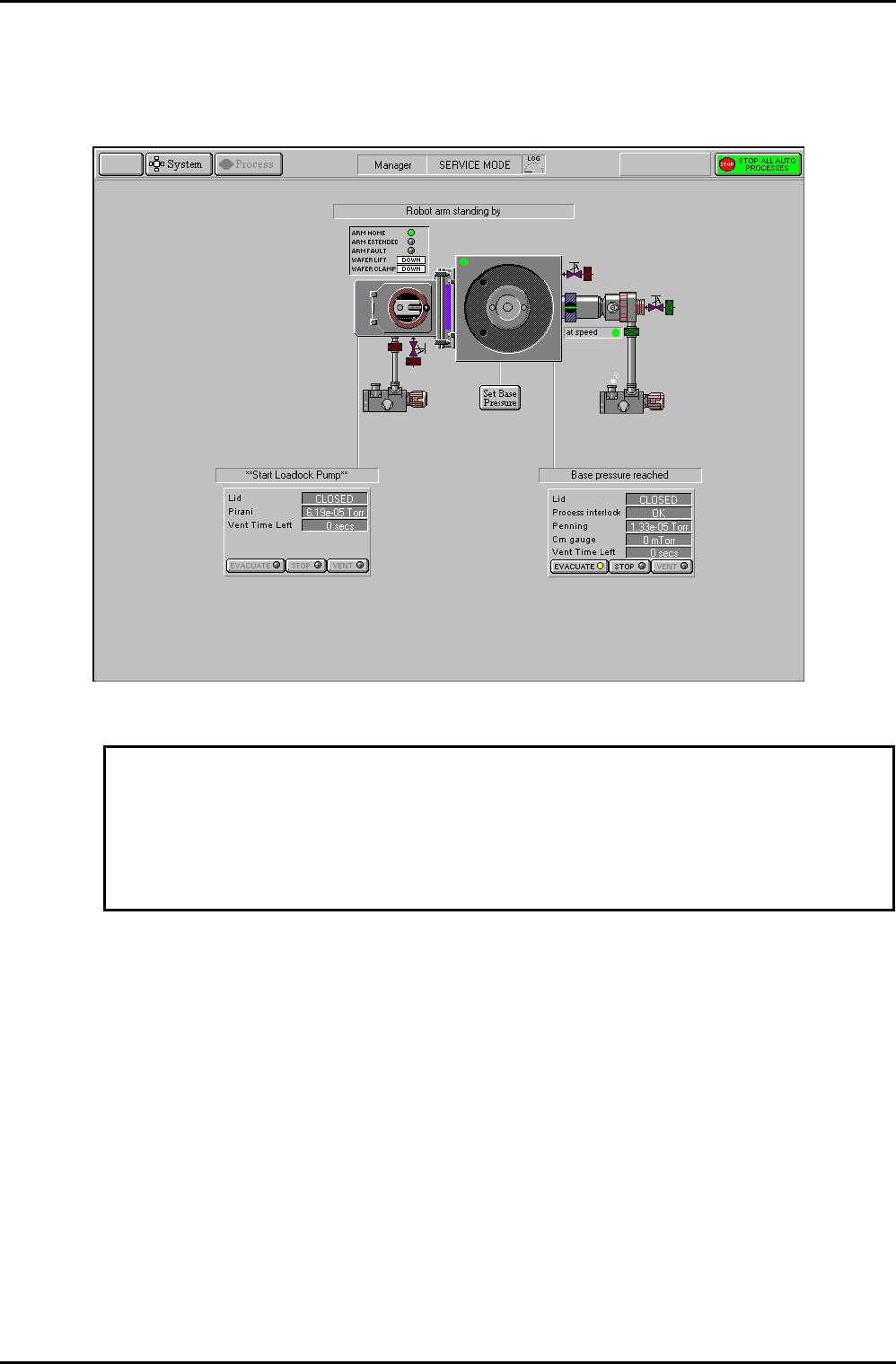
RKUKU= pÉêîáÅÉ=ãçÇÉ=
The Service Mode page is displayed by selecting the System button, then the Service option.
Fig 5.19: Service mode page
CAUTION
The software interlocks which prevent collisions between the wafer, robot arm,
slit valve and the wafer clamp are overridden in the Service Mode. Therefore,
before clicking on any button, consider very carefully the consequences of your
proposed actions.
This page is used during maintenance to manually control system components. The page can
also used to manually transfer wafers between the Automatic load lock and process chamber.
Manual control of the following features is available by clicking on them (confirmation is
requested before any action is carried out):
Note that moving the mouse pointer over a feature will cause a box to be displayed around
the feature indicating that it can be manually controlled.
a) Process chamber turbo pump.
b) Process chamber wafer lift and wafer clamp.
c) Process chamber vent valve.
d) Process chamber APC valve.
e) Process chamber turbo backing valve and purge valve.
Operating Instructions
UC Davis 94-721001 Issue 1: March 06 Page 5-48 of 52 Printed: 22-Mar-06, 10:42