Utah-94-721002-System-Manual.pdf - 第77页
System Manual lñÑçêÇ=fåëíêìãÉåíë=mä~ëã~=qÉ ÅÜåçäçÖó== mä~ëã~ä~Ä póëíÉãNMM 5) On the taskbar, select the Start button, then the Settings option, then select Control Panel . The control panel is displayed. 6) Select Powe r…
mä~ëã~ä~ÄpóëíÉãNMM lñÑçêÇ=fåëíêìãÉåíë=mä~ëã~=qÉÅÜåçäçÖó== System Manual
RKQ= léÉê~íçê=Åçåíêçä=
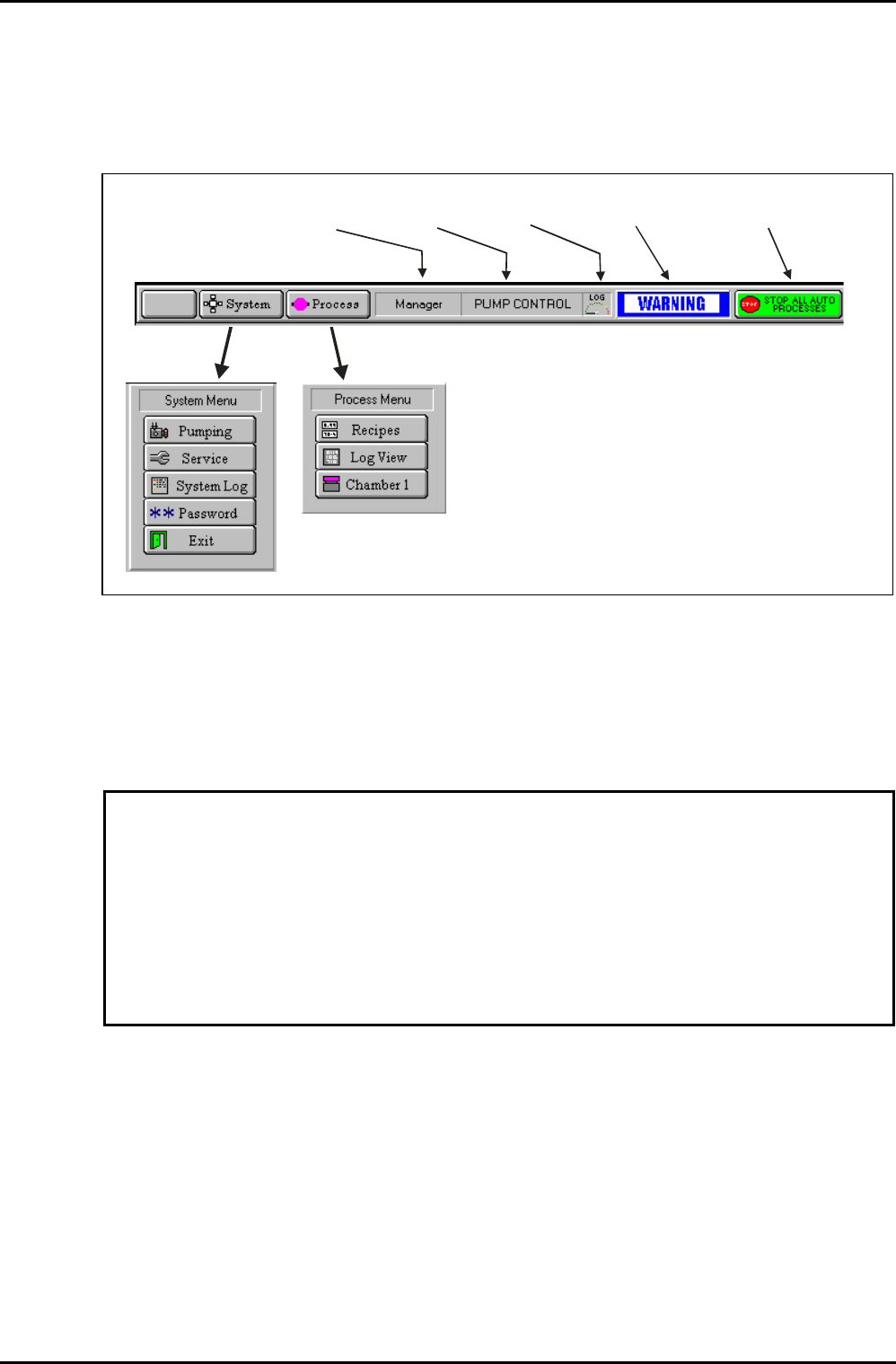
The PC 2000 facilities are accessed from the menu bar at the top of the screen as shown in Fig
5.1.
LOG-ON
STATUS
PAGE
TITLE
SYSTEM LOG
FILE SPACE
SYSTEM ALERT
BANNER
STOP ALL AUTO
PROCESSES BUTTON
Fig 5.1: Menu bar
This system incorporates an ICP 180 processing station, and an automatic single-wafer load
lock chamber. Refer to sub-section 5.8, page 5-33 for diagrams and brief descriptions of the
screens/pages.
RKQKN= qìêåáåÖ=ëÅêÉÉå=ë~îÉêë=~åÇ=éçïÉê=ë~îÉê=çéíáçåë=çÑÑ=
CAUTION
When running the PC 2000 software, using a Screen Saver or allowing the PC to
enter any of the Power Saver modes can cause the PC to lose communications
with the PLC.
Before starting the PC 2000 software, ensure that Screen Savers and all Power
Saver options are turned off. A procedure to do this is given in the following
text.
Use the following procedure to turn the screen savers and power saver options off. Note that
this procedure is applicable to Microsoft Windows XP™; for other versions of Windows, refer
to the on-line help.
1) Right-click anywhere in a clear area on the Windows desktop and then, on the
displayed menu, select the Properties option. The Display Properties dialogue box
is displayed.
2) Select the Screen Saver tab.
3) In the Screen Saver drop-down list, select the (None) option.
4) Click on the OK button.
Operating Instructions
UC Davis 94-721001 Issue 1: March 06 Page 5-10 of 52 Printed: 22-Mar-06, 10:42
System Manual lñÑçêÇ=fåëíêìãÉåíë=mä~ëã~=qÉÅÜåçäçÖó== mä~ëã~ä~ÄpóëíÉãNMM
5) On the taskbar, select the Start button, then the Settings option, then select
Control Panel. The control panel is displayed.
6) Select Power Options. The Power Options Properties dialogue is displayed.
7) Ensure that all power scheme options are set to ‘Never’. If necessary, use the drop-
down lists to select the ‘Never’ option.
8) Click on the OK button.
9) Close the control panel.
RKQKO= içÖÖáåÖ=çå=
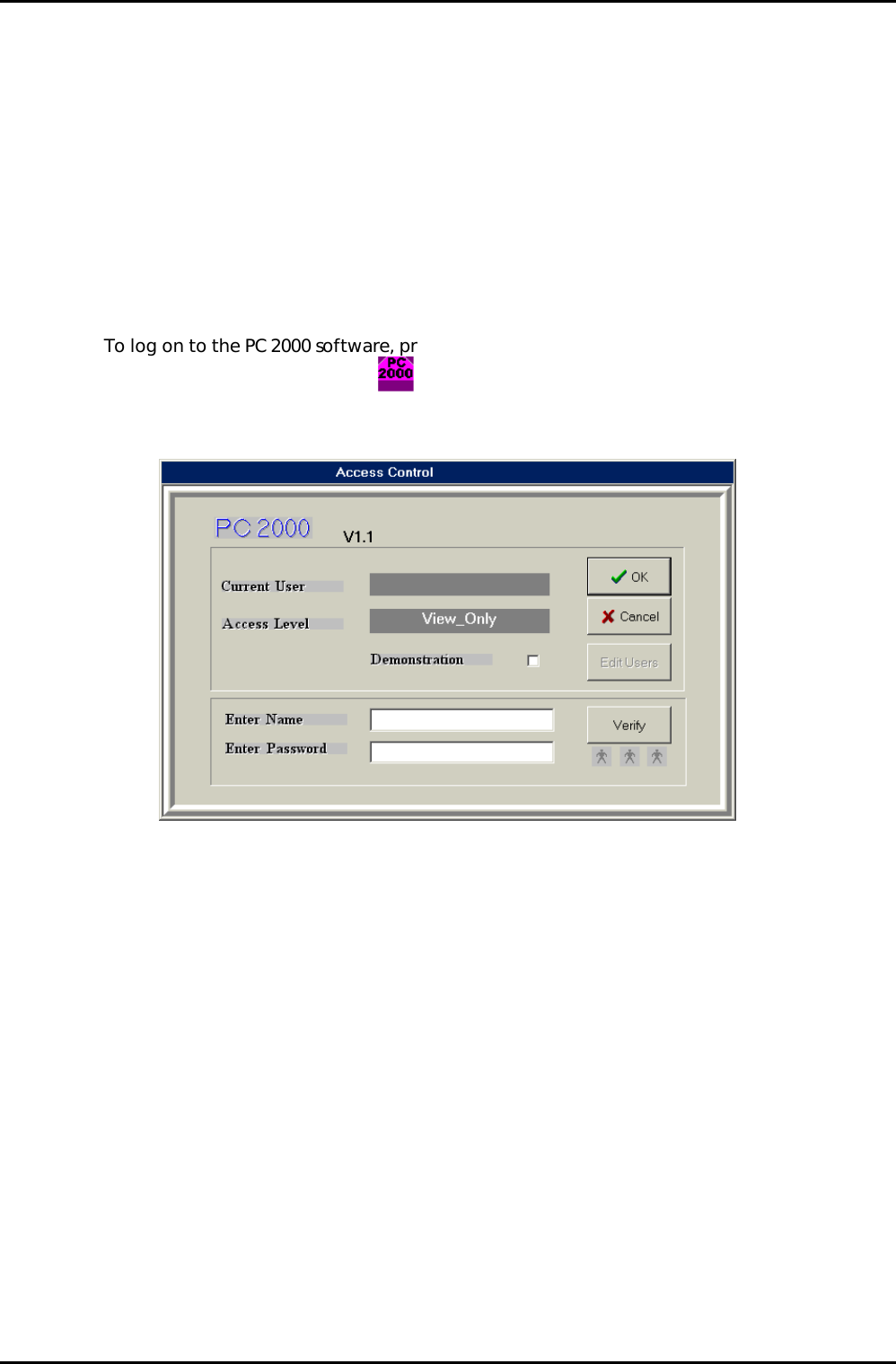
To log on to the PC 2000 software, proceed as follows:
1) Select the PC 2000 icon
. The PC 2000 splash screen is loaded, and then the
Access Control dialogue is displayed:
2) Enter your name and password in the appropriate data fields (note that data entry
in the Password field is case sensitive), and then select the Verify button. If you
make a mistake in entering your name and password, select the Verify button and
then re-enter the data. After verification of the entered data, your log-on status is
displayed in the Current User and Access level fields.
3) Select the OK button. The PC 2000 software continues to load, and then the Pump
Control page is displayed.
RKQKOKN= bÇáíáåÖ=ìëÉêë=ÇÉí~áäë=
Users details, i.e. names, passwords and facility access options can be edited by a person
logged on as a Manager. To do this, use the following steps:
1) Log on as a Manager (see sub-section 5.4.2).
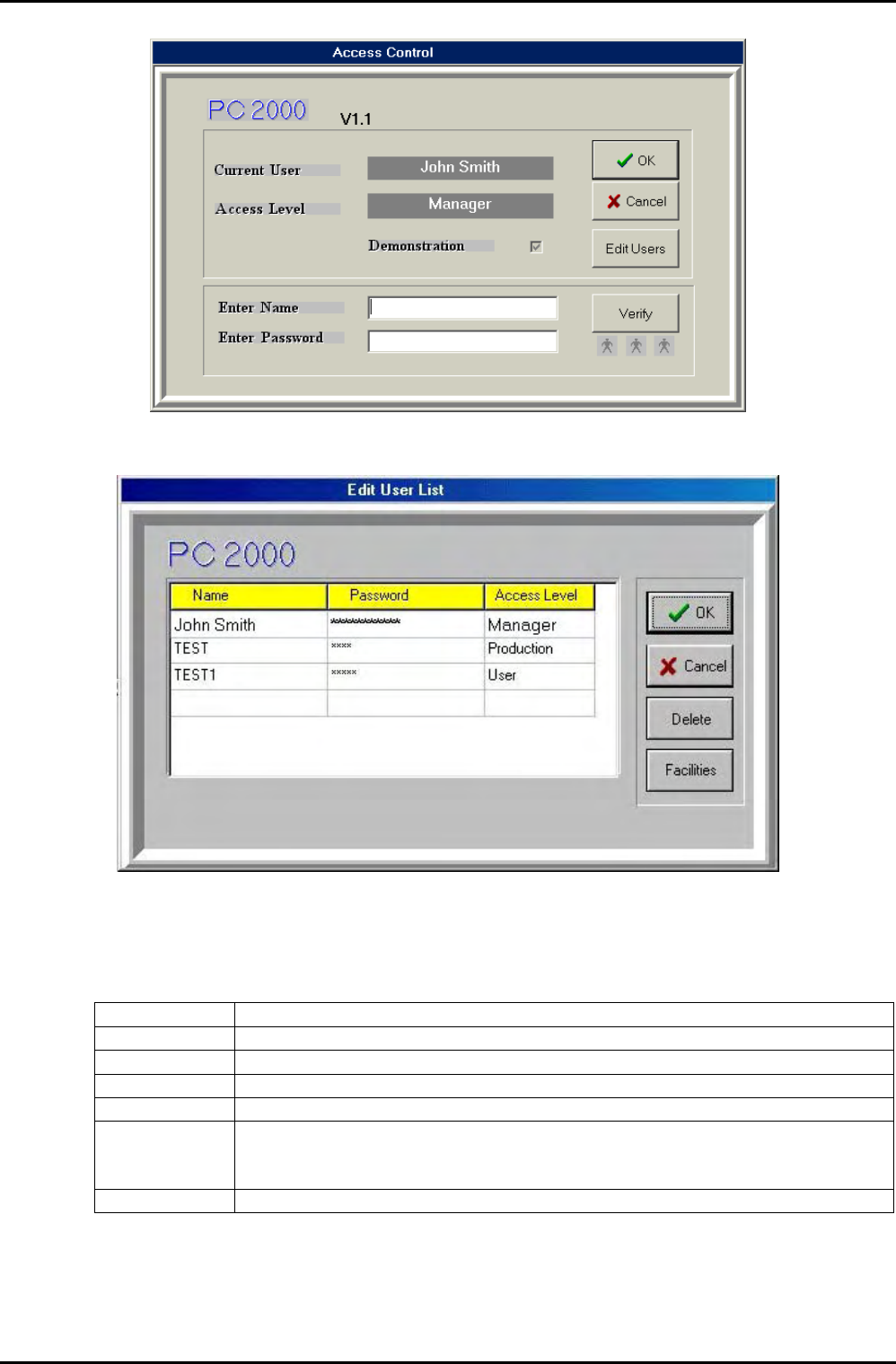
2) Select the System Menu, and then the Password option. The Access Control
dialogue box is displayed.
Operating Instructions
Printed: 22-Mar-06, 10:42 Page 5-11 of 52 UC Davis 94-721001 Issue 1: March 06
mä~ëã~ä~ÄpóëíÉãNMM lñÑçêÇ=fåëíêìãÉåíë=mä~ëã~=qÉÅÜåçäçÖó== System Manual
3) Select the Edit Users button. The Edit User List is displayed.
4) To add a new user, click on the Name and Password cells then enter the required
details (remember that text entered into the Password cell is case sensitive). Clicking
on the Access Level cell will display a scrollable drop-down list with the following
options:
Option Result
Quit Exit from the drop-down list.
View_Only All Facilities automatically disabled.
User A set of Facilities can be selected, see Step 5.
Production See sub-section 5.4.7 (page 5-18).
Maintenance A special set of Facilities is automatically enabled. Note that this access level
has its own recipes and steps for maintenance and does not allow access to
process recipes and steps, or allow the system log to be viewed.
Manager All Facilities automatically enabled.
Select one of the access levels for the new user.
Operating Instructions
UC Davis 94-721001 Issue 1: March 06 Page 5-12 of 52 Printed: 22-Mar-06, 10:42