UV-9+Cure+Module+7269348_B+Manual.pdf - 第79页
Operation 5-17 5.7.4.1 Passw ord Screen The Password screen displays and manages system users. NOTE Only the "Admin" user has access to the passwor d tab. This user will have the rights to create new users an…
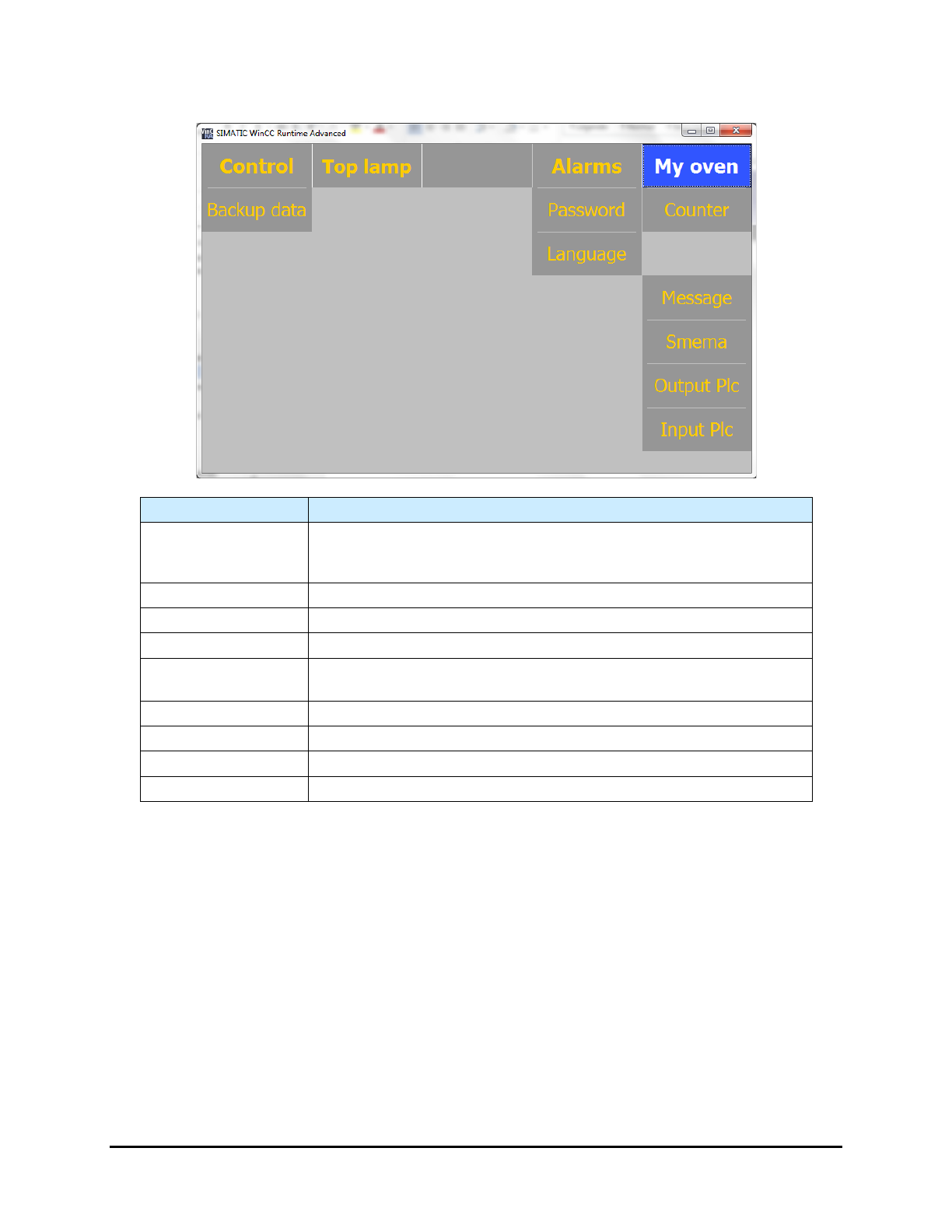
5.7.4 My Oven Menu
Name
Description
Backup Data
Opens a menu that lets you backup the PLC settings that are
necessary for proper operation of the UV-9 Cure Module. See 5.7.4.11
Backup Data/Factory Settings.
Password
Opens the Password Management screen. See 5.7.4.1 Password .
Language
Opens the Main screen. See 5.7.4.2 Language.
Counter
Opens the UV Lamp Counter screen. See 5.7.4.3 UV Lamp Counter.
PCB Dropped
Opens the Process Time Control screen. See 5.7.4.8 Process Time
Control.
Message
Opens the PLC Message screen. See 5.7.4.4 PLC Message.
SMEMA
Opens the SMEMA screen. See 5.7.4.5 SMEMA.
Output PLC
Opens the
Output PLC
screen. See 5.7.4.6 PLC Output.
Input PLC
Opens the Input PLC screen. See.5.7.4.7 PLC Input.
Figure 5-17 My Oven Menu
NOTE Figure 5-17 shows the standard menu. Depending on system configuration, there may be
additional buttons on the "My Oven" menu.
5-16 Operation
Operation 5-17
5.7.4.1 Password Screen
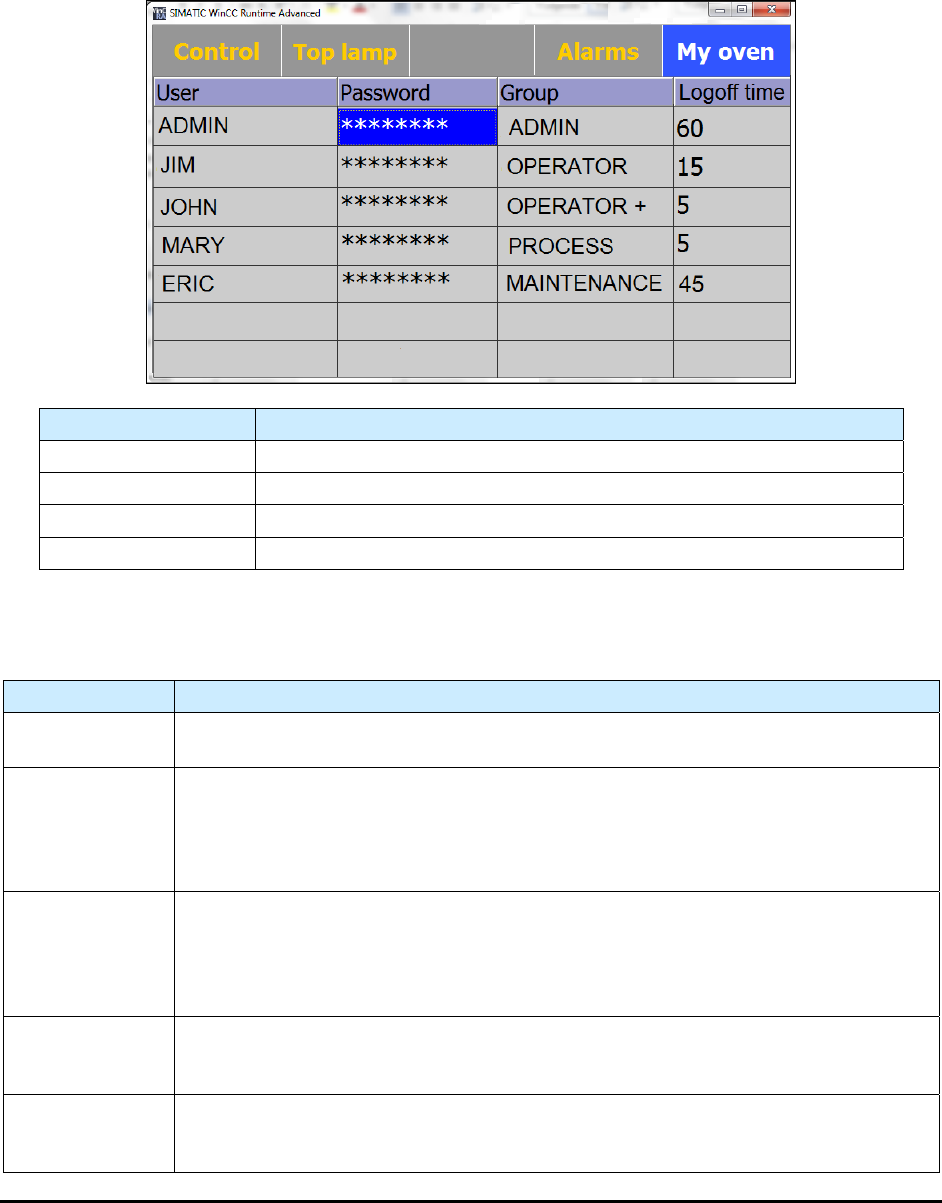
The Password screen displays and manages system users.
NOTE Only the "Admin" user has access to the password tab. This user will have the rights to
create new users and to change the existing passwords.
Name Description
User
Displays each User ID.
Password
Displays the encrypted password for each user.
Group
Displays the selected group for each user.
Logoff Time
Displays the length of time each user has been logged off the system.
Figure 5-18 Password Screen
Password Levels
Level Description
Operator
The "Operator" level user has the rights to start and stop the UV-9 Cure Module
and to acknowledged alarms. The default password is OP1.
Operator +
The "Operator +" level user has the same rights as an "Operator". In addition, the
Operator + can change conveyor speed settings, conveyor width, enable the UV
lamp power, switch between automatic and manual modes, and load recipes when
the option is installed. The Operator + may not change recipe parameters. The
default password is OP2.
Process
A “Process” user has the same rights as a “Operator” user. In addition, the Process
user has the right to modify recipe parameters, view the graph (close loop), access
the close loop tab, and set the standby value of the UV module, On the "My Oven"
tab, this user may view and reset the counter, view messages, and set values on
the SMEMA tab. The default password is PR1.
Maintenance
A “Maintenance” user has full access to everything except the expert tab in the
lamp menu and the password screen in “My oven” menu. The default password is
MA1.
Admin
The Admin user has full access to everything. Only the "Admin" user has access to
the password tab. This user will have the rights to create new users and to change
the existing passwords. The default password is AD1.

5-18 Operation
Adding, Modifying or Deleting a User
To create a new user ID:
1. Login with a Admin level ID. Default password is: AD1.
2. Select
My Oven and then Password.
The Password screen opens (Figure 5-18).
3. Double click the last cell in the “user” column. The background of the cell becomes white.
4. Enter the name of the operator or engineer (3 characters minimum).
5. Double click the Password cell to the right side of the Name cell and enter the password,
confirm it and validate.
6. Double click the Group cell to the right side of the Password cell and select a Group for this
user.
The new user access profile is created.
To modify a user ID:
1. Login with a Admin level ID. Default password is: AD1.
2. Select
My Oven and then Password.
The Password screen opens (Figure 5-18).
3. Double click in the cell to be modified. The background of the cell becomes white.
4. Enter the new selection for that cell.
The user access profile has been updated.
To delete a user ID:
1. Login with a Admin level ID. Default password is: AD1.
2. Select
My Oven and then Password.
The Password screen opens (Figure 5-18).
3. Double click in the User ID to be deleted.
The background of the cell becomes white.
4. Delete the contents of the cell and press enter.
The user access profile has been deleted.