OptimaUserManual.pdf - 第101页
OPTIMA PROM SOF TW AR E Opti ma User M anual 95 The follow ing items can be found i n the Options menu: x Verify Off, Verify N ormal , Verify High/Low —U sed to set the method of devic e da t a ver ific at io n af t er p…
OPTIMA PROM SOFTWARE
Optima User Manual
94
The Options Menu
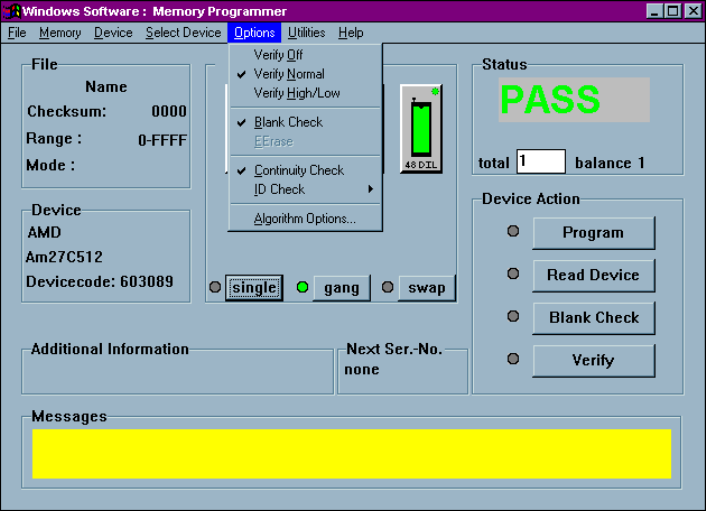
The fifth menu on the Main Programming screen is the Options menu.
The Options menu
Many programming operations are adjustable through the Options menu. Among
these are verify operation parameters, blank check, electronic erase, continuity checks,
electronic ID checks, specific algorithm parameters, checksum options, and various
special functions.
Note: Many of the options displayed in the Options menu are
device specific and may not be available for all
programming operations. In the example above, a UV
erasable device has been selected, and the EErase menu item
is not available.
OPTIMA PROM SOFTWARE
Optima User Manual
95
The following items can be found in the Options menu:
x Verify Off, Verify Normal, Verify High/Low—Used to set the method of
device data verification after programming.
q Verify Off provides no verification of the device after programming
q Verify Normal provides a single-pass verify at nominal V
CC
for the
device after programming
q Verify High/Low provides a two-pass verify; first at device-rated low
V
CC
, and second at device-rated high V
CC
x Blank Check—Adds a Blank Check operation to the programming operation. If
a device is not blank during the programming operation, a message will appear
notifying you that the device in use is not blank. If you choose to continue, the
device will be over-programmed. This option will not be available with
electrically-erasable devices.
x EErase—Adds an Electrical Erase operation to the programming operation if the
function is supported with the selected device. This option will not be available
for UV erasable devices and one-time-programmable (OTP) devices.
x Continuity Check—If enabled, checks for proper device continuity before a
programming operation. Continuity errors will present the standard continuity
warning message and will allow you to display the pins in question. This option
should not be turned off unless there is a known reason to do so.
x ID Check—Allows for checking for the manufacturer’s electronic ID prior to
programming. As a safety-net style of operation, many manufacturers assign
their devices a unique identification number. Occasionally, when manufacturers
change a physical or electrical specification for a device, they may also change
the electronic ID of that device.
For example, if a modification in die size also requires a change in the
programming algorithm to increase performance or compatibility, the
manufacturer may change the electronic ID. When electronic ID is turned ON,
this change can be detected, and the device manufacturer can be contacted to
verify that a change has taken place. If the change is significant, a new algorithm
may need to be developed to support this new device configuration.
OPTIMA PROM SOFTWARE
Optima User Manual
96
Note: If the device ID is different from that which the algorithm
expects, the programmer software may not allow you to
continue until the discrepancy is corrected.
If the device is determined to require no algorithm changes, electronic ID may be
turned OFF until such time that the algorithm may be updated to incorporate the
new electronic ID. Additionally, ID Check may be set to AUTO to automatically
detect the electronic ID of those devices supporting this option.
x Algorithm Options—Used to change specific programming parameters within
the algorithm.