OptimaUserManual.pdf - 第16页
INTRO DUCT IO N Opti ma User M anual 10 Running Optima Wi ndows Self-Test and C alibration After Optima Windows is inst alled you will need to initializ e it so it can e st ablish communi cat ions w ith the pr ogramm er …
INTRODUCTION
Optima User Manual
9
4. Choose the destination location. We recommend that you select the default
directory, C:\Optima.
5. Select TYPICAL on the Set-up Type dialog box.
6. Select the system folder where you wish to have the Optima software stored.
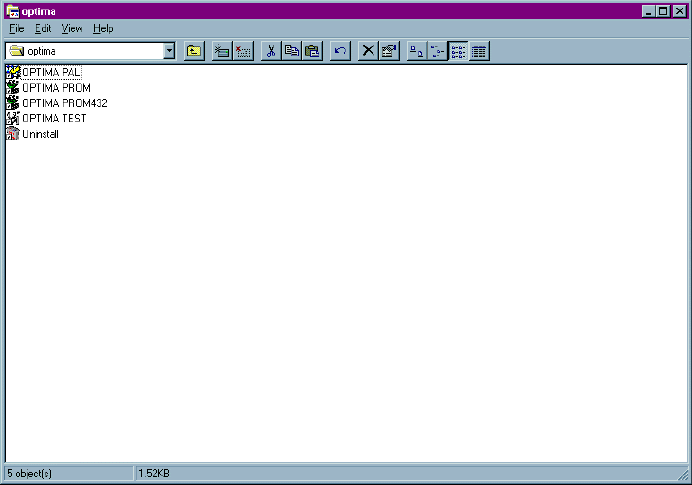
The system creates the Optima window:
7. Drag the icons for Optima PAL, Optima PROM, Optima PROM432, and Optima
TEST to the Windows desktop.
8. Close all Optima applications.
INTRODUCTION
Optima User Manual
10
Running Optima Windows Self-Test and Calibration
After Optima Windows is installed you will need to initialize it so it can establish
communications with the programmer and load the basic system configuration.
To run the Optima Windows Self-Test and Calibration, complete the following steps:
1. Make sure that all Optima applications are closed.
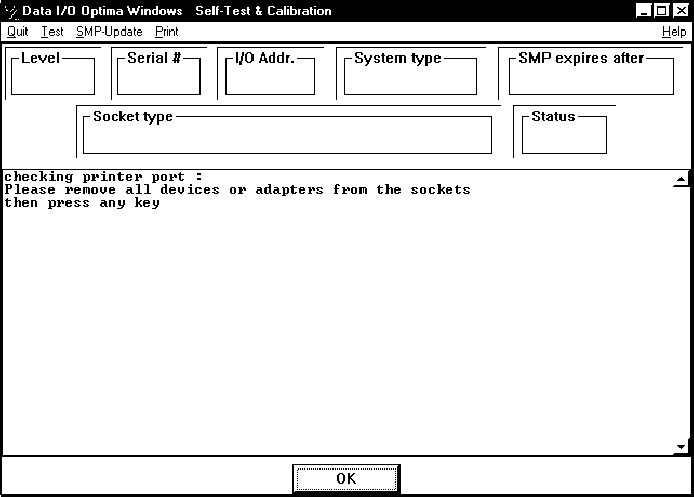
2. Double-click the Optima Test icon on the desktop to start the Self-Test. The
Self-Test & Calibration dialog box will be displayed:
3. Follow the instructions in the dialog box, then click OK or YES
INTRODUCTION
Optima User Manual
11
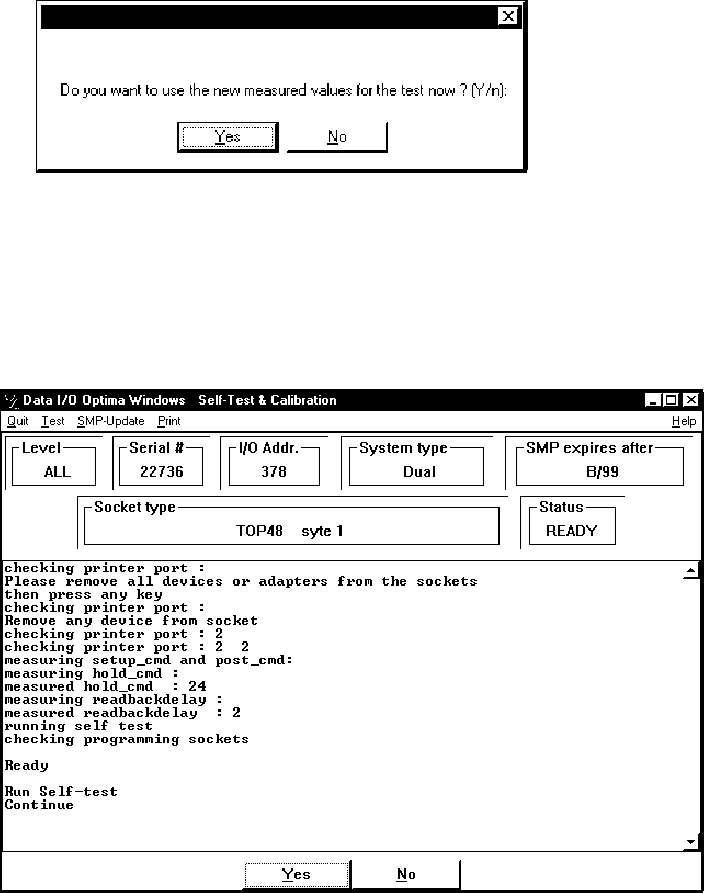
4. Click YES if the following window appears:
Note: If you see the message “Found slow printer port” during the
Self-Test, install the Optima-Booster according to the
instructions “Installing the Optima-Booster for a Slow
Printer Port.”
When the Self
-Test
has initialized the system, information such as the programmer’s
serial number, the system type, and maintenance expiration date is displayed: