OptimaUserManual.pdf - 第17页
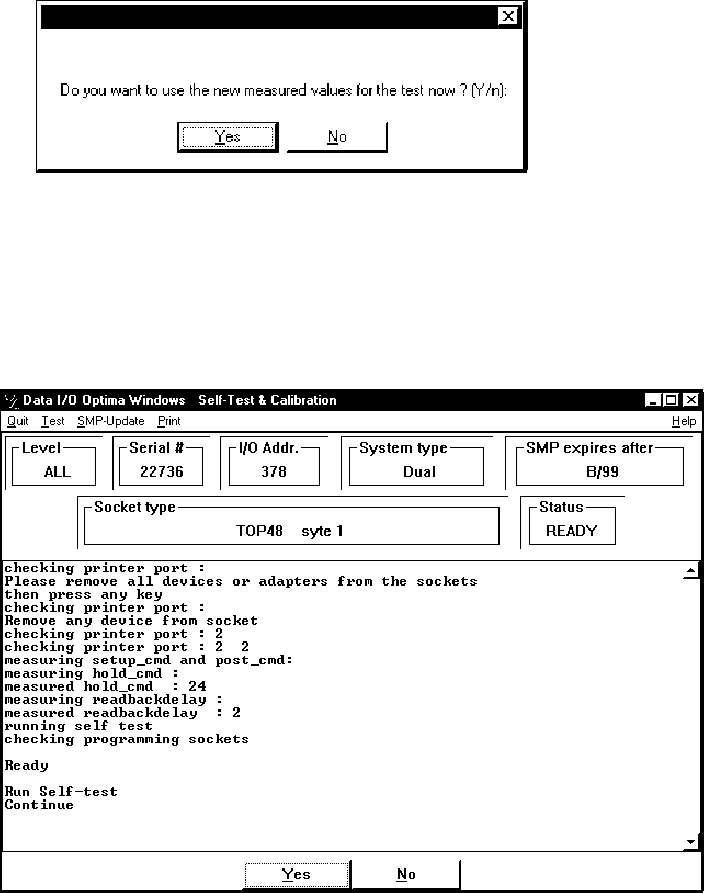
INTRO DUCT IO N Opti ma User M anual 11 4. Click YES if the follow ing w indow appear s: Note: If you see the message “Found slow printer port” during the Self-Test, install the Optima-Booster according to the instructio…
INTRODUCTION
Optima User Manual
10
Running Optima Windows Self-Test and Calibration
After Optima Windows is installed you will need to initialize it so it can establish
communications with the programmer and load the basic system configuration.
To run the Optima Windows Self-Test and Calibration, complete the following steps:
1. Make sure that all Optima applications are closed.
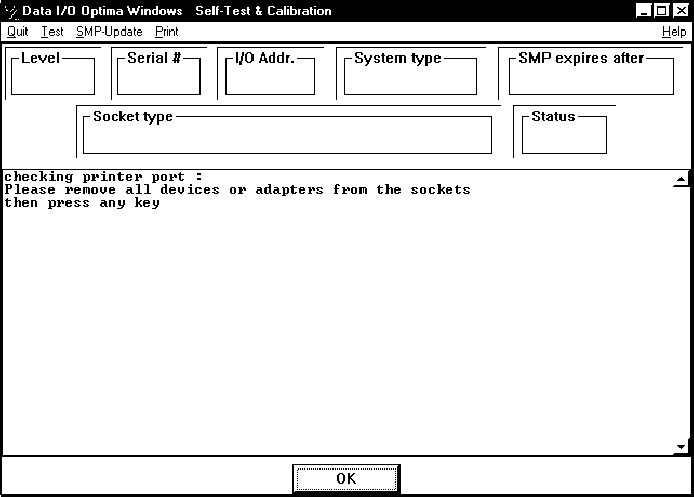
2. Double-click the Optima Test icon on the desktop to start the Self-Test. The
Self-Test & Calibration dialog box will be displayed:
3. Follow the instructions in the dialog box, then click OK or YES
INTRODUCTION
Optima User Manual
11
4. Click YES if the following window appears:
Note: If you see the message “Found slow printer port” during the
Self-Test, install the Optima-Booster according to the
instructions “Installing the Optima-Booster for a Slow
Printer Port.”
When the Self
-Test
has initialized the system, information such as the programmer’s
serial number, the system type, and maintenance expiration date is displayed:
INTRODUCTION
Optima User Manual
12
5. Click YES to complete all the system tests. The system configuration and the
results of the tests are displayed on the screen when they are completed.
6. Close the test software if you are prompted to do so.