OptimaUserManual.pdf - 第94页
OPTIMA PROM SOF TW AR E Opti ma User M anual 88 The Select Device M enu Th e f ou rt h me nu on t he Ma in P r ogr amming s cr ee n is th e Select Device menu. The Select Device menu
OPTIMA PROM SOFTWARE
Optima User Manual
87
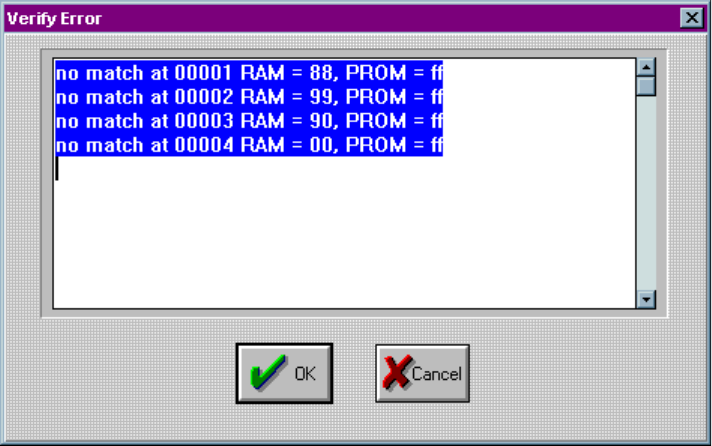
If you get an error message, the following screen will identify the address from RAM
and PROM and data information where errors occurred:
Device verification errors are displayed with location information
OPTIMA PROM SOFTWARE
Optima User Manual
88
The Select Device Menu
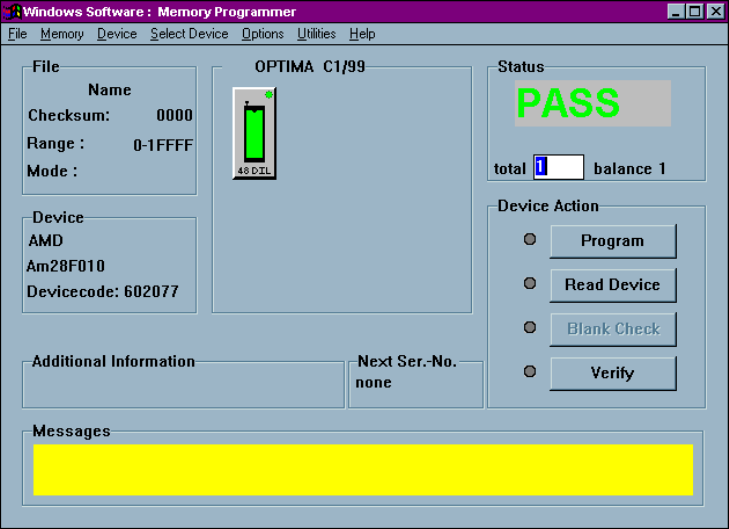
The fourth menu on the Main Programming screen is the Select Device menu.
The Select Device menu
OPTIMA PROM SOFTWARE
Optima User Manual
89
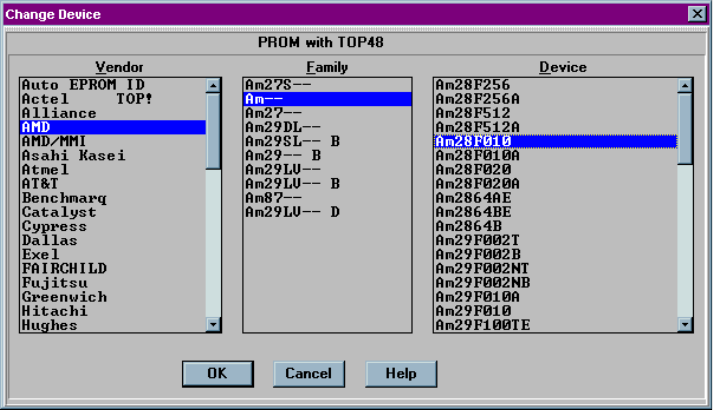
The Select Device menu allows you to select the type of device you wish to program.
When selected, the Change Device screen appears:
Selecting the device to be programmed
Select the vendor, family and device to be processed from the list and click <OK>.
The devices listed are those that are supported by the TOP that has been installed. If
you do not find the device on the list, follow these steps:
1. Turn off power to the programmer
2. Close the software
3. Remove the TOP
4. Install a TOP that supports the device you wish to program