OptimaUserManual.pdf - 第123页
OPT IMA PAL SO FTW ARE Opti ma User M anual 117 The Select Device M enu Th e f ou rt h me nu on t he Ma in P r ogr amming s cr ee n is th e Select Device menu. The Select Device menu
OPTIMA PAL SOFTWARE
Optima User Manual
116
Pass 2 applies any clocks to the device. The vector is scanned from highest pin to
lowest pin, and the clocks are output in that order. If a multiple click device requires a
controlled sequence of clocks, then there should be a separate vector for each clock.
It is impossible for a universal programmer like the Optima programmer to generate
simultaneous clocks on two pins. There will always be a time spacing between
multiple clocks in a test vector. Note that the “C” clock is normally low, and the “K”
clock is normally high.
Pass 2 also executes the preload function if a P or B vector is found. A P or B in pin1
of the vector indicates preload. Note that entering and leaving preload mode can
generate transient logic levels that can have other effects in a PAL design.
Pass 3 verifies the outputs of the devices against the test vector. If there are no errors,
the next vector is processed. If there are any errors, the good and bad data will be
displayed on the screen, and testing will stop unless continued by you.
Pins defined as “X” in the vectors are set as inputs to “0” unless the pin is determined
to be an unused output, in which case it is floated. High impedance outputs are tested
for incorrect “0” conditions, but not for low impedance “1” conditions. Test
simulation can also be used to verify a device after the security fuse has been
programmed (note that AMD PALCE-family of devices disables preload when
security is set).

OPTIMA PAL SOFTWARE
Optima User Manual
117
The Select Device Menu
The fourth menu on the Main Programming screen is the Select Device menu.
The Select Device menu
OPTIMA PAL SOFTWARE
Optima User Manual
118
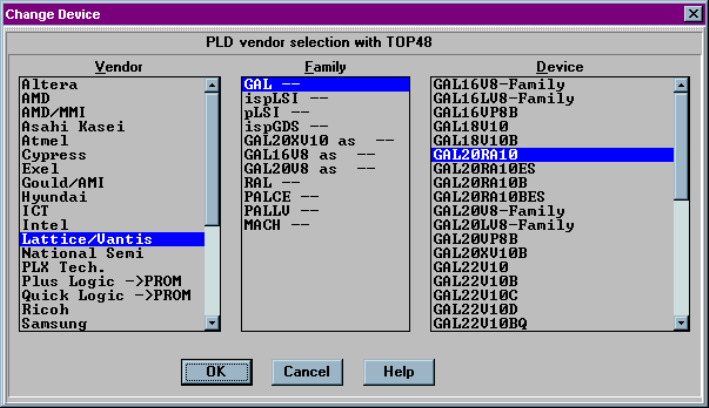
The Select Device menu allows you to select the type of device you wish to program.
When selected, the Change Device screen appears:
Selecting the device to be programmed
In the example above, the Optima software has recognized the TOP48 is in use. The
devices listed are those that are supported by the TOP that has been installed. If the
device is not found on the list, then it is probably not supported by that TOP. Be sure
to check all of the Family classifications for the device in case the part number is in a
different location than expected. The Family categories are presorted in a number of
fashions to make searching for the device more efficient.
Because the information in the device selection dialogue is the exact same data that is
used to create the device list, the device menu name will be exactly as it is noted in the
device list. If you do not have a current device list, see Utilities>Creating a
Devicelist.