OptimaUserManual.pdf - 第91页
OPTIMA PROM SOF TW AR E Opti ma User M anual 85 Device>Blank Check The Blank Check feature may be enabled or disabled depending on t he devi ce selected. If the feature is enabled, sel ect ing Device>Blank Check le…
OPTIMA PROM SOFTWARE
Optima User Manual
84
Device>Read
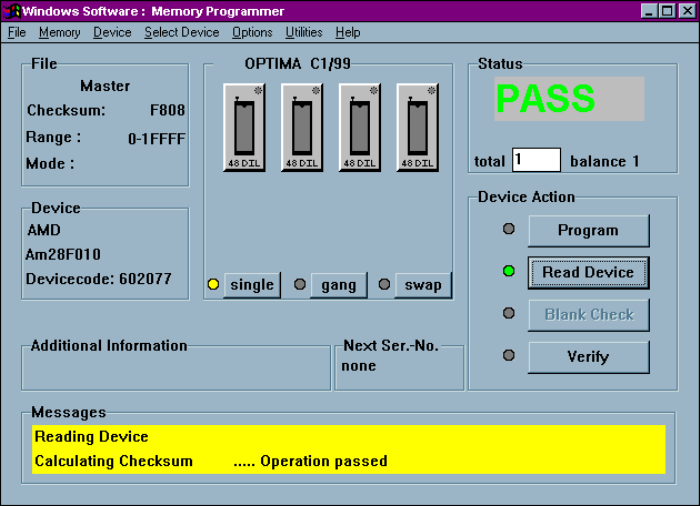
Selecting Device>Read retrieves the data contents of the device in the socket and
reads them into memory. While the read operation is in progress, the status window
displays the term ACTIVE and shows the percentage of completion. When the read
operation is complete, a PASS or FAIL message indicates its success or failure. Using
the <Read Device> button in the Device Action section yields the same results. Any
additional information related to this read operation is also displayed in the Messages
section of the screen:
Successful completion of a READ operation
When using a Multisyte programmer, insert the device in the left-most TOP for the
read operation.
OPTIMA PROM SOFTWARE
Optima User Manual
85
Device>Blank Check
The Blank Check feature may be enabled or disabled depending on the device
selected. If the feature is enabled, selecting Device>Blank Check lets you determine
if the device under test is truly empty. If the blank check passes, the device is truly
empty. Otherwise, some of the device locations may have data in them.
UV erasable devices must be erased under ultraviolet light in accordance with the
manufacturer’s instructions before programming.
Note: Not all UV erasable devices are guaranteed to arrive blank
from the manufacturer. If they are not blank, simply erase
them according to the manufacturer’s guidelines for the
device under test.
The Blank Check function is performed prior to all programming functions. You may
also initiate the Blank Check operation from the <Blank Check> button in the Device
Action section of the screen.
OPTIMA PROM SOFTWARE
Optima User Manual
86
Device>Verify
Devices may also be verified with known good data by selecting Device>Verify To
use this function, you must first read the device’s data into the programmer/software
RAM. The data can be read two different ways:
x Select Device>Read to read a master device into programmer/software RAM.
x Select File>Load to load a data file into programmer/software RAM.
Once the data to be verified has been successfully loaded into programmer/software
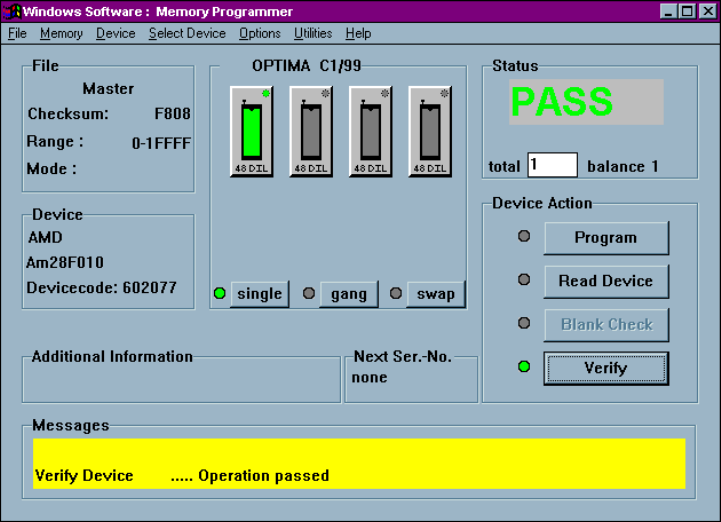
RAM, insert the device into the programmer socket. Select Device>Verify, or click
the <Verify> button in the Device Action section of the screen to initiate the Verify
action. During the Verify action, a byte-by-byte comparison is performed between the
data in RAM and the device in the socket. When the Verify action is complete,
PASS/FAIL results will be displayed in the Status section of the screen, as well as in
the Messages section
Device Verify Pass message