OptimaUserManual.pdf - 第58页
OPTIMA PROM SOF TW AR E Opti ma User M anual 52 Th e M ain P ro grammin g sc re en is divide d in to th es e a re as : x Fi le—contains i nformation regardin g the check sum of the data current ly in RA M and the usable …
OPTIMA PROM SOFTWARE
Optima User Manual
51
OPTIMA PROM SOFTWARE
This section of the Optima User Manual provides detailed descriptions of the Optima
PROM software used for programming memory devices. If you wish to get started
programming memory devices quickly, go to the QUICK START section of the
Optima User Manual.
Main Programming Screen
Once the device has been selected, the Main Programming screen will appear. This
screen will provide you with programming information and controls.
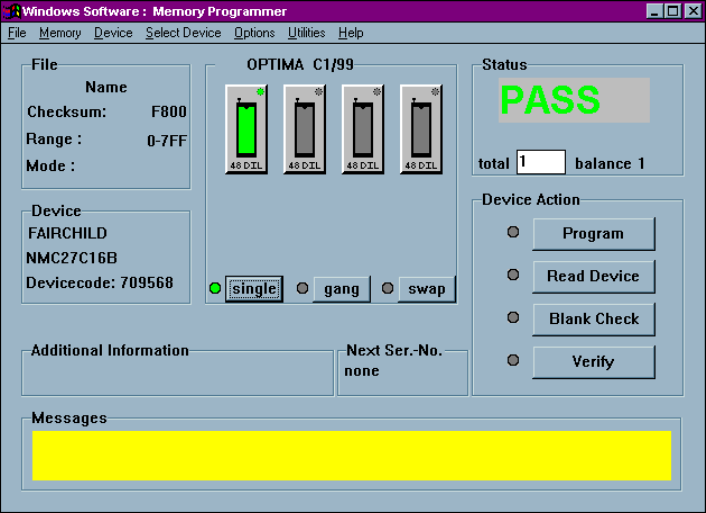
PROM software Main Programming screen
OPTIMA PROM SOFTWARE
Optima User Manual
52
The Main Programming screen is divided into these areas:
x File—contains information regarding the checksum of the data currently in RAM
and the usable address range of the device. If a TOP432 is installed, the Mode:
item will display its GANG or SET mode settings.
x Device—contains information related to the device to be processed. The
Devicecode: field contains a unique identification code for the device selected.
This code is used by the optional TaskLink Windows software.
x OPTIMA Xx/XX—contains information about the PROM/PROM432 software
version, the TOPs installed on the programmer base and the status of each, and
the programming mode (single, gang, or swap).
x Status—provides the status of the last device programmed
(PASS/FAIL/CHECK), the total number of devices to be processed (this field is
editable), and the number of devices remaining to be processed.
x Device Action—provides quick access to the most commonly used operations.
There are buttons for Program, Read Device, Blank Check, and Verify
operations.
x Additional information—contains any additional information that may be
required to process the selected devices, such as a specialized adapter, etc.
x Next Ser.-No.—contains the next serial number to be applied to the device if the
serialization option has been enabled.
x Messages—contains any additional messages that describe various conditions
related to the processing of the selected device. Messages that may appear
include references to specialized adapters, settings that have been changed to
their non-default conditions, and others.
OPTIMA PROM SOFTWARE
Optima User Manual
53
The File Menu
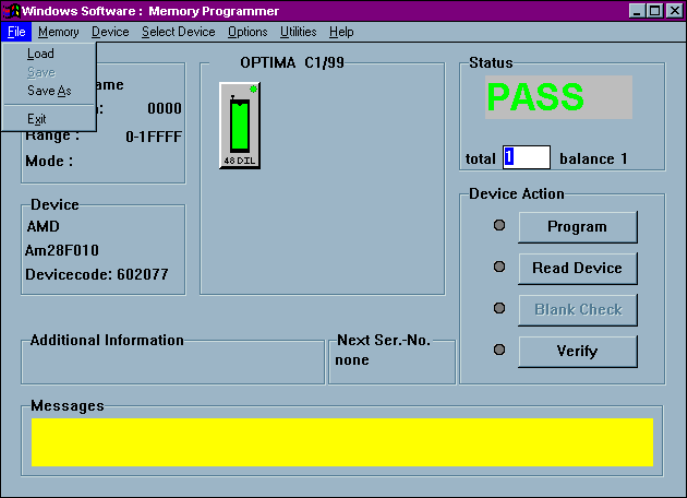
The first menu on the Main Programming screen is the File menu. The File menu has
two primary functions: loading data into RAM, and saving data from RAM.
Additionally, the PROM software can be terminated from this menu using the Exit
function:
The File menu