OptimaUserManual.pdf - 第22页
QUICK ST ART Opti ma User M anual 16 Programm ing a M emo ry Device By Readi ng A M aster Device If you wish to pr ogra m a me mor y-bas ed de vice a nd you will be r e adin g a M as te r Dev ice, follo w thi s procedure…
QUICK START
Optima User Manual
15
QUICK START
Getting Started
Once the Optima software and hardware are successfully installed, you’re ready to
begin programming devices. The QUICK START section of the Optima User Manual
guides you through programming memory or logic devices using Optima PROM,
Optima PAL, or Optima PROM432 software.
First, choose the appropriate software. The software program you use depends on
what type of device you will program, and what type of TOP you will use:
If you will program… then use
a logic-based device Optima PAL software
a memory-based device on a TOP432 Optima PROM432 software
all other memory-based devices Optima PROM software
After you have selected the appropriate software, decide whether you will be filling
the programmer’s RAM with valid programming data by
x reading a Master Device, or
x loading a data file
The following sections take you through a step-by-step process of programming a
device. Find the section which matches your conditions and you’re on your way:
x Programming a Memory Device by Reading a Master Device
x Programming a Memory Device by Loading a Data File
x Programming a Logic Device by Reading a Master Device
x Programming a Logic Device by Loading a Data File
x Programming a Memory Device on the TOP432 by Reading a Master Device
x Programming a Memory Device on the TOP432 by Loading a Data File
Note: An Optima programmer with a TOP48DIP is used in the
examples that follow.
QUICK START
Optima User Manual
16
Programming a Memory Device By Reading A Master Device
If you wish to program a memory-based device and you will be reading a Master
Device, follow this procedure.
S
ELECT THE DEVICE YOU WISH TO PROGRAM
:
Programming begins by selecting the device you wish to program. To select the
device, follow these steps:
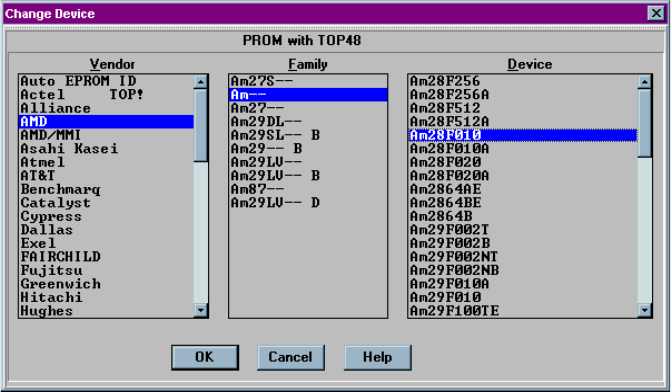
1. Double click the Optima PROM icon on the Windows desktop. The Change
Device window displays a device list for the specific TOP you are using.
2. Click on the name of the Vendor. When you do that, the Family and Device lists
may change.
3. Click on the general Family of devices. The Device list may change again based
of the Family you chose.
4. Click on a device part number from the Device list. In this example, an
AMDAm28F010 is selected:
QUICK START
Optima User Manual
17
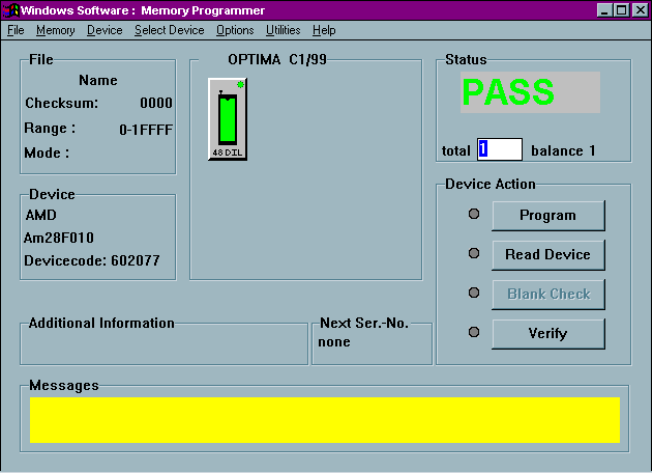
5. Click OK to save that selection and display the Main Programming screen: