OptimaUserManual.pdf - 第125页
OPT IMA PAL SO FTW ARE Opti ma User M anual 119 The Options Menu Th e f if th menu on th e M ain Pr ogr ammin g scr ee n is t he O ptions menu. The Options menu Ma ny pr ogra mming op er at ion s a re ad ju st ab le t hr…
OPTIMA PAL SOFTWARE
Optima User Manual
118
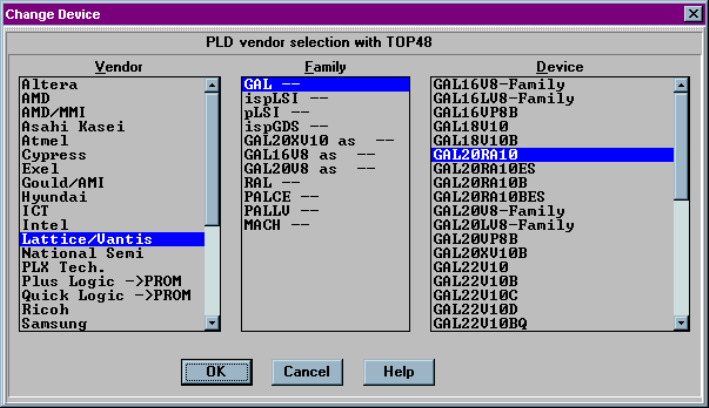
The Select Device menu allows you to select the type of device you wish to program.
When selected, the Change Device screen appears:
Selecting the device to be programmed
In the example above, the Optima software has recognized the TOP48 is in use. The
devices listed are those that are supported by the TOP that has been installed. If the
device is not found on the list, then it is probably not supported by that TOP. Be sure
to check all of the Family classifications for the device in case the part number is in a
different location than expected. The Family categories are presorted in a number of
fashions to make searching for the device more efficient.
Because the information in the device selection dialogue is the exact same data that is
used to create the device list, the device menu name will be exactly as it is noted in the
device list. If you do not have a current device list, see Utilities>Creating a
Devicelist.
OPTIMA PAL SOFTWARE
Optima User Manual
119
The Options Menu
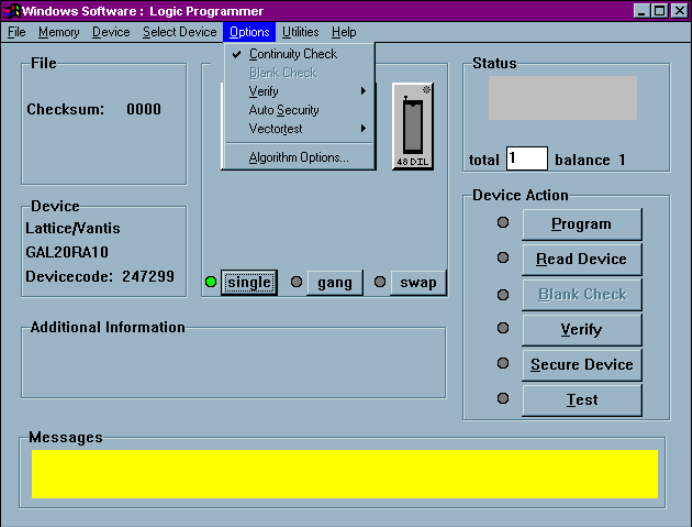
The fifth menu on the Main Programming screen is the Options menu.
The Options menu
Many programming operations are adjustable through the Options menu. Among
these are Continuity Check, Blank Check, verification parameters, Automatic
Security, Vectortest, and specific algorithm parameters.
Many of the options displayed in the Options menu are device-specific and may not
be available for all programming operations. For example, a UV erasable device may
not have the Blank Check menu item available to the user.
OPTIMA PAL SOFTWARE
Optima User Manual
120
Options>Continuity Check
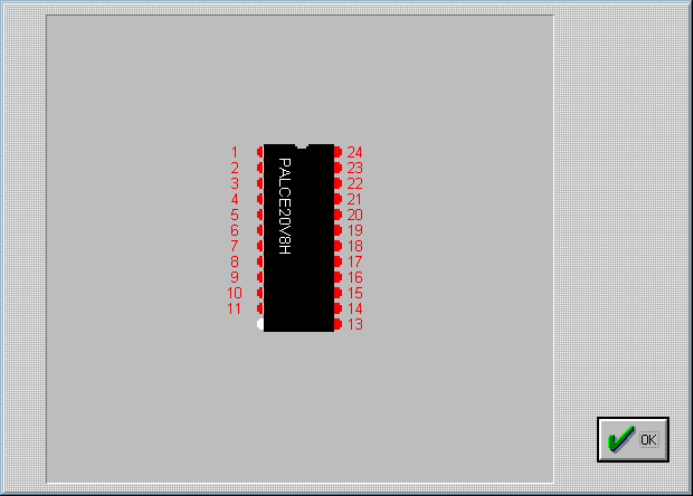
If enabled, this selection checks for proper device alignment in the socket before a
programming operation. Alignment errors will present the standard continuity
warning message and allow you to <Display> the pins in question:
Displaying the device pin map following a continuity failure
Note: The Continuity Check option should always be enabled unless
there is a known reason to turn it off.
Options>Blank Check
This selection adds a Blank Check operation to the programming operation if the
device requires blank check. If a device is not blank during the programming
operation, a message will appear notifying you that the device in use is not blank. If
you choose to continue, the device will be over-programmed.