OptimaUserManual.pdf - 第119页
OPT IMA PAL SO FTW ARE Opti ma User M anual 113 the data on the devi ce cannot be read by unauthorized personnel. Device>Blank Check This selection v er ifies that the non-el ectrically erasable device i n t he socket…
OPTIMA PAL SOFTWARE
Optima User Manual
112
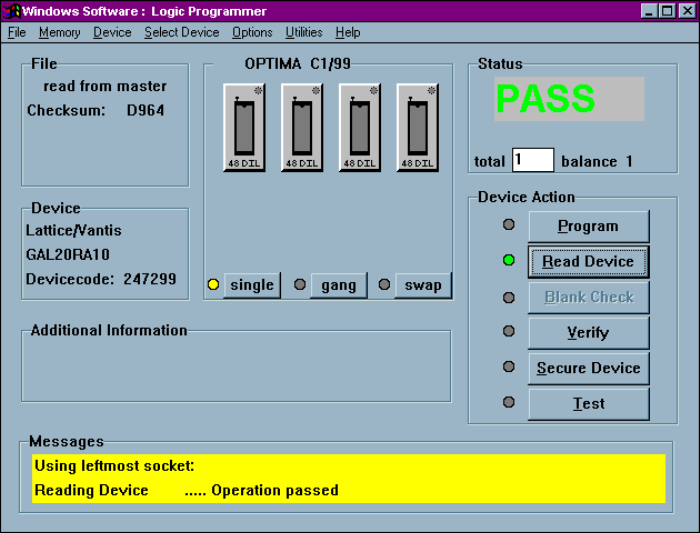
Device>Read
This selection reads the contents of the device inserted in the socket and stores it in
RAM memory. After the data has been read into memory, the device type may be
changed to a compatible device without altering any data stored.
Successful completion of a READ operation
When using a Multisyte programmer, insert the device in the left-most TOP for the
read operation.
Note: Not all logic devices are capable of having their fusemaps
read by a device programmer. For those that are readable,
if their fusemaps have been placed in a SECURE condition,
the programmer will not be permitted to read the fusemap,
or the data will be encrypted such that each read operation
will return different results, perhaps even blank. This is a
security feature on a number of logic devices that ensures

OPTIMA PAL SOFTWARE
Optima User Manual
113
the data on the device cannot be read by unauthorized
personnel.
Device>Blank Check
This selection verifies that the non-electrically erasable device in the socket is in the
erased condition. The device in the socket is read and the contents compared to the
expected “erased” condition. The device type selected must match the physical
device inserted in the socket.
Electrically-erasable devices do not require a blank check operation. These devices
are automatically erased as part of the programming cycle.
Note: Blank Check operation is automatically performed during the
Program operation.
Device>Verify
This selection verifies the fusemap against the data file to ensure they match; any
verify failures will produce the following error:
Verify failure will prompt you to display a detailed report
OPTIMA PAL SOFTWARE
Optima User Manual
114
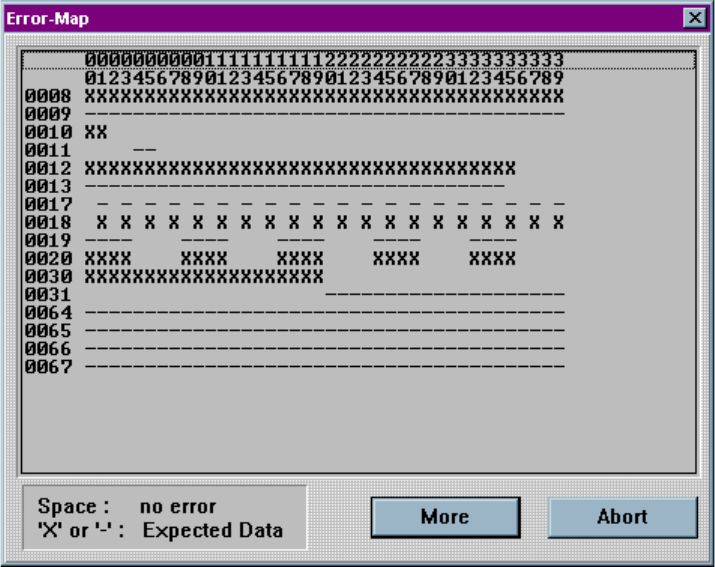
If you select <YES>, then the following screen appears:
Device error map following a verify failure
On the screen above, there are indications of the device locations and the failures
encountered. Blank spaces indicate locations where the data matched. Any space
with either a “–” symbol or an “X” symbol is an error, where the symbols indicate the
data that was expected in that location (“–” = blown fuse, “X” = connected fuse). The
<More> button provides more failure data if it exceeds the capacity of the window. If
a device has been secured, the Verify operation will not function correctly.
Device>Secure
This selection manually sets the security feature of the device inserted in the socket.
Many logic devices have optional security fuses that can be programmed after all
other fuses have been programmed. These final fuses prohibit reading (and