OptimaUserManual.pdf - 第73页
OPTIMA PROM SOF TW AR E Opti ma User M anual 67 A s noted in the low er-rig ht corner of t he Dum p/ Edi t screen, you may press the right mouse button for additional edi tor feat ures: Right-clicking in the edit screen …
OPTIMA PROM SOFTWARE
Optima User Manual
66
Memory>Edit
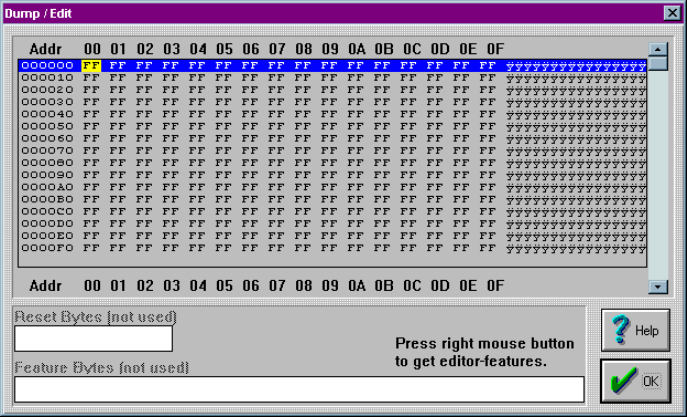
Selecting Memory>Edit will display the following screen:
Dump/Edit memory
Hexadecimal memory locations are displayed with ASCII equivalents to the right.
The editor has two editing modes: hexadecimal and ASCII. Edit by placing the cursor
where you want to begin and click once. If the hexadecimal editor is chosen, values 0-
9, or A-F can be entered from the keyboard. If the ASCII editor is chosen, then any
value from the keyboard can be entered. To move to higher memory locations, use
the vertical scroll bar on the right side of the memory window.
OPTIMA PROM SOFTWARE
Optima User Manual
67
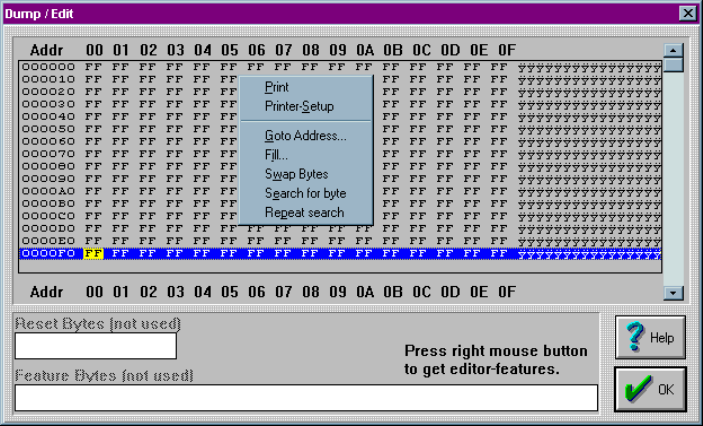
As noted in the lower-right corner of the Dump/Edit screen, you may press the right
mouse button for additional editor features:
Right-clicking in the edit screen displays additional editing options
The edit screen provides several useful additional features including:
x Print—Allows you to print contents shown on the screen
x Printer-Setup—Allows you to choose the desired printer and its configuration
OPTIMA PROM SOFTWARE
Optima User Manual
68
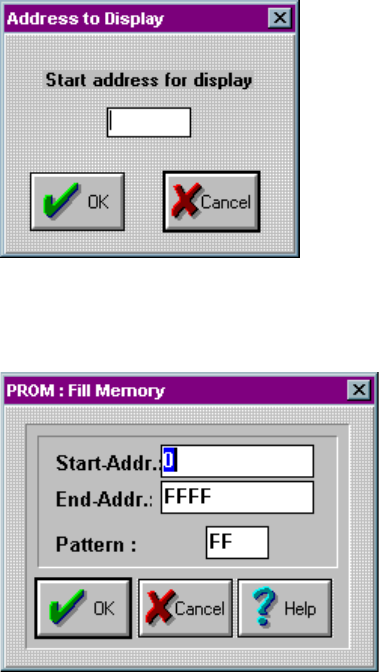
x Goto Address…—Allows you to jump to any address in the memory array, as
shown here:
Goto Address menu function allows you to jump to any memory location
x Fill…—Allows you to fill the memory array with any data pattern, as shown
here:
Fill function allows you to fill the memory array with any data pattern