OptimaUserManual.pdf - 第86页
OPTIMA PROM SOF TW AR E Opti ma User M anual 80 Device> Progr am Sel ect ing Device>P rogram produces the follow ing dialog ue: Starting t he Program routine Sel ect ing < Yes > be gins th e pr ogr ammin g op…
OPTIMA PROM SOFTWARE
Optima User Manual
79
Selecting ASCII as a serial number value type will return an
error.
The Device Menu
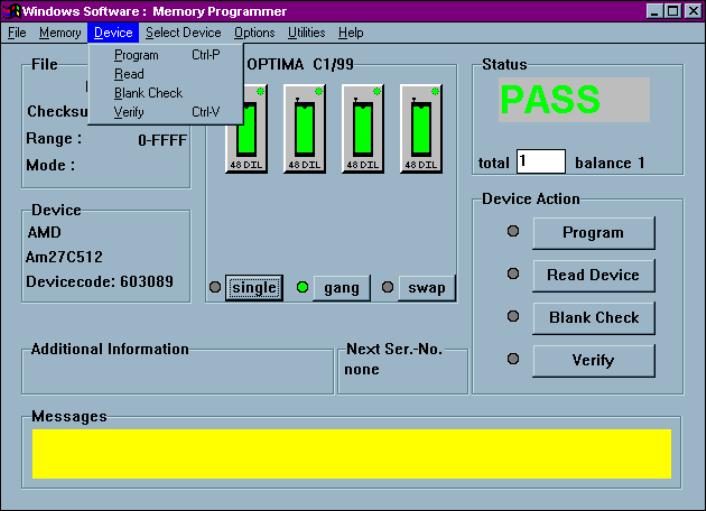
The third menu on the Main Programming screen is the Device menu. This menu
provides you with basic operational commands as shown in the figure below:
The Device menu
The Program, Read, Blank Check, and Verify commands can be initiated from this
menu.
OPTIMA PROM SOFTWARE
Optima User Manual
80
Device>
Program
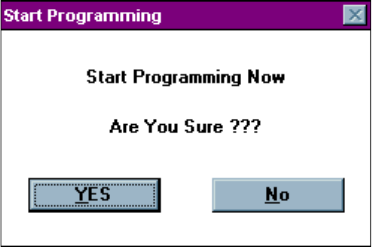
Selecting Device>Program produces the following dialogue:
Starting the Program routine
Selecting <Yes> begins the programming operation; <No> stops the programming
operation.
OPTIMA PROM SOFTWARE
Optima User Manual
81
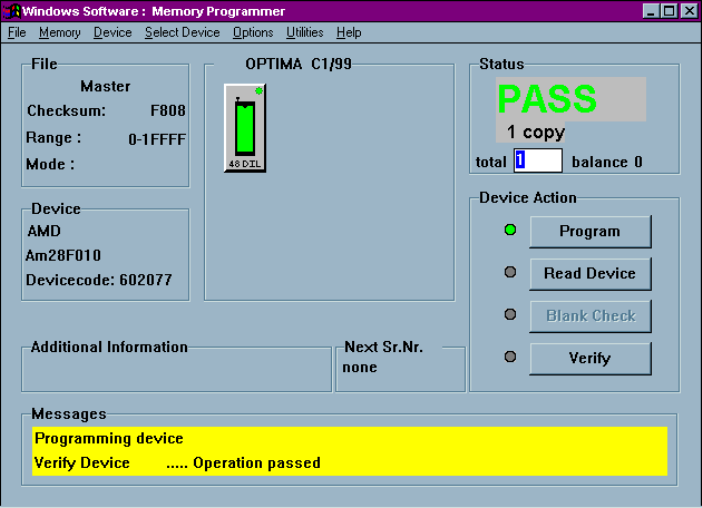
Upon successful completion of the programming operation, PASS will appear in the
Status area indicating proper programming:
Programming operation has passed
Any special information related to the programming operation will appear in the
Messages text area at the bottom of the screen.
The first process performed on the device during the Program operation is a check for
blank state. If the device is EEPROM based, then an erase cycle will be executed
automatically. If it is not erased and is UV-erasable or is a one-time programmable
(OTP) device, the Optima software will test to see if the pattern in memory can be
over-programmed (that is, new data is programmed on top of the existing pattern in
the device). If over-programming is possible, then you will be asked Skip blank check:
Yes/No. If you select <YES>, then the device will be over-programmed. If you select
<No>, you will receive a “Device not blank” error message, and the Program
operation will stop.