OptimaUserManual.pdf - 第28页
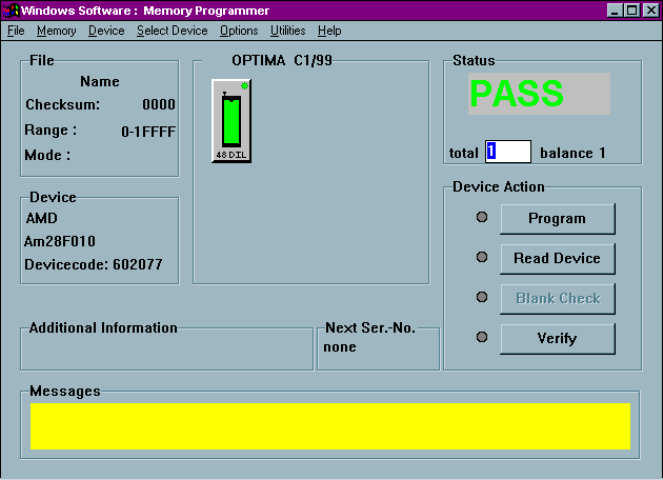
QUICK ST ART Opti ma User M anual 22 5. Click OK to save that selection and di splay the Main P rogram m ing screen:
QUICK START
Optima User Manual
21
Programming a Memory Device By Loading A Data File
If you wish to program a memory-based device and you will be loading a data file,
follow this procedure.
S
ELECT THE DEVICE YOU WISH TO PROGRAM
:
Programming begins by selecting the device you wish to program. To select the
device, follow these steps:
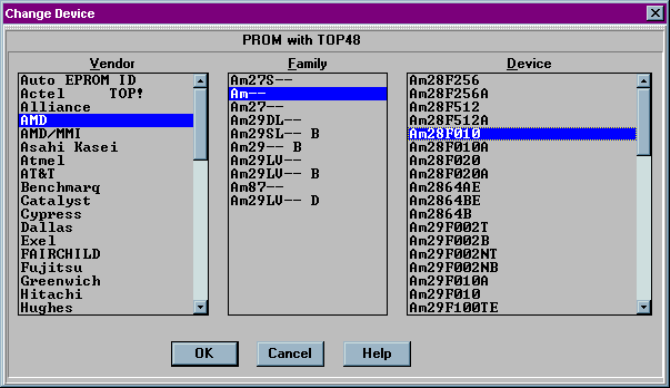
1. Double click the Optima PROM icon on the Windows desktop. The Change
Device window displays a device list for the specific TOP you are using.
2. Click on the name of the Vendor. When you do that, the Family and Device lists
may change.
3. Click on the general Family of devices. The Device list may change again based
of the Family you chose.
4. Click on a device part number from the Device list. In this example, an
AMDAm28F010 is selected:
QUICK START
Optima User Manual
22
5.
Click OK to save that selection and display the Main Programming screen:
QUICK START
Optima User Manual
23
L
OAD A
D
ATA FILE
:
After you have selected the device, you are ready to load a data file into RAM. To
load a data file, follow these steps:
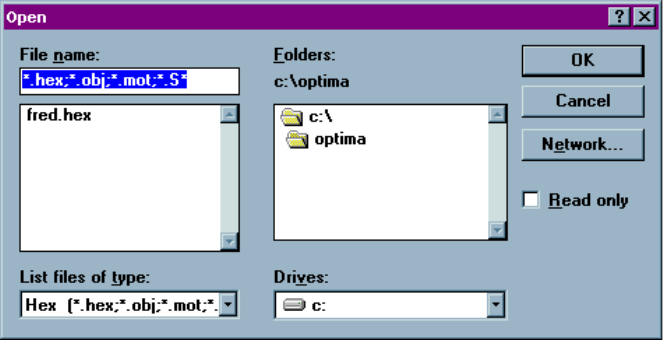
1. Select File > Load from the main menu bar. The Open dialog box is displayed:
2. Browse through the “List files of type” box and select the appropriate program
data file name from the list on the screen.